
CAD work punishes vague tools. You notice it in the little things, like pointer drift during fine edits, hand fatigue after a long session, or a scroll wheel that feels too loose for view changes. The eight picks below focus on shape, control, button layout, and desktop fit, so you can choose a mouse that matches the way you actually draft, model, and review work.
Quick Look At The Shortlist
PHILIPS Ergonomic Wireless Mouse, Multi-Device Bluetooth (USB-A/C)

3Dconnexion SpaceMouse Wireless 3DX-700115

3Dconnexion CadMouse Compact Wireless
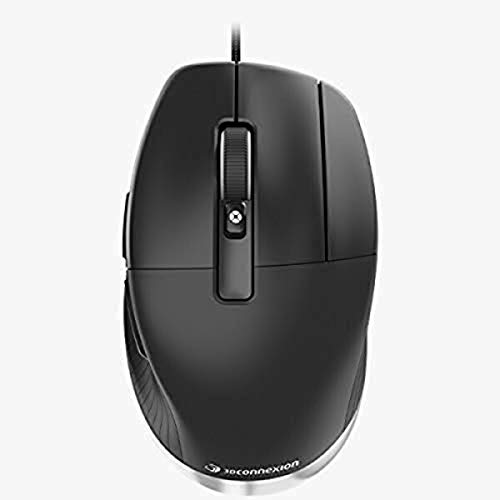
3DConnexion CadMouse Pro Mouse 7 Button

3Dconnexion SpaceMouse Pro Wireless BT

3Dconnexion CadMouse Compact Mouse 7 Button

Logitech MX Master 4 Ergonomic Wireless Mouse Graphite

3DConnexion 3DX-700059 Spacemouse Compact
More Details On Our Top Picks
The PHILIPS model makes sense for mixed desks, where you move between a laptop, a Mac, and a work PC without wanting to juggle extra hardware. Side scroll helps with wide timelines and dense design sheets, while the right-handed shape should feel familiar during long drafting sessions.
It’s quieter than many office mice, so late work in a shared space feels less distracting. The trade-off is simple, it stays in the productivity lane rather than chasing CAD-specific navigation tricks, which makes it a better all-rounder than a specialist tool like the 3Dconnexion options.
What We Like
- Bluetooth and USB-A or USB-C support make desk changes easier.
- Silent clicks suit shared offices and evening work.
- Side scrolling helps with broad drawings and long spreadsheets.
- Rechargeable design cuts down on disposable cells.
- Five DPI steps let you tune pointer speed for detail work or quicker general use.
Things To Consider
- Its shape leans toward general comfort, not CAD-specific control.
- Right-handed users get the best fit.
- Wireless convenience adds one more thing to keep charged.
Feature Snapshot
Who It Suits Best
You benefit most here when your CAD work sits beside email, admin, and everyday desktop tasks, because this mouse stays versatile without feeling basic.
A Better Fit Elsewhere
3Dconnexion CadMouse Pro Mouse is the stronger match for desk-bound CAD specialists who want a wired layout with more direct button access.
This one changes the job description, since it is built around 3D navigation rather than ordinary pointer use. In practice, that matters most for model rotation, pan, and zoom work, where a standard mouse can feel a bit like using a spoon for soup.
You may find it especially helpful beside a regular mouse, not as a total replacement. The honest read is that it suits specialists better than casual users, and that narrower focus is exactly why it deserves a place here.
Highlights
- Wireless Bluetooth setup keeps the desk cleaner.
- 3D-focused control suits modeling and scene navigation.
- Pairs well with a standard mouse for split workflows.
- Less cable clutter helps tighter workstation layouts.
Softer Spots
- It is a specialist tool, so everyday cursor use is only part of the story.
- New users usually need time before the control feels natural.
- Best results come from software that benefits from 3D input.
At A Glance
Whose Shelf It Belongs On
You fit this well when your day revolves around 3D modeling, scene manipulation, or navigation-heavy software.
Another Choice May Suit
Logitech MX Master 4 Ergonomic Wireless Mouse with Haptics suits you better when you want a more traditional shape for office work that still touches CAD.
The compact wireless version keeps the CAD-first spirit but trims the footprint, which helps on a crowded desk or a laptop carry setup. That smaller body is a smart fit for travel-heavy work, though you may notice it gives up some of the anchored, full-hand feel that bigger mice provide.
Compared with the PHILIPS mouse, this one is more focused on specialist ergonomics than broad office comfort. It feels like the right middle ground for CAD workstations that also need to stay tidy.
Strengths
- Compact shape saves room beside a tablet, keyboard, or sketch pad.
- Wireless design keeps movement smooth on mobile setups.
- CAD-centered layout should suit precise desktop work.
- Easier to pack than larger ergonomic mice.
Points To Note
- Compact size can feel less filling in the hand during long sessions.
- Wireless gear still needs charging awareness.
- Users who prefer a heavier palm support may want a larger shape.
Core Details
Best Suited To
You get the most from this pick when portability, desk cleanliness, and CAD-focused shape all matter at once.
Reach For A Different Pick When
3DConnexion CadMouse Pro Mouse is the stronger match for a fixed workstation where wired control and more buttons matter more than size.
Wired control and seven buttons give this model a very work-first feel, which is exactly why it belongs in a CAD roundup. In a fixed studio or home office, that extra button access can save a lot of small hand movements during repetitive commands.
The optical sensor and cable setup also keep the focus on steady input rather than battery checks. It’s not the smallest or lightest option here, but for long desk sessions, that added substance can feel reassuring.
Upsides
- Seven-button layout supports more shortcuts within reach.
- Wired connection avoids battery management.
- Optical tracking suits steady cursor control on a desk.
- Feels tailored to repetitive CAD commands.
- Black finish keeps the look understated.
Room For Improvement
- Wired use limits how far you can move from the machine.
- Seven buttons can feel busy until you map them well.
- It makes more sense at a fixed workstation than a carry setup.
Details At A Glance
Who Should Grab It
You fit this best when your CAD desk stays in one place and you want shortcut access without switching devices.
Where A Sibling Pick Shines
3Dconnexion CadMouse Compact Wireless suits mobile CAD work more comfortably, especially when desk space is tight.
This is the more specialized wireless SpaceMouse in the group, so it fits best beside advanced 3D work rather than as an everyday office mouse. Compared with the smaller wireless CadMouse options, it leans harder into professional navigation and a more dedicated control feel.
That extra focus matters in long modeling sessions, especially when your hands stay on the desk for hours. The trade-off is obvious enough, it’s less about casual convenience and more about giving you the right tool for demanding projects.
Best Bits
- Wireless BT connection reduces desk clutter.
- Built for more involved 3D navigation work.
- Useful alongside a separate mouse and keyboard.
- Feels aimed at long studio sessions.
Worth Noting
- Specialist control means a learning curve for new hands.
- It makes the most sense in 3D-focused software.
- Less practical as a do-everything office mouse.
Key Specs
Made For
You suit this model best when 3D navigation sits at the center of your workday and you want a wireless setup.
Look Elsewhere When
Logitech MX Master 4 Ergonomic Wireless Mouse with Haptics is the easier everyday fit for mixed office and design work.
The compact wired version keeps the CAD-focused button count but trims away some bulk, which works well on a small desk or beside drawing tools. For tight setups, that smaller shape can feel easier to place and leave in one spot.
It’s the quiet utilitarian sibling in this lineup, not flashy, just focused on getting through work. The honest read is that it suits you best when you want a compact wired mouse and do not need a sprawling body.
Bright Spots
- Seven buttons give you useful shortcut space.
- Five programmable buttons help shape your setup.
- Dedicated middle button is handy for CAD navigation habits.
- Compact ergonomic shape saves room.
- High-resolution sensor supports fine pointer work.
Minor Gripes
- Wired connection keeps it tied to one workstation.
- Smaller shape may not fill a larger hand as fully.
- Button mapping takes a little setup time.
Technical Sheet
The Right Fit
You suit this model best when you want compact wired control and still care about shortcut flexibility.
Swap It Out When
3Dconnexion CadMouse Pro Mouse is the better choice for a fuller, more desk-anchored feel and a bigger control layout.
The MX Master 4 leans toward a high-comfort productivity mouse, and that broad shape makes sense for mixed days that blend CAD with email, docs, and browsing. Haptic feedback adds a tactile layer you notice during navigation, while ultra-fast scrolling helps you move through long files without endless wheel turns.
USB-C charging and Windows or MacOS compatibility make it easy to fit into modern desks. Compared with the CadMouse models, it is less specialized for CAD shortcuts, but that broader usefulness is exactly why plenty of mixed-work users gravitate toward it.
Positives
- Ergonomic shape supports long desk sessions.
- Haptic feedback adds clearer touch response during navigation.
- Ultra-fast scrolling saves time in long documents and timelines.
- USB-C charging fits modern accessory habits.
- Works with Windows and MacOS.
Areas To Watch
- Its strength is broad productivity, not CAD-only control.
- Extra features can feel like more than you need for simple drafting.
- Comfort-focused designs still depend on your hand size.
Feature Rundown
Built With In Mind
You fit this best when your CAD use sits inside a larger productivity routine and you want comfort first.
A Better Fit Elsewhere
3Dconnexion CadMouse Pro Mouse is the stronger call for CAD-heavy shortcut work at a dedicated design desk.
This compact SpaceMouse keeps the desk footprint small while still targeting 3D navigation work, which makes it a tidy match for focused CAD stations. In a setup already crowded with a keyboard, drawing tablet, or reference monitor, that smaller presence helps more than it sounds like it should.
It is not a general-purpose mouse, and that’s the point. Compared with the Logitech MX Master 4, it is far more specialized, so you should expect it to complement a conventional pointer device rather than replace one.
Reasons To Buy
- Compact body suits tight desk layouts.
- Purpose-built for 3D navigation tasks.
- Pairs neatly with a standard mouse.
- Helps keep a CAD station organized.
Small Caveats
- It works best as part of a two-device setup.
- Specialized controls take time to learn.
- General office browsing is only part of its story.
Feature Card
Who Will Love This
You fit this best when you want a compact companion device for serious 3D work at a dedicated desk.
Where Shoppers Go Wrong
3Dconnexion CadMouse Compact Wireless is the better move for anyone who needs a more familiar mouse shape with portable flexibility.
How To Choose The Right Computer Mouses For Cad
Shape Comes Before Fancy Features
CAD work rewards a mouse that fits your hand without forcing constant repositioning. A flatter productivity shape can work for mixed office use, while a more sculpted body helps during long design sessions at a single desk. Side buttons, a dedicated middle click, and a stable thumb rest matter because they cut down on tiny movements that pile up over a day.
DPI, short for dots per inch, describes how fast the pointer moves for each inch of mouse travel. Higher levels help on large displays and multi-monitor setups, while lower settings can feel steadier for detail edits. The right balance depends on the way you draft, not just the size of your screen.
Wired, Wireless, Or A Hybrid Desk
A wired mouse suits a fixed workstation where you want steady power and no charging routine. Wireless models make sense for laptop docks, clean desk setups, and desks that double as review stations. Bluetooth is useful when you want to skip a dongle, but a USB connection can still feel simpler on a dedicated desktop.
Some CAD users even keep two devices close at hand, a specialist control tool and a standard mouse. That setup gives you direct 3D navigation on one side and everyday cursor control on the other. It’s a practical pairing, not excess for its own sake.
Buttons And Scroll Control Change Daily Comfort
Extra buttons are not decoration in this category, they’re shortcut slots. You can map common commands, reduce menu travel, and keep your hand on the mouse during repetitive work. A side scroll wheel also helps on wide drawings, dense timelines, and large spreadsheets that surround the CAD workflow.
The trade-off is learning time. More controls mean more setup, and some mice feel better only after you assign functions that match your habits. That’s why a straightforward option can suit a general office desk, while a seven-button CAD mouse fits a serious design station more naturally.
Match The Mouse To The Rest Of Your Setup
Screen size, arm posture, and keyboard placement all shape what feels comfortable. A compact mouse helps when the desk is crowded, but a larger ergonomic shell can reduce strain during long sessions. The best choice is the one that lets you keep moving through the drawing without thinking about the mouse itself.
For mixed-use desks, a broad productivity model often makes more sense than a specialist tool. For dedicated CAD stations, purpose-built models earn their place quickly because they shorten small tasks you repeat all day. That’s the real test in this category, not marketing flair.
Things Worth Knowing First
Wrong Turns To Avoid
A common mistake is chasing features you won’t map or use. A crowded button layout looks helpful on paper, but it can slow you down until the commands become second nature. Another slip is buying a tiny travel mouse for long drafting sessions, then wondering why your hand feels cramped after a few hours.
Skip the habit of choosing only by sensor buzzwords. Shape, button access, and desk fit matter more in daily CAD work than a long feature list with no workflow plan behind it.
The Upgrade Payoff
Higher-tier models usually cost more because they add specialist controls, better ergonomics, and more polished materials or build choices. In this category, that often means a body that supports the hand better, extra shortcut access, or a separate 3D input layer that a basic mouse cannot match.
The upgrade makes sense when you spend real time in modeling software or repeat the same pointer-heavy steps every day. For lighter drafting or mixed office work, a comfort-first mouse can be enough without stretching the budget for controls you barely use.
Closing Thoughts
The best computer mouse for CAD depends on how deep your work goes. A mixed-use desk does well with the PHILIPS or Logitech options, while specialist modeling benefits more from the 3Dconnexion models with purpose-built control. You’ll get the most value by matching the mouse to your hand, your desk, and the software you live in every day.
