
Picking a mouse for a MacBook sounds simple until you spend a full day switching between tabs, editing docs, and carrying your laptop from desk to desk. The right shape, connection method, and button layout can save your wrist from feeling like it worked overtime. You’ll see a mix here, from minimalist Apple-style control to fuller ergonomic designs that make longer sessions easier.
Some of these choices suit commuters and students who want something small enough to live in a sleeve pocket. Others make more sense for home offices, mixed-device setups, or anyone who wants quieter clicks and more hand support. The shortlist below keeps the focus on real daily use, not just spec sheet gloss.
Quick Look at the Shortlist
PHILIPS Ergonomic Wireless Mouse, Multi-Device Bluetooth
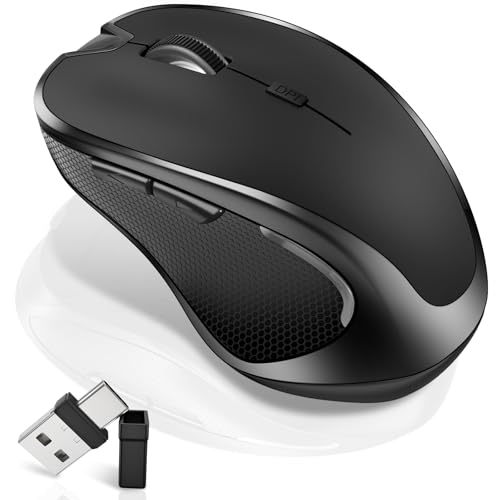
Logitech M185 Compact Ambidextrous 2.4 GHz Wireless Mouse – Swift Grey

WL300 Bluetooth Mouse Silent Wireless Mice, Cordless Computer Mouse-Grey

Logitech Signature Comfort M840 L Wireless Mouse Bluetooth – Graphite

Apple Magic Mouse – White Multi-Touch Surface

Bluetooth Wireless Mouse for Laptop mac MacBook ipad MacBook air MacBook pro pc Desktop Computer Windows Chromebook Notebook

Apple Magic Mouse – Black Multi-Touch Surface

KLO Rechargeable Bluetooth 5.2/3.0/Type-C/USB-2.4G Mouse for MacBook/MacBook air/Pro/iPad, Wireless Mouse for Laptop/Notebook/pc/iPad/Chromebook
More Details On Our Top Picks
Long workdays usually ask for a mouse that stays quiet and feels stable, and this PHILIPS model leans into that job. The right-handed shape, side scroll, and multi-device Bluetooth setup make it a sensible fit for a MacBook desk that also sees a Windows laptop or tablet. You may find the more contoured body especially helpful during spreadsheet work or long editing sessions.
The rechargeable design keeps it away from disposable batteries, which is a small but real convenience for a carry bag or shared office. Its 5-level DPI adjustment matters because pointer speed feels very different on a café table than on a large monitor at home. The trade-off is straightforward, it’s built for comfort and utility first, not for the minimal look Apple fans sometimes want.
What We Like
- Side scroll control helps with wide documents and timelines.
- Silent clicking keeps meetings and late-night work less distracting.
- Bluetooth and USB-A or USB-C support broaden device setup options.
- Rechargeable power avoids the routine of swapping batteries.
- Right-handed shaping gives more support than a flat travel mouse.
Worth Noting
- The right-hand shape makes it a poor fit for left-handed use.
- Side scroll controls add usefulness, though they also add learning time.
- The fuller body takes more bag space than the smallest compact picks.
Feature Snapshot
Who It Suits Best
You’ll get the most from this pick if you spend long stretches at a desk and want quieter clicks with a more supportive hand position.
Another Choice May Suit
Logitech Signature Comfort M840 L Wireless Mouse Bluetooth – Graphite suits you better when you want a more polished scroll wheel and a cleaner multi-device desk setup.
For a compact mouse that doesn’t ask for much, the M185 keeps the formula refreshingly plain. The ambidextrous shape helps it feel familiar in either hand, and the tiny USB-A nano receiver is the kind of thing that disappears into a laptop bag until you need it. That simplicity makes sense for commuting, classroom use, and shared desks.
Compared with the PHILIPS mouse above, this one skips ergonomic extras and keeps the body smaller, which helps with portability but gives up some palm support. Optical tracking is a basic, dependable approach for everyday movement, and the battery claim points toward long stretches between changes. The honest read is that you choose it for ease, not for bells and whistles.
Highlights
- Compact shape slips easily into a laptop sleeve or tote.
- Ambidextrous layout works for either hand without a learning curve.
- USB-A nano receiver keeps setup straightforward on older machines.
- Optical tracking covers routine browsing, docs, and school work.
Small Caveats
- The smaller body offers less support for long desk sessions.
- USB-A receiver use means you may need an adapter on newer Macs.
- It focuses on basics, so power users may want more controls.
Core Details
Who Will Love This
You’ll appreciate this mouse most as a student, commuter, or casual MacBook user who wants a small and familiar shape.
Look Elsewhere When
PHILIPS Ergonomic Wireless Mouse, Multi-Device Bluetooth suits you better when wrist support and side scroll control matter more than pocket-size portability.
This one moves into slightly more serious office territory than the M185, mainly because of the six-button layout and sculpted grip. Quiet clicks help in open-plan spaces, and the adjustable DPI gives you room to tune cursor speed for a big monitor or a smaller laptop screen. It feels aimed at people who want a little more control without jumping into a bulky mouse.
Work travel is a natural fit here, especially since the compact cordless format keeps the desk footprint modest. The longer battery claim is welcome, though any travel mouse still needs a little upkeep, mostly dusting the sensor area and remembering to keep it charged or powered. Compared with the PHILIPS pick, this one is less about hand support and more about useful control in a slimmer body.
Bright Spots
- Six buttons give you more shortcuts than a bare-bones travel mouse.
- Sculpted grip helps the hand settle in during longer sessions.
- Silent button feel suits libraries, offices, and late-night work.
- Adjustable DPI supports both precision work and faster general navigation.
- Battery life claim points to fewer interruptions over time.
Areas To Watch
- The extra buttons add flexibility, but they also add a bit of setup time.
- Slim mice like this can feel less substantial than ergonomic shapes.
- Travel use usually means keeping the sensor and underside clean.
At A Glance
Built With In Mind
You’ll get the most from this mouse if you move between office work, travel, and everyday laptop use.
Swap It Out When
Logitech Signature Comfort M840 L Wireless Mouse Bluetooth – Graphite suits you better when you want a more refined scroll wheel and a fuller desktop feel.
Logitech gives this mouse a more polished desk presence than the lighter travel picks above. The SmartWheel, which is a scroll wheel that can shift between quicker and finer movement, makes sense for long web pages, documents, and spreadsheets. Customizable buttons add another layer of control, so you can tailor it around the way you actually work.
Its multi-device compatibility with Windows, macOS, and iPadOS matters for anyone who jumps between a MacBook and another device during the day. In most home offices, that flexibility is more useful than an ultra-compact body, though it does mean the mouse feels less minimal in a bag. The trade-off is clear, you gain control and comfort, then give up some portability.
Standout Traits
- SmartWheel scrolling gives a smoother path through long documents.
- Customizable buttons help you trim repeated actions.
- Multi-device support suits mixed Apple and non-Apple setups.
- Graphite finish keeps the look understated beside a MacBook.
Points To Note
- The fuller size makes it less pocket-friendly than compact travel models.
- Extra controls help once configured, though setup takes a little attention.
- It feels more desk-oriented than lightweight carry-anywhere options.
Feature Rundown
Perfect Match For
You’ll like this most if your MacBook sits at the center of a broader desk setup and you care about scroll control.
Reach For A Different Pick When
Apple Magic Mouse – White Multi-Touch Surface suits you better when gesture-based control matters more than extra buttons.
The white Magic Mouse keeps the familiar Apple look and adds a Multi-Touch surface for gestures like swiping between pages and moving through documents. That gesture-first approach feels especially natural on a MacBook desk, where you may prefer smooth control over a row of extra buttons. The low-profile body also gives it a clean visual footprint, almost like a pebble in a very neat workspace.
Its rechargeable battery and automatic pairing fit people who want a mouse that stays in the background once set up. Compared with Logitech’s more button-rich models, this one asks you to adapt to its gesture style rather than giving you more hardware controls. The catch is comfort, since the flatter shape won’t suit every hand during long sessions.
Upsides
- Multi-Touch gestures make page navigation feel very direct.
- Wireless and rechargeable design keeps the desk tidier.
- Automatic pairing suits MacBook setups that need little setup time.
- Included USB-C charging cable simplifies first-time charging and pairing.
Softer Spots
- The low profile may not suit every grip style.
- Gesture control has a learning curve for anyone used to standard buttons.
- It is more specialized than the broader Logitech options in this list.
Details At A Glance
Whose Shelf It Belongs On
You’ll enjoy this most if your MacBook is the center of your setup and you like gesture-based navigation more than extra buttons.
Where A Sibling Pick Shines
Logitech Signature Comfort M840 L Wireless Mouse Bluetooth – Graphite suits you better when a traditional scroll wheel and custom buttons matter more than touch gestures.
This silver mouse leans heavily into cross-device compatibility and low-maintenance behavior. The auto sleep mode is the practical detail here, since it helps stretch battery life during the moments when your laptop is shut or the receiver is out of use. That makes it a decent fit for people who leave a mouse in a backpack, then bring it out for classes, hotel desks, or co-working spaces.
Compared with the Apple picks, it gives up the clean gesture feel and the branded Mac polish, but it also keeps the setup more universal. The sleep behavior sounds small, yet that sort of detail matters when you move between workstations all week. You may find it especially useful as a backup mouse that still feels ready for daily use.
Reasons To Buy
- Wide compatibility helps the mouse fit mixed-device travel kits.
- Auto sleep behavior supports longer stretches between charges or checks.
- Silver finish keeps the look understated beside a MacBook.
- Compact format works well for carry-on or backpack storage.
Room For Improvement
- The feature list is lighter than the more advanced Logitech options.
- Universal compatibility can matter more than refinement for some desks.
- Small mice are easy to carry, though they can feel plain in the hand.
Quick Facts
The Right Fit
You’ll like this most when your mouse needs to move between a MacBook and other devices without much fuss.
Not Your Match When
Apple Magic Mouse – Black Multi-Touch Surface suits you better if you want a more seamless Mac-first gesture experience.
The black Magic Mouse carries the same gesture-heavy idea as the white version, but the darker finish gives it a slightly sharper desk look. It glides smoothly, pairs automatically with a Mac, and ships with a woven USB-C charge cable, so the setup path stays simple. For a MacBook desk that values visual consistency, that combination feels well judged.
Battery life is listed at about a month or more between charges, which is generous enough for normal office rhythms. Compared with the Logitech Signature Comfort M840 L Wireless Mouse Bluetooth – Graphite, you lose the more traditional buttons and customizable controls, so this is really about touch navigation and Mac flow. The honest read is that it suits a very specific kind of workspace, and that’s part of its appeal.
Best Bits
- Black finish pairs neatly with darker Mac accessories.
- Multi-Touch surface handles page swipes and document scrolling.
- Automatic pairing keeps setup short and straightforward.
- Rechargeable design reduces routine power upkeep.
- Included USB-C cable supports charge and pair use.
Honest Caveats
- The flat shape won’t suit every hand for all-day use.
- Gesture control asks for a little adjustment time.
- It’s more specialized than the broader comfort mice in this roundup.
Spec Overview
Best Suited To
You’ll appreciate this if your MacBook setup leans minimal and you prefer a touch-based workflow.
A Better Fit Elsewhere
PHILIPS Ergonomic Wireless Mouse, Multi-Device Bluetooth suits you better when comfort and side-scroll control matter more than gesture style.
KLO goes after flexibility in a way the simpler compact mice do not. Bluetooth 5.2, Bluetooth 3.0, Type-C, and 2.4G support give you several ways to hook it up, which helps when your desk changes from one laptop to another. For mixed setups that include a MacBook, iPad, Chromebook, or PC, that broad connectivity can feel reassuring.
The rechargeable design keeps it in the same low-maintenance lane as the other wireless picks, while the black finish stays understated. Compared with the Apple mice, it’s less about gesture refinement and more about connection options, so it suits practical setups rather than design-led ones. You may find it especially useful as an all-purpose spare that still earns its place on the desk.
Positives
- Several connection modes make it easy to match different devices.
- Works across MacBook, iPad, Chromebook, and PC use cases.
- Rechargeable design keeps the power routine simple.
- Black finish blends in well with most laptop setups.
Minor Gripes
- The many connection options can feel more involved than a single-mode mouse.
- Broad compatibility matters most for mixed-device homes and offices.
- It’s a practical tool, not a highly specialized control surface.
Feature Card
Who Should Grab It
You’ll get the most value from this mouse if your week includes several devices and you want one compact tool to cover them.
Another Choice May Suit
Apple Magic Mouse – White Multi-Touch Surface suits you better when gesture control and a Mac-first feel matter more than broad connection flexibility.
How To Choose The Right Macbook Mouses
Connection Style Matters More Than You’d Think
Bluetooth keeps your desk cleaner and avoids a dongle hanging off the side of a MacBook, which matters on newer laptops with fewer ports. A 2.4 GHz USB receiver can still make sense for older machines or for people who prefer a stable plug-in link, especially on a work laptop that stays put. Dual-mode and multi-mode mice sit in the middle, and they’re useful when you move between a MacBook, an iPad, and another computer during the week.
Look at the ports on your own laptop before you settle on a mouse, because USB-A, USB-C, and Bluetooth each solve different problems. A small receiver is convenient, but it can also be easy to misplace. For travel-heavy setups, one mouse with both wireless and wired-style flexibility often feels less fussy.
Shape Should Match How Long You Work
Flat, minimalist mice like the Apple Magic Mouse suit short bursts and gesture-heavy use, while fuller ergonomic shapes help when your hand stays on the mouse for hours. Right-handed contours, thumb rests, and sculpted grips reduce strain in a practical way, especially during long spreadsheet sessions or weekend editing projects. A compact body is easier to pack, though it usually gives up some palm support.
Think about your most common day, not your best-case desk setup. Students and commuters usually value portability first, while home office users often feel the benefits of a larger, more supportive shell. That trade-off shows up fast the moment you spend four straight hours dragging across a trackpad alternative.
Buttons, Scroll Wheels, And Gesture Control
Extra buttons can save time in browsers, design tools, and document apps because they put common actions under your thumb. A SmartWheel or side scroll wheel helps with wide spreadsheets, timelines, and long pages, while a Multi-Touch surface gives you swipes instead of extra hardware. The best choice depends on whether you like physical controls or a more touch-based feel.
Mac users often lean toward gesture control, but that preference is personal, not universal. If you jump between apps all day, programmable buttons can feel like a quiet shortcut through repetitive work. If your use is mostly browsing and writing, a simpler setup may be easier to live with.
Power, Portability, And Daily Maintenance
Rechargeable mice are convenient for desk use, while battery-powered models can be easier to toss in a bag and forget about for a while. Automatic sleep modes help limit unnecessary drain, but they still benefit from the occasional charge check. A travel mouse should also be easy to clean, since dust and pocket lint tend to collect around the sensor area and underside.
For most people, the sweet spot is a mouse that balances comfort, connection flexibility, and a charging routine that doesn’t feel annoying. You do not need every feature at once, and that’s usually the quickest path to a better fit. Start with your desk habits, then narrow from there.
Things Worth Knowing Before You Choose
Mistakes Worth Dodging
One common slip is choosing a mouse that looks sleek but feels too flat for long use. Another is overlooking receiver type, which matters a lot on a MacBook that may only have USB-C ports. It also helps to think beyond the desk, since a mouse that works well at home can feel awkward in a backpack or small sleeve.
Many people focus on connection type and forget grip shape, button count, and scroll behavior. That’s where daily comfort either holds up or gets annoying. A tiny travel mouse is fine for light use, but it can feel undersized fast during heavier work.
What The Higher Tier Buys
More expensive mice usually bring better shaping, smoother scrolling, and more flexible controls. You’re paying for more thoughtful hardware, not just branding, and that often shows up in the way the mouse fits the hand or handles repeated tasks. Multi-device switching, customizable buttons, and gesture support also tend to live in the upper end of the group.
The upgrade makes sense for people who spend many hours at a desk or juggle several devices. For casual browsing, a simpler mouse can still be enough. The extra spend only earns its keep when you’ll use the extra controls often.
Final Thoughts
The best MacBook mouse for you comes down to how you work, not just how the mouse looks beside your laptop. Compact models make sense for commuting, ergonomic shapes help during long desk sessions, and Apple’s gesture-focused options suit a very Mac-first workflow. Pick the one that fits your day most closely, then stop worrying about the rest. The right choice should feel easy to forget, which is usually a good sign.
