
3D modeling asks a lot from your hand, your wrist, and your patience. You need control that feels smooth on long sessions, shortcuts that save time, and a shape that does not turn into a distraction after an hour or two. The picks below cover everything from classic ergonomic mice to dedicated 3D controllers, so you can match the tool to the way you actually work.
The Shortlist At A Glance

Logitech MX Master Wireless Mouse Meteorite
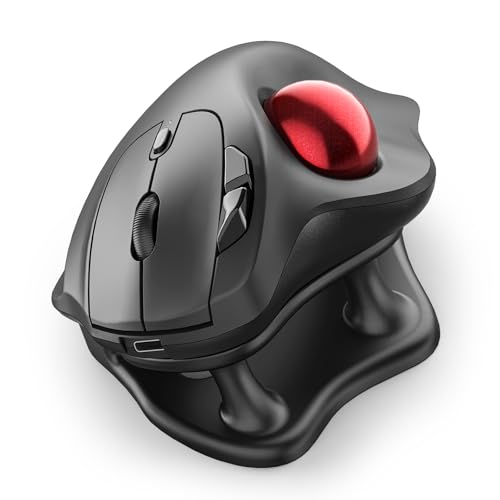
Nulea Wireless Trackball Mouse Ergonomic 21.7 Tilt Stand Thumb Control
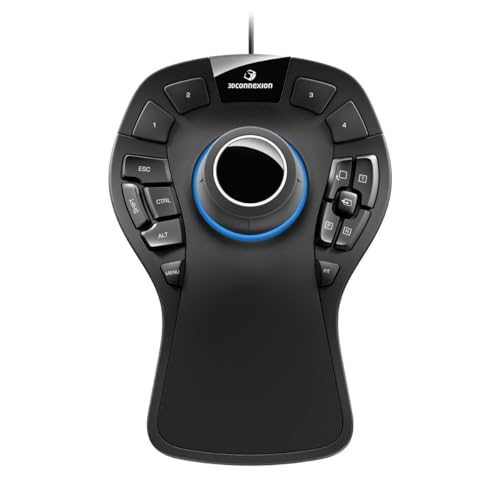
3Dconnexion 3DX-700040 SpaceMouse Pro 3D Mouse

3Dconnexion SpaceMouse Wireless Bluetooth Edition 3DX-700115

3Dconnexion CadMouse Compact Wireless
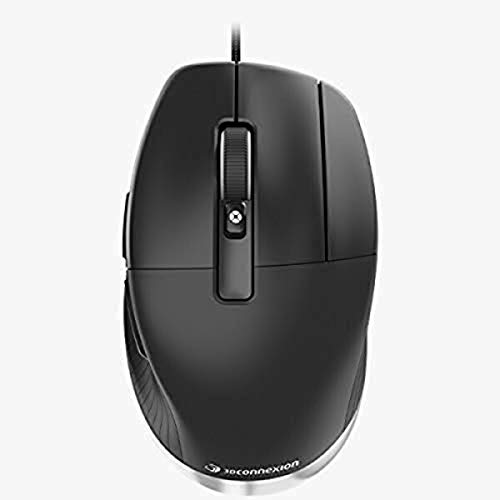
3DConnexion CadMouse Pro Mouse Black

3Dconnexion SpaceMouse Pro Wireless BT

WL300 Bluetooth Mouse Silent Wireless Mice Grey
More Details On Our Top Picks
Your hand gets a lot of help here, especially during long asset-fixing sessions or when you’re moving between design apps and reference windows. The sculpted shape and hyper-fast scrolling make the workflow feel less stop-start, and the ability to control up to three computers is handy in a mixed Mac and Windows setup.
The trade-off is that this is still a standard mouse, not a dedicated 3D navigation tool, so it fits broader studio work better than deep CAD manipulation. For most desks, that’s fine, since the rechargeable design and dual connection options keep the setup tidy without getting fussy.
What We Like
- Works across up to three computers, which helps when your modeling setup crosses machines.
- Bluetooth Smart wireless and the included receiver give you flexible connection choices.
- Hyper-fast scrolling speeds through long timelines, reference sheets, and documentation.
- The shaped body supports a more relaxed hand posture during long desk sessions.
- Rechargeable power avoids the hassle of swapping batteries.
Minor Caveats
- It is still a traditional mouse, so it won’t replace a 3D controller for orbiting scenes.
- The sculpted shape suits many hands, but very small grips may need time to adjust.
Feature Snapshot
Who It Suits Best
You’ll get the most from this one if your 3D work sits alongside regular desktop tasks and you want one mouse for both.
Where A Sibling Pick Shines
3Dconnexion 3DX-700040 SpaceMouse Pro 3D Mouse is the better match for designers who spend more time orbiting and panning inside CAD software than moving between apps.
A trackball changes the feel of the job in a pretty direct way, because your thumb does the pointing while your hand stays mostly planted. That can be welcome on a crowded desk, and the 21.7-degree tilt stand gives the hand a more angled resting position than a flat shell.
The four DPI settings let you tune pointer speed for rough navigation or finer edits, and the ability to switch among three devices suits a small studio setup. It’s a smart fit for tight workspaces, though the learning curve is real for anyone used to moving a whole mouse across the desk.
Highlights
- Trackball control keeps the hand anchored, which helps in cramped workstation layouts.
- The 21.7-degree tilt stand adds a more natural wrist angle than many flat mice.
- Four DPI levels let you match pointer speed to rough navigation or careful edits.
- Three-device switching works well across a laptop, desktop, and tablet.
Small Caveats
- Trackball habits take some adjustment, especially during the first few sessions.
- Thumb control can feel different from a standard mouse, so precision work may take practice.
- Ball and shell cleaning matter more than they do on a simple glide mouse.
Core Details
Made For
You’ll appreciate this most if your desk space is limited and you prefer keeping the hand nearly still while you work.
A Better Fit Elsewhere
Logitech MX Master Wireless Mouse Meteorite is the easier choice for someone who wants a more familiar feel and broader all-purpose use.
This is the most purpose-built control device in the group, and it shows in the full hand rest, the six-degrees-of-freedom sensor, and the dedicated view and modifier keys. In practical terms, you get a tool aimed at moving through 3D space, not just pointing at menus.
The wired connection can feel old-school, though in a fixed workstation that often matters less than the stability of a cable and the predictability of a dedicated controller. For CAD-heavy days, the 15 programmable keys and on-screen display can save a surprising amount of back-and-forth.
Reasons To Buy
- Six-degrees-of-freedom control suits orbiting, panning, and zooming inside 3D software.
- The full-size, soft-coated hand rest supports long desk sessions.
- Fifteen programmable keys give you room for shortcuts, modifiers, and quick actions.
- Keyboard modifier support and a virtual numpad help reduce hand travel.
- Wide system support covers Windows, macOS, and Linux.
Things To Consider
- The cord keeps the setup tethered to the desk, so it suits a permanent workstation more than a mobile one.
- Its layout is specialized, so it won’t replace a regular mouse for every task.
- The large body needs desk room, which matters in compact home offices.
Technical Sheet
Who Will Love This
You’re the best match for this if your work revolves around CAD navigation and you want dedicated 3D movement controls at arm’s reach.
Swap It Out When
Logitech MX Master Wireless Mouse Meteorite makes more sense for mixed office and design work where a standard mouse still needs to handle most of the day.
This version keeps the SpaceMouse idea but drops the cable, which makes a cleaner desk and a little more freedom in how you arrange your workstation. That matters for anyone who moves a laptop between rooms or hates one more wire crossing the mat.
It still belongs to the specialized 3D navigation camp, so the value comes from scene control rather than ordinary cursor work. The honest read is that it feels especially sensible for desks built around compact, wire-light setups.
Upsides
- Wireless use keeps the workstation cleaner and less crowded.
- The compact 3D navigation layout fits a dedicated modeling desk.
- Bluetooth connection suits laptops and mixed-device setups.
- It avoids cable drag, which can matter during frequent repositioning.
Softer Spots
- Specialized controls still take adjustment, especially for first-time SpaceMouse use.
- It makes the most sense beside, not instead of, a regular mouse.
At A Glance
The Right Fit
You’ll likely value this most if your work desk stays in one place but you still want a cleaner layout and fewer wires.
Another Choice May Suit
3Dconnexion SpaceMouse Pro Wireless BT is the better call for power users who want more onboard controls than this simpler wireless version.
A smaller footprint can be a real advantage at a portable drafting station, and this mouse is built around that kind of tidy setup. Compared with the fuller MX Master shape, it looks like a more focused tool for workspaces where space and transport both matter.
The wireless design keeps the desk uncluttered, which helps more than people expect when your tablet, keyboard, and notebook already take most of the surface. The catch is simple, it is meant to be compact, so users with larger hands may want to think about comfort over long sessions.
Bright Spots
- Compact size fits well in narrow desks and travel bags.
- Wireless use keeps the setup simpler for mobile workstations.
- Its shape suits focused pointing tasks without taking much room.
Areas To Watch
- Smaller mice can feel cramped during long modeling days.
- Anyone with larger hands may want a fuller shell.
- Because it is compact, there’s less room for a very relaxed palm grip.
Details At A Glance
Whose Shelf It Belongs On
You’ll get the most value from this if your work moves between home, studio, and travel setups and you want a lighter mouse to carry.
Reach For A Different Pick When
3Dconnexion CadMouse Pro Mouse Black is the stronger call for a desk-bound workflow that benefits from more buttons and a wired connection.
A wired seven-button mouse like this makes sense in a desk-first CAD setup, where you want a predictable connection and more physical controls close at hand. Compared with the compact wireless CadMouse, this one is built to stay put and handle longer, more demanding sessions.
The optical sensor and cable keep the setup straightforward, and the black finish is plain in a good way, nothing fussy to maintain. It suits users who spend most of the day in modeling software and want a mouse that feels more like a work tool than a travel accessory.
Standout Traits
- Seven buttons give you room for shortcuts and repeated actions.
- Wired operation keeps the connection simple at a fixed workstation.
- The optical design supports steady, familiar pointer movement.
- Desk-bound users avoid battery management entirely.
Worth Noting
- The cable keeps it anchored to one desk, so it is less flexible for mobile work.
- It is more specialized than a general office mouse.
- A wired setup can feel busy on a very small desk.
Quick Facts
Built With In Mind
You’re the right match for this if your modeling station stays in one place and you value buttons over portability.
Where Shoppers Go Wrong
Logitech MX Master Wireless Mouse Meteorite is the safer choice for someone who wants a more general-purpose mouse that still handles creative work well.
This is the step-up choice for people who want the SpaceMouse concept in a wireless form with a more polished desk feel. Compared with the simpler SpaceMouse Wireless Bluetooth Edition, this one makes more sense for users who expect their 3D controller to do more than basic navigation.
The real value sits in how it fits into a serious workstation, where fewer cables and a stronger control set can keep your setup calmer. For advanced CAD work, that mix can feel very practical, though it’s still a specialized device rather than a do-everything mouse.
Best Bits
- Wireless operation suits a cleaner, less crowded desk.
- It serves advanced 3D navigation needs well in a dedicated workspace.
- The form factor matches a serious modeling setup.
- It pairs well with a separate everyday mouse.
Room For Improvement
- Specialized controls mean a learning curve for new SpaceMouse users.
- It works best alongside, not instead of, a regular mouse.
- Advanced users will get more from it than casual desktop users.
Core Details
Perfect Match For
You’ll appreciate this most if you already know you want a dedicated 3D controller for a permanent design desk.
Look Elsewhere When
3Dconnexion CadMouse Pro Mouse Black is the better fit for people who still want a classic mouse shape with extra buttons.
The WL300 is the practical all-rounder in this lineup, with quiet clicks, six buttons, a sculpted grip, and adjustable DPI for a broad range of desk work. The tri-mode setup stands out because it covers wired use, 2.4G wireless, and dual Bluetooth, so you can move between a laptop, tablet, and desktop without much friction.
For travel or shared office use, that flexibility matters more than flashy extras, and the grey finish keeps things understated. The 18-month battery figure also helps it feel less needy than many simple wireless mice, although the tri-mode layout means you should think about how often you’ll actually switch between devices.
Positives
- Tri-mode connectivity gives you wired, 2.4G, and dual Bluetooth options.
- Quiet-click behavior suits shared offices and late-night work sessions.
- Six buttons leave room for everyday shortcuts.
- The sculpted grip helps the mouse settle naturally in the hand.
- Adjustable DPI lets you tune pointer speed for different jobs.
- The long battery figure reduces routine charging pressure during work travel.
Softer Spots
- It is more of a practical generalist than a specialized CAD control tool.
- The multi-mode setup is useful, but it adds a little choice fatigue at first.
Feature Rundown
The Right Fit
You’ll get the most from this if you split your time between laptop work, office desks, and travel and want one mouse that handles all three.
Where A Sibling Pick Shines
3Dconnexion 3DX-700040 SpaceMouse Pro 3D Mouse is the better choice for pure 3D navigation, especially in software where orbiting and panning matter most.
How To Choose The Right Mouses For 3d Modeling
Match The Tool To The Job
Your best choice starts with the kind of work you do most often. A standard ergonomic mouse, like the Logitech MX Master, suits modeling that sits beside email, browser tabs, and file management, while a dedicated controller like the 3Dconnexion SpaceMouse Pro makes more sense for heavy CAD navigation. Those are different jobs, and trying to force one tool to cover both can leave you annoyed.
Trackball designs are a middle path for tight desks, because the hand stays planted while the pointer moves. That helps in small studios, but it also brings an adjustment period that not everyone enjoys. The smarter move is to think about which motion you want to repeat all day.
Comfort Beats Spec Sheets Over Time
Shape matters more than a lot of shoppers expect. A sculpted mouse with a full palm rest can feel easy during long modeling sessions, while a compact shell is better for travel but may feel cramped after hours at a desk. The 21.7-degree tilt on the Nulea trackball is a good example of how angle can change comfort without changing the basic job.
Button placement matters too, especially for shortcut-heavy software. Seven buttons on the CadMouse Pro or 15 programmable controls on the SpaceMouse Pro can reduce hand travel, but only when the layout matches how you work. Too many controls in the wrong place can slow you down just as much as too few.
Connection Style Changes Daily Use
Wireless mice keep a workstation cleaner and make it easier to switch between rooms, laptops, or shared desks. Wired models skip charging concerns and sometimes feel steadier on a fixed workstation, which can be reassuring during a deadline week. Neither approach is automatically better, it depends on whether your setup changes often.
Bluetooth and 2.4G both have their place, and multi-device switching is worth attention in mixed Mac and Windows environments. That convenience is especially useful for people who keep reference material on one machine and modeling software on another. The best setup is the one that disappears into the background once you start working.
Think Beyond The Mouse Alone
For serious 3D work, the “right” mouse may actually be a mouse plus a dedicated 3D controller. A SpaceMouse handles orbiting and scene movement, while a regular mouse still handles menus, selection, and everyday desktop tasks. That pairing can feel like a tuned instrument rather than a one-note tool.
For beginners, a simpler ergonomic mouse is often the safer first step. It lets you learn your software without also learning a new control method on the same day. Once your workflow settles, upgrading to a specialized controller becomes easier to judge.
Things Worth Knowing First
Mistakes Worth Dodging
One common slip is chasing specialized controls before you know whether your software will actually reward them. A SpaceMouse is excellent for 3D navigation, but it does not replace a regular mouse for every task. Another mistake is picking a compact shape because it looks tidy, then discovering that long sessions feel cramped.
Skip the guesswork by tying the mouse to your longest work session, not your shortest one. Comfort, shortcut layout, and connection style matter more than glossy styling. That’s where a lot of people get caught.
Why Top Tier Costs More
Higher-end 3D mice often cost more because they add purpose-built controls, stronger materials, and layouts aimed at dense workflows. A device like the SpaceMouse Pro Wireless BT is not just a pointer, it is part of the navigation system for your software. That extra hardware and design effort shows up in the price.
You also pay for convenience when the control set saves time day after day. Programmable keys, better hand support, and cleaner wireless integration can justify the jump for serious work. For casual use, that extra capability may simply go unused.
Closing Thoughts
You do not need the fanciest model to improve your 3D workflow, but you do need the right shape for the way you work. The Logitech MX Master suits broad daily use, the SpaceMouse line is for dedicated navigation, and the CadMouse and WL300 options fill the middle ground with different strengths. Match the tool to your desk, your software, and your patience, and the right choice becomes a lot clearer.
