
Drafting work asks a lot from a mouse, especially during long stretches of fine adjustments, repeated zooming, and constant panel hopping. The right shape can spare your wrist, while the wrong one turns a full day into a slow grind. This roundup focuses on models that suit CAD work, 3D navigation, and detail-heavy office tasks, so you can match the tool to your desk habits instead of guessing.
You’ll see trackballs, sculpted wireless mice, a vertical option, and a specialist 3D controller. That mix matters because drafting is not one workflow, and your hand position, shortcut load, and screen setup all change the feel of a pick.
Shortlist For Drafting And Design Work

Logitech MX Ergo S Advanced Wireless Trackball Mouse USB C

Logitech MX Master Wireless Mouse
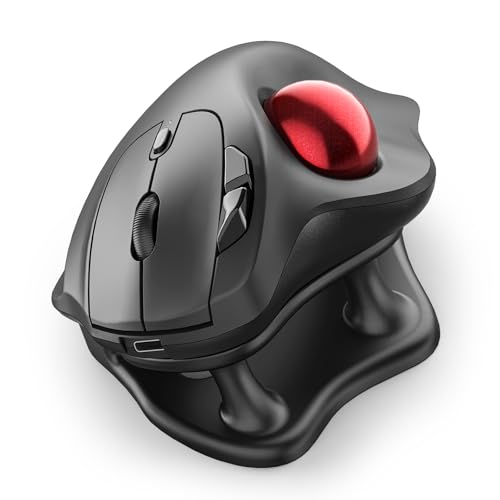
Nulea Wireless Trackball Mouse Ergonomic 21.7 Tilt Stand Thumb Control

3Dconnexion SpaceMouse Wireless Bluetooth Edition 3DX-700115

ELECOM Huge Plus Wireless Trackball Mouse

Logitech MX Master 3S

WL300 Bluetooth Mouse Silent Wireless Mice Grey
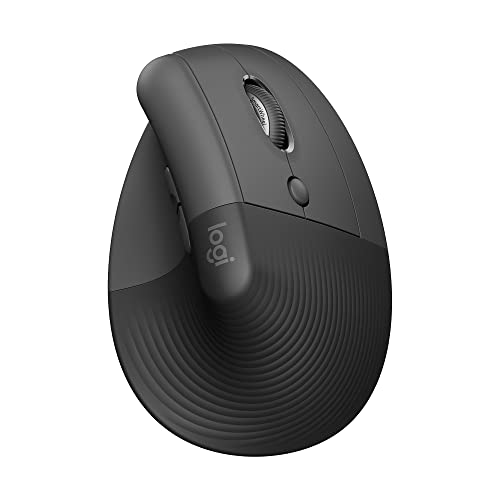
Logitech Lift Vertical Ergonomic Wireless Mouse Graphite
More Details On Our Top Picks
Trackballs like this make sense for drafting desks where you stay planted for hours and still need sharp cursor control. The MX Ergo S leans into that with an ergonomic shell, USB-C charging, Bluetooth, a secured dongle connection, and six programmable buttons for frequent commands.
The trade-off is simple, you give up the familiar sweep of a standard mouse, so the first few days can feel odd. Once that motion settles in, the fixed-base layout can be easier on a tight desk, especially for CAD work or repeated zoom-and-pan chores.
Strong Points
- The angled body helps your hand rest in a more natural posture during long design sessions.
- Six programmable buttons can trim a lot of repeated menu hunting in drafting apps.
- Bluetooth and the included dongle give you two connection paths for different setups.
- The rechargeable design keeps you from treating batteries like another desktop supply.
Things To Consider
- Trackball control takes a little learning, especially for precise first-time movement.
- The ball and housing need regular cleaning to stay smooth, which is common with this style.
- It suits a parked workstation better than a setup that moves from room to room.
Feature Rundown
Who It Suits Best
You’re a strong match for this one if your drafting setup stays mostly in place and you want less wrist movement from day to day.
A Better Fit Elsewhere
Logitech MX Master 3S suits desktop multitaskers better, because its scroll system and track-on-glass sensor feel more natural for mixed office and drafting work.
Some drafting desks need a mouse that behaves well across more than one computer, and this Logitech model leans hard into that reality. It pairs with up to three Macs or Windows machines and keeps the hand in a sculpted, natural position, which helps when your day swings between sketching, email, and reference work.
The hyper-fast wheel is the part many people notice first, because long documents move quickly and then switch to click-by-click control for tighter work. That balance fits busy office use very well, though the older shape and feature set feel less specialized than newer premium models like the MX Master 3S.
What We Like
- Three-computer control suits drafting desks that bounce between workstations.
- The sculpted shell supports a more relaxed hand position during long sessions.
- Fast scrolling cuts down the drag of long spec sheets and project files.
- Bluetooth Smart and the Unifying receiver widen setup options.
Worth Noting
- Its older generation feel may not appeal to you if you want the newest MX refinements.
- The large body needs a fair bit of desk room, so cramped trays can feel tight.
- Scrolling modes are useful, but the learning curve can be a touch higher than a basic mouse.
Feature Card
Built With In Mind
You’ll like this most if your drafting day stretches across multiple computers and you want one mouse that keeps pace without fuss.
Where A Sibling Pick Shines
Logitech MX Master 3S makes more sense for you if quieter buttons and newer sensor behavior matter more than broad multi-computer switching.
This Nulea trackball gives you a more anchored way to work, which can be useful on compact drafting desks and in home offices where space disappears fast. The 21.7-degree tilt stand is meant to place the hand at a more relaxed angle, and the thumb ball keeps cursor movement under one hand instead of across the whole desktop.
Four DPI levels, meaning cursor sensitivity steps, give you more room to tune the feel for detail work or faster general movement. The catch is that any trackball still asks for some adjustment time, so it suits patient tinkerers more than someone who wants a plug-and-forget shape.
Upsides
- The tilted body can feel easier on the hand during long desktop sessions.
- Thumb-based control helps keep movement tight when you’re tracing fine shapes.
- Four sensitivity steps make it easier to match rough navigation or precise edits.
- Bluetooth and 2.4G support cover a mix of laptop and desktop setups.
Minor Gripes
- Trackballs need periodic cleaning so the motion stays smooth.
- The learning curve can feel noticeable on the first few drafting projects.
- It’s less suited to people who prefer sweeping the mouse around a broad mat.
Details At A Glance
Whose Shelf It Belongs On
You’re a good match here if you want a trackball with a relaxed angle and you don’t mind spending a little time getting used to thumb control.
Another Choice May Suit
Logitech Lift Vertical Ergonomic Wireless Mouse is the better call for anyone who prefers a vertical grip instead of a ball-based control style.
Your drafting routine changes a lot once a device is built for 3D navigation rather than plain pointer movement. This SpaceMouse exists for model rotation, viewport control, and the kind of spatial work that usually feels clumsy on a standard mouse, so it makes the most sense beside CAD and design software.
The honest read is that it’s a specialist tool, not a general office replacement. That focus is the strength, because hands-on 3D movement can feel far more direct, but the same focus means everyday browsing or spreadsheet work may feel less natural than with the MX Master line.
Highlights
- Built for 3D movement, so model handling feels more direct.
- Bluetooth wireless keeps the desk cleaner than a tethered controller.
- Small footprint leaves room beside a keyboard and drawing pad.
- It pairs well with CAD workstations that need spatial control.
Areas To Watch
- It’s a niche tool, so daily office use may not feel as natural.
- Learning a new control style takes patience, especially outside design software.
- You’ll usually want a second mouse nearby for normal desktop tasks.
Core Details
Perfect Match For
You’re the right fit here if your work lives in 3D modeling, CAD navigation, or similar spatial tasks.
Swap It Out When
Logitech MX Master 3S is the easier all-around pick for someone who still wants strong drafting control but also spends hours on standard office work.
This ELECOM trackball is the sort of desk tool that rewards a busy shortcut habit. The 52mm ball, 10 programmable buttons, silent clicks, and support for Bluetooth, 2.4GHz wireless, or wired use give it a very broad control range for drafting, editing, and switching between devices.
The larger frame makes sense for a long-session setup, especially in a studio or home office where your hand wants more room to settle. It’s not the smallest option here, though, so you may find the footprint a bit much on narrow desks compared with the Nulea or the MX Ergo S.
Best Bits
- The large trackball gives your thumb a broad control surface.
- Ten programmable buttons suit shortcut-heavy drafting workflows.
- Silent clicks help keep the desk a little calmer during long sessions.
- Wired and wireless options make it easier to match different setups.
- Windows, Mac, and iPad support broadens its appeal across mixed spaces.
Points To Note
- The larger body asks for more desk room than compact trackballs.
- Extra buttons are useful, but they also take time to map sensibly.
- Trackball upkeep still applies, so periodic cleaning remains part of ownership.
Feature Snapshot
Made For
You’re the best match here if you want a feature-heavy trackball and your drafting work leans on lots of custom commands.
Look Elsewhere When
Nulea Wireless Trackball Mouse Ergonomic 21.7 Tilt Stand Thumb Control fits better for a smaller desk and a more restrained control layout.
This is the one that feels most at home in a long office day, especially when your drafting work is mixed with constant document handling. The 8,000 DPI sensor, quiet clicks, MagSpeed scrolling, and glass-friendly tracking give it a polished, highly adaptable feel that suits modern desks.
Compared with the older MX Master model, this one brings a cleaner click feel and a more polished performance profile. The trade-off is that it still sits in the fuller, sculpted shape category, so minimalists may find it larger than they want.
Positives
- The 8,000 DPI sensor helps with precise cursor movement across many surfaces.
- Quiet clicks are useful in shared offices or late work sessions.
- MagSpeed scrolling moves long files quickly, then stays precise when you need it.
- The ergonomic shell supports a relaxed thumb position over long stretches.
- Glass tracking broadens where you can work without a mouse pad.
Softer Spots
- The larger body feels best on a full desk, not a cramped tray.
- Extra features are great, but they add a little setup attention at first.
- It may feel like more mouse than you need for very simple tasks.
Core Details
Right Fit For
You’ll get the most from this if your drafting day blends detail work with lots of scrolling, switching, and everyday office chores.
A Better Fit Elsewhere
Logitech Lift Vertical Ergonomic Wireless Mouse is better for you if a vertical grip matters more than extra performance features.
The WL300 is built for mixed desk life, where a mouse has to move between laptop, desktop, and travel use without much fuss. Its tri-mode setup covers wired, 2.4G wireless, and dual Bluetooth use, so it can fit a wide range of work habits without feeling complicated.
The quiet click design makes it a friendly choice for shared spaces, and the sculpted grip gives your hand a more settled position than a flat shell. The honest caveat is that the source details are lighter than the Logitech models here, so this one reads more as a sensible utility pick than a feature-packed flagship.
Bright Spots
- Three connection modes give you a lot of setup flexibility.
- Quiet clicks suit shared rooms, libraries, and travel desks.
- The sculpted grip adds a bit more hand support than basic mice.
- Adjustable DPI helps you shift between casual use and closer work.
Small Caveats
- The shorter feature list means fewer premium extras than the Logitech picks.
- Travel use is appealing, but a smaller shape may not suit every hand.
- Battery details are given, yet the overall package feels more straightforward than specialized.
Technical Sheet
Built With In Mind
You’re a good fit here if you want a quiet, flexible mouse for work travel or mixed-device desks without a long feature list.
Another Choice May Suit
Logitech MX Master 3S suits you better if you want a more polished office mouse with stronger scroll behavior and broader refinement.
Vertical mice change the wrist angle rather than asking you to twist into a flatter grip, and that’s the appeal here. The Lift keeps that upright stance in a smaller body, with quiet clicks, Bluetooth, the Logi Bolt USB-A receiver, and four customizable buttons out of six.
That smaller size makes it a natural thought for compact desks and people with smaller hands, though larger hands may want to compare it carefully against the MX Ergo S. The shape can feel unusually natural after a short adjustment period, but it’s still a distinct style that rewards patience more than impulse.
Reasons To Buy
- The vertical grip changes hand posture in a way many desk workers prefer.
- Quiet clicks keep the mouse from sounding sharp in shared rooms.
- Bluetooth and the included receiver cover both wireless connection styles.
- Four customizable buttons help trim common drafting actions.
Room For Improvement
- Vertical shape takes a little time to feel normal.
- Smaller sizing may not suit every hand shape equally well.
- It feels more focused on comfort than on advanced workflow extras.
Feature Card
The Right Fit
You’ll appreciate this most if you want a smaller vertical mouse for a neat desk and a more upright hand position.
Where A Sibling Pick Shines
Logitech MX Ergo S Advanced Wireless Trackball Mouse USB C works better for you if you want a trackball instead of a vertical grip.
How To Choose The Right Mouses For Drafting
Match The Control Style To Your Work
Drafting asks for precision, but precision can come from different hand motions. Trackballs, like the Logitech MX Ergo S and ELECOM Huge Plus, keep the base still and move the pointer with your thumb, which helps on crowded desks and long sessions.
Standard sculpted mice, like the MX Master 3S and MX Master Wireless Mouse, feel more familiar and are easier for general office use. A 3D controller such as the SpaceMouse Wireless serves a narrower role, so it only makes sense when model navigation is a daily task.
Think About Desk Space And Hand Position
Desk size matters more than people expect. A compact setup often suits the Nulea trackball or Logitech Lift, while larger hands and larger work areas pair better with the fuller MX Master shapes or ELECOM Huge Plus.
Hand angle matters too. Vertical and tilted designs change how your wrist rests, and that can feel better during a long drafting stretch, especially in a workstation that sees several hours of use every day.
Look At Shortcuts, Not Just Shape
Drafting software often rewards extra buttons and careful scroll control. Six programmable buttons on the MX Ergo S, ten on the ELECOM Huge Plus, and the customizable buttons on the Lift can cut down on menu trips and repetitive clicks.
Fast scrolling matters for large drawings, long parts lists, and stacked reference files. The MX Master line stands out here because the wheel can move quickly through long documents and still tighten up for fine steps.
Plan For Your Real Work Mix
Your best match depends on how much of the day is drafting versus general computer work. A specialist like the SpaceMouse makes sense for 3D modeling, while the WL300 or MX Master Wireless Mouse fits broader office habits with fewer surprises.
That mix is the real filter, not branding or button count alone. Choose the mouse that fits the shape of your day, and the setup tends to feel easier almost immediately.
What To Weigh Before You Choose
Hidden Buying Traps
One common mistake is chasing button count without thinking about placement. A mouse with many controls can slow you down when those buttons sit awkwardly under your thumb, especially during long drafting sessions.
Another trap is ignoring connection style. Bluetooth-only setups work well for some laptops, while a receiver or wired option can feel steadier on a fixed workstation or a travel desk.
The Upgrade Payoff
Higher-tier mice usually spend more on sensors, wheel systems, build shape, and customization. That’s why models like the MX Master 3S feel smoother on glass, quieter in shared spaces, and more adaptable across repeated office tasks.
Extra money also tends to buy more comfort over time. For a desk job that runs all day, that can matter more than a flashy spec sheet, even though the premium shapes often take a little longer to learn.
Final Thoughts
Your best drafting mouse depends on how tightly you work and how much your desk needs to do. Trackballs suit fixed stations, the MX Master family handles mixed office demands with ease, and the SpaceMouse serves a very specific 3D job. For most drafting desks, the right pick is the one that matches your hand position, shortcut habits, and software more closely than its label does.
