
Photo editing asks a lot from a display, especially when you move between retouching skin tones, comparing exposures, and checking fine textures. You want crisp 4K detail, reliable color, and a stand that doesn’t make you fight your desk every day. This shortlist leans toward monitors that make that work feel calmer and more precise.
Some of these are tuned for Mac setups, some favor larger canvases, and others mix color accuracy with stronger all-round use. That spread helps you match the screen to your space, your software, and how close you want to sit.
The Shortlist At A Glance
ASUS ROG XG27UCG 27 Inch 4K 160Hz USB-C G-SYNC Gaming Monitor

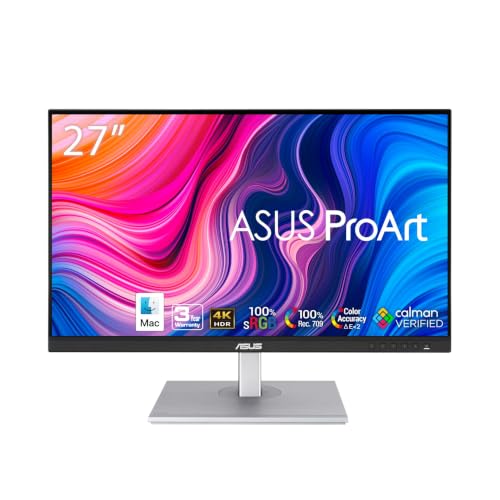
ASUS ProArt PA279CRV 27 Inch 4K UHD USB-C HDR Professional Monitor for Mac

Dell 32 Monitor S3225QS, 4K UHD VA, 120Hz, FreeSync Premium, Eye Comfort

LG 27US500-W Ultrafine Monitor 27-Inch 4K UHD (3840×2160) HDR10 IPS

LG 27UP650K-W 27-inch Ultrafine 4K UHD IPS Computer Monitor

BenQ MA270U 27” 4K 3840×2160 Monitor for MacBook Pro/Air
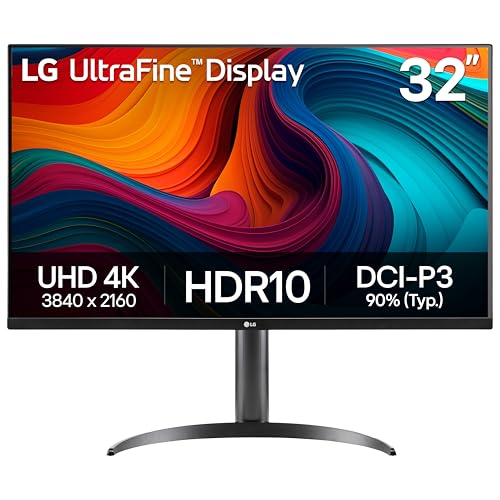
LG 32UR550K-B 32-inch Ultrafine 4K UHD Computer Monitor
More Details On Our Top Picks
For a desk that shifts between retouching and faster-paced work, this ASUS feels unusually flexible. The 27-inch size keeps it manageable, while the 4K panel and 99% DCI-P3 coverage give you the kind of detail and color range that matter when you’re checking fine edges or skin tones.
The trade-off is obvious: it leans toward a gaming-style spec sheet, so you’re paying for speed features that photo work may not use every day. That said, the USB-C connection and factory calibration cues make it easier to treat as a serious all-purpose screen rather than a novelty panel.
Strong Points
- 4K resolution gives you more room for image detail and panel zoom work.
- USB-C simplifies a modern laptop setup with fewer cables on the desk.
- 99% DCI-P3 suits color-conscious editing and proofing tasks.
- The 27-inch footprint fits smaller desks without feeling cramped.
Room For Improvement
- The gaming focus may feel like overkill for a pure editing station.
- You may end up paying for refresh-rate headroom you rarely use.
- That faster feature set can matter less than uniformity for color-first work.
Feature Snapshot
Who It Suits Best
Creative multitaskers who also care about fast motion, console use, or general desktop flexibility will get the most from it.
Where A Sibling Pick Shines
ASUS ProArt PA279CRV is the cleaner match for color-focused editors who want a more work-first setup.
This is the most work-first pick in the group, and that shows up in the feature balance. The 27-inch 4K panel, Calman Verified tuning, and Delta E under 2 target the kind of color discipline that helps when you’re moving between portraits, product shots, and client proofs.
The USB-C port with 96W power delivery keeps a MacBook setup neat, and the daisy chain support can simplify a dual-screen desk. It isn’t the flashiest monitor here, but for a photo workflow that starts and ends with color trust, that restraint is a strength.
What We Like
- Factory calibration gives you a stronger starting point for color-sensitive editing.
- 99% DCI-P3 and 99% Adobe RGB cover the usual creative workspaces well.
- 96W USB-C power can handle a laptop and data through one cable.
- Daisy chain support helps you build a cleaner multi-monitor desk.
- Height adjustment makes it easier to line up the panel with eye level.
Small Caveats
- The professional focus means you are paying for accuracy rather than speed flair.
- Mac users will likely get the most from its feature set.
- Daisy chaining only matters once your desk setup is already fairly deliberate.
Core Details
Who Will Love This
Mac-based photo editors, visual designers, and anyone who wants a careful color setup from the start will feel at home here.
Skip It When
ASUS ROG XG27UCG makes more sense for you if gaming speed matters as much as editing accuracy.
The larger 31.5-inch frame changes the whole feel of the desk, and that matters more than it sounds. You get a broad canvas for timelines, palettes, and side-by-side reference images, while the 4K resolution keeps the image from turning soft at that size.
Its VA panel, 3000:1 contrast ratio, and 99% sRGB coverage point to a monitor that balances punchy contrast with broadly useful color. The honest read is that it suits mixed creative and general use better than a strict studio-only workflow, but plenty of home editors will like that balance.
Highlights
- The 32-inch size gives you more room for panels and reference material.
- 4K at this scale feels generous for editing and side-by-side comparison.
- 120Hz refresh can make cursor movement and scrolling feel smoother.
- 99% sRGB covers a very common editing space for web-based image work.
Points To Note
- VA panels often favor contrast over the widest viewing consistency.
- The bigger body needs more desk depth than a 27-inch screen.
- For print-heavy color work, the color profile may feel less specialist than ProArt.
Details At A Glance
Made For
Home editors who want a larger workspace without jumping to a more specialized studio monitor should feel comfortable here.
Look Elsewhere When
ASUS ProArt PA279CRV is the stronger fit for color-critical Mac editing and tighter calibration needs.
This LG keeps the pitch refreshingly simple, which can be a relief on a crowded desk. The 27-inch 4K IPS panel gives you a clean editing surface, and the borderless styling helps the screen feel tidy without stealing attention from the image itself.
Its 1000:1 contrast ratio and HDR10 support add useful depth for everyday creative work, while the on-screen control software is handy for splitting a workspace or changing settings with less menu digging. You may find it most appealing as a no-drama screen for photo sorting, general editing, and office hours in the same chair.
Best Bits
- IPS panel gives you a familiar editing view with wide viewing angles.
- 4K detail makes it easier to inspect textures and crop precisely.
- Borderless design keeps dual-monitor setups looking tidy.
- On-screen control can speed up workspace changes on a busy day.
Areas To Watch
- It is more understated than the ProArt or BenQ options for color-first workflows.
- The included stand only adjusts tilt, so setup flexibility is narrower.
- On-screen control depends on software, which adds one more thing to install.
Quick Facts
The Right Fit
Shoppers who want a tidy 27-inch 4K screen for mixed daily use and light editing will appreciate its simple approach.
Another Choice May Suit
LG 27UP650K-W is the better match if you want more stand adjustment and a more feature-rich all-round setup.
This LG lands in a comfortable middle ground, and that’s a useful place for many photo setups. The 27-inch IPS panel keeps the image stable from a normal desk distance, while 4K resolution and DisplayHDR 400 give you more detail and a little more tonal lift than a basic office screen.
The adjustable stand matters here. Tilt, height, and pivot support make it easier to line the monitor up with your chair and workflow, which sounds small until you spend a long editing session trying to stop your neck from complaining.
Upsides
- 4K detail gives you clean room for cropping and precise retouching.
- Height, tilt, and pivot adjustment support a more natural working posture.
- DisplayHDR 400 adds useful headroom for supported content.
- Reader Mode can help during long stretches of mixed desktop use.
- Flicker Safe is a practical comfort touch for all-day desk time.
Softer Spots
- At 60Hz, it is calmer than the Dell but less lively on motion-heavy tasks.
- The feature set is practical rather than deeply specialized.
- White finish may demand a little more care if your desk gathers dust.
Feature Rundown
Built With In Mind
Home editors and general desktop users who want comfort features without a fussy setup will get a lot from this one.
Reach For A Different Pick When
ASUS ProArt PA279CRV is the better fit for stricter color work and a more studio-leaning desk.
The BenQ MA270U feels built around Mac desk habits rather than generic monitor habits. That matters because it lets you keep the setup simple, with dual USB-C, 90W power delivery, and Mac-linked brightness and volume control reducing the usual cable clutter.
Its P3 color gamut and Mac color matching lean toward creative work where your laptop and display should feel like a single system. One thing worth considering is that this setup makes the most sense for MacBook users, while mixed-platform desks may not need all of its conveniences.
Reasons To Buy
- Dual USB-C gives you flexible wiring for a tidy Mac desk.
- 90W power delivery can keep a compatible MacBook charged through one cable.
- Mac color matching is appealing for creators who stay inside Apple hardware.
- Keyboard-linked brightness and volume control feel practical in everyday use.
- Height and tilt adjustment help you place the screen comfortably.
Minor Gripes
- Its strengths are highly specific, so non-Mac users may not use every feature.
- The focused design may feel less flexible than the LG 27UP650K-W.
- The extra Mac-centric polish adds value mainly in the right setup.
Technical Sheet
Perfect Match For
MacBook Pro and MacBook Air owners who want a clean, coordinated editing desk will get the most value here.
Swap It Out When
ASUS ProArt PA279CRV is the stronger pick for more traditional pro-color workflows across a wider creative setup.
The 32-inch format gives this LG a calm, spacious feel that suits long editing sessions. You get 4K UHD clarity, HDR10 support, and up to 90% DCI-P3 coverage, so the image holds together well even when you spread out tools, reference shots, and file folders.
Its tilt, height, and pivot adjustment make it easier to live with than many large monitors, and that matters once the screen becomes part of your daily routine. The honest read is that it’s less specialized than the ProArt and less Mac-specific than the BenQ, yet that broad usefulness is exactly what makes it easy to recommend.
Positives
- 32-inch size gives you breathing room for editing panels and side windows.
- 4K resolution keeps detail sharp on a larger canvas.
- HDR10 and DCI-P3 support bring useful depth to supported content.
- The adjustable stand helps dial in a comfortable viewing position.
Points To Note
- The larger footprint needs more desk width than the 27-inch picks.
- At 60Hz, it is less nimble than the Dell 32 S3225QS.
- Its broad focus is handy, though not as specialized as the ProArt.
Core Details
Whose Shelf It Belongs On
Editors who want a larger, more relaxed workspace and do not want to chase specialist quirks will appreciate this monitor.
Where A Sibling Pick Shines
Dell 32 S3225QS is the better fit if you want a similarly large screen with a faster-feeling refresh rate.
How To Choose The Right 4k Monitors For Photo Editing
Color Accuracy Comes First
For photo work, color accuracy matters more than flashy motion specs. A monitor with wide gamut coverage, factory calibration, or a low Delta E figure gives you a steadier starting point, especially when you move between portraits, product shots, and social media crops.
That does not mean you need the most expensive panel on the shelf. It means you want a screen that stays believable across skin tones, neutral grays, and shadow detail. The ASUS ProArt PA279CRV is the clearest example here because it puts calibration and wide-gamut coverage ahead of extra speed features.
Size Changes The Way You Work
A 27-inch screen suits most desks and still gives you enough room for toolbars and detail checks. A 32-inch panel feels more relaxed, especially when you keep reference files open beside your main image, but it asks more from your desk depth and viewing distance.
That trade is worth thinking through before you commit. A larger monitor can feel like a wide drafting table, while a smaller one keeps your setup neater and easier to center. The Dell 32 S3225QS and LG 32UR550K-B favor the bigger-canvas approach, while the 27-inch LG and ASUS options stay easier to place.
Panel Type, Stand, And Connectivity Matter Too
IPS panels are common in this category because they usually keep images consistent across wider angles. VA panels tend to lean into contrast, which can be nice for darker images and mixed-use desks, though they are often less color-specialist in feel than a good IPS ProArt-style panel.
USB-C is a real quality-of-life upgrade for laptop work, especially on Mac setups. A stand with height, tilt, and pivot also matters more than people expect, because editing posture gets uncomfortable fast when the screen sits too low or too fixed. BenQ’s Mac-focused controls and LG’s adjustable stands show how small ergonomic touches can make daily use smoother.
Match The Monitor To Your Workflow
A hobbyist sorting vacation shots needs something different from someone delivering client-ready portrait edits. If your work lives mostly on a laptop and you want a tidy desk, a USB-C monitor can save time and clutter. If your setup is fixed and you value larger image area, a 32-inch panel can feel easier to live with.
The best fit is the one that supports how you actually sit and edit. That means matching the screen to your desk space, your software habits, and how tightly you care about color handling.
Things Worth Knowing First
Mistakes Worth Dodging
A common misstep is focusing on refresh rate before color quality. Fast motion features are nice, but they do little for judging white balance, subtle gradients, or skin retouching.
Another easy miss is buying a screen that looks great on paper but sits awkwardly on your desk. Stand adjustability, cable layout, and the monitor’s physical size shape daily comfort more than many first-time shoppers expect.
The Upgrade Payoff
Higher-tier monitors usually cost more because they spend money on calibration, color consistency, stronger connections, and sturdier ergonomic design. That’s especially true in pro-oriented models where factory tuning and broader gamut coverage matter to your results.
The upgrade is worth it when the monitor is part of paid work, client delivery, or long editing sessions. In those cases, the extra precision can save time and reduce second-guessing, while a basic model makes more sense for casual editing and general use.
Frequently Asked Questions
Do You Need 4K For Photo Editing?
4K gives you sharper detail and more room for editing tools on screen. It’s especially useful once you start cropping closely or comparing multiple files side by side.
Is 27 Inches Or 32 Inches Better?
27 inches fits more desks and feels easier to manage for close-up editing. 32 inches helps when you want a larger working canvas and more room for panels.
Why Does Color Gamut Matter?
Color gamut describes how much of a color space the monitor can show. Wider coverage helps the screen handle rich tones and smoother color transitions more reliably.
Is USB-C Worth It On A Monitor?
USB-C is worth it for laptop setups because one cable can handle display, data, and sometimes charging. That keeps a photo desk cleaner and simpler to live with.
Should You Prefer IPS Or VA?
IPS usually gives you more consistent viewing angles, which helps when you care about image comparison. VA tends to offer deeper contrast, which some editors like for darker images and mixed use.
