
Editing 4K footage asks a lot from your display. You want enough sharpness for timelines and masks, color that holds together across bright and dark scenes, and a stand that doesn’t turn a long session into a neck ache.
This shortlist leans toward monitors that suit real editing desks, from compact 27-inch panels to a larger 32-inch option for more room on screen. You’ll also see where USB-C, wide-gamut color, and adjustable stands matter most, so you can match the screen to your workflow instead of guessing.
The Shortlist At A Glance
ASUS ROG XG27UCG 27 Inch 4K 160Hz USB-C G-SYNC Gaming Monitor

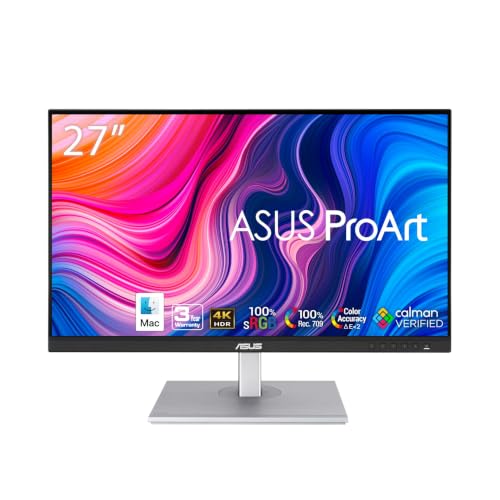
ASUS ProArt PA279CRV 27 Inch 4K UHD USB-C HDR Professional Monitor for Mac

Dell 32 Monitor S3225QS, 4K UHD VA, 120Hz, FreeSync Premium

LG 27US500-W Ultrafine Monitor 27-Inch 4K UHD (3840×2160) HDR10 IPS

ViewSonic VP2756-4K 27 Inch 4K ColorPro Monitor, IPS Display

LG 27UP650K-W 27-inch Ultrafine 4K UHD (3840 x 2160) IPS Computer Monitor

CUNPU 27 Inch 4K 70Hz Monitor, UHD (3840 * 2160) IPS Ultra-Slim Bezel Monitor
More Details On Our Top Picks
This ASUS leans hard toward speed, but the 4K side still matters for editing timelines and preview windows. The USB-C connection is handy on a cleaner desk, especially for laptops that already carry your media work. You may find the dual-mode setup more useful than the gaming branding suggests, because it gives you a faster fallback without losing the sharper 4K workspace.
The trade-off is simple: this screen is built for mixed use, so pure color-work purists may still prefer a more creator-centered panel. Even so, the 99% DCI-P3 coverage and ELMB Sync make it a strong fit for motion-heavy projects, fast timelines, and a desk that does double duty after hours.
Strong Points
- 4K resolution keeps text, bins, and clips crisp during long editing sessions.
- USB-C can reduce cable clutter for laptop-based workflows.
- Dual-mode operation gives you a fast option for motion-heavy work.
- 99% DCI-P3 coverage helps when you want richer video color.
- ELMB Sync and VRR support suit hybrid work and play setups.
Things To Consider
- The gaming-first feature mix is more than some editors need.
- Pure color grading desks may prefer a more specialized creator screen.
- Fast panels can ask more of your GPU in high-resolution projects.
Feature Rundown
Who It Suits Best
Video editors who also game, stream, or switch between creative work and fast-paced use will get the most from it.
A Better Fit Elsewhere
ASUS ProArt PA279CRV suits color-first editors better, especially for grading-focused desks that value creator tuning over speed extras.
Color-critical desks need more than a sharp panel, and this ProArt model is built around that reality. The Calman Verified tuning, Delta E under 2, and wide DCI-P3 plus Adobe RGB coverage all point toward careful color handling, not just nice-looking defaults. For Mac-based editors, the USB-C path and 96W power delivery keep the laptop side simple, which saves space and cuts dock clutter.
The catch is that this is a focused creator screen, so it does not chase the flashy extras found on the ASUS ROG pick. That makes it easier to trust for grading, retouching, and client review work, especially in a studio where the monitor spends most of its life showing timelines, scopes, and stills.
What We Like
- Factory calibration and Delta E under 2 support more dependable color starting out.
- 99% DCI-P3 and 99% Adobe RGB suit editing and still-image work.
- USB-C with 96W power delivery helps simplify a laptop desk.
- Daisy chain support is useful in multi-display setups.
- Height adjustment helps you line up the screen with your chair and desk.
Room For Improvement
- The creator-first focus means fewer speed-oriented extras than gaming-leaning models.
- USB-C workflows work best when your laptop supports the same standard.
- Wide-gamut screens can need careful app color management for consistent results.
Technical Sheet
Who Will Love This
Editors, colorists, and Mac users who want a screen centered on faithful color and neat cabling will appreciate it most.
Where A Sibling Pick Shines
ViewSonic VP2756-4K suits editors who want a slightly broader ergonomic feature set and a more traditional creator monitor feel.
Moving up to 31.5 inches changes the whole editing rhythm, because you get more room for timelines, bins, and side-by-side windows without feeling cramped. The VA panel, 3000:1 contrast ratio, and 99% sRGB coverage point toward strong contrast and solid everyday color for general video work. For long sessions, Dell’s eye-comfort features help the display feel less harsh than a typical bright office screen.
The honest read is that this one suits editors who want size and comfort more than a pure color reference tool. The 120Hz refresh rate is a nice bonus for fluid scrubbing and desktop motion, but the larger footprint means you’ll want a desk with enough depth to keep the viewing distance comfortable.
Highlights
- 31.5-inch size gives you a roomy workspace for layered editing.
- 4K resolution keeps detail clean on a larger panel.
- 120Hz refresh can make interface motion feel smoother.
- 3000:1 contrast helps dark scenes look fuller and less flat.
- Anti-glare finish suits bright rooms and window-lit desks.
Points To Note
- The larger body needs more desk depth than a 27-inch screen.
- VA panels can feel different from IPS when you work at sharp angles.
- Desk placement matters more because of the bigger viewing area.
Core Details
Built With In Mind
Editors who want a bigger, easier-on-the-eyes screen for long workdays will get the most from it.
Look Elsewhere When
ASUS ProArt PA279CRV fits better for color-critical grading desks that value creator calibration over sheer size.
This LG keeps the formula straightforward, which is often what you want for a secondary editing screen or a first 4K setup. The 27-inch IPS panel, 1000:1 contrast ratio, and HDR10 support give you a familiar balance of sharpness and color, while the borderless design keeps the frame visually quiet on a desk. In practical use, that makes it easy to focus on footage instead of hardware.
Compared with the Dell 32 S3225QS, this one gives you a smaller footprint and a more desk-friendly shape. The stand only tilts, so a monitor arm may appeal to you later, but the included Onscreen Control software and the simple port mix make it easy to live with from day one.
Upsides
- 27-inch size stays compact enough for smaller desks.
- 4K resolution keeps editing interfaces sharp and readable.
- HDR10 and wide viewing angles help with general creative work.
- Onscreen Control can simplify window and layout adjustments.
- The white finish and borderless look feel clean in shared workspaces.
Small Caveats
- The stand’s limited adjustment is the main trade-off.
- Color work benefits from a careful setup, especially on shared desks.
- Creators who want more ergonomic movement may prefer a pricier stand.
Feature Snapshot
The Right Fit
Home editors and students who want a simple 27-inch 4K screen without extra bulk will feel at home here.
Swap It Out When
LG 27UP650K-W suits you better if adjustable ergonomics matter more than the cleaner white look and slightly simpler setup.
Some monitors aim for broad appeal, but this ViewSonic is clearly tuned for people who care about consistency across creative work. The 100% sRGB coverage and Pantone Validated label matter most when you want predictable color between your screen and the rest of your workflow, and the 3-sided frameless design helps when you run multiple displays. The 60W USB-C port is practical too, especially on a laptop desk that needs fewer cables.
It sits in an interesting middle ground between the ProArt model and the simpler LG options. The stand adjustment range is a real plus for long sessions, though the 60W power delivery is lighter than ASUS ProArt’s 96W and may suit smaller laptops more comfortably than power-hungry ones.
Best Bits
- 100% sRGB coverage fits color-managed web and video work.
- Pantone validation adds confidence for appearance-sensitive projects.
- USB-C reduces cable count on a modern editing desk.
- Frameless edges work well in multi-monitor setups.
- Ergonomic adjustments help you dial in a calmer working position.
Areas To Watch
- 60W charging is enough for some laptops, but not all.
- The feature set is creator-focused rather than speed-focused.
- Multi-display users may still want to check stand space before setup.
Details At A Glance
Whose Shelf It Belongs On
Color-conscious editors, photo finishers, and multi-monitor desk setups will get the most from it.
Another Choice May Suit
ASUS ProArt PA279CRV suits you better if you want stronger power delivery and a more explicitly pro-focused calibration story.
This LG leans into comfort, adjustability, and straightforward 4K use, which is a sensible blend for everyday editing. Reader Mode and Flicker Safe are useful touches for long desk stretches, while the tilt, height, and pivot stand gives you far more positioning freedom than the simpler LG 27US500-W. That pivot function matters more than people expect when you’re reviewing tall timelines, captions, or portrait clips.
The 95% DCI-P3 figure places it closer to creator work than a plain office monitor, though it still stays easygoing rather than hyper-specialized. In most home studios, that balance feels right, because you get a monitor that can handle editing, browsing, and general desk use without demanding a complicated setup.
Reasons To Buy
- Height, tilt, and pivot adjustment make desk fit much easier.
- 4K IPS sharpness helps with editing and general content viewing.
- DisplayHDR 400 support gives HDR-capable content a better presentation path.
- Reader Mode and Flicker Safe support longer sessions.
- 95% DCI-P3 is useful for color-aware work.
Softer Spots
- 60Hz is fine for editing, but not especially fast.
- The feature set is broad rather than deeply specialized.
- Pivot and height adjustments are useful, yet they add a little setup time.
Core Details
Perfect Match For
Editors who want comfort, flexible positioning, and a well-rounded 27-inch 4K screen will fit this model well.
Where Shoppers Go Wrong
LG 27US500-W is the easier choice for very tight desks, while this one makes more sense when ergonomic movement matters more than the cleaner white finish.
The CUNPU stands out for color-first editing on a simpler 27-inch platform. A stated Delta E under 2, 100% DCI-P3 coverage, and 1.07 billion colors point toward careful tonal handling, which matters when your footage carries subtle gradients or skin tones. PBP, short for picture-by-picture, also gives you a practical way to compare sources side by side without adding another display.
There’s a catch, though: 70Hz is comfortable, but it does not chase the extra motion smoothness of the Dell 32 S3225QS or the ASUS ROG screen. That makes this a better fit for color-sensitive editing than for people who want the display to double as a fast-motion or gaming hub.
Positives
- 100% DCI-P3 suits wider-gamut editing work.
- Delta E under 2 points toward careful color handling.
- PBP is handy for comparison work or split workflows.
- The slim bezel keeps attention on the image area.
- 27-inch size stays friendly for smaller desks.
Areas To Watch
- 70Hz is fine for editing, but not especially fast.
- The brand is less established than some of the bigger names here.
- Color-sensitive work still depends on a sensible software setup.
Feature Card
Who Should Grab It
Editors who care more about color handling and split-screen workflow than speed extras will get the most from it.
Not Your Match When
Dell 32 Monitor S3225QS suits you better if you want a larger screen with more motion smoothness for mixed work and long viewing sessions.
How To Choose The Right 4k Monitors For Video Editing
Color Accuracy Comes First
Video editing lives or dies on how well the screen handles color, contrast, and grayscale. A monitor with wide-gamut coverage, such as DCI-P3, gives you more room for modern video work, while factory calibration and low Delta E can reduce the chance of obvious color drift straight out of the box.
That matters most if you deliver work to clients or move between editing and still-image jobs. For casual cuts, a simpler panel can work, but once you start matching shots or grading carefully, a more color-aware display saves you from second-guessing the image.
Size, Ergonomics, And Desk Fit
A 27-inch screen is the safe middle ground for many desks, while 32-inch panels give you more room for timelines and side panels. Bigger is not always easier, though, because desk depth and seating distance become part of the setup.
Ergonomics matter just as much as size. Height, tilt, and pivot adjustment help you keep a steady posture through long sessions, and USB-C can keep laptop desks less tangled, which is a small thing until you’re opening and closing the workspace every day.
Motion, Ports, And Everyday Workflow
A higher refresh rate can make scrubbing and desktop movement feel smoother, even though editing itself does not always need gaming-level speed. That said, a 60Hz monitor with strong color and a good stand still suits many editors perfectly well.
Ports are easy to overlook, then suddenly annoying in daily use. USB-C is especially helpful for laptop-based editing, while HDMI and DisplayPort still matter for desktop towers, docks, and backup connections.
Match The Screen To Your Job
Colorists and finishing editors usually care most about calibration, gamut, and consistent viewing angles. Hybrid creators who also game or switch between office work may prefer a faster, more flexible screen.
The right choice comes down to your workflow, not just the headline resolution. A sharper display helps, but a monitor that fits your desk and your editing habits usually pays off more over time.
A Quick Reality Check
Common Shopping Slip Ups
A lot of people focus on 4K and forget the rest. That leads to screens with weak stands, cramped ports, or color specs that sound fine but do not suit editing work very well.
Another common miss is size. A 32-inch panel can feel excellent on the right desk, but it can crowd a shallow workspace fast, so measure the depth before you commit.
What The Extra Money Goes Toward
Higher-tier monitors usually spend money on better calibration, more useful stands, wider color support, and cleaner connectivity. Those details matter most in studios where the display stays on for hours and feeds into paid work.
You also pay for consistency. That can mean fewer surprises between projects, less cable clutter, and a screen that feels calmer to use during long edits, which is where the upgrade starts to make sense.
Frequently Asked Questions
Do You Need 4K For Video Editing?
4K makes timelines, text, and detail work easier to read on a desktop monitor. It’s especially useful once your footage is already in 4K or you work with lots of layered tools.
Is 27 Inches Enough For Editing?
Yes, 27 inches is enough for many editing desks and feels comfortable in smaller rooms. A 32-inch screen gives you more space, but it also asks for a deeper desk and more viewing distance.
Which Matters More, Color Or Refresh Rate?
Color matters more for most editing work. A faster refresh rate is nice for smooth desktop motion, but accurate color and contrast usually deserve the first look.
Does USB-C Matter For An Editing Monitor?
USB-C matters a lot for laptop setups because it can carry video and simplify cable runs. It’s less important on a tower-based desk where DisplayPort or HDMI already fits your setup.
Should You Use An External Monitor For Laptop Editing?
Yes, a separate screen usually helps once you start working on timelines, color, and layered panels. It gives you a larger, steadier workspace than a laptop display alone.
