
Business screens do a lot more than show spreadsheets. They have to stay comfortable through long days, fit the desk you actually have, and handle the mix of mail, calls, and document work that fills most workweeks.
That’s why this roundup focuses on monitors that make daily use easier in real offices and home setups. You’ll see compact 24-inch options, larger ultrawides for heavy multitasking, and a few picks that add speakers, webcam gear, or USB-C to keep your desk calmer.
The Shortlist At A Glance

Samsung 32″ Flat Computer Monitor LS32B304NWNXGO

Amazon Basics 27 Inch Monitor, FHD 1080P, 100Hz, IPS
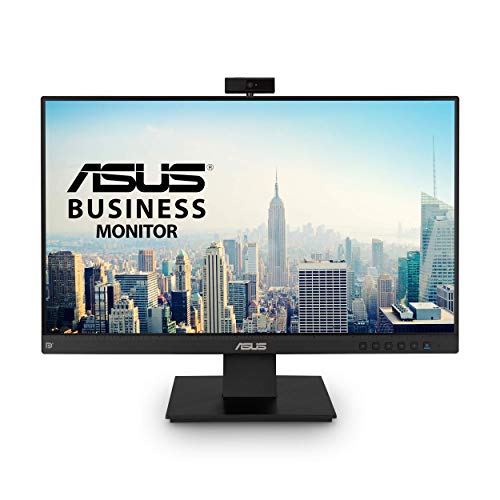
ASUS BE24EQK 24” Business Monitor


Dell 24 Plus Monitor S2425HSM

Samsung 49” Business Curved Ultrawide Dual QHD Computer Monitor LS49C954UANXZA

LG 34WR55QK-B 34-inch UltraWide WQHD Curved Computer Monitor
More Details On Our Top Picks
A 32-inch flat screen like this gives you room to park a document, inbox, and browser side by side without feeling cramped. The three-sided borderless look also helps a dual-monitor desk feel cleaner, which matters more than people expect in a busy office.
The 75Hz refresh rate makes pointer movement feel a bit smoother than a basic 60Hz panel, and AMD FreeSync helps tame tearing in mixed use with occasional video or light graphics work. You may find it a better fit than the smaller ASUS BE24EQK or Dell 24 Plus if you want a larger single display and don’t need camera hardware built in.
Strong Points
- The 32-inch size gives you more room for spreadsheets, reference tabs, and side-by-side apps.
- Borderless styling helps multi-monitor desks look less broken up.
- FreeSync and the 75Hz panel make everyday motion feel smoother than a plain office screen.
- Game Mode can help sharpen contrast during after-hours streaming or light gaming.
Points To Note
- A flat panel won’t feel as immersive as the curved Dell 34 or Samsung 49 when you work across several windows all day.
- No built-in speakers are listed, so you’ll likely rely on external audio.
- A larger 32-inch footprint needs a deeper desk than a 24-inch setup.
Feature Snapshot
Who It Suits Best
Office users who want a large, straightforward display for everyday multitasking will get the most from this model.
Swap It Out When
Dell 24 Plus Monitor S2425HSM suits tighter desks and casual mixed use better, while the Samsung 49-inch ultrawide makes more sense for heavy split-screen work.
This one makes sense for a desk that needs a little of everything without turning into a project. The 27-inch IPS panel gives you comfortable viewing angles, and IPS means the image stays more consistent when you shift in your chair or look from the side.
Built-in speakers and four USB ports trim down cable clutter, which is handy in a home office with a laptop, keyboard, and webcam always plugged in. Compared with the Samsung 32, it feels more desk-friendly, while the ASUS BE24EQK offers a more meeting-focused setup.
What We Like
- 27 inches is a friendly middle ground for desks that can’t handle a large 32-inch panel.
- IPS viewing helps the screen stay clear from different seating positions.
- Built-in speakers reduce the need for separate desktop audio gear.
- Four USB ports are useful for common peripherals like a mouse, keyboard, or flash drive.
Room For Improvement
- FHD on 27 inches is fine for office work, though sharp text fans may prefer a higher-density panel.
- Integrated speakers usually serve meetings and casual playback better than fuller sound.
- USB ports help with convenience, but they won’t replace a docking station for larger setups.
Core Details
Whose Shelf It Belongs On
It suits office workers and home setup users who want a flexible, uncomplicated monitor with a few useful extras.
Another Choice May Suit
ASUS BE24EQK 24” Business Monitor fits you better if video calls matter more than USB convenience, and the Dell 34 S3425DW works better for split-screen multitaskers.
Video meetings are where this ASUS starts to stand apart. The built-in 2MP webcam, mic array, and stereo speakers mean you can clear space on the desk and keep a conference-ready setup inside a single monitor.
The frameless design helps in a dual-screen layout, and the Eye Care tuning is a sensible touch for long work sessions. For remote work, classes, or a reception desk that handles regular calls, it feels more purpose-built than the simpler Amazon Basics 27.
Highlights
- Integrated webcam, microphone array, and speakers simplify a calling setup.
- 24-inch sizing keeps the desk footprint compact and manageable.
- Frameless edges work well beside a second screen.
- DisplayPort and HDMI give you normal connection flexibility for business gear.
Softer Spots
- Built-in cameras and audio are convenient, though dedicated peripherals can still sound and look better.
- The 24-inch size is tidy, but it gives you less room for side-by-side documents than the larger Dell and Samsung models.
- A black finish is simple and professional, yet it won’t stand out on a design-focused desk.
At A Glance
Built With In Mind
Remote workers, training rooms, and desk setups that handle frequent calls will get the most value from this monitor.
Look Elsewhere When
LG 34WR55QK-B makes more sense for wide-screen multitasking, and the Dell 24 Plus is the stronger fit for people who want faster motion and a more flexible stand.
There’s a clear jump in ambition here. The 34-inch curved format gives your workroom a wider canvas than the flat Samsung 32 or the 27-inch Amazon Basics, and that extra width pays off fast in spreadsheet-heavy days.
USB-C with 65W power delivery is the feature that turns it into a cleaner desk hub, because one cable can handle both display and charging for many laptops. The trade-off is simple: it takes more space and costs more attention, so it suits people who actually use the width rather than just want a bigger number on the box.
Upsides
- 34-inch ultrawide format gives you serious room for split-screen work.
- Curved VA panel helps the image feel more enveloping across the width.
- USB-C with 65W power delivery reduces cable clutter for laptop users.
- Two 10W speakers are useful for calls, streaming, and casual playback.
- Anti-glare finish and Eye Comfort features suit long desk sessions.
Small Caveats
- The wide format can feel oversized on shallow desks.
- USB-C power delivery is handy, though laptop charging needs vary by device.
- Its premium feature mix makes more sense for heavy multitasking than light email work.
Details At A Glance
Made For
People who juggle many windows at once, especially laptop users who want a cleaner single-cable desk, will get the most out of it.
Where A Sibling Pick Shines
Samsung 49” Business Curved Ultrawide makes a stronger fit for the most demanding split-screen workflows, while LG 34WR55QK-B suits a slightly simpler ultrawide setup.
This Dell leans into speed without giving up office practicality. The 23.8-inch size keeps it compact, while the 144Hz refresh rate and 1ms MPRT, which means Moving Picture Response Time, help motion look cleaner than on a basic business display.
The height, tilt, pivot, and swivel stand is the kind of thing you appreciate after a long day of adjusting posture and camera angle. In a smaller home office, it feels more flexible than the ASUS BE24EQK, but it still works best for mixed use rather than wide-screen spreadsheet sprawl.
Best Bits
- 144Hz motion support is unusually quick for a work-oriented 24-inch monitor.
- The adjustable stand makes it easier to dial in a comfortable viewing angle.
- Dual 3W speakers cover meetings and casual audio without extra desk clutter.
- AMD FreeSync helps keep motion steadier in video and light play after hours.
Areas To Watch
- FHD on 23.8 inches is practical, though not as spacious as larger ultrawide options.
- Built-in speakers keep things simple, but they’re still a convenience feature first.
- For some desks, the ash white finish may show dust sooner than darker shells.
Quick Facts
Right Fit For
People who want a compact monitor with a noticeably faster feel for both work and lighter entertainment will like this one.
Skip It When
Samsung 49” Business Curved Ultrawide Computer Monitor fits power users who need much more horizontal room, and the Amazon Basics 27 inch option suits simpler desk setups.
This is the screen for people who live inside windows, tabs, and side-by-side documents. The 49-inch 32:9 curved layout gives you a huge horizontal workspace, and the 1000R curve wraps that width around your line of sight in a way that feels closer to a cockpit than a normal desk monitor.
USB-C, DisplayPort, HDMI, and built-in docking-style connectivity make it especially handy for a laptop-centered office, and the height-adjustable stand helps a monitor this large sit more naturally on the desk. Compared with the Dell 34 S3425DW, it’s much more specialized, so it suits committed multitaskers more than casual office use.
Reasons To Buy
- The 49-inch span lets you keep multiple full-size windows visible at once.
- Dual QHD resolution supports a lot of workspace without feeling cramped.
- USB-C and other inputs make it easier to use as a central desk hub.
- Built-in speakers help keep the setup cleaner.
- The height-adjustable stand improves comfort for a monitor this large.
Trade Offs
- Its size is a serious commitment, so smaller desks may feel overwhelmed.
- The ultrawide format is overkill for people who mainly read email and documents.
- Managing cable routes matters more here, because the monitor can anchor an entire workstation.
Core Details
Who Should Grab It
Analysts, project managers, and laptop users who keep many documents open at once will benefit most from it.
Reach For A Different Pick When
Dell 34 Monitor S3425DW is the easier fit for a more restrained ultrawide desk, while LG 34WR55QK-B suits users who want the wide-screen format without committing to 49 inches.
The LG lands in a sweet spot for people who want more room than a standard monitor without jumping into a giant 49-inch setup. Its 34-inch curved WQHD panel gives you a wide workspace for two documents or a document plus reference pane, and the 21:9 shape feels especially natural on a modern desk.
USB-C joins HDMI and DisplayPort, so it works cleanly with both laptops and desktops, while Reader Mode is a nice touch for long reading sessions. Compared with the Dell 34, it feels a little more restrained and easier to live with, which is exactly why it fits so many office setups.
Positives
- 34-inch ultrawide sizing gives you real room for multitasking.
- 3440 x 1440 resolution keeps text and UI elements more detailed than plain FHD ultrawides.
- USB-C, HDMI, and DisplayPort cover common office connections.
- Height and tilt adjustment help with posture and desk alignment.
- Reader Mode can be helpful during long document-heavy sessions.
Honest Caveats
- The 5ms response time is fine for work, though faster motion users may look to the Dell 24 Plus.
- Like most ultrawides, it rewards a bit more desk width.
- Built-in speakers are not mentioned, so separate audio may still be part of the setup.
Feature Card
The Right Fit
You’ll appreciate this most if you want a balanced ultrawide for office work, document handling, and light media use.
A Better Fit Elsewhere
Dell 34 Monitor S3425DW suits you better if USB-C charging matters, while Samsung 49” Business Curved Ultrawide is the stronger move for extreme multitasking.
How To Choose The Right Business Computer Monitors
Start With Desk Size And Work Pattern
Screen size should match the way you work, not just your wish list. A 24-inch monitor keeps things tidy for a compact desk, while 27 inches gives you a more relaxed everyday layout, and 34-inch or 49-inch ultrawides reward people who keep several windows open at once.
The shape matters too. A flat panel feels familiar and simple, while a curved ultrawide can make long spans of content easier to follow across the screen.
Match Resolution To Viewing Distance
FHD, which stands for Full HD, is usually plenty on 23.8-inch and 24-inch screens. Once you move up to 27 inches and beyond, more space on the panel can matter as much as sharpness, especially for spreadsheets, side-by-side docs, and dense browser work.
WQHD gives you more room than FHD, and Dual QHD stretches that idea even further across a very wide layout. For office use, that extra room often matters more than flashy motion specs.
Choose The Right Connectivity
HDMI and DisplayPort cover most desktop and monitor pairings, so those remain the safest baseline. USB-C is a stronger fit for laptop-first desks because it can carry video and, on some models, power through one cable.
Built-in speakers, USB ports, webcams, and mic arrays can reduce the number of separate devices on your desk. The trade-off is that integrated hardware rarely matches dedicated gear, so these extras are best treated as convenience features.
Don’t Ignore Comfort Features
Eye comfort labels, anti-glare finishes, and height or tilt adjustments matter during long office days. They don’t sound dramatic, but they shape how your neck, eyes, and posture feel by midafternoon.
Higher refresh rates also help more than many people expect, especially on monitors that double as a light entertainment screen after work. A 100Hz or 120Hz panel feels smoother during scrolling than a basic 60Hz display, and that can make a long day feel less sticky.
Things Worth Knowing First
Mistakes Worth Dodging
Many people focus on screen size alone and forget the desk footprint. A 49-inch ultrawide can be awkward on a shallow table, while a 24-inch screen can feel cramped once you start comparing documents side by side.
Another common miss is buying more features than your work actually needs. A webcam, speakers, and a mic array are useful for calls, but they’re unnecessary baggage for someone who already has a docking station and separate peripherals.
What The Higher Tier Buys
More expensive monitors usually pay for larger panels, wider color support, stronger connectivity, and sturdier stands. That’s why premium ultrawides and USB-C office displays tend to feel more settled on a desk, especially in laptop-heavy setups.
The upgrade makes sense when your screen is the center of your workday, not just a place to open email. For light admin work, a simpler 27-inch model often covers the need without stretching the budget or the desk.
Frequently Asked Questions
What size monitor works best for office tasks?
A 27-inch monitor is a safe middle ground for most desks. A 34-inch ultrawide makes more sense when your work involves lots of side-by-side windows.
Is USB-C useful on a business monitor?
Yes, especially for laptop users who want fewer cables. It can keep a desk cleaner and make docking easier.
Do built-in speakers matter for work?
They help with calls, quick videos, and simple audio without adding extra gear. Separate speakers or headphones still make sense for fuller sound.
Why choose an ultrawide monitor?
Ultrawides are useful when you keep many apps or documents open at once. They can cut down on constant window switching.
Is a higher refresh rate useful for office use?
Yes, especially for scrolling and cursor movement. It also helps the screen feel smoother during light media use after work.
