
Design work asks a lot from a screen. You need clean text, dependable color, comfortable viewing angles, and enough space to keep timelines, layers, and reference images open without constant window shuffling.
The eight picks below cover different working styles, from color-critical studio use to roomy ultrawides and simpler desk setups. Some focus on image accuracy, others lean into motion smoothness or ergonomic flexibility, so you can match the monitor to the kind of work you actually do.
Quick Look At The Shortlist

Samsung 32″ Flat Computer Monitor LS32B304NWNXGO

ASUS ProArt PA279CRV 27 Inch 4K UHD USB-C HDR Professional Monitor for Mac

Dell 34 Monitor S3425DW

LG 27US500-W Ultrafine Monitor 27-Inch 4K UHD White

Dell UltraSharp U4025QW 40″ Class 5K2K WUHD Curved Screen LED Monitor

Dell 27 Plus Monitor S2725HSM

Dell 27 Plus QHD Monitor S2725DSM
ASUS ProArt PA278CGRV 27 Inch 1440p USB-C Professional Monitor for Mac
More Details On Our Top Picks
A 32-inch flat panel gives you room to spread out reference images, palettes, and a browser without feeling cramped. The borderless look helps a dual-screen desk feel cleaner, and the 75Hz refresh rate brings a little extra smoothness compared with standard 60Hz office screens.
For everyday design work, that mix makes sense, especially in a home office where you also handle email, boards, and light content review. The trade-off is simple, this is more of a practical workspace monitor than a color-first studio display, so precision-focused art and print work will usually point you toward the ProArt options.
Strong Points
- Large 32-inch screen space makes side-by-side layouts easier to manage.
- Borderless styling keeps multi-monitor desks looking tidy.
- 75Hz refresh can make scrolling feel a bit smoother than basic office panels.
- HDMI and DisplayPort give you flexible hookup choices for common desktop setups.
Things To Consider
- It leans more toward general productivity than color-critical studio work.
- 32 inches can feel roomy on a shallow desk, so placement matters.
- Advanced color work will usually benefit from a more specialized panel.
Feature Snapshot
Who It Suits Best
You get the most from this pick on a roomy desk where you need a clean, simple monitor for design-adjacent work, mixed productivity, and casual creative tasks.
Where Another Pick Suits Better
ASUS ProArt PA279CRV makes more sense for color-sensitive editing, since it is built around tighter calibration and wider gamut coverage.
This is the monitor in the group that most clearly speaks to color-critical work. A 27-inch 4K panel gives you sharp detail density, while Calman verification, Delta E under 2, and wide DCI-P3 plus Adobe RGB coverage point toward a screen built for serious image and video tasks.
The USB-C port with DisplayPort support and 96W power delivery is a big day-to-day convenience, especially on a laptop-based desk where one cable can carry display signal and charge at the same time. The honest read is that you pay for that professional focus, so it makes the most sense for editors, illustrators, and Mac users who want a cleaner desk and tighter color behavior.
Highlights
- 4K resolution gives you crisp type and fine image detail.
- Wide color coverage suits editing, grading, and illustration work.
- USB-C with 96W power delivery keeps laptop desks simpler.
- Height adjustment helps you line up the screen comfortably for long sessions.
- Daisy chain support can simplify a multi-monitor workflow.
Worth Noting
- Its strengths are most obvious in color-aware work, not casual browsing.
- 4K on 27 inches can push scaling choices on some setups.
- The feature set is premium enough to feel excessive for basic office use.
Core Details
Made For
You will appreciate this most in a creative workspace where color accuracy, USB-C convenience, and a compact 27-inch footprint all matter at once.
Another Choice May Suit
LG 27US500-W fits better for designers who want a simpler 4K screen with a lighter feature load and a softer setup cost profile.
A 34-inch ultrawide changes the way you work, because side-by-side windows stop feeling crowded. Here, the WQHD resolution, 120Hz refresh rate, and VA panel give you enough room for timelines, toolbars, and research tabs without constantly stacking windows.
The built-in 2 x 10W speakers and USB-C with 65W power delivery make it friendlier for a laptop desk than many bare-bones wide screens. Compared with the ASUS ProArt pair, it gives up some color-focused precision, but for a multitasking setup that also handles entertainment, it feels very practical.
Upsides
- Ultrawide shape keeps several work areas open at once.
- 120Hz refresh helps motion feel smoother during scroll-heavy sessions.
- USB-C with 65W power delivery supports a simpler cable setup.
- Integrated speakers reduce desk clutter for mixed-use spaces.
- Anti-glare coating helps in bright rooms with side lighting.
Points To Note
- The wide format needs enough desk depth to sit comfortably.
- VA panels are strong for contrast, though color purists may still prefer a ProArt display.
- Built-in speakers help in a pinch, but external audio still sounds fuller.
Technical Sheet
Perfect Match For
You are in the sweet spot for this monitor if your desk mixes design work, writing, browsing, and some entertainment in a single station.
Skip It When
ASUS ProArt PA279CRV is the better call for strict color work and tighter editorial accuracy.
This LG lands in a very usable middle ground for design desks that need sharp text and decent color without a long spec list getting in the way. The 27-inch 4K panel, IPS viewing angles, and 1000:1 contrast ratio make it a practical choice for layout work, mockups, and long editing sessions.
Its white finish and borderless styling help it disappear into a tidy setup, which is handy on smaller desks or shared workspaces. Compared with the Samsung 32-inch model, it trades raw size for higher pixel density, so you get a crisper look at closer viewing distances.
Bright Spots
- 4K on 27 inches gives you crisp text and detailed imagery.
- IPS viewing angles make it easier to share the screen.
- Onscreen Control can speed up simple layout tweaks and split-screen use.
- Borderless styling keeps the desk looking clean and modern.
- HDMI and DisplayPort cover common connection needs.
Areas To Watch
- The stand only lists tilt adjustment, so desk ergonomics may feel basic for some setups.
- It is a simpler monitor than the ProArt models, so color-focused specialists may want more calibration headroom.
- White finishes can show dust more visibly, so routine wiping matters.
Feature Card
Best Suited To
You get strong value here as a designer who wants a compact 4K display for crisp work without moving into a heavy professional feature stack.
A Better Fit Elsewhere
ASUS ProArt PA279CRV fits better for color-sensitive editors who want tighter calibration and broader gamut coverage.
Some desks need room to breathe, and this 40-inch ultrawide answers that need with a very broad canvas. The 5K2K WUHD resolution and 21:9 shape are especially helpful for motion graphics, long timelines, and side-by-side reference panels, almost like clearing several work lanes at once.
The USB Type-C connection adds practical value for laptop users who want one cable to do a lot of work. The trade-off is obvious, though, because size and ambition bring desk demands with them, so you want enough depth, enough width, and a workflow that truly uses all that space.
Reasons To Buy
- Huge ultrawide format makes crowded multitasking feel easier.
- 5K2K class resolution gives you a dense, detailed workspace.
- Curved panel helps the edges stay within a natural viewing arc.
- USB-C support suits streamlined laptop and dock setups.
- Well lit rooms benefit from the strong brightness rating.
Softer Spots
- It needs a serious amount of desk room, both width and depth.
- The scale can overwhelm a compact home office.
- Most casual design work will not fully use this much screen real estate.
Details At A Glance
Who Will Love This
You should gravitate to this monitor only when your workflow needs a panoramic desktop for editing, production, or large-scale multitasking.
Look Elsewhere When
Dell 34 Monitor S3425DW makes more sense for mixed-use desks that want an ultrawide feel without the commitment of a 40-inch panel.
This Dell is the most straightforward pick in the group, and that simplicity is part of the appeal. A 27-inch FHD screen with 144Hz refresh, 1ms MPRT, and AMD FreeSync suits long hours at the desk when you also care about smooth motion for casual play or scrolling through a lot of content.
The height, tilt, pivot, and swivel adjustments make it easier to set up in a shared space or an apartment desk that changes roles throughout the day. Compared with the LG and ASUS ProArt models, it gives you far less pixel density, so it fits best when comfort and motion matter more than fine-detail editing.
Positives
- 144Hz refresh helps motion feel fluid and responsive.
- Ergonomic adjustment range makes desk setup easier.
- Built-in speakers help you keep the desktop uncluttered.
- Full HD resolution keeps the interface readable and simple to drive.
Minor Gripes
- FHD at 27 inches is not as sharp as 4K at the same size.
- It is more comfort-first than color-first.
- Internal speakers are handy, but they still suit casual use more than rich media work.
Core Details
Right Fit
You should look at this monitor as a practical all-rounder for a compact desk, a student setup, or a work-from-home station where cost control matters.
Swap It Out When
LG 27US500-W is the better choice for designers who want 4K sharpness in a similar footprint.
This version of Dell’s 27 Plus line hits a nicer middle ground than the FHD model beside it. QHD resolution gives you more working room and sharper UI detail, which matters when you are doing design layouts, browsing references, or editing text-heavy projects.
The 144Hz refresh rate and 1ms response time keep motion feeling clean, and the height, tilt, pivot, and swivel adjustments make it easier to tune the screen to your chair and desk. It still lacks the color authority of the ASUS ProArt monitors, but for mixed work and play, it feels well judged.
Standout Traits
- QHD on 27 inches gives you a sharper work area than FHD.
- High refresh rate suits smooth scrolling and fast motion.
- Adjustable stand supports a more comfortable posture.
- HDMI and DisplayPort 1.4 widen your connection options.
- Built-in speakers can keep a simple desk setup tidy.
Room For Improvement
- Color-critical jobs still belong with the ProArt class.
- Built-in speakers are useful, though still fairly basic.
- The white finish is clean, but it can show desk dust sooner.
At A Glance
The Right Fit
You will like this most if you want a sharper 27-inch monitor for work, study, and casual gaming without stepping into a premium color workflow.
Where A Sibling Pick Shines
Dell 27 Plus Monitor S2725HSM is the simpler route if you want a lower-resolution screen with the same family styling and an easier setup.
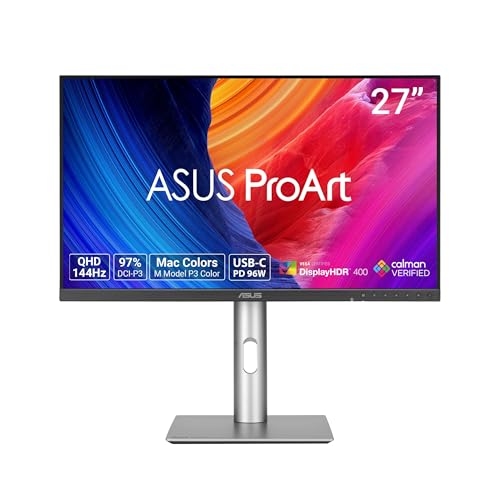
This ProArt model is built for desks that need more than a nice panel and a stand. You get a 27-inch QHD display with USB-C power delivery, Auto KVM, Daisy Chain support, and ergonomic adjustment, which makes it attractive for a creator workstation that juggles multiple devices.
The 144Hz refresh rate adds a bit of motion polish that the 4K ProArt monitor does not emphasize as strongly, so this one leans more toward mixed creative and general use. For many studios, that balance feels smart, though color-first editors may still prefer the 4K sibling when pixel density is the main priority.
Best Bits
- Calman verification and Delta E under 2 point toward dependable color behavior.
- QHD resolution keeps text readable without the scaling burden of 4K.
- USB-C with 96W power delivery helps simplify a laptop workstation.
- Auto KVM can help you switch control between devices more smoothly.
- Daisy chain support is useful for multi-monitor creative setups.
- Ergonomic stand adjustments make long sessions easier to set up.
Honest Caveats
- The feature list is rich enough that some casual desks will never use all of it.
- QHD is a step down from the 4K ProArt model for ultra-fine detail work.
- Setup can take a little more planning because the monitor can do so much.
Feature Rundown
Built With In Mind
You should look at this ProArt monitor if you run a creative desk with several devices and want a display that handles both color-aware work and day-to-day productivity.
A Different Pick Fits When
ASUS ProArt PA279CRV is the sharper choice for editors who want 4K detail and a stronger focus on image fidelity above all else.
How To Choose The Right Computer Monitors For Designers
Start With The Work You Actually Do
Your daily tasks should steer the screen choice more than any spec sheet headline. Photo retouching, illustration, motion graphics, UI design, and general office work all reward different strengths, so a 4K ProArt panel is a better match for color-sensitive editing, while a 34-inch ultrawide helps when your day is mostly panels, layers, and references. FHD can be enough for lighter use, but it starts to feel cramped once your workspace gets crowded.
Think about desk depth too, because size changes comfort as much as resolution does. A 40-inch ultrawide can feel brilliant in a production room, yet it can crowd a shallow desk fast. By contrast, a 27-inch 4K screen often feels easier to place, especially for laptop users who already have a dock, keyboard, and drawing tablet in the mix.
Match Resolution To Viewing Distance
Resolution is about sharpness, but it also shapes how comfortable the interface feels. A 27-inch 4K display gives you dense detail that works well for typography, fine art, and image review, while QHD on 27 inches lands in a sweet spot for many mixed-use setups. FHD still has a place for simpler stations, though it gives up clarity on larger screens.
Viewing distance matters because your eyes are doing real work all day. Sit close to a 4K screen and you gain crisp edges, but scaling choices become part of the setup. On a larger ultrawide, the payoff is more horizontal room, which helps timelines and side-by-side windows feel less crowded.
Look Past The Panel Type Alone
Panel labels like IPS and VA matter, yet they do different jobs. IPS usually gives you more consistent color and viewing angles, which suits collaboration and visual work, while VA often leans into deeper contrast that can make dark interfaces and media look richer. Neither choice is automatically better, because the real question is how your monitor fits your desk and your workflow.
Ergonomics matter just as much. Height, tilt, swivel, and pivot adjustments can save your neck during long sessions, especially in a small studio where posture changes throughout the day. USB-C with power delivery helps too, since it cuts cable clutter and keeps laptop workstations cleaner.
Decide Which Extras You Will Truly Use
Refresh rate, built-in speakers, KVM switching, and daisy chain support can all matter, but only in the right setup. A 144Hz screen feels smoother for motion and scrolling, yet a print-focused designer may care more about calibration and color coverage than speed. That is why a feature-rich monitor makes sense for a power user, while a simpler screen can be the smarter call for a lighter workflow.
Try to separate convenience from necessity. Speakers are handy in shared rooms, and KVM tools help if you work across multiple machines, but neither should outweigh the basics of size, sharpness, and color behavior. The best match is the monitor that solves your actual pain points without adding clutter you will never touch.
A Quick Reality Check
Common Shopping Slip Ups
Many people fixate on size alone and forget how dense the image will look at arm’s length. A 32-inch panel can be great for layout work, but on a shallow desk it may feel oversized before it feels useful. Color claims deserve attention too, because a monitor that looks impressive on paper can still be too loose for edited images or print-heavy work.
Another common miss is underestimating desk ergonomics. A display without enough adjustment can leave you stacking books under the stand or craning your neck through long sessions. That gets old quickly, especially in a home office where the monitor doubles as your main workstation and your entertainment screen.
What The Higher Tier Buys
More expensive monitors usually spend money on tighter calibration, broader color coverage, and better connectivity. That shows up in real use as cleaner text, more dependable color behavior, and fewer cable headaches on a laptop desk. Premium screens also tend to bring stronger build quality and more thoughtful stands, which you notice every day even though nobody advertises them loudly.
The upgrade makes the most sense for editors, illustrators, and designers who need fewer compromises. For general productivity or casual creative work, a simpler monitor can be enough, and you may not gain much from features you will rarely touch. The key is paying for the parts of the display that shape your routine, not just the parts that look impressive in a spec list.
Final Thoughts
Your best choice depends on how demanding your design work is and how much desk space you can spare. ASUS ProArt models make the strongest case for color-sensitive projects, while the Dell and LG options cover practical workspaces with more modest needs. If your desk is small, the 27-inch screens are easier to live with, and if your workflow is wide and crowded, the ultrawides earn their keep fast. Pick the monitor that fits your workday first, and the rest gets easier.
