
Photo editing asks for more than a sharp panel. You need stable color, usable screen space, and a stand that doesn’t fight your posture during long retouch sessions or client proofing. This shortlist focuses on 27-inch and 32-inch 1440p monitors that make file work, soft-proofing, and layout edits feel organized instead of cramped. You’ll also see where each option bends toward office use, creator work, or mixed gaming and editing.
Quick Look At The Shortlist

ASUS ProArt PA278CV 27 Inch 1440p QHD USB-C Professional Monitor

ViewSonic VS2725-2K 27 Inch 1440p Computer Monitor

ViewSonic VP2768 PRO 27 Inch 1440p Monitor

Samsung 27″ Odyssey G5 (G51F) Series QHD Gaming Monitor

Dell UltraSharp U2719D 27 Inch QHD Wide 1440p LED Monitor

ASUS ProArt Display 32” 1440P Monitor (PA328CGV)
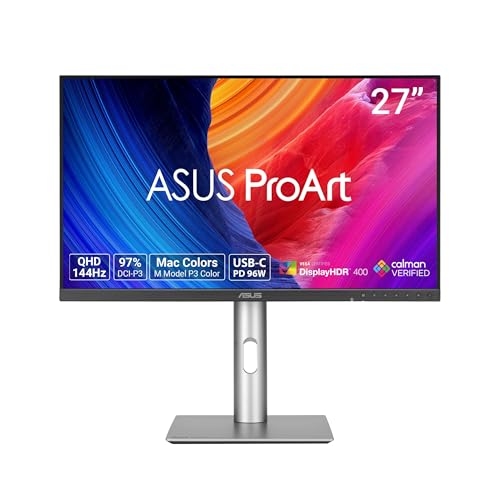
ASUS ProArt PA278CGRV 27 Inch 1440p USB-C Professional Monitor for Mac
More Details On Our Top Picks
The PA278CV lands in the sweet spot for photo work that also needs a clean desk. USB-C can carry video and data through one cable, while the daisy-chain and USB hub features trim down the usual tangle around a laptop. Color-focused creators get a panel built around 100% sRGB and Rec.709, so it fits editing jobs that need steady web and video output.
The honest read is that this model suits structured work more than flashy use cases. The ergonomic stand matters on long retouch sessions, because height and tilt control affect comfort far more than most spec sheets admit. Compared with the ViewSonic VS2725-2K, this ASUS feels more purpose-built for color-minded desk work, not casual all-around use.
Strong Points
- USB-C support keeps a laptop setup cleaner and simpler.
- 100% sRGB and Rec.709 suit web and broadcast-oriented editing.
- Delta E under 2 points toward tighter color consistency.
- Daisy-chain support helps in multi-monitor studio layouts.
- The ergonomic stand helps you set a better working position.
Areas To Watch
- It leans toward creator work, so fast-motion gaming is not the main story.
- The feature set is practical, not flashy.
- Desk cables still need planning, even with USB-C in the mix.
Feature Rundown
Who It Suits Best
Photo editors who want a laptop-friendly USB-C monitor with a serious color bent will get the most from it.
Where A Sibling Pick Shines
ViewSonic VP2768 PRO 27 Inch 1440p Monitor suits you better if your workflow is centered on calibration-heavy photography and graphic work.
This ViewSonic is aimed at the person who edits photos during the day and still wants smoother motion for everything else. The 100Hz panel, variable refresh rate, and 1ms response time make the desktop feel less stiff than a basic office screen, while the anti-glare finish helps under bright room lighting. That combination matters in a busy home office where the monitor also handles browsing, documents, and occasional creative work.
Compared with the ASUS ProArt PA278CV, you give up the stricter color-first positioning, but you gain a more flexible everyday monitor. The frameless design also keeps a dual-screen setup feeling less bulky, which is handy on narrower desks. The honest trade-off is simple, this leans broader than specialist.
What We Like
- 100Hz support keeps desktop motion smoother than standard 60Hz panels.
- Variable refresh rate helps reduce visible stutter in mixed use.
- Anti-glare coating is useful in bright offices or near windows.
- Frameless styling makes side-by-side monitor setups look cleaner.
- HDMI and DisplayPort give you simple source options.
Minor Gripes
- The color story is broad-use friendly, not studio-first.
- Fast specs help general responsiveness more than editing precision.
- Anti-glare surfaces can show a slightly different look than glossy panels.
Feature Snapshot
Who Should Grab It
You’ll appreciate this most in a home office that mixes editing, work apps, and casual gaming.
Look Elsewhere When
ASUS ProArt PA278CV fits you better if your priority is creator-centric color handling over general-purpose speed.
Color-critical photo work is where this ViewSonic starts to make sense. The 14-bit 3D LUT, or look-up table, gives the monitor more room to map color values smoothly, and the factory calibration focus suits editing desks that care about repeatable output. Compared with the PA278CV, this model leans harder into the calibration story and less into USB-C convenience.
That trade-off suits photographers and graphic designers who spend real time matching skin tones, product shots, and print-prep files. The 100% sRGB and Rec.709 coverage line up with common delivery standards, so the display feels measured rather than showy. A little plain on paper, yes, but that plainness is part of the appeal.
Highlights
- 14-bit 3D LUT supports smoother color mapping.
- 100% sRGB and Rec.709 match common editing targets.
- Color calibration focus suits serious photography workflows.
- 27-inch size works well for side panels and image previews.
Points To Note
- USB-C convenience is not part of the feature story here.
- The design is more studio-minded than lifestyle-oriented.
- Desk organization may take more planning than on the ASUS USB-C models.
Technical Sheet
Built With In Mind
You’ll get the most from this monitor in a photography or graphic design setup where color control matters more than convenience extras.
Another Choice May Suit
Dell UltraSharp U2719D is a better fit for a simpler office-first desk that still needs a clean 27-inch QHD screen.
This Samsung takes a different path from the color-first picks above. The 180Hz refresh rate, 1ms response time, and AMD FreeSync support make it the obvious outlier for mixed gaming and editing, while HDR10 adds a little more range to supported content. That makes sense for a desk that serves late-night games after daytime retouching.
The catch is that this is not the most studio-faithful choice in the list. Black Equalizer, Virtual Aim Point, and Auto Source Switch+ are utility features for gamers, not editing specialists, so you’re paying for a broader personality. Still, for hybrid setups, it has a clear job.
Bright Spots
- 180Hz support keeps fast motion exceptionally smooth.
- 1ms response time helps reduce blur in quick scenes.
- FreeSync is useful for variable-frame-rate gaming.
- Height adjustment helps you line up the screen properly.
- Auto Source Switch+ is handy in multi-device setups.
Softer Spots
- Gaming extras add value only when that use case matters.
- It’s less tailored to color-managed studio work than the ProArt and ViewSonic creator models.
- HDR10 support depends heavily on source content.
Core Details
The Right Fit
You should lean toward this Samsung if your monitor has to handle both creative work and gaming without feeling compromised.
Swap It Out When
ViewSonic VP2768 PRO 27 Inch 1440p Monitor is the cleaner choice for color-sensitive photo editing and graphic work.
The Dell UltraSharp U2719D plays the steady middle ground, and that suits a lot of desk setups. A 27-inch QHD panel gives you enough workspace for image windows, palettes, and browser tabs, while the UltraSharp line has long appealed to people who prefer restrained industrial design over loud styling. It feels especially sensible in a home office where photo work sits beside regular computer tasks.
Compared with the ASUS ProArt options, this Dell is less explicit about creator-specific extras, but that can make the decision easier for a simpler office. The trade-off is that you’re choosing balance over niche features, which is often the right move for mixed-purpose use. Nothing flashy, just an easy fit for routine work.
Positives
- 27-inch QHD space supports layered editing and split-screen work.
- The restrained design suits professional desks.
- It works well for everyday office use beyond photo tasks.
Small Caveats
- It is less feature-rich than the ProArt and VP series picks.
- There are no creator-specific color extras called out in the source data.
- Advanced users may want a more explicit color-management focus.
Details At A Glance
Whose Shelf It Belongs On
You’ll like this most if you want a clean office monitor that can handle photo editing without turning the desk into a creator lab.
Reach For A Different Pick When
ASUS ProArt PA278CV fits better for you if USB-C convenience and color-first positioning matter more.
The 32-inch size changes the whole editing rhythm. You get more room for a timeline, tools, and the image itself, which is useful during long retouch sessions or when you keep reference material open beside a main file. Unlike the 27-inch ProArt PA278CV, this ASUS gives you a larger canvas and a more expansive feel on the desk.
Its color support is aimed squarely at creator work, with 95% DCI-P3 alongside 100% sRGB and Rec.709. DCI-P3 is a wider color space than sRGB, so it matters more when your work touches rich digital media or display-focused delivery. The trade-off is simple, it occupies more desk space and asks more of your setup.
Reasons To Buy
- 32-inch size gives you room to spread out editing tools.
- 95% DCI-P3 adds broader color coverage for creative work.
- 165Hz support is unusually high for a creator monitor.
- USB-C, HDMI, and a hub simplify multi-device use.
Room For Improvement
- The larger chassis needs more desk depth.
- It is a stronger fit for spacious setups than compact rooms.
- The added refresh rate matters less for static image editing.
Key Specs
Perfect Match For
You’ll get the most from this monitor if you want a larger creator screen for detailed editing and side-by-side workflow.
Where Another Pick Shines
ASUS ProArt PA278CV is the better fit for smaller desks and a more compact USB-C setup.
This ProArt model adds a more modern control set than the older, simpler office picks. Auto KVM lets one keyboard and mouse switch between connected computers, which helps a lot on desks that bounce between a Mac and another machine. USB-C power delivery at 96W is especially useful for laptops that can charge through the monitor while staying connected.
Compared with the PA278CV, this version leans harder into multi-device convenience and a higher 144Hz refresh rate. That makes it appealing for creators who also care about smoother cursor movement or occasional motion-heavy work. The honest caveat is that the extra features matter most on a busy desk, not a bare one.
Best Bits
- Auto KVM is practical for switching between two computers.
- 96W USB-C power delivery suits many laptop workflows.
- 144Hz adds a smoother feel than typical creator monitors.
- Daisy-chain support helps streamline multi-monitor desks.
- Ergonomic stand support helps with longer editing sessions.
Worth Noting
- The added feature set matters most in a multi-device setup.
- Mac-focused branding helps the fit, but it still serves other workflows too.
- Busy desks may need a bit more planning around cable routing.
Feature Card
Who Will Love This
You’ll like this most if your desk rotates between a Mac and another computer and you want fewer accessories in the way.
A Better Fit Elsewhere
ASUS ProArt PA278CV makes more sense for a simpler USB-C creator desk without the extra switching tools.
How To Choose The Right 1440p Monitors For Photo Editing
Color Accuracy Comes First
For photo editing, the screen’s color behavior matters more than flashy refresh rates. Look for wide coverage of sRGB when your work lives on the web, and pay attention to Rec.709 for video-linked creative work. A Delta E claim under 2, as seen on the ASUS ProArt models here, points toward tighter color error, which helps keep edits from drifting between display and export.
Panel type matters too. IPS panels are popular because they hold color and contrast more consistently as your viewing angle changes, which matters on a desk where you lean, swivel, and check proofs from the side. That consistency is a lot more useful than a dramatic marketing phrase.
Screen Size And Desk Space
Twenty-seven inches is the practical center point for many editing desks. It leaves room for toolbars, palettes, and a second window without forcing your neck to do too much work. A 32-inch panel, like the ASUS ProArt Display PA328CGV, gives you more room to spread out, but it also asks for deeper desk space and a cleaner cable plan.
The right size depends on how you work. Compact rooms and laptop setups usually feel better with 27 inches, while larger desks can justify the extra canvas of a 32-inch panel. The screen should support your workflow, not dominate it like a billboard.
Connectivity And Everyday Use
USB-C is a major convenience for laptop-based editing because it can carry display signal and power through one cable. On the PA278CV and PA278CGRV, that matters in a real studio or home office, where fewer adapters usually mean fewer annoyances. HDMI and DisplayPort still matter for desktop towers, cameras, and backup machines, so a flexible input mix is worth checking closely.
Extra features like a USB hub, daisy-chain support, and Auto KVM help once your desk has more than one device. Those tools don’t improve color on their own, but they do make a work area less cluttered and easier to live with. For mixed use, that can matter just as much as panel quality.
Refresh Rate And Secondary Uses
A higher refresh rate is not the main reason to choose a photo-editing monitor, but it can improve day-to-day smoothness. The Samsung Odyssey G5 and ASUS ProArt PA278CGRV add motion comfort that helps if you also game, scroll a lot, or move through large catalogs. For strictly still-image work, though, color handling should stay ahead of refresh-rate hype.
That’s the balance to keep in mind. Choose the panel that serves your editing habits first, then let the extras support your broader desk life. Otherwise, you end up paying for motion features you barely notice.
What To Weigh Before You Commit
Common Shopping Slip Ups
Many people focus on resolution and stop there. A 1440p panel can still be a poor fit for photo work if color coverage is weak, the stand is awkward, or the inputs don’t match your laptop setup.
Another common miss is oversizing the screen for the desk. A 32-inch panel sounds appealing, but in a tight room it can crowd the keyboard, mouse, and sketchbook area you actually use.
Where The Extra Money Goes
Higher-tier models usually spend that extra cost on tighter color calibration, better stand adjustability, stronger connectivity, and broader color gamut support. Those are the parts that help during long editing days, not just in the spec list.
Paying up makes sense for creators who switch between devices, edit regularly, or need a more dependable color target. For lighter home use, a simpler QHD monitor can still do the job without the overhead.
Frequently Asked Questions
Is 1440p enough for photo editing?
Yes, 1440p is a strong middle ground for photo work on 27-inch monitors. You get more workspace than 1080p without the heavier scaling demands of larger 4K setups.
Do you need 100% sRGB for editing photos?
For web-focused photo editing, 100% sRGB is a very useful benchmark. It helps the monitor line up with the color space many online images are meant to live in.
Does a 32-inch monitor help editing?
A 32-inch screen gives you more room for tools, layers, and reference images. It works best on a deeper desk where the extra size won’t feel cramped.
Is USB-C worth it on a creator monitor?
USB-C is worth it when you use a laptop often. One cable can handle display and power, which keeps the desk cleaner and simpler.
Should photo editors care about refresh rate?
Refresh rate matters less than color quality for still-image work. A higher rate is nice for smoother motion, but it should stay secondary to panel accuracy and ergonomics.
Final Thoughts
For 1440p photo editing, the strongest choices are the ones that match your workflow instead of chasing feature noise. The ASUS ProArt PA278CV stands out for a clean USB-C desk, the ViewSonic VP2768 PRO stays focused on color-managed work, and the ASUS ProArt PA328CGV gives you more room when a larger canvas makes sense. If your desk also handles gaming or general office duty, the Samsung and ViewSonic VS2725-2K add flexibility without losing the 1440p sweet spot. Choose the panel that fits your space and habits, then let the rest of the setup follow.
