
CAD work asks a lot from your hand, your desk space, and your patience. Some setups need a 3D navigation puck for pushing through complex models, while others work better with a compact mouse, a trackball, or a straightforward wired control. This roundup focuses on gear that fits real modeling routines, from long desk sessions to travel between offices. You’ll see where each pick shines, where it asks for a compromise, and which kind of workflow it suits best.
The Shortlist At A Glance
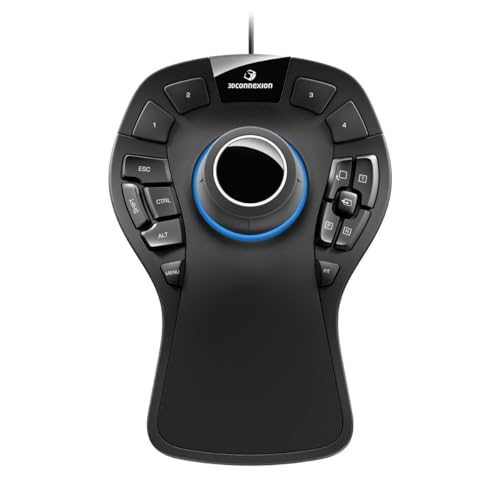
3Dconnexion SpaceMouse Pro 3D Mouse

Logitech Signature Plus M750 L Wireless Mouse Graphite
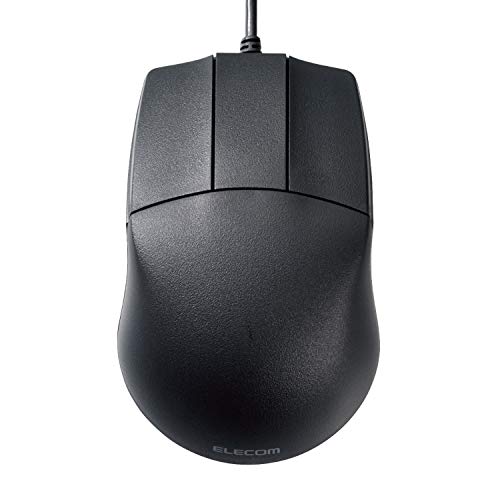
ELECOM Basic 3D-CAD Mouse M-CAD01UBBK

ProtoArc EM02 Wireless Trackball Mouse Gray

3Dconnexion SpaceMouse Wireless Bluetooth Edition 3DX-700115

3Dconnexion CadMouse Compact Wireless

3Dconnexion SpacePilot Pro 3D Mouse 3DX-700036

ELECOM Huge Plus Wireless Trackball Mouse
More Details On Our Top Picks
This is the most purpose-built choice in the group, especially for modeling sessions that lean hard on 3D navigation. The six-degrees-of-freedom sensor lets you push, pull, tilt, and rotate the model in one place, while the soft-coated palm rest helps long desk sessions feel less fatiguing.
The 15 programmable keys, on-screen display, and virtual numpad make it more of a control center than a plain pointing device. That extra control is a real plus for engineers and designers, though the corded design and 3-foot cable keep it parked close to your workstation.
Strong Points
- 6DoF control gives you direct 3D model movement.
- Soft-coated hand rest adds comfort during long sessions.
- Fifteen programmable keys cut down on keyboard reaches.
- Quick-view and rotation controls speed common viewport moves.
- Works across Windows, macOS, and Linux setups.
Things To Consider
- The corded layout keeps this anchored to one desk.
- The 3-foot lead may feel short on deep workbenches.
- It’s specialized gear, so casual pointer use feels secondary.
Feature Rundown
Who It Suits Best
Designers, CAD specialists, and engineering teams who spend most of the day inside 3D software will get the most from it.
Where A Sibling Pick Shines
3Dconnexion SpaceMouse Wireless Bluetooth Edition 3DX-700115 suits mobile workstations better when you need the same style of navigation without a cable.
After a specialist control puck, this one feels like the familiar workhorse in the mix. The contoured shell is shaped for large hands, and the silent-click design keeps office noise down in shared spaces or late-night home setups.
SmartWheel scrolling is a useful middle ground, giving you precise line-by-line control and faster movement when a long drawing or parts list needs to move quickly. The trade-off is simple: this is a standard mouse, so it won’t replace a true 3D navigation tool for model rotation.
What We Like
- Large-hand shape sits naturally in broader palms.
- Silent clicks suit shared offices and quiet rooms.
- SmartWheel scrolling helps with both detail and speed.
- Bluetooth support keeps desk clutter low.
Room For Improvement
- It’s a 2D pointer, so 3D modeling support is indirect.
- The left-right side buttons add value only after setup.
- Graphite finish may show wear with heavy daily use.
Feature Snapshot
Made For
Commuters between office and home, plus anyone who wants a large, quiet pointer for everyday CAD-adjacent work, will feel at home with it.
Another Choice May Suit
3Dconnexion SpaceMouse Pro 3D Mouse is the stronger match for engineers who spend more time moving through models than using a standard cursor.
This ELECOM model stays stripped back, and that makes it useful for people who want a simple CAD-specific pointer without a lot of extra controls. The wired layout keeps setup straightforward, while the lack of a scroll wheel leaves the top clean and focused on the three-button layout.
The blue LED optical sensor and 600/1200 DPI settings give you two sensitivity levels, which matters when you move between coarse navigation and finer placement work. One thing to keep in mind, though, is that this is an international listing, so local terms, labeling, or warranty handling may differ.
Highlights
- Three-button layout keeps the learning curve simple.
- No scroll wheel means fewer parts on top.
- Two DPI levels help with different cursor speeds.
- Wired connection avoids battery planning.
Areas To Watch
- The international listing can mean different product terms.
- Warranty coverage may not match local expectations.
- No scroll wheel limits general desktop convenience.
Core Details
Best Suited To
Students, new CAD users, and anyone who prefers a very simple wired tool for workstation use will appreciate its plain setup.
Swap It Out When
3Dconnexion CadMouse Compact Wireless suits you better when portability and a more refined modern feel matter more than a bare-bones layout.
Trackball designs change the workflow more than most people expect, because your hand stays mostly still while the thumb handles movement. That can be a relief in a cramped CAD corner or a shared desk, and the adjustable angle between 0 and 15 degrees helps you settle into a wrist position that feels less cramped.
Multi-device support over Bluetooth and 2.4 GHz USB-A makes it useful for a desktop that juggles several machines. The trade-off is the learning curve, since thumb control feels different from a standard mouse and usually takes some getting used to.
Upsides
- Thumb ball control reduces full-arm movement.
- Adjustable angle helps you find a calmer wrist posture.
- Switching among three devices suits mixed work setups.
- Rechargeable design removes disposable battery planning.
Minor Gripes
- Trackball control takes some adjustment at first.
- Cleaning the ball area is part of ownership.
- The shape is less familiar than a standard mouse.
Details At A Glance
The Right Fit
Desk workers, space-saving setups, and anyone who prefers thumb-based control over sweeping mouse motions will get the most from it.
Where A Sibling Pick Shines
Logitech Signature Plus M750 L Wireless Mouse Graphite is a simpler choice for people who want a familiar shape with less of a learning curve.
This SpaceMouse keeps the same core 3D navigation idea as the Pro model, but the wireless format changes how you place it on the desk. That matters in rooms where you shift between laptops, docking stations, and temporary work surfaces, because the setup stays cleaner without a cable running to your hand.
The real advantage shows up for people who want dedicated model movement without tying the device to one fixed spot. The trade-off is that wireless gear adds another thing to manage, so you’ll want a tidy charging routine and a clear place to store it between sessions.
Reasons To Buy
- Cable-free layout keeps the desk less crowded.
- Feels well matched to mobile CAD stations.
- Pairs naturally with a laptop or docked workstation.
- Gives you dedicated 3D navigation on the move.
Softer Spots
- Wireless gear needs charging awareness.
- It still serves a specialist role beside a standard mouse.
- Desk placement matters more without a fixed cable.
Feature Card
Whose Shelf It Belongs On
Mobile designers, hybrid office workers, and anyone who wants a SpaceMouse without a cord will get the most value from it.
Look Elsewhere When
3Dconnexion SpaceMouse Pro 3D Mouse makes more sense for fixed desks where the extra buttons and palm support matter more than cable freedom.
Compared with the bigger SpaceMouse options, this one goes for a more traditional pointer shape in a smaller frame. That makes it a neat fit for travel bags, compact desks, or a secondary workstation where you still want a purpose-built CAD mouse without carrying a larger body.
Wireless operation keeps the desk clean, and the compact profile should feel less imposing to anyone who dislikes oversized mice. The honest trade-off is that small mice can feel cramped in larger hands, so comfort will depend on your grip style and how long your sessions run.
Best Bits
- Compact body saves room on smaller desks.
- Wireless setup suits travel-friendly work kits.
- Traditional shape feels easier to adapt to.
- Good second mouse for mixed workstation use.
Small Caveats
- Smaller shells can feel tight in larger hands.
- Compact gear is less forgiving for palm-heavy grips.
- Wireless convenience still means charging to remember.
Quick Facts
Built With In Mind
Mobile CAD users, studio desks with limited space, and people who want a smaller pointer with a premium feel will benefit most.
Reach For A Different Pick When
ELECOM Huge Plus Wireless Trackball Mouse suits you better when you want more programmable controls and a larger hand rest area.
The SpacePilot Pro looks like a desk command panel because that’s basically how many CAD specialists will use it. Between the LCD workflow assistant, powerful application control, and advanced MCAD navigation, it’s built for people who live inside complex projects and need the controller to carry some of the load.
That extra hardware brings a different rhythm to the desk, almost like having a shortcut strip and navigation puck in one place. It suits experienced modelers well, though the learning curve and larger footprint make it less friendly for casual or space-tight setups.
Standout Traits
- LCD workflow assistant keeps context close at hand.
- Advanced MCAD navigation supports serious model work.
- Application control trims the need for keyboard hunting.
- Lots of dedicated controls suit complex projects.
Worth Noting
- The desk footprint suits dedicated workstations more than shared spaces.
- It asks for time to learn its control layout.
- Casual cursor use feels secondary to its specialist role.
Core Details
Who Will Love This
Experienced CAD professionals, especially those handling layered mechanical work, will get the most from its control-heavy layout.
Another Choice May Suit
3Dconnexion SpaceMouse Pro 3D Mouse is the easier entry point for engineers who want a more focused setup without the extra console-style surface.
This trackball is built for people who like a lot of control under one thumb, and the 52 mm ball gives it a larger-than-average feel. The 10 programmable buttons, silent clicks, and multi-connection support make it a strong fit for desktops that juggle Windows PC, Mac, and iPad use in the same space.
The wired option is useful when you want a fixed desk connection, while Bluetooth and 2.4 GHz keep the wireless side flexible. The trade-off is that a feature-dense shell usually asks for more setup time, and cleaning around the ball area becomes part of the routine.
Positives
- Large 52 mm ball gives broad thumb control.
- Ten programmable buttons help with repeated commands.
- Silent clicks fit shared or late-hour workspaces.
- Bluetooth, 2.4 GHz, and wired support widen compatibility.
- Works across Windows PC, Mac, and iPad setups.
Points To Note
- The control surface takes time to learn.
- Ball-area cleaning is part of ownership.
- Many functions mean more setup decisions up front.
Technical Sheet
Right Fit
Power users who want lots of programmable control and a large trackball for mixed-device work will appreciate this model most.
Skip It When
ProtoArc EM02 Wireless Trackball Mouse is easier to live with for people who want a simpler learning curve and fewer buttons.
How To Choose The Right 3d Cad Mouses
Match The Control Style To Your Workflow
3D CAD control falls into a few clear camps, and the right one depends on how you move inside your software. A SpaceMouse-style controller, like the 3Dconnexion picks here, focuses on six-degrees-of-freedom movement, which means you can shift position, tilt, and rotate without constantly reaching for keyboard shortcuts.
Trackballs and standard mice serve a different role. They are better for pointer work, menu access, and general desktop tasks, so they make sense beside CAD software or in mixed-use offices where not every task is model navigation.
Think About Desk Space And Placement
Desk footprint matters more than many shoppers expect. A full-size controller such as the SpaceMouse Pro claims a larger workspace presence, while the CadMouse Compact Wireless and ProtoArc EM02 fit tighter layouts or travel bags with less fuss.
Shared studios, laptop docks, and temporary workstations usually benefit from wireless gear. Fixed engineering desks often suit wired tools better, since they remove charging routines and keep the device in one predictable spot.
Comfort Comes Down To Hand Shape And Session Length
Large hands often feel better with the Logitech Signature Plus M750 L, while thumb-trackball designs spread movement differently and can ease repeated sweeping motions. That matters most in long sessions, because the right grip can feel steady and calm, while the wrong one starts to feel like a pebble in your palm.
Button count also changes comfort in a practical way. More programmable inputs reduce keyboard reaches, but they also ask for more setup and more memorization, so a control-heavy layout suits experienced CAD users better than casual desk work.
Look For Software Fit, Not Just Shape
System support is easy to overlook, yet it matters when your work crosses Windows, macOS, Linux, or even iPad use. The 3Dconnexion models and ELECOM trackballs each fit different environments, so the safer choice is the one that matches your actual workstation mix.
For many people, the best setup is two tools rather than one. A dedicated 3D navigation device handles model movement, while a standard mouse or trackball takes care of everything else.
What To Weigh Before You Decide
Common Shopping Slip Ups
A common mistake is treating every CAD-related mouse as the same thing. A 3D navigation controller does very different work from a standard pointer, and a trackball solves a different problem again.
Another misstep is ignoring desk size and connection style. A large corded controller can feel great on a dedicated station, but it gets awkward fast on a small shared desk.
Why Top Tier Costs More
Higher-end models usually cost more because they combine more controls, better ergonomics, and more specialized navigation hardware. The SpacePilot Pro adds an LCD workflow assistant and deeper application control, while the SpaceMouse Pro layers in 15 programmable keys and a soft-coated hand rest.
That upgrade makes sense for heavy daily use, complex assemblies, or engineers who spend hours inside the same software suite. For occasional modeling or mixed office work, a simpler mouse or trackball may feel more sensible.
Closing Thoughts
Your best match depends on how much of your day is spent moving through 3D space versus handling everyday pointer work. The SpaceMouse Pro and SpacePilot Pro serve serious CAD desks, while the Logitech, ProtoArc, and ELECOM trackballs fit broader workstations with different comfort goals. For a cleaner desk, the wireless 3Dconnexion options make sense, and for a simpler start, the basic ELECOM mouse stays easy to understand. Choose the tool that fits your workflow first, then the rest of the desk starts to make more sense.
