
Choosing a mouse for CAD work is less about flashy looks and more about control, comfort, and the way your hand feels after a long session. You need precise tracking, sensible button layout, and a shape that matches the kind of desk time you actually live with, whether that’s drafting at home, commuting between offices, or sitting through back-to-back design revisions.
The eight picks below cover wireless and wired models, vertical ergonomics, compact desk accessories, and a few options that lean toward everyday office use. That mix makes it easier to match the tool to your workflow instead of forcing a one-shape-fits-all compromise.
The Shortlist At A Glance

Redragon M690 PRO Wireless RGB Gaming Mouse 8000 DPI
ELECOM Basic 3D-CAD Mouse M-CAD01UBBK

3Dconnexion CadMouse Compact Wireless

Contour Unimouse Ergonomic Vertical Mouse Wireless

3Dconnexion 3DX-700068 Cadmouse Pad Compact

3Dconnexion CadMouse Pro Wireless Mouse
3DConnexion CadMouse Pro Mouse Cable 7 Button Black

Ergonomic Optical Wired Mouse M102 Black
More Details On Our Top Picks
The Redragon leans toward flexibility, not fuss. You get 2.4 GHz wireless with a claimed reach up to 10 meters, plus onboard DPI steps that go from 500 to 8000, so the mouse can shift from broad navigation to tighter pointer control without feeling stranded in one speed.
That makes it a fair match for mixed work and lighter CAD chores, especially on a desk where you also game or jump between creative apps. The trade-off is that this kind of all-around mouse rarely feels as purpose-built as the specialist 3D-focused models farther down the list.
What We Like
- Wireless range suits a tidy desk or a laptop setup without a cable crossing your workspace.
- Five DPI steps help you adjust pointer speed for sketching, general navigation, or faster desktop moves.
- The remapping angle gives you room to assign commands that fit your own shortcuts.
- The ergonomic shell should feel familiar in longer desktop sessions.
Points To Note
- It is still a gaming mouse at heart, so CAD-specific controls are less refined than on the 3Dconnexion models.
- Wireless gear needs occasional battery awareness, which can matter during long project days.
- RGB lighting adds style but does little for drafting work.
Feature Rundown
Who Will Love This
You handle CAD occasionally, but you also want a mouse that feels comfortable for everyday office use and casual gaming.
Where A Sibling Pick Shines
3Dconnexion CadMouse Pro Wireless Mouse fits you better once CAD becomes your main job and shortcut control matters more than RGB flair.
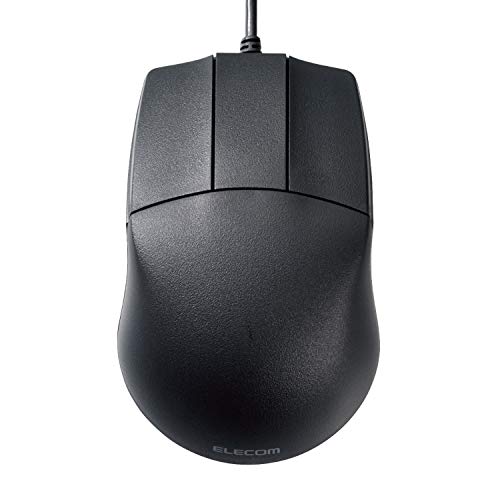
This ELECOM takes a very plain route, and that’s exactly the point. A wired connection, three buttons, no scroll wheel, and two DPI levels keep the layout stripped down for folks who want fewer moving parts while working in CAD or simple office programs.
Compared with the Redragon above, it gives up wireless freedom and extra surface polish in exchange for a cleaner control set. You may find that helpful in a stable workstation where muscle memory matters more than fancy extras.
Highlights
- Three-button layout keeps the control scheme easy to learn.
- No scroll wheel means fewer accidental inputs during careful pointer work.
- 600 and 1200 DPI settings offer a basic speed split for different tasks.
- The wired setup avoids battery upkeep.
Small Caveats
- The missing scroll wheel will feel limiting for some everyday browsing habits.
- It is built around a simple control set, so shortcut-heavy workflows may outgrow it.
- The listing notes that international product terms and warranty handling can differ.
Core Details
The Right Fit
You want a basic CAD mouse for a fixed desk and prefer a simple shape over feature-heavy hardware.
A Better Fit Elsewhere
3Dconnexion CadMouse Pro Wireless Mouse suits you better for heavier design sessions, thanks to its broader connection options and more advanced control set.
The compact CadMouse is built for small work areas and travel-friendly setups, so it fits neatly beside a laptop or a crowded external keyboard. That smaller footprint can feel like a relief in a shared office, and it also keeps your bag lighter on days you move between desks.
Compared with the ELECOM, this one aims at a more refined CAD lane rather than pure simplicity. The trade-off is that compact gear can feel a touch less substantial in bigger hands, especially during long sessions with repeated clicks.
Reasons To Buy
- Compact body saves space on narrow desks.
- Wireless use keeps the workspace clean and easier to pack.
- The 3Dconnexion focus makes it a more specialized fit for drafting tasks.
- Its size suits travel between office and home setups.
- Less bulk can be helpful beside a pen tablet or extra input device.
Softer Spots
- Smaller mice can feel cramped during all-day work.
- Wireless gear still asks for battery awareness.
- Very compact hardware may not suit large hands as well.
Feature Card
Built With In Mind
You work in a compact office, move between locations, or prefer a smaller mouse that stays out of the way.
Look Elsewhere When
Contour Unimouse Ergonomic Vertical Mouse makes more sense for long, posture-focused desk days where shape adjustability matters more than a tiny footprint.
The Unimouse takes ergonomics seriously, with a vertical body, an adjustable thumb rest, and a tilt range from 35 to 70 degrees. That flexibility matters on long design days, because a hand position that feels neutral for one person can feel cramped for another, and this shape lets you fine-tune the angle.
Compared with the compact 3Dconnexion pick, this one is less about saving desk space and more about making the mouse fit your hand. The honest read is that adjustment takes some patience, but the payoff is a more personal feel once you settle on a position.
Bright Spots
- Adjustable tilt helps you set a hand angle that feels more natural.
- Thumb rest customization adds another layer of fit.
- Six programmable buttons can support common shortcuts.
- Wireless use keeps cables out of the way during desk movement.
Areas To Watch
- The unusual shape can take time to get used to.
- More moving parts usually mean more setup patience.
- Vertical mice do not suit every grip style, so comfort is personal.
Quick Facts
Perfect Match For
You spend long stretches at a desk and want a mouse that puts comfort ahead of compact sizing.
Swap It Out When
3Dconnexion CadMouse Compact Wireless is the better call for travel-heavy work and tighter desk setups.
This is the simplest item in the roundup, and that simplicity is the selling point. A compact mouse pad helps give your mouse a consistent surface, which can matter in CAD work where small pointer movements feel less jumpy than they do on a bare desk.
Compared with every mouse on this list, it serves a different role, more support than primary tool. You may find it most useful beside the CadMouse models, especially in a small office where you want the desk surface to stay orderly.
Best Bits
- Small footprint fits tight desks well.
- Creates a dedicated surface for pointer control.
- Pairs naturally with compact or wireless mice.
- No complicated setup gets in the way.
Room For Improvement
- It adds support, not new mouse features.
- A small pad may feel restrictive for broad arm movement.
- You still need a mouse that fits your workflow.
Details At A Glance
Whose Shelf It Belongs On
You want a tidy desk accessory for CAD work and already own a mouse that deserves a smoother surface.
Another Choice May Suit
3Dconnexion CadMouse Pro Wireless Mouse is the better fit for you if you want the main input device, not just the surface beneath it.
This is the most versatile mouse in the list from a connection standpoint, since it supports 2.4 GHz RF, Bluetooth, and USB-C. That matters in real life more than it sounds, because you can move between a docking setup, a laptop, and a mixed workstation without changing your whole routine.
Its 7200 dpi optical sensor and Smart Mouse Wheel 2 point it toward finer control and quicker scrolling than the simple models earlier in the roundup. The trade-off is clear enough, though: a premium tool asks for a higher budget and makes more sense once CAD is a daily habit rather than an occasional task.
Upsides
- Three connection modes make it easy to match different desk setups.
- The 7200 dpi sensor supports fine pointer movement.
- Smart Mouse Wheel 2 should help with longer menus and document scrolling.
- The overall package fits serious design use better than casual office mice.
Minor Gripes
- More capability usually means a higher cost tier.
- Bluetooth and wireless gear can feel less simple than a plain wired mouse.
- Feature-rich hardware can take more time to set up the way you want.
Feature Snapshot
Best Suited To
You work in CAD often enough to appreciate flexible connectivity and a more polished control feel.
Skip It When
ELECOM Basic 3D-CAD Mouse M-CAD01UBBK is easier to live with for a plain, no-frills workstation.
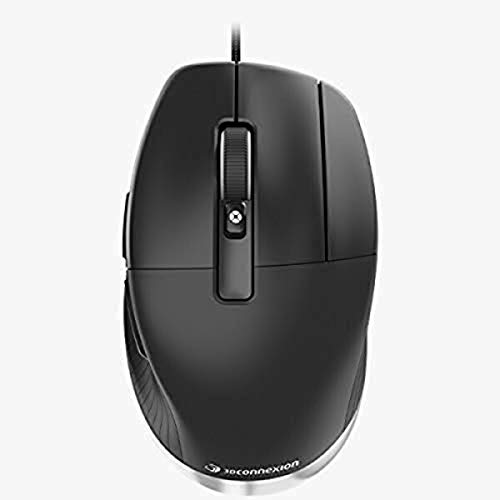
The wired CadMouse Pro is the straightforward desktop workhorse here. Seven buttons and an optical cable setup make it a strong match for users who prefer a constant connection and a fuller button map for repetitive design commands.
Compared with the wireless CadMouse Pro above, this version trims away connection flexibility and leans harder into a fixed workstation role. That’s not a bad thing at all, especially in a studio where the mouse stays at one desk and consistency matters more than portability.
Standout Traits
- Seven buttons give you more room for shortcuts.
- The wired connection removes battery planning.
- Optical tracking suits steady desktop use.
- Black finish keeps the look restrained and office-friendly.
Honest Caveats
- The cable ties it more tightly to one workstation.
- It gives up the flexibility of Bluetooth and RF.
- Seven-button mice ask for a little setup time to feel natural.
Feature Rundown
Who Should Grab It
You spend most of your design time at one desk and want a wired mouse with more programmable control.
Reach For A Different Pick When
3Dconnexion CadMouse Pro Wireless Mouse makes more sense for you if you split time between laptop, dock, and desk setups.
The M102 is the basic comfort pick in the set, with a curved shape meant to sit naturally in the palm during office work and everyday browsing. That kind of profile is useful in a home office or school setup where you want a mouse that feels calm and familiar, not specialized.
Compared with the more CAD-focused 3Dconnexion models, it is far less ambitious, but that can work in your favor for general use. The honest read is that this is a sensible fallback rather than a specialist tool, and that’s enough for plenty of desks.
Positives
- Curved shape aims for a more natural hand position.
- The wired connection keeps day-to-day use simple.
- Three buttons make the layout easy to learn.
- Works well for routine office tasks and browsing.
Areas To Watch
- Three-button basics may feel light for advanced CAD shortcuts.
- It is more about comfort than specialized control.
- Wired use limits roaming away from the desk.
Key Specs
Made For
You need a comfortable everyday mouse for basic office work, school use, or light browsing.
Not Your Match When
3Dconnexion CadMouse Pro Wireless Mouse is the smarter step up for detailed CAD work and richer control options.
How To Choose The Right 3d Mices For Cad
Match The Mouse To Your Desk Time
CAD work rewards control more than speed. A wireless gaming mouse can be fine for occasional drafting, but a 3D-focused model usually earns its keep once your days involve repeated selects, pans, and shortcut-heavy edits. Compact mice help on crowded desks, while larger ergonomic shapes make more sense for long sessions.
The shape matters just as much as the sensor. Vertical designs like the Contour Unimouse change wrist angle, while standard low-profile models feel more familiar right away. That difference sounds small until you spend hours tracing lines and repeating the same motions.
Button Layout Changes The Workflow
More buttons do not automatically mean better, but they do matter for shortcut mapping. A simple 3-button mouse keeps the learning curve gentle, while seven-button options give you more room for commands tied to your most common actions. For a solo workstation, that can save time without making the desk feel crowded.
Also think about accidental clicks. Some CAD users prefer fewer buttons because they want less risk of hitting the wrong input during fine movement. Others want every command close at hand, especially during dense model editing sessions.
Connection Type Shapes Convenience
Wired mice are steady and low-maintenance, which helps on a permanent desk. Wireless models reduce cable drag and suit laptop setups, but they ask for battery awareness and more attention to pairing. Dual-mode or multi-mode options are more flexible, though they usually sit higher in the lineup.
That’s why a single best answer doesn’t exist. Your right pick depends on whether you move between workstations, keep one fixed setup, or split time between drafting and general office use.
Things Worth Knowing First
Hidden Buying Traps
It’s easy to chase extra buttons and forget the basics. A crowded control set feels impressive, yet it can slow you down more than it helps if your workflow is simple. Another common miss is buying a compact mouse for long sessions, then finding that your hand wants more support.
Surface support gets overlooked too. A good mouse pad or a consistent desk finish can make precise pointer work feel steadier, especially for fine CAD adjustments. That matters more than glossy styling.
Where The Extra Money Goes
Higher-tier CAD mice usually cost more because they add connection flexibility, richer shortcut control, and more refined ergonomics. Sensors tend to be more precise, wheels move with more intent, and the shell is often shaped for longer workdays. None of that is decorative when your mouse is part of your daily toolkit.
Spending up makes sense once you are using CAD for real projects, not occasional edits. For lighter use, a simpler wired mouse or a midrange wireless model can be enough and easier to live with.
Closing Thoughts
The right 3d Mices For Cad should feel calm in your hand and predictable on your desk. For occasional use, a simpler pick like the ELECOM or Redragon makes sense, while daily CAD work points you toward the 3Dconnexion and Contour options. Match the mouse to your workspace, your hand size, and how often you really sit with design software, and the choice gets a lot clearer.
