
Photo editing gets easier when your screen shows detail clearly, stays comfortable through long sessions, and fits the way you work. The seven picks below cover compact desks, wide setups, color-focused work, and a few monitor styles that make sense for mixed use, from home offices to camera desks.
You’ll notice a range here on purpose. Some choices favor color accuracy and USB-C convenience, while others lean toward size, refresh rate, or a smaller footprint, so you can match the monitor to your space and editing habits instead of forcing a one-size solution.
Quick Look At The Shortlist

HP Series 3 27 inch FHD Monitor 327se (2025)

ViewSonic VS2747-H 27 Inch 1080p Computer Monitor

INNOCN 40C1R Ultrawide Monitor 40 inch WQHD
ASUS ROG XG27UCG 27 Inch 4K 160Hz USB-C G-SYNC Gaming Monitor

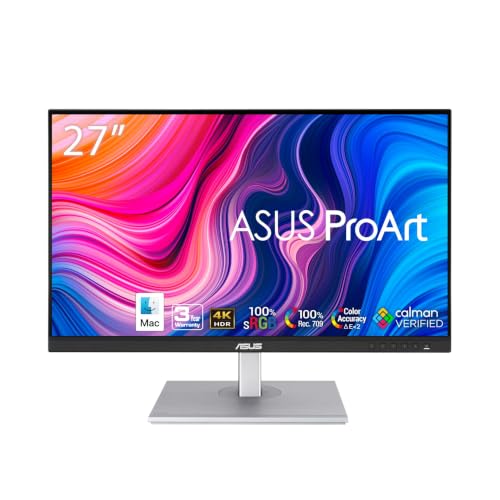
ASUS ProArt PA247CV 24 Inch 1080p USB-C Professional Monitor

FEELWORLD F5 Pro V4 6 Inch Touch Screen DSLR Camera Field Monitor

ASUS VP229Q 21.5 inch Monitor 1080P Full HD
More Details On Our Top Picks
A 27-inch Full HD panel gives you enough space for a photo app, toolbars, and a reference panel without crowding a modest desk. The IPS panel, which means in-plane switching for wider viewing angles and steadier color from the side, makes this a calmer choice for editing than a basic TN screen.
The 250-nit brightness and 1300:1 contrast ratio point to an easy everyday monitor rather than a specialty color workstation, so it suits bedroom desks and general home setups well. Eye Ease with Eyesafe certification adds comfort for long retouching sessions, though the FHD resolution on 27 inches can feel a little soft next to sharper 4K panels like the ASUS ProArt PA247CV.
Strong Points
- 27-inch size gives you room for palettes, layers, and a browser side by side.
- IPS viewing helps colors stay more consistent across the panel.
- Eye comfort features suit long evening edits and catalog cleanup.
- Simple black finish keeps the desk looking clean and unfussy.
Things To Consider
- FHD on 27 inches is fine for general work, yet not as crisp as higher-resolution rivals.
- The feature set leans basic, so serious color work may call for a more tuned panel.
- Owners who move gear often may want to check stand adjustment range before setting up.
Key Specs
Who It Suits Best
Home editors who want a roomy, comfortable screen for general photo work and everyday desk tasks will get the most from it.
A Better Fit Elsewhere
ASUS ProArt PA247CV is the smarter step up for color-sensitive editing and a smaller workspace, especially for anyone who wants USB-C and a stronger professional tilt.
The ViewSonic leans a little more flexible than the HP Series 3 because of its 100Hz IPS panel, which can make scrolling and file movement feel smoother in a busy workspace. Variable refresh rate, or VRR, helps the screen sync more cleanly with changing frame rates, so this pick also works for casual gaming after your edits are done.
Thin bezels and an anti-glare finish suit dual-monitor desks and rooms with bright windows. The trade-off is simple, though, FHD on a 27-inch panel still leaves less room for very fine image inspection than the sharper color-focused ASUS ProArt models.
What We Like
- 100Hz refresh gives desktop motion a smoother feel than standard 60Hz screens.
- IPS panel keeps viewing angles practical for side-by-side work.
- Thin borders help a two-screen setup look neater.
- Anti-glare finish is handy in bright home offices.
Worth Noting
- 1080p on 27 inches is serviceable, but not the sharpest fit for fine retouching.
- The focus is broad use, so color-tuning depth looks lighter than ProArt options.
- Desk placement matters because glare control depends on angle and room lighting.
Feature Snapshot
Built With In Mind
You’ll like this most for a mixed-use desk where photo editing shares space with general work, media, and light gaming.
Another Choice May Suit
ASUS ProArt PA247CV fits better for color-sensitive workstations, especially when USB-C and tighter calibration matter more than speed.
This one feels built for a desk that has more going on than a single photo window. The 40-inch ultrawide 21:9 layout gives you room for a large image, layers, sliders, and a file browser without constant tab switching, and the 3440 x 1440 resolution brings a much denser workspace than the 1080p picks above.
Brightness at 500 nits and wide color coverage make it a strong fit for creators who also spend time on video timelines or color-heavy layouts. The trade-off is size, because a panel this wide can overwhelm smaller desks, and the ergonomic stand plus mount support matter more here than on the compact ASUS VP229Q.
Upsides
- Ultrawide shape keeps multiple editing panels visible at once.
- 3440 x 1440 resolution offers more working room than standard 1080p screens.
- USB-C support helps reduce cable clutter in a creator setup.
- Tilt, height, and mount options make placement easier in larger work areas.
- 500-nit brightness helps the screen hold up in brighter rooms.
Small Caveats
- The width asks for a deeper desk, especially with a keyboard and tablet in front.
- For simple photo touch-ups, some of the screen space can feel like more than you need.
- The gaming-leaning spec mix may matter less than color tuning for pure editing work.
Details At A Glance
Best Suited To
Multitasking photo editors and hybrid creators who want space for timelines, folders, and large previews will get the most out of it.
Where A Sibling Pick Shines
ASUS ProArt PA247CV is the easier match for a smaller desk and tighter color-focused work, especially when you want less screen bulk.
The ASUS ROG model sits in a different lane from the softer 1080p choices, because its 4K panel gives you far finer detail for image work. 4K means 3840 x 2160 resolution, so tiny text, mask edges, and texture-heavy photos can look much cleaner on this screen.
Dual mode is the unusual part here, since it can switch from 4K at 160Hz to FHD at 320Hz, which helps a setup that splits time between photo editing and fast-paced play. That flexibility costs more, and some people will simply never use the gaming headroom, but creators who also care about motion smoothness may find it hard to ignore.
Highlights
- 4K resolution gives photo detail plenty of room to breathe.
- USB-C keeps laptop setups tidy and modern.
- Dual-mode operation adds an unusual level of flexibility.
- Fast IPS support suits both editing and smoother motion use.
- G-SYNC and FreeSync Premium help for mixed content and gaming.
Points To Note
- The feature mix is richer than most budget-minded monitors, so it makes sense for a more serious setup.
- Pure photo editors may never need the high refresh side of the design.
- A 4K panel asks more from your graphics hardware than basic Full HD screens.
Core Details
Who Will Love This
You’ll get the most from it if your desk handles photo editing, content work, and gaming, and you want one screen to do all of that well.
Look Elsewhere When
ASUS ProArt PA247CV makes more sense for a tighter budget and a calmer color-first setup that skips the gaming extras.
This is the clearest photo-editing fit in the group for a compact workstation. Calman Verified means the panel has been factory measured for color accuracy, and the stated Delta E under 2 points to small color error, which matters when you’re matching skin tones, product shots, or print work.
USB-C with 65W power delivery means one cable can handle display signal and laptop charging, while daisy chain support helps a multi-monitor desk stay tidier than the basic HP or ViewSonic options. The 24-inch size is friendlier to smaller desks, though the 1080p resolution is less spacious than a 4K panel like the ASUS ROG.
Reasons To Buy
- Factory calibration gives you a stronger starting point for color work.
- 100% sRGB support helps web and digital photo content look more consistent.
- USB-C with power delivery reduces cable clutter on a laptop desk.
- 24-inch size fits compact workspaces better than larger screens.
- Daisy chain support is handy for a neat dual-monitor setup.
Room For Improvement
- 1080p keeps the desk manageable, but there’s less room for palettes than on a 27-inch or ultrawide screen.
- The professional focus is strong, so casual gaming extras matter less here.
- For crowded desks, the ergonomic stand still asks for sensible placement so the screen sits comfortably.
Feature Card
Right Fit For
Photo editors who care about color consistency and want a tidy laptop-connected desk will find this one especially practical.
Swap It Out When
INNOCN 40C1R suits you better if your workflow needs a much wider canvas for layers, timelines, and split windows.
This is the odd one out, but in a useful way. Instead of being a desk monitor, it’s a 6-inch field screen for a camera rig, so it belongs with you on set rather than beside your editing keyboard, and the Full HD touch display gives you a larger, more direct view than many camera top screens.
3D LUT support, waveform, histogram, and focus assist give videographers tools that help with framing and exposure checks in real shooting conditions. It’s a niche pick, not a substitute for a desktop monitor, though the F970 battery plate and tilt arm make it practical for beginner filmmakers who need a compact monitor kit.
Positives
- Touch control makes on-set adjustments quicker than button-heavy field screens.
- Waveform and histogram tools help you judge exposure with more confidence.
- 3D LUT support gives you a preview of a finished look while filming.
- F970 battery support fits common rig setups and reduces cable dependence.
- 4K HDMI input and output keep it useful in modern camera chains.
Areas To Watch
- This is built for video capture, not for desktop photo editing at a desk.
- A 6-inch screen can feel small for detailed review away from the camera rig.
- Mounting and cabling take a little more attention than a simple monitor setup.
Technical Sheet
Whose Shelf It Belongs On
Beginner filmmakers and videographers who need a monitor for camera work, not desktop editing, will get the clearest value here.
Reach For A Different Pick When
ASUS ProArt PA247CV is the better match for photo editing at a desk, where color tuning and screen size matter more than rig-mounted tools.
The smallest desk-friendly screen in this list, the ASUS VP229Q makes sense where space is tight and a 27-inch panel would feel too bulky. Its frameless IPS panel gives you a neat look with broad viewing angles, and the 75Hz refresh rate adds a bit of smoothness over standard 60Hz screens.
Adaptive-Sync and FreeSync help keep motion steadier, which is useful when you move between photos, light video, and general office work. The catch is obvious, though, because 21.5 inches gives you less room for editing panels than the larger HP and ViewSonic picks, so it works best as a compact everyday screen.
Best Bits
- Small footprint suits desks with limited width.
- IPS panel keeps image consistency decent across the screen.
- 75Hz adds a smoother feel than basic office monitors.
- Frameless design looks neat in a single or dual-screen setup.
- VESA wall mount support helps save desk space.
Softer Spots
- The smaller panel leaves less room for tools and a large preview area.
- 1080p is usable, though not as roomy for retouching as higher-resolution models.
- It suits compact desks more than spacious creative workstations.
Quick Facts
The Right Fit
Space-conscious shoppers who want a compact monitor for light photo editing and general desk work will appreciate this one most.
Skip It When
ASUS ProArt PA247CV is the better call for a color-first editing setup where extra screen room and USB-C matter more.
How To Choose The Right Budget Monitors For Photo Editing
Start With Screen Size And Resolution
For photo editing, size is only useful when it gives you usable space. A 24-inch 1080p display like the ASUS ProArt PA247CV feels tidy on a compact desk, while 27-inch and ultrawide screens give you room for toolbars, folders, and the image itself.
Resolution changes how crisp the image feels, not just how large it looks. A 4K screen shows finer detail, which helps with close retouching, while 1080p still works for general edits and catalog work.
Color Accuracy Matters More Than Flashy Extras
Look for IPS panels, factory calibration, and wide color coverage before you get distracted by gaming terms. IPS, or in-plane switching, usually gives more stable viewing angles, and factory calibration gives you a better starting point for color work straight out of the box.
For web content, 100% sRGB is a useful marker because many online photos are viewed in that color space. The more precise the panel, the less time you’ll spend second-guessing skin tones, shadows, or product shots.
Think About Desk Layout And Connection Type
A small desk changes the entire decision. USB-C with power delivery keeps cable mess down, especially for laptop-based editing, while VESA mounting and slim bezels help dual-screen setups feel cleaner.
Ultrawide screens reward deeper desks and a more organized workflow, but they can feel awkward in tight rooms. That’s the trade-off: more space on screen usually means more space needed on the table.
Balance Editing Needs Against Everyday Use
Some screens in this list lean toward pure photo work, while others make more sense for mixed use. A model with 75Hz or 100Hz refresh can feel nicer during scrolling, but it won’t matter as much as color behavior and resolution for careful image editing.
The best match is the one that fits how you actually work. A home office editor, a laptop user, and a creator who also games after hours will all want different things from the same budget.
What To Weigh Before You Decide
Mistakes Worth Dodging
A common miss is choosing a large 1080p screen and assuming size alone solves everything. On a 27-inch panel, low pixel density can make fine retouching feel less precise than expected.
Another easy slip is ignoring desk depth and stand size. A monitor that looks great on paper can crowd your keyboard, tablet, or notebook the moment it arrives on a real desk.
When Paying More Pays Off
Higher-tier monitors usually cost more because they give you better color consistency, tighter factory tuning, stronger connectivity, or sharper 4K detail. Those upgrades matter most when you edit often, match prints, or rely on a laptop setup that benefits from USB-C and power delivery.
Spending more also makes sense when one screen has to cover several jobs. That’s where models like the ASUS ROG XG27UCG or INNOCN 40C1R justify their extra flexibility, while simpler screens stay more sensible for basic home use.
Frequently Asked Questions
Is 1080p enough for photo editing?
Yes, for general edits, social posts, and basic retouching, 1080p can do the job well. A sharper panel becomes more useful when you want finer detail or more room for tools.
Why do IPS panels matter so much?
IPS panels usually keep colors and contrast steadier when you view the screen from an angle. That helps when you lean back, share the screen, or work beside another monitor.
Does USB-C really help for editing?
USB-C helps a lot on laptop desks because one cable can carry video and, on some models, power too. That keeps your workspace cleaner and makes docking simpler.
Should you pick a larger monitor or a sharper one?
For photo editing, sharper usually wins once the size is comfortable enough. A smaller 4K screen can be more useful than a larger 1080p panel.
Do gaming features matter for photo work?
They matter less than color behavior, resolution, and ergonomics. A higher refresh rate can feel nice, but it’s a bonus rather than the main reason to choose a monitor for editing.
