
Color shifts can wreck a careful edit, especially on OLED, mini-LED, or older desktop panels that drift over time. These seven color calibration tools help you set a steadier baseline, whether you work in photo retouching, design, or video grading. You’ll see a mix of simpler colorimeters and more advanced options, so you can match the tool to your screen setup and workflow.
The Shortlist At A Glance

Datacolor Spyder4Pro S4P100 Colorimeter
Calibrite Display Pro HL Monitor Calibration Colorimeter
datacolor Spyder Monitor Calibrator & Screen Color Calibration Tool
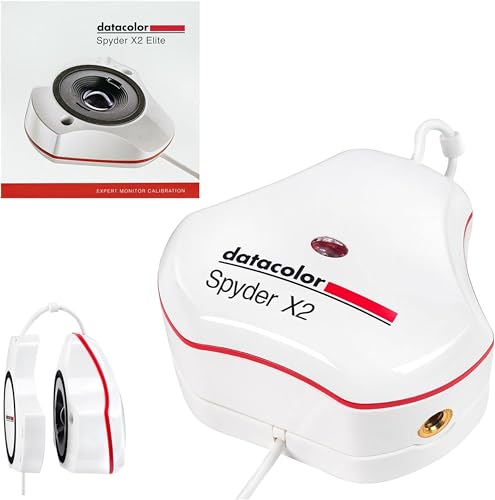
Datacolor Spyder X2 Elite Monitor Color Calibrator

Calibrite Display 123 Monitor Calibration Colorimeter

datacolor SpyderPro Monitor Calibrator & Screen Color Calibration Tool

Calibrite ColorChecker Display Pro
More Details On Our Top Picks
The Spyder4Pro makes sense for a home office or small editing desk where you want color to stay predictable without a lot of fuss. Its older-generation design still points toward practical monitor tuning, and the appeal is straightforward: fewer surprises between your screen and the file you send out.
Compared with newer options like the Calibrite Display Pro HL, this one feels more like a solid baseline tool than a high-luminance specialist. The trade-off is simple, it suits everyday monitor work better than modern HDR-heavy setups, so photographers with a basic LCD often get more from it than video editors chasing the brightest panels.
What We Like
- Simple colorimeter format keeps setup approachable.
- Good fit for a desk you calibrate regularly.
- Helps reduce the back-and-forth of manual screen tweaking.
- Compact body stores easily in a drawer or gear bag.
Things To Consider
- Older hardware means newer display types may be a looser match.
- Best results come from regular recalibration, which adds one more task to your workflow.
Feature Snapshot
Who It Suits Best
You’ll get the most value from this if you edit on a standard monitor and want a dependable, no-frills calibration routine.
Where A Sibling Pick Shines
Calibrite Display Pro HL Monitor Calibration Colorimeter suits creators working on very bright mini-LED or OLED displays, where extra luminance support matters more.
Bright modern displays are where this model earns its place, especially for photo work on mini-LED, OLED, or Apple XDR-style screens. The high-luminance sensor is the point here, and that matters because darkroom-era color tools can fall short once your panel gets seriously bright.
It also includes software for Mac and Windows, plus a USB-C connection and adapter for older ports, so the setup stays practical across mixed desks. The honest read is that this feels aimed at photographers and designers who need a stronger match for intense display output, not someone who only touches up occasional family photos.
Strong Points
- High-luminance sensor handles bright panels better than basic colorimeters.
- Works with LCD, mini-LED, OLED, and compatible projectors.
- USB-C connection with adapter helps on newer and older machines.
- Built-in mount thread is handy for accessory use in a studio.
- Travel pouch makes it easier to keep the device together with its parts.
Worth Noting
- Geared toward more demanding screens, so it can be more than you need for a basic office monitor.
- Software depth brings more setup choices, which can slow first-time calibration.
Core Details
Built With In Mind
This suits you best if your work depends on a bright monitor and you need a calibration tool that keeps up with that kind of display.
Reach For A Different Pick When
Calibrite Display 123 Monitor Calibration Colorimeter is the easier match for a beginner who wants a simpler workflow and less software depth.
This Spyder lands in a nice middle ground for creators who move between OLED, LED, and laptop screens. The draw is speed and practicality, especially since the software is built around a quick calibration flow rather than a maze of settings.
Datacolor also points to its DevicePreview feature, which shows a rough preview of how images may appear on other screens right on a calibrated display. That kind of check helps when you send work to clients or post it across devices, though you still need a good eye for the final file, not just the preview.
Upsides
- Supports a broad mix of OLED and LED display types.
- Fast workflow suits busy editing sessions.
- DevicePreview helps you think about device-to-device color shifts.
- Good fit for photographers, designers, and content creators in one tool.
Small Caveats
- Preview-style features help with context, but they do not replace careful output checks.
- Creators who need advanced display mapping may want a more feature-heavy model.
Details At A Glance
The Right Fit
You’re in the sweet spot for this one if you want a quicker calibration tool for a mixed-screen setup and you value convenience.
Look Elsewhere When
Datacolor SpyderPro Monitor Calibrator & Screen Color Calibration Tool suits you better if you need broader screen support and more control over advanced settings.
The X2 Elite is the more advanced Datacolor lane, and you can feel that in the added control set aimed at photographic, video, and design workflows. Video and cinema targets, soft proofing, and Studio Match give it more reach than the simpler picks above, so it suits a desk with multiple screens or more exacting color work.
That extra depth comes with more settings to think about, which is normal for tools in this class. In most studio setups, that trade-off makes sense for experienced editors, while casual users may find the simpler Calibrite Display 123 easier to live with.
Highlights
- Video and cinema targets broaden its use beyond still images.
- Studio Match helps align multiple monitors in the same workspace.
- Soft proofing is useful when you need a better sense of output.
- Unlimited calibration settings give you more room to tune the result.
Areas To Watch
- More options mean a steeper learning curve than entry-level tools.
- People who only need quick monitor checks may not use all the added controls.
Quick Facts
Who Should Grab It
This belongs on the desk of a photographer, video editor, or digital designer who wants more control than a basic calibration tool gives.
Swap It Out When
Calibrite Display 123 Monitor Calibration Colorimeter is the cleaner fit for someone who wants a faster, simpler path into monitor calibration.
The Display 123 keeps the learning curve low, which is exactly what matters for a first calibration tool or a lighter editing desk. Its Easy 1 2 3 workflow, USB-C connection, and before-and-after check are all aimed at making the process feel less technical.
It also supports two displays, so a dual-monitor setup can stay more consistent without forcing you into a heavier pro system. The honest read is that it’s the least intimidating Calibrite option here, though power users may outgrow it once they start managing more complex color targets.
Best Bits
- Guided workflow helps first-time users avoid calibration guesswork.
- Before-and-after check makes the result easier to judge.
- Compact body works well on crowded desks.
- Two-display support suits simple dual-monitor setups.
Room For Improvement
- Its simpler workflow leaves less room for advanced tuning.
- Users with bright mini-LED or OLED screens may want a more specialized model.
Feature Rundown
Who Will Love This
You’ll appreciate this most if you’re setting up your first serious photo-editing desk and want color control without a steep learning curve.
A Better Fit Elsewhere
Calibrite Display Pro HL Monitor Calibration Colorimeter suits you better if your display gets very bright or you work on mini-LED and OLED panels often.
SpyderPro sits at the more capable end of Datacolor’s lineup, with broad support for wide LED, standard LED, OLED, and mini-LED displays. That matters for studios where one laptop, one desktop monitor, and one client display all need to feel closer together.
Projector calibration and display analysis/MQA add even more scope, so it’s useful for presentation-heavy work as well as screen editing. You may find the extra control a little more involved than you need for a simple home setup, but for mixed-workstation spaces, the added flexibility earns its keep.
Positives
- Wide backlight support fits many modern display types.
- Unlimited gamma, white point, and brightness settings offer deep control.
- Projector calibration extends its value beyond monitors.
- Display analysis helps you look at screen quality with more detail.
- Good match for people balancing photo and video tasks on different screens.
Softer Spots
- The depth of options may feel heavy for casual use.
- Projector and analysis features matter most in mixed studio workflows, not every desk.
Technical Sheet
Perfect Match For
This fits you best if you manage several displays and want more control than a plain colorimeter usually provides.
Another Choice May Suit
Calibrite Display 123 Monitor Calibration Colorimeter is easier to handle if you only need a cleaner, beginner-friendly calibration routine.
ColorChecker Display Pro has the kind of measured, repeatable profile behavior that suits serious color work. The integrated diffuser arm and tripod mount also widen its use beyond a single desktop monitor, which helps in projector setups or rooms with changing ambient light.
Compared with the newer, more feature-heavy SpyderPro, this one feels more direct and less sprawling. That can be a plus for studio users who want dependable profiling across different display types without getting buried in extra controls they rarely touch.
Reasons To Buy
- Repeatable results are useful for ongoing profiling work.
- Diffuser arm doubles as a stand and protective cover for the sensor optics.
- Tripod mount helps in larger projector setups.
- Works well across different display types in a mixed studio.
Honest Caveats
- The design is more specialized than a simple beginner tool.
- Projector and ambient-light use cases matter more in studio or presentation spaces than in a single-monitor office.
Feature Card
Whose Shelf It Belongs On
You’ll get the most from this if you run a serious photo or design setup and want repeatable profiling across more than one display type.
Skip It When
Calibrite Display 123 Monitor Calibration Colorimeter is the simpler path for a smaller desk that only needs basic, guided calibration.
How To Choose The Right Color Calibration Tools For Monitor
Match The Sensor To Your Screen
The first thing to weigh is the panel in front of you. Standard LCDs, OLEDs, mini-LEDs, and very bright reference-style screens do not all behave the same, so a tool that handles a wider luminance range or more display types can save you frustration later.
That matters most for photographers and video editors who move between a laptop and a main monitor. A simpler colorimeter can still do useful work, but the fit gets shaky once your screen gets unusually bright or your workflow starts crossing into studio-grade territory.
Look At The Workflow, Not Just The Box
Software shape changes the experience more than many people expect. A guided setup with a before-and-after check works well for beginners, while advanced targets, display mapping, and multiple calibration settings suit users who already know the look they want.
You also want to think about how often you calibrate. A quick routine is easier to keep up with, and that consistency matters because a forgotten screen drifts like a clock that runs a little slow.
Think About Real Desk Life
Port choice, storage, and mounting can matter in daily use. USB-C support helps on newer laptops, an adapter keeps older desktops in the picture, and a tripod mount or integrated arm becomes useful when you step beyond a simple single-monitor desk.
For shared studios, color work often stretches across more than one display, plus occasional projector use. That’s where higher-tier tools earn their place, while lighter setups usually do fine with a compact model that keeps the process simple.
A Quick Reality Check
Traps First Timers Fall Into
A common mistake is choosing for display type alone and ignoring the software path. A second slip is picking a very advanced model for a desk that only needs occasional color cleanup, which just adds friction you won’t use.
Storage gets overlooked too. These devices are small enough to misplace, so a pouch, mount, or tidy desk routine helps keep calibration from turning into a scavenger hunt.
Where The Extra Money Goes
Higher-tier tools usually spend the money on broader display support, more exacting sensors, and deeper software control. That pays off for bright OLED or mini-LED panels, multi-monitor desks, and studio work where matching screens matters more than keeping things simple.
For casual editing on one basic monitor, the extra features can feel unnecessary. For designers, retouchers, and video editors who live with color-sensitive work every day, the upgrade often makes practical sense.
Frequently Asked Questions
What does a monitor color calibration tool actually do?
It measures your screen and helps set a more accurate baseline for color, white point, gamma, and brightness. That makes photo edits, design work, and video previews easier to trust across sessions.
Do you need a special tool for OLED or mini-LED displays?
OLED and mini-LED screens often benefit from tools built to handle brighter and more modern panel behavior. A basic colorimeter may still work, but the fit is usually better with a model that names those display types directly.
How often should you calibrate a monitor?
Many people do it regularly so the screen stays consistent instead of drifting over time. The exact routine depends on how much color accuracy matters in your day-to-day work.
Is software simplicity important?
Yes, because a tool that is too complex can become annoying to use. Beginners usually do better with guided workflows, while advanced users may want deeper control and more targets.
Can one tool work across multiple screens?
Yes, many of these tools are made for multiple displays, but the best match depends on the screen mix. Mixed setups with very different panel types usually benefit from a more capable model.
