
Design work asks a lot from your hands, especially during long sessions in Figma, Photoshop, CAD, or dense spreadsheet cleanup. The right mouse can steady your wrist, speed up navigation, and make fine control feel less fussy at the end of a long day. This roundup focuses on shapes, controls, and connection choices that suit designers who spend hours switching tools, scrolling timelines, and nudging tiny details. You’ll see a mix of trackballs, vertical shapes, and sculpted performance mice, so you can match the form to your desk habits.
The Shortlist At A Glance

Logitech MX Ergo S Advanced Wireless Trackball Mouse USB C – Graphite

Logitech MX Master 4 for Mac Ergonomic Bluetooth Mouse

ProtoArc EM02 Wireless Trackball Mouse Gray

3Dconnexion CadMouse Compact Wireless

Logitech MX Master 3S Performance Wireless Mouse
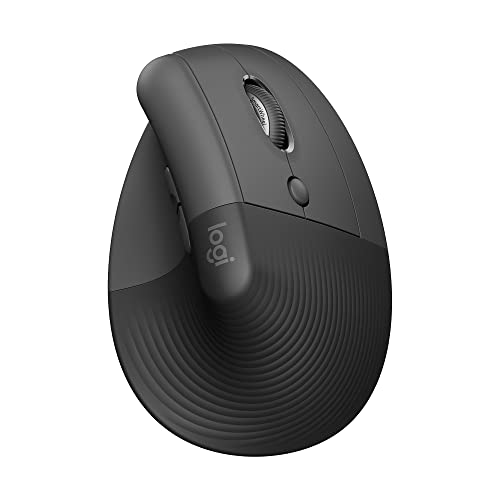
Logitech Lift Vertical Ergonomic Wireless Mouse Graphite

Anker 2.4G Wireless Ergonomic Mouse Right Hand Vertical Mouse

Logitech MX Master 4 Ergonomic Wireless Mouse with Haptics Graphite
More Details On Our Top Picks
The MX Ergo S makes a strong case for trackball control, especially when your desk is already crowded with pen tablets, sketchbooks, or a second display. Thumb steering keeps the main body still, so your forearm does less wandering during long layout sessions. It also carries six programmable buttons, which helps you keep common commands close without cluttering the workspace.
The rechargeable battery and Bluetooth plus encrypted dongle connection give it flexibility across office machines and home setups. The trade-off is simple, trackballs ask for a short adjustment period, and the shape is a more specific fit than a standard mouse. For designers who value desk stability and want fewer broad arm movements, that compromise often feels worth it.
Strong Points
- Thumb-ball control keeps movement localized, which helps on tight desks and in multi-monitor setups.
- Six programmable buttons can carry common shortcuts, so your most-used actions stay close at hand.
- Rechargeable power avoids the steady churn of disposable cells, which suits daily office use.
- Bluetooth plus the included encrypted dongle gives you two connection paths for mixed workstations.
Things To Consider
- Trackball control takes a little acclimation, especially for anyone switching from a standard pointer shape.
- The design is more specialized than a classic palm mouse, so it won’t suit every grip style.
- Thumb-based movement can feel unfamiliar during fast, broad canvas panning at first.
Feature Snapshot
Who It Suits Best
Designers working at a fixed desk, especially those juggling drawings, timelines, and frequent shortcut use, will get the most from this shape.
Where A Sibling Pick Shines
Logitech MX Master 3S fits better for you if you want a familiar sculpted mouse rather than a trackball and still want advanced scroll control.
This version leans hard into Mac-centered work, and that makes it a natural match for designers who bounce between a MacBook, iPadOS device, and desk setup. The haptic feedback can make actions feel more distinct, which matters during repetitive creative work where subtle cues help. Ultra-fast scrolling also cuts down on wrist fatigue during long layers panels or timeline sweeps.
USB-C charging keeps the cable situation simple, and the overall shape follows Logitech’s familiar sculpted style rather than a dramatic vertical stance. The honest read is that the specialized Mac focus helps a lot in a Mac workflow, but it also narrows the audience compared with the more universal MX Master 3S and the cross-platform MX Master 4. For mixed-device studios, that narrower fit is the main trade-off.
What We Like
- Haptic feedback adds a tactile layer that can make scrolling and control feel more deliberate.
- Ultra-fast scrolling helps you move through long documents or timelines with less hand strain.
- USB-C charging suits modern desk setups with fewer cable formats to keep around.
- Mac, iPadOS, and Windows support broadens use beyond a single machine.
Room For Improvement
- The Mac-first positioning makes it more specific than a general-purpose desk mouse.
- Haptic features can be personal, some workflows will enjoy them more than others.
- The sculpted shape suits palm support, but not every grip style will want the same contour.
Details At A Glance
Who Will Love This
Mac-based creative workstations that lean on scrolling, touch-like feedback, and a familiar sculpted shell should feel right at home here.
Another Choice May Suit
Logitech MX Master 3S is the better call for you if you want the same broad sculpted family with a more widely proven cross-platform setup.
The EM02 gives you trackball control with a useful twist, the base can sit at 0 or 15 degrees, so your wrist posture has a little room to adapt. That matters in shared studios or long desk days where one angle never feels right for long. Being able to connect three devices also makes it practical for someone moving between a laptop, desktop, and tablet dock.
Compared with the Logitech MX Ergo S, this one looks more like a flexible workstation tool than a premium flagship. The rechargeable battery keeps the upkeep lighter, though the smaller brand presence may leave some people wanting a more familiar ecosystem. For multi-device designers, that is a fair trade if angle choice matters more than brand familiarity.
Highlights
- 0 and 15 degree positioning lets you choose a wrist angle that feels more natural.
- Three-device support helps you move between setups without constant unplugging.
- Thumb-ball control keeps the mouse body planted, which helps on narrow desks.
- Rechargeable power fits recurring desk use better than disposable batteries.
Areas To Watch
- The control style still has a learning curve for anyone new to trackballs.
- Angle adjustment helps, but it won’t replace a fully vertical shell for everyone.
- Ball tracking needs routine dust care, so a little maintenance is part of ownership.
Quick Facts
Built With In Mind
Designers who split time across several devices and want a trackball with some posture flexibility will get the most from this model.
Look Elsewhere When
3Dconnexion CadMouse Compact Wireless suits you better if your day revolves around CAD tools and you want a more specialized compact pointer.
This compact wireless model stands apart because it looks built around precision work rather than general desktop wandering. In a CAD seat, that usually means you care more about controlled cursor movement and less about flashy extras. Its smaller footprint also leaves more space beside a pen display or keyboard tray.
Compared with the taller MX Master family, the CadMouse Compact Wireless feels more focused and less all-purpose. That narrow focus is useful for technical design work, though it may feel too specialized for casual browsing or long mixed-use days. In most studios, the right fit comes down to how much of your day lives inside modeling software.
Reasons To Buy
- Compact size preserves desk space beside drawing tools and external keyboards.
- Wireless design keeps cable clutter down around a busy workstation.
- Purpose-built feel suits precision-heavy creative and technical workflows.
- Small body can be easier to place in tighter setups or travel kits.
Worth Noting
- The compact shape may feel less filling in the hand than a fuller sculpted mouse.
- Its focused design makes it less universal than the MX Master and Lift options.
- Specialized controls can be harder to appreciate outside CAD-style work.
Core Details
Right Fit For
CAD specialists and technical designers who want a compact pointing tool will get the most from this choice.
Swap It Out When
Logitech MX Ergo S makes more sense for you if you prefer thumb-driven trackball control and want six programmable buttons instead.
The MX Master 3S has long been the practical template for a sculpted work mouse, and this version keeps that idea intact with a few useful upgrades. Its 8K DPI sensor means higher pointer sensitivity, so you can make smaller physical movements while still staying precise on a large monitor. The quiet clicks are another everyday comfort, especially in shared offices where repetitive mouse noise gets tiring fast.
MagSpeed scrolling matters more than the marketing name suggests, because fast, smooth scrolling is exactly what helps during layer-heavy or timeline-heavy design work. Track-on-glass support also helps when your workspace changes from wood desk to a more awkward surface. The trade-off is size, since the shape rewards palm support more than compact travel.
Positives
- 8K DPI tracking supports fine cursor control with less hand travel.
- Quiet clicks suit shared studios, late-night work, or any room where noise matters.
- Fast scrolling helps you move through long documents, asset boards, or timelines.
- Track-on-glass support gives you more placement freedom on a modern desk.
- The sculpted shell helps maintain a more natural wrist posture during extended sessions.
Minor Gripes
- The larger body may feel bulky in smaller hand positions or travel bags.
- Its right-handed shape narrows the audience from the start.
- The premium control set is useful, yet some casual tasks won’t use all of it.
Feature Rundown
Perfect Match For
Designers who spend long hours in layered software, multi-window layouts, and high-resolution displays will get the most from this mouse.
Where A Sibling Pick Shines
Logitech Lift Vertical Ergonomic Wireless Mouse fits better for you if your main concern is a more upright hand position rather than a feature-dense shell.
Lift is the kind of mouse you notice most when your hand wants a more upright angle. The vertical stance is the whole point, and for smaller hands that posture can feel less cramped during all-day navigation, shortcut use, and light editing. Quiet clicks keep the experience calm, which suits open offices or home desks with family nearby.
Bluetooth and the included Logi Bolt USB-A receiver give you two ways to connect, so it can move between a laptop and a dock without drama. Compared with the MX Master 3S, it gives up the bigger feature stack in exchange for a simpler, more vertical shape. That makes it a smart pick for comfort-first work, though the shape is not for everyone.
Bright Spots
- Vertical posture helps place your hand in a more upright position.
- Quiet clicks suit shared rooms and long editing sessions.
- Bluetooth and Logi Bolt give you two connection paths.
- Four customizable buttons out of six total help with everyday shortcuts.
Softer Spots
- The vertical form takes adjustment for anyone used to a standard mouse shell.
- Its smaller footprint is helpful, but some hands will want more body support.
- Button customization is useful, though it does not reach every control on the mouse.
At A Glance
Whose Shelf It Belongs On
Designers with smaller hands or anyone who wants a more upright, comfort-first mouse for daily desktop work should start here.
Where Another Pick Suits Better
Logitech MX Master 3S is the better fit for you if you want a broader feature set and a more traditional sculpted shape.
The Anker vertical mouse keeps things straightforward, and that simplicity can be useful for office setups that do not need a crowded feature list. The right-hand shape and 2.4G wireless connection make it easy to slot into a laptop desk or spare workstation. Adjustable DPI settings at 800, 1200, and 1600 let you tune cursor speed without buying into a more complex control system.
Because batteries are required, ownership has a little more upkeep than the rechargeable models higher up the list. Still, for casual design tasks, document marking, or a secondary work computer, that trade-off can be perfectly reasonable. The real strength here is straightforward usability, especially for someone who wants to spend less and keep the shape ergonomic.
Best Bits
- Vertical design supports a more upright grip for right-handed use.
- Three DPI steps help you match pointer speed to the task.
- Wireless USB receiver keeps setup simple on older or spare PCs.
- Five buttons give you a little shortcut flexibility without adding complexity.
Small Caveats
- Batteries are required, so you need to keep spares or replacements in mind.
- The shape is right-handed, which rules it out for left-hand use.
- It feels more basic than the Logitech MX family, so feature expectations should stay grounded.
Technical Sheet
Who Should Grab It
Budget-focused designers and general office users who want a vertical mouse without extra complexity will find this one easy to live with.
Reach For A Different Pick When
Logitech Lift Vertical Ergonomic Wireless Mouse is the stronger fit for you if you want Bluetooth support and a smaller, more polished vertical shape.
The MX Master 4 keeps the familiar sculpted Logitech formula and adds haptic feedback, so your hand gets a more tactile sense of what the mouse is doing. That matters in design work where repeated actions and subtle cues can reduce guesswork. Ultra-fast scrolling and USB-C charging round out the package in a way that feels very current without being flashy.
Compared with the Mac-focused MX Master 4 for Mac, this one is the more broadly positioned option for Windows and macOS work. That makes it easier to recommend for mixed studios, freelance desks, and anyone who wants the newer MX shape without narrowing the platform story. The trade-off is that some people may not need the haptic layer at all, so the value comes down to how much you appreciate tactile feedback.
Upsides
- Haptic feedback gives your actions a clearer tactile response.
- Ultra-fast scrolling supports long files, boards, and timelines.
- USB-C charging fits current desk setups with less cable clutter.
- Windows and macOS support makes it easier to move across mixed workstations.
Points To Note
- The haptic layer is useful, but not every workflow will rely on it.
- The sculpted body still favors a fuller hand position over a compact one.
- Advanced features are best appreciated in long sessions, not quick one-off tasks.
Feature Card
The Right Fit
Designers who want a current, feature-heavy mouse for mixed platform work and long desk sessions will get the most from this model.
A Better Fit Elsewhere
ProtoArc EM02 Wireless Trackball Mouse Gray fits better for you if adjustable wrist angle and thumb-ball control matter more than haptic feedback.
How To Choose The Right Ergonomic Mouses For Designers
Shape First, Features Second
The shape sets the tone for your whole desk day. A vertical mouse like the Logitech Lift shifts your hand into a more upright position, while a trackball like the MX Ergo S keeps the body still and asks your thumb to do the steering.
That difference matters more than most spec sheets admit. Designers who spend hours making tiny cursor moves often care less about raw speed and more about which form lets the wrist relax without constant micro-adjustment.
Match The Mouse To Your Workflow
Long scrolling sessions reward devices with fast scroll wheels, like the MX Master family. CAD and 3D work often feel better with compact precision tools such as the 3Dconnexion CadMouse Compact Wireless, while multi-device desks benefit from models that pair to several systems.
That’s why your software matters as much as your hand size. A mouse that feels elegant in email can feel awkward in a heavy layout or modeling session, and a simple office shape can fall short once you’re deep into layers, artboards, and timelines.
Connection And Power Affect Daily Friction
Bluetooth suits cleaner laptop setups, while a USB receiver can feel steadier on desktops with crowded wireless traffic. Rechargeable models reduce the routine of swapping cells, which is handy for anyone working long days or moving between home and studio.
There’s a small trade-off either way. Charging is one more cable to remember, and battery-powered models add maintenance, but the right connection style can save more annoyance than it creates.
Shortcut Control Can Save Real Time
Programmable buttons matter once you use them for repeat actions, not just for novelty. Six buttons on the MX Ergo S or customizable controls on the Lift can keep common commands close, which helps during revision-heavy work.
The better question is how often you repeat the same moves. Designers who rely on zoom, pan, layer switching, or tool toggles usually feel the payoff faster than people who only need basic cursor work.
What To Weigh Before You Decide
Wrong Turns To Avoid
A common miss is focusing on shape alone and ignoring connection style. A vertical mouse can still frustrate you if you need multi-device pairing, and a feature-rich sculpted mouse can feel bulky on a cramped desk.
Another easy mistake is assuming every ergonomic mouse suits every hand. Smaller hands often prefer the Lift, while trackball users and CAD specialists usually need a more specific fit than a general desk mouse can provide.
Where The Extra Money Goes
Higher-tier models usually pay for better scroll mechanics, more refined button layouts, and stronger material feel. In this category, haptic feedback, advanced sensors, multi-device switching, and rechargeable power all add convenience that shows up over long work sessions.
That extra spending makes sense when your mouse is part of your full workday, not just an occasional tool. For light email and sporadic browsing, a simpler vertical model can be enough, but deeper creative work often benefits from the smoother control stack.
Final Thoughts
Your best match depends on how you work, not just on how a mouse looks on the page. Trackball users can save desk space, vertical shapes can ease the feel of long sessions, and sculpted performance mice like the MX Master series suit designers who want more control without giving up comfort. For mixed creative work, the Logitech MX Master 3S and MX Master 4 stand out for sheer flexibility, while the MX Ergo S and ProtoArc EM02 make more sense for posture-first desks. Pick the shape that fits your hand and your workflow, and the rest gets much easier.
