
CAD work asks a lot from a mouse. You want precise cursor movement, comfortable support for long sessions, and controls that do not slow you down when you are switching views, panning, or moving between tools.
The eight picks below cover everything from general ergonomic mice to specialist CAD controllers. That spread helps you match the tool to the way you actually work, whether your desk is a laptop setup, a dual-screen workstation, or a space where accuracy matters more than flashy extras.
Quick Look At Our Shortlist

Logitech MX Master Wireless Mouse
Rapoo MT760 PRO Wireless Mouse
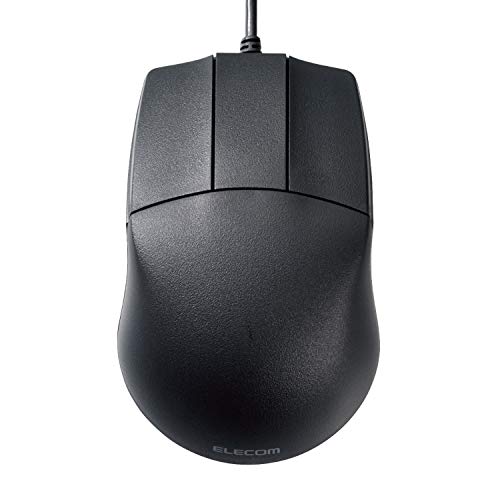
ELECOM Basic 3D-CAD Mouse M-CAD01UBBK

Logitech MX Master 4 Ergonomic Wireless Mouse

3Dconnexion SpaceMouse Wireless 3DX-700115

3Dconnexion CadMouse Compact Wireless
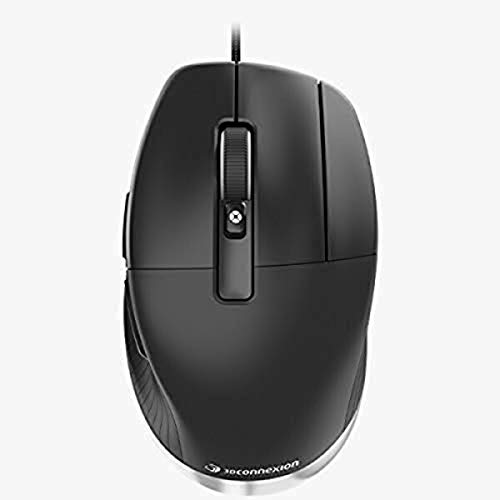
3Dconnexion CadMouse Pro Mouse

3Dconnexion SpaceMouse Pro Wireless BT
More Details On Our Top Picks
The MX Master shape makes long CAD sessions feel less punishing, especially on days where your hand sits on the mouse for hours. Its hyper-fast scroll wheel helps you move through dense drawings, tool panels, and long project notes without constant flicking.
You also get control for up to three computers, which suits a desk with a work tower, a laptop, and maybe a secondary machine for references. The trade-off is simple: it is a broad-use ergonomic mouse first, so pure CAD specialists may want something more purpose-built later.
What We Like
- The sculpted body supports a relaxed hand position, which helps during long drafting sessions.
- The scroll wheel switches between fast spin and click steps, so you can skim documents or make finer moves.
- Multi-computer control is useful for workstation setups that bounce between machines.
- Dual wireless options add flexibility for desktops and laptops.
Things To Consider
- Its shape is generous, so very small hands may want a slimmer design.
- The feature set is broad, which means you pay for versatility instead of a pure CAD-only layout.
- Wireless gear needs occasional charging, so it suits a desk routine better than a travel bag.
Feature Snapshot
Who Should Grab It
You suit this pick best if you want one mouse for general CAD work, office tasks, and multi-computer use without giving up comfort.
A Better Fit Elsewhere
3Dconnexion CadMouse Pro Mouse suits a more CAD-centered setup, especially for professionals who want a wired, seven-button layout with a narrower focus.
The Rapoo MT760 PRO leans into speed and control, which helps you move from drafting to navigation to general desktop work without feeling pinned down. NearLink and Bluetooth 5.0 give you more connection flexibility than a plain single-mode mouse, and the 12K DPI sensor means you get very fine pointer adjustment at higher sensitivity settings.
The seven-button-plus range, quiet clicks, and onboard memory make sense for a workstation that stays busy all day. The honest read is that this one makes the most sense for a crowded desk or a mixed work-and-play setup, while a simpler CAD-only hand may prefer the cleaner layout of the ELECOM basic mouse.
Highlights
- High DPI support gives you fine cursor control for detailed work.
- 2K polling keeps pointer updates brisk, which helps in fast-paced navigation.
- Eleven programmable buttons can shorten repeated actions in complex workflows.
- Onboard memory helps keep your setup consistent across machines.
- Quiet clicks suit shared offices or late-night desk work.
Room For Improvement
- The control count can feel busy until you map the buttons to your habits.
- Its feature density adds setup time compared with a basic wired mouse.
- Wireless devices still need charging, so a desk dock or cable plan helps.
Core Details
Built With In Mind
You suit this pick best if your CAD day overlaps with plenty of desktop switching, shortcut use, and detailed cursor work.
Another Choice May Suit
Logitech MX Master Wireless Mouse is easier to live with for general office and design work, especially where comfort matters more than button density.
This ELECOM model goes in the opposite direction from the MX Master pair. It strips the experience down to a wired connection, three buttons, and no scroll wheel, which makes it feel more like a dedicated drafting tool than a general-purpose desk companion.
That simplicity can be a relief in CAD software where too many controls get in the way. The trade-off is obvious, though: you give up the comfort extras and navigation shortcuts that make the Logitech picks easy to live with over a long workday.
Best Bits
- The no-frills layout keeps the focus on precise cursor movement.
- The wired connection removes battery upkeep from the routine.
- Blue LED optical tracking supports smoother movement on common desks.
- Its two DPI settings help you choose between speed and control.
Small Caveats
- No scroll wheel means you rely on software shortcuts or keyboard input for navigation.
- The three-button layout is lean, so it suits a narrow use case.
- It is sold through global-store channels, so terms and included materials can differ by region.
Details At A Glance
Right Fit For
You suit this pick best if you want a basic wired CAD mouse and care more about direct control than extra functions.
Where A Sibling Pick Shines
3Dconnexion CadMouse Compact Wireless fits better for CAD users who still want a specialized shape but prefer to skip the cable.
The MX Master 4 builds on the familiar ergonomic shape of the earlier Logitech model, then adds haptics, which means the mouse can give tactile feedback instead of relying only on motion and clicks. For long CAD days, that extra touch can make tools feel more deliberate, especially when you are moving through layered menus or repeated commands.
The Graphite finish keeps the look restrained, and USB-C charging fits a modern desk without much fuss. The catch is that haptic feedback is a premium feature, so you should want that tactile layer before paying attention to it, rather than treating it as a nice extra.
Reasons To Buy
- The ergonomic shell supports a natural hand position during extended sessions.
- Haptics add a tactile cue that can help certain workflow actions feel clearer.
- Ultra-fast scrolling speeds through lengthy files and panels.
- USB-C charging keeps cable management straightforward.
Areas To Watch
- The haptic layer is only worth it for you if tactile feedback matters in daily use.
- Its broader feature set may be more than a pure drafting setup needs.
- Wireless charging habits still matter, so the desk routine should accommodate that.
Feature Card
Who Will Love This
You suit this pick best if you want a premium ergonomic mouse for CAD, office work, and fast navigation with tactile feedback.
Skip It When
Logitech MX Master Wireless Mouse makes more sense for you if the haptic layer sounds interesting but not essential.
This is the odd one in the group, in the useful sense. The SpaceMouse Wireless is built around 3D navigation rather than ordinary pointer use, so it fits modeling work where rotating, panning, and shifting viewpoints matter as much as clicking through menus.
That specialized approach can feel like a second hand for your software, which is why it suits modelers more than casual CAD users. The trade-off is that it does not replace a normal mouse very well, so your desk may need both tools rather than one catch-all device.
Strong Points
- Its 3D navigation focus helps with viewpoint-heavy modeling work.
- Bluetooth wireless keeps the desk cleaner than a cabled setup.
- It pairs well with a standard mouse as part of a two-device workflow.
Points To Note
- It is specialized, so it does not serve as a normal all-purpose mouse.
- Learning a new control style takes some patience in the first few sessions.
- Most CAD desks will still need another mouse beside it.
Technical Sheet
Whose Shelf It Belongs On
You suit this pick best if your CAD work leans hard into 3D modeling and viewport control.
Look Elsewhere When
Rapoo MT760 PRO Wireless Mouse fits better for general desk use, especially when you want a familiar pointer-first layout.
The Compact Wireless model makes a lot of sense on smaller desks, laptop stands, or crowded studio setups. Compared with the MX Master family, it stays more specialized and less sprawling, which can be a relief when you want a CAD-focused mouse without extra bulk.
Its compact shape should also suit travel-heavy work or hot-desk environments, though very large hands may want more body under the palm. The honest read is that it is easier to place than most full-size ergonomic mice, but it gives up some of that plush, full-hand support.
Positives
- The smaller footprint leaves more room beside a tablet or keyboard.
- Its CAD-centered design feels more focused than general office mice.
- Wireless use keeps cable clutter down on portable workstations.
- The compact body can help you pack lighter for moving between desks.
Worth Noting
- Compact sizing may feel tight for larger hands during long sessions.
- Specialized shape means it is less universal than the Logitech picks.
- Wireless use still asks for regular charging habits.
Feature Rundown
Made For
You suit this pick best if your CAD setup is small, mobile, or shared with other gear.
Reach For A Different Pick When
Logitech MX Master 4 Ergonomic Wireless Mouse fits better for you if palm support matters more than a compact footprint.
The CadMouse Pro looks built for people who spend serious time in CAD software and want the mouse to stay out of the way. Seven buttons, an optical sensor, and a cable make the setup feel direct and dependable, which can be helpful in a studio where wireless charging is just one more thing to remember.
Compared with the Compact Wireless model, this one gives you a more fixed desktop presence and a fuller control set. The trade-off is less freedom of placement, but many desk-bound professionals will take that in exchange for a stable, straightforward setup.
Bright Spots
- The seven-button layout can support more shortcuts at your fingertips.
- The wired connection avoids battery checks and charging cycles.
- Its optical tracking suits careful pointer work in drafting software.
- The black finish keeps the look understated on a professional desk.
Minor Gripes
- The cable limits how freely you can move the mouse around the desk.
- Seven buttons can take time to map comfortably.
- It is less flexible than the wireless 3Dconnexion models for travel.
Core Details
The Right Fit
You suit this pick best if your mouse stays at a workstation and you want a wired CAD tool with more shortcut control.
Swap It Out When
3Dconnexion CadMouse Compact Wireless suits you better for smaller desks or shared spaces where cable freedom matters.
This is the most specialized wireless pick in the group, and that makes sense for serious 3D work. The SpaceMouse Pro Wireless BT is aimed at users who live in modeling software and want more control over movement than a standard pointer can offer.
Compared with the basic SpaceMouse Wireless, it reads as the more feature-forward option for advanced desks. The catch is that the learning curve and the cost of specialization both rise, so it suits committed CAD work more than casual use.
Plus Points
- The wireless layout reduces desk clutter while keeping advanced control close at hand.
- It suits demanding 3D workflows better than general-purpose mice.
- The Pro name here signals a more tool-like focus for daily modeling.
Softer Spots
- It asks for a real time investment before it feels natural.
- Specialized controls make it less useful outside CAD and modeling work.
- Most desks will still pair it with a standard mouse for general tasks.
Quick Facts
Perfect Match For
You suit this pick best if your day revolves around advanced 3D modeling and you want a specialist control device.
Consider Something Else When
Logitech MX Master 4 Ergonomic Wireless Mouse fits better for broader office-and-design work with less learning curve.
How To Choose The Right Mouses For Cad Drawing
Shape, Buttons, And Motion Matter Most
CAD work rewards a mouse that stays comfortable while still feeling exact. A sculpted body, a sensible button layout, and a scroll wheel that behaves the way you expect all matter more than flashy extras you may never map to a command.
For long drafting sessions, ergonomic support can matter almost as much as pointer accuracy. A mouse like the Logitech MX Master models makes sense for all-day desk work, while a smaller tool such as the 3Dconnexion CadMouse Compact Wireless suits tighter work areas.
Match The Mouse To Your Software Habit
Some CAD users spend most of the day clicking, dragging, and zooming. Others move between 3D views, tool palettes, and reference files, which means extra buttons or specialized controls can save time.
The Rapoo MT760 PRO leans into programmable controls, while the 3Dconnexion SpaceMouse models focus on viewpoint control for 3D modeling. The right fit comes down to whether your workflow needs a better pointer, faster shortcuts, or a separate control device for navigation.
Wired, Wireless, And Power Trade-Offs
Wired mice remove battery upkeep, which still appeals to desk-bound professionals who prefer a fixed setup. Wireless models keep the workspace cleaner, but they ask for charging discipline, and that matters more than people expect during deadline weeks.
The ELECOM basic CAD mouse keeps things simple with a cable, while the Logitech and 3Dconnexion wireless picks give you more freedom around the desk. Choose the connection style that fits your routine, not the one that sounds most impressive on paper.
Choose Control Density With Care
More buttons are helpful only when you plan to use them. A crowded layout can speed up complex work, but it can also take a few days to learn and may feel excessive for straightforward drafting.
That is why a lean model like the ELECOM can be a smart fit for minimal setups, while the MX Master 4 or Rapoo MT760 PRO makes more sense for users who want shortcuts close to the fingers. Comfort, layout, and control density should work together, not compete.
What To Weigh Before You Choose
Common Shopping Slip Ups
Many people overbuy features they never map to software. Extra buttons, haptics, or 3D controls sound appealing, but they only pay off when your CAD routine uses them every day.
Another common miss is ignoring hand size and desk space. A large ergonomic shell can feel great on a roomy workstation, while a compact model makes more sense beside a laptop or tablet stand.
What The Higher Tier Buys
Higher-priced CAD mice usually spend the extra money on sensor tuning, more durable switches, better ergonomics, and specialized controls. You are not just paying for a label, you are paying for a shape and feature set that can make long sessions less clumsy.
That upgrade makes sense for professionals who live in drafting software or 3D modeling tools. For lighter use, a simpler wired mouse can cover the essentials without adding learning time or desk clutter.
Final Thoughts
Your best mouse for CAD drawing depends on whether you want comfort, shortcut density, or specialist 3D control. The Logitech MX Master picks are the easiest all-round choices, the ELECOM keeps things stripped back, and the 3Dconnexion models make the most sense for serious modeling work. Pick the tool that fits the way you already work, and the rest of the desk feels easier to manage.
