
Video editing asks a lot from your hands. You need precise cursor placement, fast timeline jumps, and controls that stay comfortable through long sessions, whether you’re trimming clips at a desk or cleaning up audio on a laptop in a coffee shop. The right mouse can make that work feel less like wrestling and more like steering.
This roundup focuses on mouses for editing video that bring useful traits to the table, like quiet clicks, high-DPI tracking, side controls, and fast scrolling. You’ll also see a few non-mouse options for creators who want dedicated shortcut control instead of a traditional pointer.
Quick Look At Our Shortlist

Logitech MX Master 3S Bluetooth Wireless Mouse Graphite
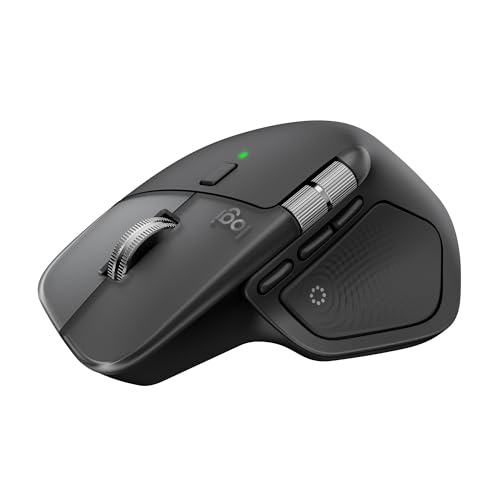
Logitech MX Master 4 for Mac Ergonomic Bluetooth Mouse Space Black

Logitech MX Master 3S Performance Wireless Mouse Black
ULANZI D100H Video Editing Keyboard Wireless Bluetooth

WL300 Bluetooth Mouse Silent Wireless Mice Grey

Logitech MX Master 4 Ergonomic Wireless Mouse with Haptics Graphite

Logitech G305 Lightspeed Wireless Gaming Mouse Black

TECKNET Wireless Mouse Bluetooth Mouse Rechargeable Ergonomic Optical Mouse Black
More Details On Our Top Picks
For long editing sessions, the MX Master 3S feels built around low-drama control. The Bluetooth-only setup keeps the desk clean, and the 8,000 DPI sensor gives you fine cursor movement for timeline nudges, color work, and small interface targets.
Quiet clicks help in shared spaces, especially late at night or in a home office where every tap carries. You lose the convenience of a bundled receiver and charging cable, so this suits a tidy, Bluetooth-first setup better than a plug-and-forget desk.
What We Like
- MagSpeed scrolling helps you move through long timelines with less finger strain.
- The 8,000 DPI sensor supports precise placement for trimming and frame-level adjustments.
- Quiet clicks keep the mouse from sounding sharp in a shared room.
- The shaped body and thumb controls help during long desktop sessions.
Small Caveats
- Bluetooth-only setup means no receiver sits in the box.
- The missing charging cable adds a little setup friction.
- The fuller body may feel large in very tight laptop bags.
Feature Snapshot
Who It Suits Best
Desktop editors who want a refined everyday mouse for timeline work and general creative tasks should feel at home here.
Where Another Pick Suits Better
Logitech MX Master 4 for Mac fits Mac-focused editors who want the newer ergonomic shape and a more specific Apple-friendly setup.
This version leans harder into Mac and iPad use, so it makes sense for editors living inside that ecosystem. The ergonomic shell is there for longer sessions, and the USB-C charging support fits a modern desk where fewer cable types already helps.
The more focused compatibility angle is the real divider versus the MX Master 3S above. You may find it especially comfortable for routine cuts, app switching, and general creative work, though the feature set only really pays off when your setup is already Apple-centered.
Highlights
- Built for MacOS and iPadOS, with Windows support too.
- USB-C charging keeps the power setup current and tidy.
- Ergonomic shape supports long sessions at a desk.
- Ultra-fast scrolling helps you move through dense project lists.
Areas To Watch
- The Mac-first focus may feel less central on a mixed platform desk.
- The larger shape can feel overbuilt for travel-only editing.
- Premium features matter most once your workflow is already well organized.
Core Details
Who Should Grab It
Mac-based editors who want a comfortable mouse for long desktop sessions and a cleaner charging setup are the clear match here.
A Better Fit Elsewhere
Logitech MX Master 3S Bluetooth Wireless Mouse Graphite makes more sense for mixed-device users who want the same broad editing comfort without the Mac-first tilt.
This black MX Master 3S carries the same core editing-friendly traits, but the focus here is the overall control mix. MagSpeed scrolling, quiet clicks, and the ergonomic shell work together like a well-tuned desk tool rather than a flashy accessory.
The 8,000 DPI sensor and track-on-glass support matter most for editors who shift between mouse pads, wood desks, and whatever surface is available in a home office. Compared with the Graphite edition above, this one lands closer to a straightforward performance pick for Windows, Linux, and Chrome users.
Upsides
- MagSpeed scrolling is fast enough for long timelines and large bins.
- Quiet clicks suit shared spaces and late-night edits.
- The ergonomic shape supports a more natural wrist position.
- Track-on-glass support adds flexibility for mixed desk setups.
- Thumb controls give you useful access points without crowding the body.
Points To Note
- The fuller shape may feel more substantial than compact travel mice.
- Feature depth makes the learning curve a little steeper at first.
- Some editors may still prefer a dedicated keypad for heavy shortcut work.
Details At A Glance
The Right Fit
Editors who split time between detailed pointer work and large timeline navigation should get the most from this one.
Swap It Out When
Logitech G305 Lightspeed Wireless Gaming Mouse Black suits a lighter, simpler control style for editors who care more about speed than sculpted comfort.
Not every edit-friendly desk tool has to be a mouse, and this one proves the point. The dial knob and macro layout give you direct control for shortcuts, which can make repetitive trimming and app commands feel far less clumsy.
It makes the most sense for creators who lean on keyboard-based workflows, especially on Mac or PC setups where you want dedicated controls under your left hand. The trade-off is simple, though, because this is more of a command station than an all-purpose pointing device.
Best Bits
- Dial knob control helps with repeated editing actions.
- Macro-focused layout can speed up common shortcuts.
- Wireless Bluetooth support keeps the desk less tangled.
- The tactile feedback should feel more deliberate than flat keys.
Room For Improvement
- It serves a different role than a standard mouse, so it won’t replace one.
- Shortcut-heavy hardware takes a little setup time.
- Editors who only need pointer control may not use all of it.
Quick Facts
Made For
Editors who rely on shortcuts, knobs, and repeat commands more than freehand cursor motion will get the most value here.
Look Elsewhere When
Logitech MX Master 3S Bluetooth Wireless Mouse Graphite fits better for someone who still wants a classic mouse as the main control surface.
The WL300 is a straightforward work mouse, and that simplicity can be a strength for smaller editing setups. Its tri-mode connection gives you wired, 2.4G wireless, and dual Bluetooth options, so it can move between a laptop, desktop, and tablet without much fuss.
The sculpted grip and adjustable DPI keep it practical for day-to-day cuts, and the silent click design should suit quiet rooms better than louder office mice. It feels less polished than the MX Master line, but for travel or a secondary desk, that trade feels reasonable.
Reasons To Buy
- Three connection modes make it easy to switch between devices.
- Silent clicks help keep editing sessions quieter.
- The sculpted grip supports a steadier hold during long work blocks.
- Adjustable DPI gives you some control over pointer speed.
Softer Spots
- The simpler build won’t feel as refined as higher-end mice.
- Switching modes is useful, but it also adds another thing to manage.
- General cleaning and transport matter more on a budget mouse like this.
Core Details
Whose Shelf It Belongs On
Traveling editors and home-office shoppers who want a quiet, flexible backup mouse should find this one easy to live with.
Where A Sibling Pick Shines
Logitech MX Master 3S Performance Wireless Mouse Black is the better match for a primary editing station that needs more polish and stronger scrolling tools.
This MX Master 4 sits at the premium edge of the group, and the haptic feedback is the feature that changes the feel most. In a long editing day, that kind of tactile response can make repeated actions feel more deliberate, especially beside the quieter, simpler WL300.
USB-C charging and the ergonomic shell support a more settled desk setup, and the Windows and MacOS compatibility keeps it flexible. The honest read is that the extra refinement matters most for heavy daily use, not casual clip cutting once a week.
Standout Traits
- Haptic feedback adds a more tactile, guided feel to actions.
- Ultra-fast scrolling helps with long timelines and large assets.
- USB-C charging suits modern desktop and laptop setups.
- The ergonomic shape supports longer sessions with less hand strain.
Worth Noting
- The premium feel makes more sense for intensive use.
- Those extra touches can be more than some setups need.
- It is a desk-first tool, not the leanest travel option.
Spec Overview
Perfect Match For
Power users who spend long hours editing and want a more tactile mouse with premium comfort should look here first.
Another Choice May Suit
Logitech MX Master 4 for Mac fits better for editors who want a stronger Apple-centered match with the same general family feel.
The G305 is a gaming mouse, but the shape and button layout still make sense for editors who want quick, direct input. The HERO sensor and 12,000 DPI ceiling give you more movement headroom than a basic office mouse, which helps in fast-moving workspaces.
Six programmable buttons and on-board memory are useful when you want shortcut access without leaning on software all the time. It’s lighter on sculpted comfort than the MX Master line, though, so long edit sessions may feel better with one of the ergonomic picks above.
Positives
- The sensor reaches 12,000 DPI for broad pointer adjustment.
- Programmable buttons can shorten common editing actions.
- On-board memory helps preserve your settings across machines.
- The lighter design can suit fast hand movement.
Minor Gripes
- It is less shaped for palm support than the MX Master models.
- The gaming-first design may feel more barebones for pure creative desks.
- Editors who want lots of thumb comfort may prefer a fuller shell.
Technical Sheet
Built With In Mind
Fast editors who like a lighter mouse and want programmable control without a bulky shape should be comfortable here.
Reach For A Different Pick When
Logitech MX Master 3S Performance Wireless Mouse Black suits you better for all-day comfort and a more refined scroll experience.
The TECKNET lands as a flexible portable option, especially for editors moving between a laptop, a dock, and a travel setup. BT5.3, BT5.0, and 2.4G support mean you can keep it paired with different machines without wrestling with a new mouse every time.
Its seven buttons, side scroll, and quiet clicks bring more function than a basic travel mouse, while the rechargeable design makes sense for a bag you carry often. The trade-off is that it feels more utilitarian than the MX Master line, but that is exactly why some people will like it.
Bright Spots
- Multiple wireless modes help it move between devices cleanly.
- Quiet clicks suit shared rooms and travel work.
- Side scroll adds another useful navigation tool for editing.
- Seven buttons create room for a few practical shortcuts.
Trade Offs
- The lighter feature set will not feel as premium as the MX Master line.
- Travel mice often need more regular cleaning and charging habits.
- Its strengths lean toward portability more than all-day desk luxury.
Key Specs
The Right Fit
Traveling editors and laptop-first creators who want a compact, adaptable mouse with a few extra controls should feel right at home.
Skip It When
Logitech MX Master 4 Ergonomic Wireless Mouse with Haptics Graphite is the stronger desk upgrade for someone who wants a more premium editing feel.
How To Choose The Right Mouses For Editing Video
Start With The Movements You Make Most
Editing work usually breaks into two motions, precise pointing and fast travel across a timeline. A mouse with a high-DPI sensor helps with tight placement, while a free-spinning wheel like MagSpeed can save effort during long project scrubs.
That difference matters more than raw marketing flair. Editors who spend their day trimming frames and hunting tiny handles usually want control first, while people moving through long sequences feel the benefit of faster scroll hardware right away.
Match The Shape To Your Session Length
Ergonomic mice such as the MX Master line support a more natural wrist posture, which is worth considering for long desk days. Smaller or lighter designs can feel simpler, but they ask more from your hand over time.
The honest read is that comfort becomes the deciding factor faster than most specs. A sculpted thumb rest, quieter buttons, and a body that fills your palm well can matter more at hour four than any headline feature.
Think About Shortcut Control, Not Just Pointer Control
Some creators need a normal mouse with a few programmable buttons, while others do better with a dedicated editing keypad like the ULANZI D100H. Both approaches can speed up work, but they solve different problems.
Programmed buttons help you keep common actions close at hand. A keypad or dial controller goes further by giving repeat commands their own physical home, which suits editors who live in shortcut-heavy software.
Check Your Desk, Device Mix, and Noise Tolerance
Bluetooth-only models keep the desk neat, yet they make sense only when your laptop or desktop supports that path comfortably. Multi-mode mice are friendlier for hopping between machines, especially in a home office with more than one system.
Quiet clicks are useful in shared spaces, and side scroll can help in wide timelines or audio tracks. The right choice often comes down to whether your work setup is permanent, mobile, or split between both.
Things Worth Knowing First
Wrong Turns To Avoid
Lots of shoppers fixate on DPI and ignore shape, and that usually backfires in long editing sessions. A very high sensor number means little when the shell feels cramped or the scroll wheel slows you down.
Another common miss is buying a desk mouse for travel, or a travel mouse for a full-time creative station. Portability, comfort, and shortcut access rarely live in the same body without some trade-offs.
The Upgrade Payoff
Higher-tier mice cost more because they usually add better switches, better scrolling systems, more careful shaping, and stronger software support. In editing, that extra spend often shows up as less hand fatigue and smoother movement through long projects.
That upgrade makes the most sense for daily editors, not casual clip cutters. If your work runs through long timelines, tight timing edits, or shared workspaces, the better controls earn their keep more quickly.
Closing Thoughts
For video work, the best mouse is the one that keeps your hand relaxed while still giving you fast, exact control. The MX Master family stands out for comfort and scrolling, the ULANZI keypad is smarter for shortcut-heavy workflows, and the more compact picks help when you move between desks or devices. Choose the shape that matches your sessions, not just the spec sheet, and your editing setup should feel calmer from the first project onward.
