
SolidWorks work asks a lot from your hand, especially during long part edits, view changes, and precise sketching. A good mouse here is less about flair and more about control, comfort, and the right kind of shortcut support. The eight picks below lean toward trackballs, 3D mice, and a few conventional wireless options, so you can match the tool to the way you actually model.
The Shortlist At A Glance

SABLUTE MAM1 Pro Thumb Control Trackball Mouse
3Dconnexion 3DX-700040 SpaceMouse Pro

ELECOM Huge Plus Wireless Trackball Mouse

Redragon Wireless Mouse for Laptop

3Dconnexion SpaceMouse Pro Wireless BT

XBG WL300 Bluetooth Silent Mouse

3DConnexion 3DX-700059 Spacemouse Compact

Nulea M501 Wireless Trackball Mouse
More Details On Our Top Picks
The adjustable 0 degree and 18 degree angles give this trackball a calmer hand position than a flat mouse, which matters during long CAD sessions. The thumb ball keeps cursor movement local to your desk, so the surface space around a drawing tablet, notebook, or 3D mouse stays less crowded.
Three-device switching makes it easy to move between a workstation, laptop, and second screen setup without rewiring your day. The honest trade-off is that thumb trackballs ask for a short adjustment period, so it suits SolidWorks users who want stability more than speed.
Strong Points
- The angled body can ease wrist strain during extended sketching sessions.
- Bluetooth and USB receiver support make desk and laptop use more flexible.
- Quiet clicks help keep shared offices less distracting.
- Rechargeable design reduces battery swapping during regular work weeks.
- Trackball control keeps the mouse base in one place, useful on small desks.
Things To Consider
- Thumb-trackball control feels different from a standard pointer, so the first few days can be awkward.
- The ball area will need occasional cleaning, especially in dusty workspaces.
- The angled shape is helpful for comfort, but it also makes the body bulkier than a plain travel mouse.
Feature Snapshot
Who It Suits Best
You benefit most from this pick if your SolidWorks time is split between a desktop and a laptop and you prefer a thumb-driven trackball over constant arm movement.
Where A Sibling Pick Shines
Nulea M501 Wireless Trackball Mouse suits a simpler setup better for anyone who wants a more straightforward entry into trackball use.
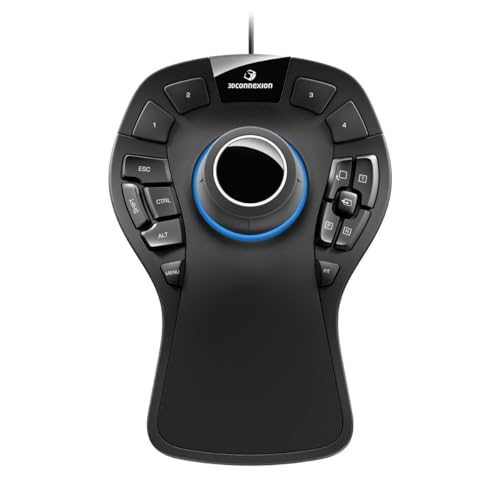
This wired 3D mouse is built around a six degrees of freedom sensor, which means you can push, pull, tilt, and twist models instead of relying on endless scroll-wheel dragging. In SolidWorks, that matters most during part inspection and assembly review, where smoother viewpoint control can save a lot of little hand movements.
The soft-coated palm rest and the 15 programmable keys give it a very workbench feel, not a casual office-mouse feel. You may find the learning curve worth it only when your day is filled with rotating assemblies and repeated shortcut use, because the corded design keeps it tied to one station.
Upsides
- The six-axis sensor supports more natural 3D navigation.
- Fifteen programmable keys can reduce trips to the keyboard.
- Quick view and rotation controls are handy during model checks.
- The on-screen display helps you keep track of shortcut assignments.
- Linux, macOS, and Windows support widens workstation compatibility.
Room For Improvement
- The 3-foot cord keeps it desktop-bound, so it is not a roam-around accessory.
- The layout makes the most sense after a learning period, not on minute one.
- The size takes more desk space than the smaller SpaceMouse Compact.
Core Details
Built With In Mind
You fit this model best if SolidWorks is a daily tool and you want dedicated 3D navigation rather than a general-purpose mouse.
A Better Fit Elsewhere
3Dconnexion SpaceMouse Pro Wireless BT makes more sense for a cleaner desk and anyone who wants the same control without the cable.
The 52 mm ball is the first thing that separates this model from the smaller SABLUTE and Nulea options, because a larger ball gives your thumb more surface to work with. That can feel steadier in long sessions, especially when you spend time moving between fine part edits and broad viewport shifts.
Ten programmable buttons make it a strong fit for shortcut-heavy SolidWorks work, and the choice of Bluetooth, 2.4 GHz, or wired use is more flexible than many trackballs in this class. The trade-off is size, since this is the sort of device that likes a committed spot on your desk rather than a cramped corner.
Highlights
- The large 52 mm ball gives a roomy feel under the thumb.
- Ten programmable buttons can trim repeated keyboard trips.
- Bluetooth, wireless receiver, and wired use cover more desk setups.
- Silent clicks suit shared offices and late-night design sessions.
- Rechargeable power is easier to live with than disposable cells.
Minor Gripes
- The larger shell takes more space than a compact trackball.
- So many controls can feel busy until your shortcuts are set.
- The ball and button area will need routine dusting to stay smooth.
Details At A Glance
Right Fit For
You should look at this one first if your SolidWorks sessions rely on a lot of shortcut use and you want a roomy trackball shell.
Another Choice May Suit
SABLUTE MAM1 Pro Thumb Control Trackball Mouse is easier to settle into for anyone who wants a smaller, simpler shape.
Compared with the trackballs above, this one stays straightforward: a standard 2.4 GHz wireless mouse with a USB receiver, quick plug-in setup, and a shape that works without much adaptation. SolidWorks users who split time between office work, travel, and a docked laptop usually appreciate that kind of no-fuss behavior.
The adjustable DPI levels up to 4000 let you tune pointer speed, which helps when you move between detailed sketch work and faster general desktop use. The honest limitation is that this is still a conventional mouse, so it will not give you the hand-staying-in-place comfort of a trackball or the 3D control of a SpaceMouse.
What We Like
- USB receiver setup is simple and fast for daily use.
- Up to 33 feet of wireless range supports flexible desk placement.
- Five DPI levels give you room to tune pointer feel.
- Auto sleep helps stretch battery life during lighter weeks.
- The storage slot for the receiver helps it travel better.
Softer Spots
- The shape is fine for general use, but it is not specialized for CAD navigation.
- You do not get the shortcut-heavy control of the more advanced picks here.
- Anti-sweat grips are helpful, though a smooth shell still needs regular wiping.
Feature Rundown
Made For
You fit this mouse best if you want a travel-friendly, dependable backup for SolidWorks rather than a specialist CAD control device.
Look Elsewhere When
3Dconnexion 3DX-700040 SpaceMouse Pro suits serious modeling work better when your main task is rotating assemblies and managing views all day.
This is the cordless sibling of the wired SpaceMouse Pro, so the appeal is easy to understand: you keep the same kind of 3D navigation without tying the unit to one desk. That suits design benches that already carry a monitor stand, input tablet, or notepad, because the cable disappears from the equation.
For SolidWorks users who hate one more cord across the workstation, that small change can matter a lot. The trade-off is the same as with the wired version, though, since this is a specialist control device with a learning curve and a price tier that makes most sense for heavy CAD work.
Reasons To Buy
- The wireless layout keeps the desk cleaner and easier to arrange.
- It preserves 3Dconnexion-style control for model viewing and editing.
- Better suited to a polished workstation than a casual desktop mouse.
- Useful for users who already work with keyboard shortcuts and advanced navigation.
Points To Note
- Wireless convenience matters most when your desk space is already crowded.
- The specialist layout makes more sense after some practice.
- It is a committed CAD accessory, not a general office mouse.
Spec Overview
The Right Fit
You belong with this pick if your SolidWorks setup is permanent, tidy, and built around advanced navigation.
Where A Sibling Pick Shines
3Dconnexion 3DX-700040 SpaceMouse Pro is the safer choice for a fixed workstation where a wired connection is no problem.
There’s a practical appeal to this one, because the WL300 can switch among wired, 2.4G wireless, and Bluetooth modes without drivers. That flexibility is handy for a desk that moves between a laptop, a desktop tower, and a tablet, which is a pretty common setup for mixed CAD and admin work.
The sculpted grip and silent clicks make it feel easy to live with during long office hours. The trade-off is that it stays in the general-purpose lane, so it serves SolidWorks best as a comfortable everyday pointer rather than a specialist modeling tool.
Best Bits
- Three connection modes give you broad device compatibility.
- Silent clicking is useful in open offices or late sessions.
- Six buttons offer a modest boost for common actions.
- Adjustable DPI helps you tune pointer pace for detail work.
- The shaped body should feel familiar to most standard mouse users.
Areas To Watch
- It is more versatile than specialized, so CAD navigation remains conventional.
- Bluetooth and wireless convenience depend on keeping track of your device pairing.
- The shell will still need routine cleaning in travel bags and shared spaces.
Feature Card
Whose Shelf It Belongs On
You fit this mouse best if you want a quiet, flexible pointer for everyday SolidWorks use and general computer work.
Swap It Out When
Nulea M501 Wireless Trackball Mouse makes more sense for anyone ready to trade a standard mouse shape for trackball control.
This compact SpaceMouse keeps the same 3D navigation idea as the larger pro model, but the smaller body gives it a better chance on tight desks. That matters in a workstation already carrying a keyboard, notebook, and maybe a pen tablet, because the accessory stays tucked neatly to one side.
It is a good fit for SolidWorks users who want the navigation benefits of 3Dconnexion without the larger footprint or extra controls of the Pro version. The trade-off is straightforward, since the smaller form usually asks you to give up some of the shortcut-rich convenience that power users like.
Bright Spots
- The smaller footprint works well on busy desks.
- 3D navigation stays available without a full-size controller.
- Cleaner layout makes it easier to place beside a keyboard.
- Good entry point for users who want specialized CAD navigation.
Small Caveats
- The compact body gives up some of the control-room feel of the Pro model.
- It still asks for a learning period, even though the footprint is smaller.
- Specialized hardware like this tends to make the most sense in a dedicated CAD seat.
Quick Facts
Best Suited To
You should choose this one if your SolidWorks setup is compact and you still want dedicated 3D control.
Reach For A Different Pick When
3Dconnexion 3DX-700040 SpaceMouse Pro is a stronger match for power users who want more keys and a larger hand rest.
This Nulea model sits in the sweet spot for anyone curious about trackballs but not ready for a more expensive specialist device. The thumb-control layout, four DPI levels, and support for three-device use make it easy to picture on a work-from-home desk that also handles email and meetings.
Compared with the SABLUTE MAM1 Pro, it gives up the adjustable angle body, but the core idea stays familiar and approachable. That makes it a sensible pick for first-time trackball users, especially when you want smoother cursor control without crowding the desk.
Positives
- Three-device support helps you move across a laptop, desktop, and tablet.
- Four DPI levels let you fine-tune pointer speed for different tasks.
- The rechargeable design avoids the routine of replacing batteries.
- Trackball control keeps movement contained to a small footprint.
Trade Offs
- The shape is simpler than the more adjustable SABLUTE option.
- Trackballs usually take a little time to feel natural.
- The ball and thumb area will benefit from regular cleaning in daily use.
Technical Sheet
Who Should Grab It
You fit this model best if you want a gentle first step into trackball use for office work and CAD side tasks.
Not Your Match When
ELECOM Huge Plus Wireless Trackball Mouse suits you better when you want a larger shell and more programmable controls.
How To Choose The Right Mouses For SolidWorks
Start With The Kind Of Control You Want
SolidWorks work tends to reward control more than raw pointer speed. A thumb trackball keeps the base still, which helps on small desks, while a 3D mouse changes how you handle model rotation and view changes. A standard wireless mouse can still work well for lighter use, but it leaves more of the navigation burden on your hand and wrist.
The right call depends on how often you orbit assemblies, zoom into part details, and hop between tool panels. Users who spend hours inside one model usually benefit from hardware that trims repeated hand movement. People who split time between CAD and general office tasks may prefer something more familiar and easier to carry.
Match The Shape To Your Workday
Shape matters more than it first appears. An angled trackball like the SABLUTE MAM1 Pro can feel calmer for longer sessions, while a larger shell like the ELECOM Huge Plus gives you more room around the thumb. The smaller 3Dconnexion SpaceMouse Compact fits a tighter workstation better than the larger Pro model, which is useful when your desk already feels crowded.
Comfort also affects how often you reach for the device without thinking about it. A sculpted grip or a soft palm rest can help during a long afternoon of part edits. That said, a bulkier body is not automatically better, especially for travel or hot-desk setups.
Check Shortcut Support And Device Switching
Programmable buttons matter more in CAD than they do in casual browsing. A model with 10 or 15 programmable controls can reduce keyboard trips for common commands, and that adds up during repetitive assembly work. The trade-off is a busier layout, so simpler users may prefer fewer buttons and a cleaner feel.
Connection flexibility matters too. Bluetooth, a USB receiver, wired operation, or tri-mode support gives you more options across desktop towers, laptops, and tablets. In shared offices or hybrid workspaces, that flexibility often matters more than one extra feature you will never use.
Think About Learning Curve And Desk Layout
Specialist mice rarely feel natural on minute one. Trackballs and 3D controllers reward a short adjustment period, but they usually pay that back with better long-session comfort or more precise view control. The honest read is that a standard mouse is easier to settle into, yet it often does less for serious modeling work.
Desk layout should influence your choice just as much as the spec sheet. A wired controller is fine at a fixed station, while cordless models suit cleaner work surfaces and mixed-use desks. Once you line up comfort, shortcuts, and space, the shortlist gets much easier to sort.
What To Weigh Before You Click
Mistakes Worth Dodging
One common mistake is treating every CAD mouse like a regular office mouse. SolidWorks work asks for steady navigation, shortcut access, or both, so a plain pointer can feel limited fast. Another slip is ignoring the learning curve on trackballs and 3D controllers, because those designs do ask for patience before they feel smooth.
Desk space gets overlooked too. A large controller can be great in a dedicated studio, but it feels awkward in a cramped home office. Matching the device to your actual surface area keeps the setup comfortable instead of cluttered.
Where The Extra Money Goes
Higher-tier models usually pay for specialist sensors, more programmable controls, better hand support, and stronger build materials. In this category, that often means a 3D navigation system, a larger thumb ball, or a more refined palm rest that stays comfortable through long sessions. You are not just paying for looks, you are paying for fewer interruptions while you work.
The upgrade makes the most sense for heavy SolidWorks use, repeated assemblies, or a desk that already supports a dedicated CAD station. Casual users often do fine with a simpler wireless mouse. Once the mouse becomes part of your daily design routine, the better hardware starts to earn its space.
Closing Thoughts
For SolidWorks, the right mouse usually feels calm, controlled, and specific to your workflow rather than flashy. The SpaceMouse models suit serious model navigation, the trackballs help when desk space or wrist comfort matters, and the simpler wireless picks cover lighter or more portable use. Your best result comes from matching the device to how you work most days, not to the longest feature list. Keep comfort and control at the front, and the right choice becomes much easier.
