
Video editing asks a lot from a mouse, long scrubs on the timeline, tiny trim moves, and constant back-and-forth between panels, bins, and shortcuts. The right shape can save your wrist, while the right scroll wheel can make dense projects feel far less fussy. This roundup focuses on models that fit real editing routines, from compact desks to travel bags and shared workstations.
The Shortlist At A Glance

Logitech MX Master Wireless Mouse, Meteorite

Logitech MX Master 3S Bluetooth Wireless Mouse, Graphite
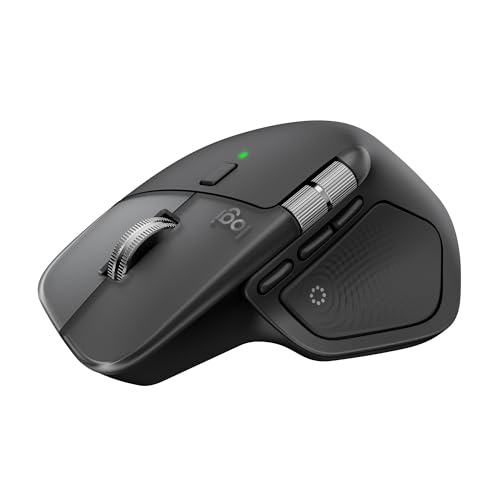
Logitech MX Master 4 for Mac, Space Black

Logitech MX Master 3S Performance Wireless Mouse, Black

WL300 Bluetooth Mouse, Grey

Logitech MX Master 3S Bluetooth Edition, Black

Logitech MX Master 4 Ergonomic Wireless Mouse, Graphite

TECKNET Wireless Mouse, Black
More Details On Our Top Picks
For long editing sessions, this one stands out for its sculpted body and cross-computer control. The wheel can move fast through a packed timeline, then switch back to notch-by-notch movement for careful trims. That kind of flexibility matters when your day jumps between footage bins, audio lanes, and reference tabs.
The dual connection setup also helps in mixed Mac and Windows spaces, especially in a studio that shares gear. The trade-off is age, since newer picks in this list add quieter clicks or newer controls, but the basic shape still feels sensible for steady desk work.
What We Like
- Supports control across three computers, which helps you move between editing stations without constant reconnecting.
- Hyper-fast scrolling speeds through long timelines and project folders, then snaps back to precise stepping for finer edits.
- The hand-shaped body supports a more relaxed wrist angle during long color-correction or rough-cut sessions.
- Bluetooth Smart and the Unifying receiver give you two connection paths, useful in shared workspaces.
- Rechargeable design reduces battery swaps, which is handy on busy desks.
Minor Gripes
- The design is not the newest in this lineup, so it lacks some of the newer feedback and tracking refinements.
- The larger shell suits medium to large hands better than a cramped travel pouch.
- Frequent cleaners may want to keep the thumb rest and wheel area free of dust build-up.
Feature Snapshot
Who It Suits Best
Video editors who split time between two computers and want a comfortable desktop mouse will get the most from this shape and scroll system.
Where A Sibling Pick Shines
Logitech MX Master 3S, Black makes more sense for editors who want quieter clicking and stronger any-surface tracking.
The Bluetooth-only setup keeps the desk cleaner, since you do not need a receiver for this version. The quiet-click design matters in an editing bay, a library corner, or any shared room where sharp button noise gets old fast. Its 8,000 DPI sensor adds fine pointer control, which helps on detailed interfaces like audio waveforms and small tool palettes.
MagSpeed scrolling is the headline feature here, and the term just means a very fast wheel that still stays controlled enough for exact work. Compared with the older MX Master in pick one, this version feels more tuned for hush and precision, though the lack of a receiver makes it a better fit for Bluetooth-first setups.
Positives
- Bluetooth-only design keeps dongles out of your bag and off your desk.
- Quiet clicks suit shared offices, late-night edits, and room-mate friendly setups.
- 8,000 DPI tracking gives you more sensitivity options for detailed pointer placement.
- MagSpeed scrolling helps you move through long timelines without feeling stuck in the middle of a project.
- Works across Windows, Mac, Linux, and Chrome environments, which suits mixed-device studios.
Points To Note
- No USB receiver is included, so Bluetooth has to fit your workflow from the start.
- The silent click feel is softer than some tactile mice, which some editors may prefer less.
- Glossy desk debris can collect around the wheel and thumb area, so occasional wipe-downs help.
Details At A Glance
Built With In Mind
Editors who work in shared spaces and prefer Bluetooth over dongles will likely feel at home with this mouse.
Look Elsewhere When
Logitech MX Master Wireless Mouse, Meteorite suits you better if you want the option of a receiver and multi-computer control.
This Mac-focused version leans into haptic feedback, which means the mouse gives touch-based response cues instead of relying on sight alone. In a timeline-heavy edit, that can make controls feel more deliberate, especially during repetitive panel work. The USB-C charging also fits a modern Mac desk without extra clutter.
Compared with the MX Master 3S family, this one feels more forward-looking, though that only matters if you use the added feedback. The honest read is that it makes the most sense for Mac users who want the newest control style rather than the broadest compatibility.
Highlights
- Haptic feedback adds a tactile cue layer that can help you register actions without watching the pointer constantly.
- Ultra-fast scrolling is useful for large project bins, long timelines, and dense workspaces.
- USB-C charging fits current Mac setups and keeps cable compatibility simple.
- Ergonomic shell supports longer desktop sessions with less hand strain.
Worth Noting
- The Mac focus means it is less universal than the Windows-friendly options in this roundup.
- Newer control features may take a little time to feel natural in day-to-day editing.
- The larger shape still rewards a dedicated desk more than a packed travel kit.
Core Details
Who Should Grab It
Mac editors who want a more tactile desktop mouse and spend long stretches inside creative software are the best fit here.
Another Choice May Suit
Logitech MX Master 3S Bluetooth Wireless Mouse, Graphite is the safer match for mixed-platform setups that do not need haptics.
This version brings together the strongest parts of the MX Master formula, quiet clicks, fast scrolling, and a shape that settles into the hand without much fuss. For editors who spend hours nudging clips and toggling between panels, that balance matters more than flashy extras. The 8,000 DPI sensor also keeps cursor movement responsive on busy screens.
Compared with pick two, this one uses the same core ideas but skips the Bluetooth-only framing, so it feels a bit more flexible as a desk anchor. The trade-off is simple, the larger body and premium feature set are best used at a proper workstation rather than in cramped coffee-shop sessions.
Positives
- Quiet clicks help reduce noise during shared editing sessions.
- MagSpeed scrolling handles long timelines with less finger effort.
- Works on glass, which helps on polished desks and variable work surfaces.
- The ergonomic body supports a more natural wrist position.
- Thumb controls are positioned for frequent tool switching and shortcut-heavy workflows.
Room For Improvement
- The larger shape suits a desk setup better than small travel spaces.
- Premium features are useful, though casual users may not tap all of them.
- As with most dark finishes, fingerprints can build up around high-touch spots.
Quick Facts
Best Suited To
Video editors who want a polished desk mouse with quiet operation and strong scrolling control will get the most from this one.
Skip It When
Logitech MX Master Wireless Mouse, Meteorite is the better match for you when multi-computer control matters more than newer tuning.
This one takes a simpler route than the MX Master models, which is exactly why some editors will prefer it. The tri-mode setup covers wired use, 2.4G wireless, and dual Bluetooth, so you can shift between a laptop, tablet, and desktop without much friction. That flexibility is useful on the road or in a home office where gear changes often.
The sculpted grip and six buttons give it more control than a plain office mouse, though it still feels more straightforward than Logitech’s premium line. One thing worth considering is the more budget-focused finish, which usually means you choose it for function first and refinement second.
Upsides
- Tri-mode connectivity makes it easier to match different devices and desk setups.
- Quiet click behavior suits shared rooms and late editing work.
- Six buttons provide extra shortcuts without making the body feel crowded.
- Adjustable DPI helps you tune pointer speed to different tasks.
- The shaped grip is useful for travel days and longer work blocks alike.
Small Caveats
- The more basic build will not feel as premium as the MX Master line.
- Side-scroll use can take a little adjustment during the first few sessions.
- Frequent travelers will still want to keep the receiver and cable organized together.
At A Glance
Right Fit For
Editors who want a straightforward mouse with several connection paths and a lower-friction learning curve will find this practical.
A Better Fit Elsewhere
Logitech MX Master 3S Performance Wireless Mouse, Black is the stronger desk choice for editors who want a more polished premium feel.
This renewed Bluetooth edition gives you the familiar MX Master layout without pushing you toward a new-device purchase. For editors who already like the 3S shape, that can be an easier way to get a premium-style desk mouse for daily timeline work. The trade-off is the renewed status, so condition and presentation matter more than they do on a fresh retail box.
It keeps the same broad design language as the newer 3S Bluetooth model, so the main draw is familiar handling rather than a new feature set. That makes it a sensible option for practical setups, especially on a secondary editing machine.
Bright Spots
- Bluetooth edition keeps desk clutter low.
- MagSpeed-style scrolling is helpful for long edits and dense folders.
- 8,000 DPI tracking supports controlled pointer movement.
- The ergonomic shape is familiar to long-time MX Master users.
Areas To Watch
- Renewed condition makes cosmetic wear more likely than with a fresh unit.
- No receiver is included, so Bluetooth has to suit your setup.
- Availability of accessories can vary more than on a new retail package.
Spec Overview
Whose Shelf It Belongs On
Editors who already know they like the MX Master shape and want a renewed Bluetooth-only version are the best fit here.
Reach For A Different Pick When
Logitech MX Master 3S Bluetooth Wireless Mouse, Graphite fits better for a fresh retail unit with the same quiet-click approach.
For heavy timeline work, this is the most forward-leaning mouse in the group. The haptics add a tactile layer that pairs well with ultra-fast scrolling and USB-C charging, so the desk setup feels modern without becoming complicated. Editors who keep one hand on shortcuts and the other on a pointer may appreciate the extra feedback most.
Compared with pick three, this graphite version broadens the appeal beyond Mac-only workflows. The honest read is that the upgrade makes the most sense for committed desktop users, since the higher feature count only pays off when you spend real time inside editing software.
Reasons To Buy
- Haptic feedback gives the mouse a more tactile, responsive feel during repeated actions.
- Ultra-fast scrolling helps with long timelines and large media bins.
- USB-C charging keeps cable handling simple at a modern workstation.
- Ergonomic build supports steady, all-day use.
Honest Caveats
- The more advanced feature set can be more than casual editors need.
- It still makes the most sense at a fixed desk rather than on the road.
- High-touch surfaces may show smudges after a long session.
Feature Rundown
The Right Fit
Power users who live inside editing software and want tactile control with a premium desktop feel are the best match for this mouse.
Swap It Out When
WL300 Bluetooth Mouse, Grey suits you better for a simpler travel-friendly setup with fewer premium extras.
TECKNET goes after the practical end of the category, with BT5.3, BT5.0, and 2.4G support giving you several ways to connect. That matters in a home setup where one laptop handles edits, another handles admin work, and the desk changes shape from day to day. The rechargeable design and seven buttons add convenience without pushing the mouse into premium territory.
Compared with the MX Master models, the feel is simpler and less specialized, which is not a bad thing for casual editing or mixed office use. You may find the side scroll and adjustable DPI especially useful on spreadsheets, file browsers, and basic timeline work, though the overall build is more straightforward than the Logitech group above it.
Strong Points
- Three connection paths make it easy to pair with different machines.
- Seven buttons give you more control options for daily work.
- Side scroll can help with wide timelines and side-to-side panel movement.
- Rechargeable design cuts down on battery swaps.
Trade Offs
- The simpler build will not feel as refined as the MX Master line.
- Heavier editing routines may make you want a more sculpted high-end shape.
- Regular cleaning around the scroll and side buttons helps keep it feeling smooth.
Feature Card
Made For
Editors who want an uncomplicated mouse with flexible wireless pairing and everyday shortcut support will be happy with this choice.
Consider Something Else When
Logitech MX Master 4 Ergonomic Wireless Mouse, Graphite fits better for you when haptic feedback and a more premium desk feel matter more.
How To Choose The Right Mouses For Video Editing
Shape, Scroll, And Hand Position
Video editing rewards a mouse that settles into your hand rather than forcing you to grip tightly for hours. An ergonomic shell, like the MX Master line, supports a more natural wrist angle, while flatter mice can feel fine for shorter sessions but less relaxing across a full cut.
Scrolling matters just as much. A fast wheel helps you move through long timelines, while a click-to-click or stepped mode gives you cleaner control when you’re lining up frames and markers.
Connection Style And Desk Setup
Bluetooth-only models keep a desk tidy, but they depend on your machine’s wireless stability. A receiver-based or multi-mode mouse gives you more fallback options, which helps in a studio where laptops, desktops, and tablets all take turns.
Editors who jump between systems should pay attention to cross-computer control and dual connectivity. That saves time during project handoffs and reduces the little interruptions that break focus.
Tracking Precision For Busy Interfaces
DPI, or dots per inch, describes how sensitive the cursor feels. Higher DPI can help when you need small pointer movements across large monitors, though too much sensitivity can feel twitchy on a crowded edit bay.
Any-surface tracking also matters on glass desks and uneven work surfaces. You may not need that every day, but it becomes useful in mobile setups, shared spaces, and temporary workstations.
Quietness, Buttons, And Workflow Fit
Quiet clicks suit shared offices, late-night edits, and rooms where sound carries. Extra buttons can speed up common actions, but only when they sit comfortably under your thumb and do not feel crowded.
The best match depends on how you work. A heavy timeline editor usually benefits from a more advanced mouse, while a casual creator may be better served by a simpler, less expensive shape with enough control to stay efficient.
What To Weigh Before You Choose
Common Shopping Slip Ups
Many shoppers focus on DPI and forget the shape, which is a mistake during long edits. A fast sensor does little good when your hand starts feeling tense after an hour or two.
Another slip-up is overlooking connection type. A Bluetooth-only mouse can be tidy, but a receiver or tri-mode setup brings extra flexibility for older machines and mixed-device desks.
Where The Extra Money Goes
Higher-tier mice usually pay for better scroll hardware, quieter switches, more sculpted shells, and extra control layers like haptics or multi-computer switching. Those parts are not cosmetic, they shape how steady the mouse feels during repeated work.
The upgrade makes sense for editors who spend real time in timelines, color tools, and layered projects. For occasional cuts, a simpler mouse often covers the job without the premium jump.
Final Thoughts
You do not need the most elaborate mouse to edit video well, but you do need one that keeps your hand comfortable and your cursor steady. The MX Master family leads this list for a reason, though TECKNET and WL300 make sense for simpler desks and lighter routines. Match the mouse to the way you work, not just the spec sheet, and your editing days will feel smoother.
