
Editing timelines, trimming clips, and nudging frames demand steadier control than a basic office mouse usually gives you. You need a pick that fits your hand, respects desk space, and keeps repetitive motions from turning clumsy after a long session. That is where a jog wheel, thumb wheel, silent clicks, or a vertical grip can matter more than raw speed. The seven options below cover macro control, ergonomic comfort, and everyday pointer work for different editing setups.
Quick Look At The Shortlist

Contour ShuttlePRO v2 Multimedia Controller

Logitech MX Master 3S Bluetooth Mouse
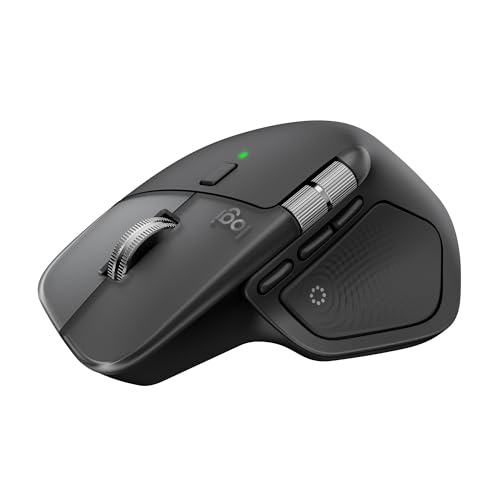
Logitech MX Master 4 for Mac
ULANZI D100H Video Editing Keyboard

TECKNET Wireless Ergonomic Mouse

ProtoArc EM11 NL Vertical Mouse
ProtoArc EM01 NL Trackball Mouse
More Details On Our Top Picks
Timeline scrubbing gets easier fast with a dedicated controller like this, especially during clip trimming or audio nudging. The jog wheel gives you a more direct feel than a plain pointer, while 15 programmable buttons can map to repeated editing commands.
That setup suits editors who live inside one app for hours and want fewer trips to the keyboard. The trade-off is obvious, though, since it adds another device on the desk and makes sense only where shortcut-heavy work is already routine.
Strong Points
- Jog wheel supports frame-by-frame movement.
- Fifteen buttons can speed repeat actions.
- Works with Mac and PC setups.
- Good fit for dense editing sessions.
Things To Consider
- Extra desk hardware takes some placement planning.
- Learning the button map takes time.
- Less useful for casual pointer-only work.
Feature Snapshot
Who It Suits Best
Video editors who scrub, trim, and repeat the same commands all day will get the most from it.
Where Another Pick Suits Better
Logitech MX Master 3S Bluetooth Mouse suits you better for general desktop work that mixes editing with browsing, admin tasks, and light creative use.
This mouse fits the edit bay that also handles email, file management, and app switching. The Bluetooth-only design keeps the setup clean, and the MagSpeed scroll wheel is built for fast movement through long timelines or large folders.
The 8,000 DPI sensor gives you fine cursor control, even on glass, and the quiet clicks help in a shared room or late-night workspace. The honest trade-off is the missing USB receiver and cable in the box, so your desk setup needs to be ready for Bluetooth from the start.
What We Like
- MagSpeed scrolling moves through content quickly.
- Quiet clicks suit shared workspaces.
- Sensor tracks on glass surfaces.
- Custom buttons help speed edits.
- Bluetooth-only setup stays uncluttered.
Worth Noting
- No USB receiver comes with it.
- No charging cable is included.
- Bluetooth setup is mandatory here.
Core Details
Who Will Love This
Editors who want a familiar mouse shape with strong scrolling and low noise will feel at home here.
A Better Fit Elsewhere
Contour ShuttlePRO v2 Multimedia Controller suits you better for dedicated timeline work, since the jog wheel and shortcut buttons are built for that job first.
For Mac-heavy editing desks, this one leans into a smoother, more refined feel than the MX Master 3S. Haptic feedback adds tactile response, which makes shortcut use and control changes feel more deliberate, and USB-C charging keeps the routine modern.
It also supports macOS, iPadOS, and Windows, so mixed-device studios do not need to think too narrowly. The trade-off is that the feature set makes the most sense for people already living in Apple-centered workflows, and that narrows the fit a bit.
Highlights
- Haptic feedback adds clear touch response.
- Ultra-fast scrolling helps with long timelines.
- USB-C charging fits current desks.
- Works across Mac, iPad, and Windows.
- Comfortable for long editing sessions.
Room For Improvement
- Best value appears in Mac-centered setups.
- Feature depth may exceed casual needs.
- Higher-end polish brings a larger footprint.
Feature Rundown
The Right Fit
Mac editors who want a more polished daily mouse with tactile feedback will get the most from it.
Swap It Out When
Logitech MX Master 3S Bluetooth Mouse suits you better for a simpler setup that still covers broad desktop editing needs.
This one shifts the job away from a standard mouse and toward shortcut control. The dial knob and customizable macro keypad make sense for editors, photographers, and creators who keep repeating the same commands across software.
Its tactile feedback helps the controls feel more distinct, which is useful during long sessions where accuracy matters more than speed alone. The trade-off is straightforward, since a keypad controller works best alongside a regular mouse rather than instead of one.
Best Bits
- Dial knob supports precise adjustments.
- Macro keys reduce repeated hand travel.
- Wireless Bluetooth keeps the desk cleaner.
- Tactile response helps with blind use.
- Fits beginner and advanced workflows.
Minor Gripes
- Works best as a companion device.
- Macro setup takes some planning.
- Less useful for basic browsing tasks.
Details At A Glance
Built With In Mind
Shortcut-heavy editors and creators who want fewer keyboard reaches will appreciate the layout.
Where A Sibling Pick Shines
Contour ShuttlePRO v2 Multimedia Controller suits you better for direct timeline scrubbing, since the jog wheel is more centered on that task.
This TECKNET option looks aimed at the editor who wants one mouse for work, browsing, and occasional timeline cleanup. Bluetooth and 2.4G connectivity give you flexibility across devices, and the side scroll plus seven-button layout add useful control without pushing into specialty territory.
The six DPI steps let you adjust pointer speed to fit fine trimming or broader navigation. The trade-off is that this is more of a capable all-rounder than a dedicated editing tool, so heavy shortcut users may still want something more specialized.
Positives
- Bluetooth and 2.4G widen compatibility.
- Rechargeable design cuts battery swaps.
- Side scroll helps with long timelines.
- Quiet clicks suit shared rooms.
- Seven buttons add flexible shortcuts.
Softer Spots
- Less specialized than a controller device.
- Seven-button layout still needs mapping.
- Ergonomic shape may suit some hands better than others.
Quick Facts
Perfect Match For
Editors who want a practical mouse for mixed daily work will get the most from it.
Look Elsewhere When
ProtoArc EM01 NL Trackball Mouse suits you better for a tighter desk, since the stationary thumb control saves movement space.
The 58-degree vertical shape changes your grip more than a standard mouse, which can suit long desk sessions where wrist posture matters. It also connects to three devices through Bluetooth or the 2.4G USB-A path, so switching between machines stays manageable.
The rechargeable 500mAh battery and USB-C charging keep upkeep simple. The catch is that a vertical mouse usually asks for a short adjustment period, so it works best for someone ready to trade familiarity for a more natural hand angle.
Upsides
- Vertical angle supports a relaxed grip.
- Three-device pairing helps multi-machine desks.
- USB-C charging is easy to live with.
- Bluetooth and 2.4G options add flexibility.
Points To Note
- Vertical shape needs an adjustment period.
- Best fit depends on hand size.
- Less suited to those who want a traditional profile.
At A Glance
Whose Shelf It Belongs On
Desk workers who spend long hours in editing apps and want a vertical grip will get the most from it.
Another Choice May Suit
ProtoArc EM01 NL Trackball Mouse suits you better if you want stationary thumb control rather than a shifted grip angle.
A trackball keeps the body still while your thumb does the cursor work, which can be very handy on a cramped edit desk. The 0 to 20 degree adjustable angle gives you some room to tailor the hand position, and silent clicks help the mouse stay unobtrusive in shared spaces.
It also connects to three devices through Bluetooth and 2.4G USB-A, so it suits a workstation that juggles more than one computer. The honest trade-off is that trackball control feels different from a standard mouse, and cleaning around the ball needs a little routine attention.
Best Bits
- Thumb-controlled ball saves desk movement.
- Adjustable angle adds a comfort tweak.
- Three-device support helps busy setups.
- Silent clicks suit quiet workspaces.
- Easy-clean design helps daily upkeep.
Areas To Watch
- Trackball handling feels unfamiliar at first.
- Ball area needs periodic cleaning.
- Not for those who prefer sweeping mouse motion.
Feature Card
Made For
Editors with tight desk space or a preference for minimal arm movement will benefit most here.
Reach For A Different Pick When
Logitech MX Master 3S Bluetooth Mouse suits you better if you want a more traditional shape with faster adjustment from a normal pointer setup.
How To Choose The Right Video Editing Mouses
Control Style First
Editing work splits into two camps: direct pointer use and dedicated control surfaces. A jog wheel or dial helps with frame-accurate scrubbing, while a classic mouse gives faster navigation across apps, file windows, and browser tabs.
The right choice depends on how much of your day lives inside one editing program. Heavy timeline work leans toward the Contour ShuttlePRO v2 or ULANZI D100H, while mixed office-and-editing use suits the Logitech or TECKNET picks.
Comfort And Grip Shape
Long sessions expose grip shape quickly. A vertical mouse like the ProtoArc EM11 NL changes wrist angle, and a trackball like the ProtoArc EM01 NL keeps the arm still, which helps on tight desks.
Traditional shapes feel familiar, but familiar is not always the best match for all-day work. Hand size, desk height, and how often you pause between edits all matter more than a glossy feature list.
Buttons, Scroll, And Shortcuts
Extra buttons only matter when they map to real actions you repeat often. That makes programmable keys useful for trimming, ripple edits, zooming, and switching tools, especially in software with heavy shortcut use.
A fast scroll wheel can feel like a conveyor belt for long timelines, while quiet clicks matter in shared spaces or late sessions. The trade-off is learning curve, because more controls need a little setup before they feel natural.
Connection And Desk Setup
Bluetooth-only mice keep the desk tidy, but they ask more of your host device. A 2.4G USB-A receiver gives quicker plug-and-play flexibility, and multi-device support helps when you move between a laptop and a desktop.
Charging matters too. USB-C and rechargeable batteries reduce routine fuss, while an included receiver or cable can make setup simpler, though not every model includes both.
Things Worth Knowing First
Hidden Buying Traps
Many shoppers focus on DPI and skip the control layout. For editing work, shape, scroll feel, and shortcut access usually matter more than a high sensor number.
Another common miss is buying a controller-style device for general use only. A jog wheel feels great in Premiere-style workflows, but it can be clumsy for simple browsing.
The Upgrade Payoff
Higher-tier models cost more because they usually add better scroll hardware, more refined buttons, stronger ergonomics, and broader software support. That matters most when your desk time is long and repetitive.
The upgrade makes sense for editors who spend hours inside the same applications. For lighter use, a simpler mouse still covers the basics without extra complexity.
Frequently Asked Questions
Do video editing mouses need programmable buttons?
No, but programmable buttons help a lot when you repeat the same shortcuts all day. They cut hand movement and can make common edits feel faster.
Is a vertical mouse better for long editing sessions?
It can be, especially when wrist angle matters more than a familiar shape. The adjustment period is real, so comfort depends on your grip habits.
Why would you choose a trackball for editing?
A trackball saves desk space because the body stays put. That suits tight setups and work areas where sweeping mouse motion feels cramped.
Does Bluetooth work well for editing desks?
Yes, as long as your computer setup handles Bluetooth reliably. A 2.4G receiver can feel simpler for machines that need a quicker start.
What matters more, DPI or ergonomics?
Ergonomics usually matter more for long editing sessions. DPI still matters for cursor control, but hand comfort tends to shape the daily experience more.
Final Thoughts
The right video editing mouse depends on your workflow more than on any single spec. If your day is mostly scrubbing and shortcut work, a controller like the ShuttlePRO v2 or ULANZI D100H makes sense. For mixed use, the MX Master 3S and TECKNET keep things practical, while the ProtoArc vertical and trackball options serve tight desks and long sessions with a different grip style. Choose the shape that matches your routine, and the rest tends to fall into place.
