
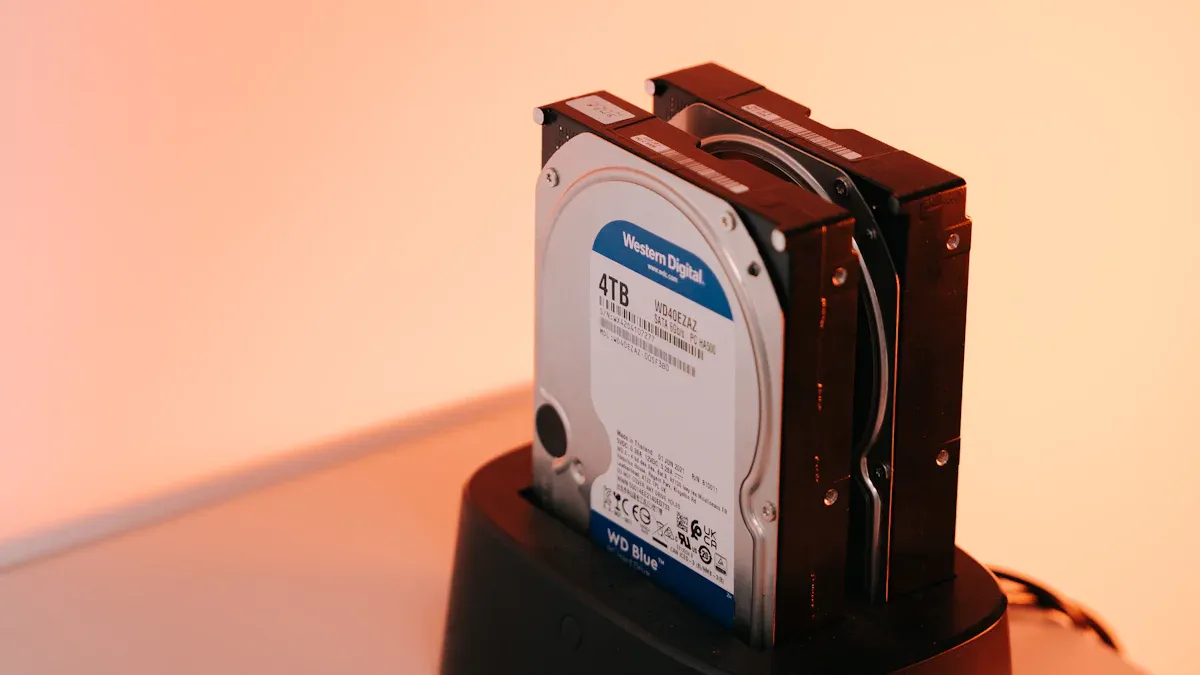
In today’s digital age, safeguarding your data is more crucial than ever. You have various options to choose from, including external hard drives and cloud storage. Each solution offers unique benefits and challenges. Recent surveys reveal that 57% of computer owners prefer cloud storage as their primary backup method. The choice often hinges on control and convenience. External hard drives give you complete ownership of your data, while cloud storage provides unmatched ease of access. Understanding these differences can help you make informed decisions about your data backup strategies.
Key Takeaways
Choose external hard drives for complete control over your data. They allow you to manage backups without third-party access.
Utilize cloud storage for easy access to your files from anywhere. This convenience enhances productivity and protects against local threats.
Implement the 3-2-1 backup rule: keep three copies of your data on two different media types, with one copy stored offsite.
Regularly back up your data to avoid loss. Consider weekly backups for important files and daily backups for frequently modified data.
Review cloud providers’ privacy policies to understand how your data is handled. This ensures your information remains secure and private.
Security
External Hard Drive Vulnerabilities
External hard drives offer a convenient way to store data, but they come with significant vulnerabilities. Here are some key risks associated with these devices:
Security Vulnerability | Description |
|---|---|
Unauthorized Access | Portable devices can easily be stolen or misplaced, leading to unauthorized access to sensitive data. |
Malware Propagation | Removable media can carry malware between systems, increasing the risk of data breaches. |
Data Breaches and Loss | Their small size makes them easy to misplace, risking unauthorized access to stored information. |
To protect your sensitive data, you must consider physical security. If someone gains access to your external hard drive, they can easily retrieve your data. Implementing measures such as locking your drive in a secure location can help prevent unauthorized access. Additionally, using encryption at rest can protect your data when the drive is not in use. Full-disk encryption (FDE) requires unlocking the hard drive before use, adding another layer of security.
Cloud Storage Security Features
Cloud storage providers implement various security features to protect your data. Here are some common features that enhance data security:
Security Feature | Description |
|---|---|
Multi-factor authentication (MFA) | Requires users to provide multiple forms of verification before accessing their accounts, significantly reducing unauthorized access risks. |
Single sign-on (SSO) | Allows users to log in once to access multiple applications, simplifying password management and enhancing security through centralized authentication. |
Object lock | Prevents data from being altered or deleted for a specified time, ensuring data integrity and compliance with legal standards. |
Replication | Maintains copies of data across various locations to ensure availability and redundancy, protecting against data loss from disasters or attacks. |
Encryption | Converts data into a secure format to prevent unauthorized access, protecting data both at rest and in transit. |
Encryption plays a crucial role in cloud security strategies. It converts data into an unreadable format, ensuring that even if data is intercepted, it cannot be accessed without the correct decryption key. This method significantly reduces the risk of data breaches. Additionally, multi-factor authentication adds an extra layer of security, making it harder for attackers to gain access, even if they manage to steal your password.
Reliability
External Hard Drive Lifespan
When considering a backup strategy, understanding the lifespan of external hard drives is essential. Typically, these drives last between three to five years under normal usage conditions. Here’s a summary of lifespan estimates from various sources:
Source | Lifespan Estimate |
|---|---|
Backblaze (2013 study) | 3 to 5 years |
The Guardian (2022) | 3 to 5 years, maybe 10 at most |
CEG Support | About 3 to 5 years |
Several factors can contribute to external hard drive failure or data loss. Here are some common causes:
Mechanical Failures: These occur due to wear and tear or manufacturing defects.
Environmental Factors: Exposure to fire, water, or physical impacts can damage the drive.
Data Corruption: Issues like malware or bad sectors can make data inaccessible.
Human Error: Mistakes such as improper shutdowns can lead to data loss.
Power Issues: Sudden power cuts can harm the drive or its data.
Head Crash: A collision between the read/write head and the platter can result in severe data loss.
Over 140,000 hard drive failures happen weekly in the U.S., with more than 60% due to mechanical issues. Signs of data corruption include scrambled file names and error messages. Therefore, if you rely on external hard drives, consider their long-term reliability and the potential for data loss.
Cloud Service Dependability
Cloud storage offers a different level of reliability. Major providers ensure high availability and minimize downtime through several strategies:
Redundancy: Cloud providers maintain copies of your data across multiple geographic regions. This means if one location fails, your data remains safe elsewhere.
Automated Failover: Systems like AWS Elastic Load Balancing automatically redirect traffic to healthy instances if one fails.
Continuous Monitoring: Providers constantly check system health to quickly detect and respond to failures.
While cloud storage is generally reliable, it is not without risks. Potential issues like file corruption can occur, often due to network problems or software bugs. However, the redundancy and automated systems in place typically mitigate these risks, making cloud storage a dependable option for many users.
Privacy and Control
Data Ownership with External Drives
When you use external hard drives, you maintain complete ownership of your data. This ownership gives you several advantages:
Protection Against Data Theft: Encrypted drives ensure that even if you lose your device, the data remains inaccessible without the encryption key.
Defense Against Unauthorized Access: External drives enforce strict access controls. This prevents unauthorized users from accessing sensitive information, even if they physically possess the device.
With external hard drives, you have direct control over your data. You can decide when to back up, delete, or transfer files. This level of control is crucial for maintaining your privacy. You do not have to worry about third-party access or data breaches that can occur with cloud storage.
Cloud Provider Privacy Policies
Cloud storage providers have their own privacy policies that dictate how they handle your data. Understanding these policies is essential for protecting your privacy. Here are some key points to consider:
Microsoft applies consistent principles to all government data requests. They emphasize that they should not be involved in state-on-state intelligence gathering.
The CLOUD Act allows the U.S. government to create data access agreements with other countries. This streamlines the process for law enforcement requests related to serious crimes.
Microsoft can contest unlawful requests and adheres to the same scrutiny for foreign requests as it does for U.S. requests. This ensures that legal and privacy protections remain intact.
While cloud storage offers convenience, it may not provide the same level of privacy as external drives. You must trust the provider to protect your data and respect your privacy. Therefore, understanding the privacy policies of cloud providers is vital for making informed decisions about your data storage options.
Accessibility
Accessing External Drives
Accessing data on external hard drives can vary based on your operating system. Here’s a quick overview of compatibility:
Drive Format | Compatibility with Windows | Compatibility with macOS |
|---|---|---|
NTFS | Read/Write | Read Only |
HFS+ | Not Recognized | Works |
exFAT | Works | Works |
APFS | Not Recognized | Works |
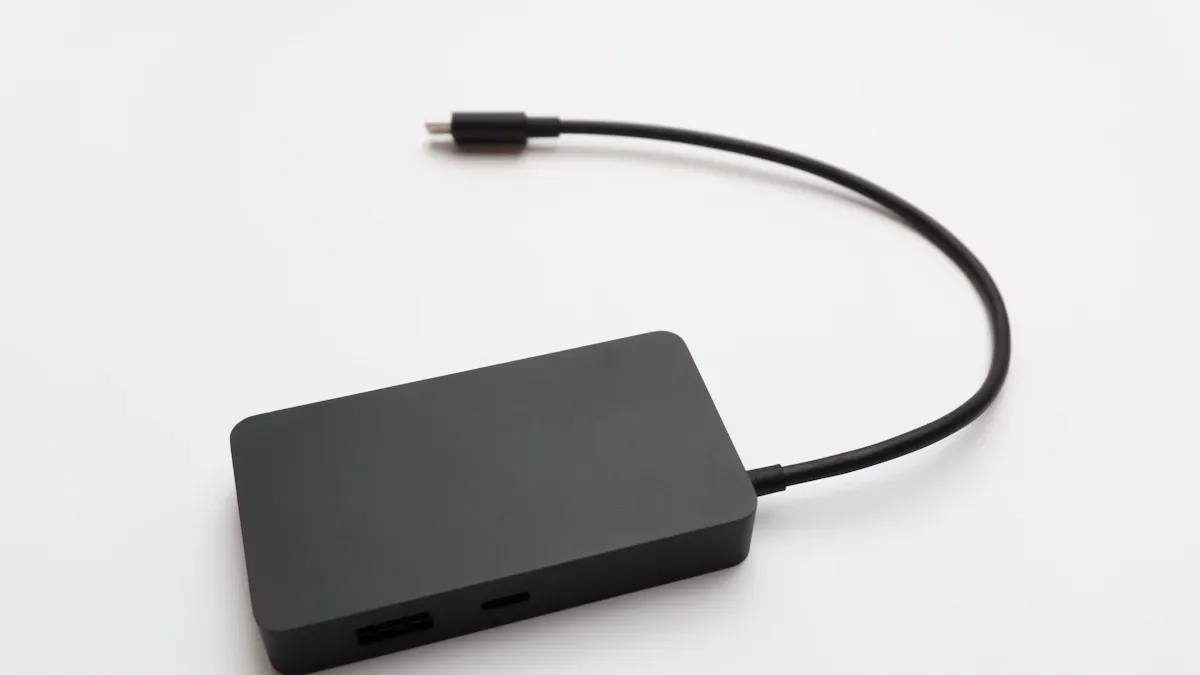
To access your files, you typically connect the drive to your computer using a USB cable. Once connected, you can navigate to the drive through your file explorer. However, if you switch between different operating systems, you may encounter limitations based on the drive format.
Cloud Storage Accessibility Benefits
Cloud storage offers significant advantages over external hard drives when it comes to accessibility. Here are some key benefits:
Anytime, Anywhere Access: You can access your data from any device with an internet connection. This means you don’t need to carry physical devices around.
Offsite Protection: Cloud storage keeps your files safe from local threats like theft or damage. Your data remains secure even if something happens to your physical storage.
Redundancy: Cloud services store multiple copies of your files in different locations. This redundancy protects against data loss, ensuring your important files are always available.
Cloud storage solutions, like Triofox, enable remote access by integrating cloud capabilities with on-premise file servers. You can securely access files from various devices, including Windows, Mac, iOS, and Android. The system uses HTTPS/SSL protocols for secure file requests, maintaining existing security policies and permissions. This combination allows for seamless remote work without compromising data privacy.
A survey by TrackVia indicates that 59% of users report increased productivity due to the accessibility of cloud storage solutions. This statistic highlights how cloud-based storage can enhance your workflow and efficiency.
Choosing between external hard drives and cloud storage for your data backup needs involves careful consideration. Each option has its strengths and weaknesses.
Cost: External hard drives require a one-time purchase, while cloud storage often involves ongoing subscription fees.
Accessibility: Cloud storage allows you to access your data from anywhere, while external drives need a physical connection.
Reliability: Cloud services offer redundancy and disaster recovery, whereas external drives depend on careful handling.
Experts recommend following the 3-2-1 rule for backups: keep three copies of your data on two different media types, with one copy offsite. This strategy ensures your data remains safe and accessible, regardless of the method you choose.
FAQ
What is the best method for data backup strategies?
The best method depends on your needs. If you want complete control, use external hard drives. For convenience and remote access, cloud storage is ideal. Many people combine both for a comprehensive data backup strategy.
How often should I back up my data?
You should back up your data regularly. A good rule is to back up important files weekly. If you frequently create or modify data, consider daily backups to ensure you don’t lose any recent changes.
Can I use both external hard drives and cloud storage?
Yes, using both is a smart approach. This combination enhances your data backup strategies. You can store critical files on an external hard drive while keeping a copy in the cloud for easy access and protection against loss.
What happens if my external hard drive fails?
If your external hard drive fails, you may lose your data unless you have backups. Regularly check the drive’s health and consider using cloud storage as a secondary option to safeguard your data.
Are cloud storage services secure?
Most cloud storage services offer strong security features, such as encryption and multi-factor authentication. However, always review the provider’s privacy policies to ensure your data remains protected.