
Desk setups get messy fast once you add a laptop, a second screen, and a charging cable. Daisy-chain DisplayPort support can trim that clutter, especially for hybrid work, design stations, and multi-monitor office layouts.
You’re also dealing with different panel sizes, refresh rates, USB-C power levels, and docking features, so the right pick depends on how you work every day. The eight options below lean toward clean cabling, practical ergonomics, and sensible screen formats.
Quick Look At The Shortlist

ASUS ProArt PA278CV 27 Inch 1440p QHD USB-C Professional Monitor

KTC 24 Inch Gaming Monitor H24T7 1440P

ASUS BE24ECSBT 24-Inch 1080P Multi-Touch Monitor
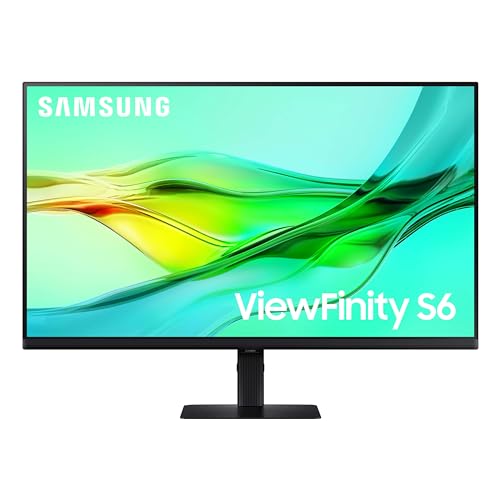
SAMSUNG ViewFinity S6 32-Inch QHD Monitor LS32D606UANXGO

ViewSonic VX2776-4K-MHDU 27 Inch 4K Monitor

ASUS BE249CGN 24-Inch USB-C Docking Monitor

ASUS BE27ACGN 27-Inch 1440P USB-C Docking Monitor

ViewSonic VG2458 24 Inch 1080P Docking Monitor
More Details On Our Top Picks
Color-sensitive work has a different feel on a 27-inch QHD panel than on a basic office screen, and this ProArt model leans into that difference. The factory calibration and wide sRGB plus Rec.709 coverage matter most for design, photo cleanup, and video timelines where you want your layout to stay honest across connected screens.
The ergonomic stand makes long desk sessions easier, which matters more than flashy extras once your day is full of menus, layers, and reference files. Compared with the KTC pick later in this list, this ASUS trades gaming speed for a more disciplined creative focus, and that trade feels sensible for studio work.
Strong Points
- QHD resolution gives you more room for toolbars, timelines, and side-by-side windows.
- IPS panel support helps keep color and contrast steadier across normal desk viewing angles.
- Factory calibration and Calman Verified status suit work where color confidence matters.
- USB-C simplifies a laptop setup, so one cable can handle a cleaner desk routine.
- Ergonomic stand adjustments suit long editing sessions in a home studio or office.
Things To Consider
- It is tuned for accuracy rather than fast-paced play, so motion-focused gamers may want more speed.
- The 27-inch size asks for a desk with enough depth to keep the layout comfortable.
- You may still want external speakers or headphones for everyday media use, depending on your setup.
Feature Snapshot
Who It Suits Best
You get the most from this monitor when your day revolves around design, editing, or other color-aware work at a desk.
Where A Sibling Pick Shines
ASUS BE27ACGN is a better fit for you if you want a similar pro-leaning setup with a larger 27-inch panel and faster 120Hz motion handling.
Fast motion is the point here. The 180Hz class refresh rate, with support for overclocking to 185Hz, gives this KTC a very different personality from the color-first ASUS ProArt above, and that shift matters for esports, action games, and other quick-moving content.
The 24-inch QHD panel keeps the footprint smaller than a 27-inch screen, which can help on tighter desks or in a vertical layout. HDR400 and Adaptive-Sync round out the package, though the real appeal sits in how snappy it should feel for gaming sessions after work.
Highlights
- High refresh support suits fast games and quick scrolling.
- QHD resolution on 24 inches keeps the image dense and crisp.
- Adaptive-Sync helps smooth out frame pacing with compatible graphics hardware.
- Height, pivot, and tilt adjustments give you flexibility for a vertical or traditional layout.
- DisplayPort and HDMI inputs make it easy to connect a gaming rig and a second source.
Softer Spots
- The gaming-first tuning makes it less specialized for color-critical studio work.
- 24 inches can feel compact for heavy multitasking compared with the 27-inch options here.
- HDR400 is a useful spec on paper, though it does not replace a higher-tier HDR experience.
Core Details
Who Will Love This
You suit this monitor best when gaming speed matters more than office polish and you want a smaller 2K screen.
Swap It Out When
ViewSonic VX2776-4K-MHDU is the better call for you if you want a larger 27-inch display with a sharper 4K workspace for mixed work and media.
Touch control changes the way you use a monitor, and this ASUS makes that easy to picture in retail counters, front-desk stations, or shared workstations. The 10-point touch layer is the real differentiator, since it lets multiple inputs register at once on supported systems, which can feel far more natural than hunting for a mouse in a busy setup.
Its Full HD resolution keeps things simple rather than dense, and that actually fits some jobs well. Compared with the sharper ProArt or the 4K ViewSonic options, this one makes more sense where interaction matters more than pixel count.
Reasons To Buy
- Touch input is the headline feature for kiosks, point-of-sale stations, and shared desks.
- USB-C, HDMI, and DisplayPort support flexible connection choices.
- Height adjustment helps you line up the screen for hands-on use.
- IPS viewing angles are useful in spaces where several people look at the display.
Small Caveats
- 1080p on 24 inches is fine for everyday use, though it is less detailed than the QHD and 4K screens here.
- Touch depends on the operating system, so setup expectations should stay realistic.
- The plain resolution makes it a less natural fit for detailed creative work.
At A Glance
Perfect Match For
You fit this monitor best when touch interaction is part of your daily workflow in a store, office lobby, or service desk.
Another Choice May Suit
ASUS BE249CGN is the better fit for you if you want a more traditional office monitor with faster 120Hz motion and stronger docking-style convenience.
A 32-inch panel changes the whole posture of a desk, and this Samsung leans into that bigger view without pushing into ultra-wide territory. The QHD resolution gives you more usable workspace than 1080p, while 100Hz keeps everyday movement smoother than a plain 60Hz office panel.
The built-in LAN port and USB-C connection make it a credible docking-style center for laptop work. Compared with the smaller ASUS BE249CGN, this one suits you better when you want a larger screen first and a cleaner desk second.
Positives
- The 32-inch size gives you generous room for split windows and reference material.
- QHD resolution keeps text and UI elements sharper than Full HD at this size.
- USB-C and LAN support make laptop desk setups easier to live with.
- 100Hz is a nice middle ground for office work, browsing, and lighter media use.
- The height-adjustable stand helps you match the panel to your sitting position.
Points To Note
- The larger footprint needs more desk space than the 24-inch picks in this list.
- 100Hz is smooth, though it does not target competitive gaming in the way the KTC does.
- Big-screen work can expose cable clutter more quickly, so the clean setup idea pays off best with a tidy desk plan.
Details At A Glance
Built With In Mind
You suit this monitor best if you want a large desk display for office work, browsing, and light media in one place.
Look Elsewhere When
ViewSonic VX2776-4K-MHDU is a better fit for you if a 27-inch 4K panel makes more sense for sharper mixed-use detail without the bigger 32-inch footprint.
This ViewSonic sits in a sweet spot for you if you want a sharper desktop than 1440p without jumping to a giant panel. The 4K resolution matters for detailed work, but it also helps home entertainment look cleaner, especially on a 27-inch screen where text and media both benefit from the extra pixel density.
USB-C with 65W power delivery keeps a laptop desk neater, though that power level is lower than the 96W and 100W options elsewhere in this roundup. Compared with the ASUS ProArt, this pick leans less into color-focused creation and more into all-around home-and-office use.
Upsides
- 4K resolution gives you a very detailed workspace for text, images, and video.
- IPS technology keeps the image dependable across normal viewing angles.
- USB-C with 65W support helps simplify a laptop-based desk.
- Ultra-thin bezels make it easier to build a dual-monitor layout that feels tidy.
- HDMI and DisplayPort inputs add flexibility for mixed device use.
Areas To Watch
- 4K can push scaling choices on some laptops, so setup takes a little more care.
- 65W charging is useful, though not as generous as the higher-wattage docking models here.
- For fast gaming, the 100Hz and 120Hz options in this list may feel more suited.
Quick Facts
Whose Shelf It Belongs On
You fit this monitor best if your day blends office tasks, media, and a desire for sharper than usual desktop detail.
Reach For A Different Pick When
ASUS ProArt PA278CV is the smarter choice for you if accurate creative work matters more than 4K sharpness alone.
For a home office that needs to stay neat, this ASUS hits a very practical balance. USB-C, RJ45, and daisy-chain support turn it into a more desk-friendly anchor than a plain monitor, and the 120Hz panel gives everyday motion a smoother feel than the slower business screens in this roundup.
The 23.8-inch size keeps it compact enough for smaller desks, yet the ergonomic stand and built-in speakers help it feel finished rather than stripped down. Compared with the ViewSonic VG2458, this ASUS gives you a bit more refresh-rate headroom and a more flexible ergonomics story.
Bright Spots
- USB-C with 96W power delivery can keep a compatible laptop charged while you work.
- RJ45 support is useful when you want a stable wired network connection at the desk.
- 120Hz makes cursor movement, scrolling, and lighter motion feel smoother.
- Frameless styling helps multi-monitor layouts look cleaner.
- Built-in speakers and height adjustment make it more self-contained for small offices.
Room For Improvement
- The 24-inch class still feels modest beside the larger 27-inch docking monitors here.
- Built-in speakers suit basic audio, though many desks still benefit from separate sound gear.
- ASUS UI and cable routing are straightforward, but a tidy install still takes a little planning.
Feature Rundown
The Right Fit
You suit this monitor best if you want a tidy, compact dock-style display for everyday work and lightweight multitasking.
Where Shoppers Go Wrong
ViewSonic VG2458 is a better match for you if a simpler 24-inch docking monitor with 100W USB-C and a built-in USB hub suits your desk setup more closely.
This ASUS feels like the more polished sibling to the BE249CGN. You get the same docking-minded thinking, but the 27-inch QHD panel gives you more room to work, and the 120Hz refresh rate keeps the whole desktop feeling a little more agile than a standard office screen.
USB-C with 96W delivery, RJ45, and DisplayPort daisy-chain support make it a strong fit for a laptop-centered desk that still needs room for a second monitor. The honest read is that it does a lot, so you’ll appreciate it most when you actually use those docking features instead of treating them as spec-sheet extras.
Plus Points
- 27-inch QHD space gives you a comfortable balance of detail and scale.
- 120Hz refresh rate makes movement and scrolling feel smoother than basic office panels.
- USB-C, RJ45, and daisy-chain support are all useful in a serious workstation.
- The frameless design helps multi-monitor layouts feel less segmented.
- Height adjustment helps you tune posture for longer workdays.
Minor Gripes
- The stronger feature set makes the setup more complex than a bare-bones monitor.
- You need a desk that can handle a 27-inch panel comfortably.
- Speakers are handy, though many users still prefer separate audio.
Feature Card
Who Should Grab It
You suit this monitor best if you want a high-function desk display for multitasking, docking, and a second-screen workflow.
Skip It When
ViewSonic VG2458 is the better fit for you if you need a smaller 24-inch docking monitor with a simpler footprint and a built-in USB hub.
The VG2458 is the most straightforward desk companion in this group, and that’s not a bad thing. A 24-inch 1080p panel keeps setup simple, while 100W USB-C, RJ45, HDMI, DisplayPort, and a 5-port USB hub make it useful for a laptop desk that needs fewer accessories hanging off the side.
Compared with the ASUS BE249CGN, this ViewSonic gives you a more traditional productivity shape with a hub-heavy approach. It suits you best when desk space is tight, cable clutter matters, and you want a monitor that behaves a bit like a tidy docking station.
Best Bits
- 100W USB-C gives you plenty of headroom for laptop charging through one cable.
- The built-in hub helps reduce the tangle of external adapters and side devices.
- Full ergonomic adjustability makes it easier to set the panel up correctly.
- RJ45 and DisplayPort add useful wired options for office and home setups.
- 24 inches keeps the monitor practical for smaller desks and shared rooms.
Honest Caveats
- 1080p is serviceable, though it does not match the finer detail of the QHD and 4K picks here.
- The more modest resolution can feel a little plain beside the sharper creative monitors.
- A hub-rich monitor still needs careful cable routing to stay neat in daily use.
Core Details
Made For
You suit this monitor best if you want a compact productivity screen that acts as a clean docking point for work and study.
Where Shoppers Hit Snags
SAMSUNG ViewFinity S6 is the better fit for you if you want a larger 32-inch canvas and can give up some desk space for it.
How To Choose The Right Daisy Chain Displayport Monitors
Start With Your Desk Reality
Panel size changes the whole feel of your workspace. A 24-inch monitor fits tighter desks and short viewing distances, while 27-inch and 32-inch options give you more room for side-by-side windows and reference material.
Resolution matters just as much. 1080p keeps things simple, QHD gives you a stronger balance of space and text clarity, and 4K is better when you want very fine detail for documents, media, or creative work.
Match The Monitor To Your Daily Flow
Daisy chaining helps most when you regularly run two displays from one laptop or desktop output. That setup can reduce cable clutter, but it only pays off when your devices and ports line up in the same way.
USB-C power delivery is another key detail. Higher wattage can support more capable laptops from a single cable, while lower wattage still works fine for lighter systems that do not need much charging headroom.
Do Not Ignore Motion And Ergonomics
Refresh rate affects how smooth the screen feels during scrolling, gaming, and general movement. 100Hz and 120Hz are pleasant for office work, while 180Hz or 185Hz serves fast-motion use better.
Stand adjustability also matters more than it looks on a spec page. Height, pivot, tilt, and swivel help you keep the panel aligned to your posture, which becomes important during long workdays.
Look For The Right Ports, Not Just More Ports
RJ45 is useful when you want a wired network connection at the desk, and a USB hub can keep accessories closer to the monitor. DisplayPort daisy-chain support is the feature that builds the whole multi-monitor idea, so it deserves a careful look before you commit.
Speakers and built-in hubs are helpful extras, but they should not distract you from the basics. A monitor that matches your screen size, power needs, and cable plan will feel far better than one that merely lists more features.
Things Worth Knowing First
Mistakes Worth Dodging
It’s easy to overfocus on daisy-chain support and ignore the panel size. A screen that looks great on paper can still feel awkward on a cramped desk, especially once you add a laptop stand, keyboard, and second monitor.
Another common slip is treating high refresh rate and color work as the same thing. Fast gaming monitors and color-aware office displays solve different problems, so the better choice comes from your actual routine.
The Upgrade Payoff
Higher-tier models usually cost more because they combine sharper panels, stronger USB-C power delivery, better stands, and more complete docking features. You’re paying for fewer separate accessories and a cleaner daily setup, not just a larger number on a spec sheet.
That extra spend makes the most sense when your monitor is the center of your workday. Hybrid workers, creative pros, and anyone running multiple devices from one desk tend to notice the difference quickly, especially with a model that includes Ethernet, hub ports, or higher-wattage charging.
Closing Thoughts
Your best match depends on what sits at the center of your desk. If you need accurate color, the ASUS ProArt PA278CV makes the strongest case, while the KTC suits speed-focused gaming better. For a cleaner office setup, the ASUS BE249CGN, ASUS BE27ACGN, and ViewSonic VG2458 each bring useful docking features without overcomplicating the room. Choose the screen size and port mix that fits your routine, and the whole setup feels easier right away.
