
You spend enough time staring at a timeline without fighting a dull panel, uneven color, or a stand that won’t settle where you need it. The right monitor changes the workday in small but constant ways, from cleaner detail checks to less neck strain during long cuts and color passes.
This roundup leans toward screens that suit editing desks, mixed creative work, and home setups where one display has to do more than one job. You’ll see practical choices for sharper 4K workflows, wider screens for multitasking, and a few models that make everyday comfort easier to live with.
Quick Look At The Strongest Options

HP Series 3 27 inch FHD Monitor 327se (2025)

Samsung 32″ Flat Computer Monitor LS32B304NWNXGO
ASUS ROG XG27UCG 27 Inch 4K 160Hz USB-C G-SYNC Gaming Monitor

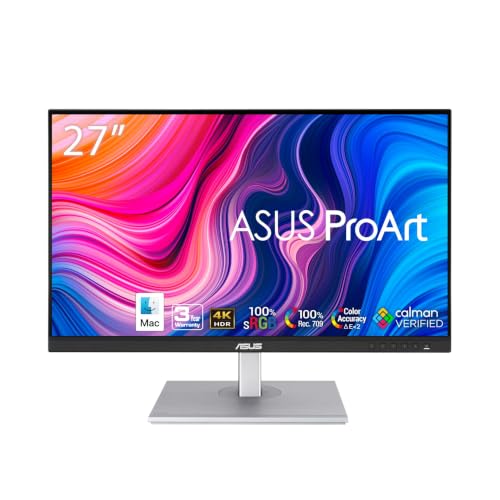
ASUS ProArt PA279CRV 27 Inch 4K UHD USB-C HDR Professional Monitor for Mac

Dell 32 Monitor S3225QS

ViewSonic VP2756-4K 27 Inch 4K ColorPro Monitor

LG 27UP650K-W 27-inch Ultrafine 4K UHD Computer Monitor

Dell 27 Plus Monitor S2725HSM
More Details On Our Top Picks
A 27-inch Full HD panel keeps this HP squarely in the practical camp. The IPS panel, which stands for in-plane switching and usually means steadier color and viewing angles than basic TN screens, helps when you lean back from the desk or share the screen during rough cuts.
The 250-nit brightness and 1300:1 contrast ratio are modest rather than flashy, so this fits straightforward editing, writing, and timeline work more than strict color-critical grading. Eye Ease with Eyesafe certification also makes it easier to live with during long sessions, though the 1080p resolution can feel a little plain beside the 4K picks farther down this list.
Strong Points
- 27 inches gives you a roomy workspace without asking for a huge desk.
- IPS viewing helps the image stay more consistent across the panel.
- Eye comfort tuning suits long planning sessions and rough edits.
- Simple FHD resolution keeps setup light for everyday office use.
Points To Note
- 1080p is the weak spot for anyone who wants finer timeline detail.
- The brightness level leaves less headroom in very bright rooms.
- You may outgrow it faster once color work becomes more serious.
Core Details
Who It Suits Best
Beginners and office-based editors who want a larger, uncomplicated display for rough cuts, scripts, and multitasking get the most from it.
Where A Sibling Pick Shines
The LG 27UP650K-W suits you better once 4K detail matters more than keeping the setup simple.
Samsung gives you the biggest plain desktop surface so far, and that matters once your editing workflow starts stretching across more than one window. The borderless design makes a multi-monitor layout look cleaner, and the 32-inch size can feel a bit like spreading the project out on a larger desk.
AMD FreeSync helps the monitor and graphics card stay in step, which reduces tearing in motion-heavy playback, while the 75Hz refresh rate adds a smoother feel than a basic 60Hz panel. The trade-off is obvious, though: this is still a general-purpose screen, so you’re buying size and comfort first, not a creator-tuned color package like the ASUS ProArt PA279CRV.
Upsides
- The 32-inch panel gives you plenty of room for multitasking.
- Borderless edges work well in dual-screen desk setups.
- FreeSync helps keep moving footage cleaner on playback.
- 75Hz feels smoother than standard office panels.
Small Caveats
- Color-focused work still belongs with a more creator-minded screen.
- The large size asks for a deeper desk to stay comfortable.
- Motion features help playback, but they don’t replace proper grading tools.
Feature Snapshot
Who Will Love This
Desk-heavy editors and multitaskers who want space first, then speed, will get along with it.
A Better Fit Elsewhere
The Dell 32 Monitor S3225QS suits you better once you want a 4K panel with a more polished mixed-use profile.
This ASUS leans hard toward speed, but it still brings enough creator-friendly detail to work in a video-editing setup. The 4K panel and USB-C connection make it easy to pair with a modern laptop, while the fast 160Hz refresh rate helps the desk feel responsive whether you’re scrubbing footage or switching tools.
The dual-mode setup is the interesting part, because FHD at 320Hz gives you a different option for motion-heavy work or games after hours. That flexibility is the selling point, though the gaming-first tuning means you’re paying for a hybrid personality rather than the color-first focus you get from the ProArt or ViewSonic picks.
Highlights
- 4K detail suits editing timelines and close visual checks.
- USB-C keeps desk wiring simpler with modern laptops.
- Dual-mode operation adds flexibility for mixed work and play.
- Fast refresh support helps motion feel more immediate.
- G-SYNC and FreeSync support widen compatibility.
Areas To Watch
- The gaming focus can feel like extra cost for pure editing use.
- Serious color work still points more naturally to ProArt-style screens.
- The feature set makes more sense on a busy desk than a minimalist one.
Technical Sheet
Built With In Mind
Hybrid creators who edit by day and want fast motion support after hours will get the most out of it.
Skip It When
The ASUS ProArt PA279CRV suits you better when color fidelity matters more than high-refresh gaming features.
This is the most editing-first screen in the group, and the details support that role well. The 27-inch 4K panel, Calman Verified calibration, and Delta E below 2 tell you the panel is meant to hold color tightly, which matters when you’re matching skin tones, graphics, and footage across a project.
USB-C with 96W power delivery is especially useful on a laptop desk, because one cable can handle display, data, and charging. The trade-off is price positioning and focus, since this model spends its effort on accuracy and workflow polish rather than gaming extras, so casual users may not need everything here.
Reasons To Buy
- Factory calibration helps color work start from a stronger baseline.
- 4K resolution gives you sharp timeline detail and cleaner previews.
- USB-C with 96W power delivery reduces cable clutter on laptop desks.
- Daisy chain support helps multi-monitor setups stay tidier.
- Height adjustment makes long sessions easier to position comfortably.
Worth Noting
- The feature set makes most sense for serious creative work.
- You may not need the accuracy tools for light editing only.
- Its strengths are practical, but they are aimed at a narrower crowd.
Details At A Glance
Made For
Video editors, color-conscious creators, and Mac-based desk setups are the clearest fit here.
Another Choice May Suit
The ViewSonic VP2756-4K is a sensible alternative for photo-first work with strong ergonomic needs.
Dell takes a different route from the ASUS ProArt, leaning into a larger 31.5-inch canvas and a more relaxed mixed-use feel. The 4K resolution, 3000:1 contrast ratio, and VA panel type give it a richer image profile for editing, streaming, and everyday desktop use, especially when you like having more space without going all the way to an ultrawide.
The 120Hz refresh rate and FreeSync Premium help motion feel smoother than a standard office monitor, so playback and scrolling stay pleasant. The honest read is that it’s a very comfortable all-rounder, though pure color specialists may still prefer the tighter creator bias of the ProArt or ViewSonic models.
Bright Spots
- The 31.5-inch size gives you an expansive viewing area.
- 4K resolution keeps detail sharp for editing and general work.
- 120Hz refresh support makes the desktop feel fluid.
- High contrast helps darker scenes carry more depth.
- FreeSync Premium helps with smoother motion on compatible systems.
Minor Gripes
- Its larger frame needs more desk depth to feel natural.
- VA panels can suit contrast well, though color purists often prefer IPS.
- The comfort-first focus leaves less room for specialist creator extras.
Core Details
The Right Fit
Editors who want a larger, comfortable desk screen for mixed creative and entertainment use will like this one most.
Reach For A Different Pick When
The ASUS ProArt PA279CRV is the sharper fit for color-managed editing and tighter calibration needs.
ViewSonic puts color accuracy and desk comfort front and center, which makes sense for editors who also spend time on photo work or layout-heavy projects. The 27-inch 4K IPS panel, 100% sRGB coverage, and Pantone validation suggest a display aimed at controlled, repeatable color work rather than broad entertainment use.
Its 60W USB-C port is handy for a clean laptop connection, and the 3-sided frameless look helps a dual-monitor setup feel more seamless. You may find the 60Hz ceiling a little plain beside the faster Dell and ASUS options, but that’s a fair trade when your priority is visual discipline over speed.
Positives
- 4K resolution supports detailed visual review.
- IPS panel behavior helps maintain steadier viewing angles.
- Pantone validation will appeal to careful color workflows.
- USB-C reduces cable clutter on a laptop desk.
- Frameless styling works nicely in multi-screen setups.
Room For Improvement
- 60Hz feels basic beside faster mixed-use screens.
- The narrow focus is better for color work than casual all-purpose use.
- Photo-friendly tuning may be more than you need for rough cuts only.
Feature Card
Best Suited To
Photo editors and color-conscious creators who want a tidy desk and dependable tone handling will appreciate it most.
Look Elsewhere When
The Dell 32 Monitor S3225QS makes more sense if you want a larger screen with a stronger all-round entertainment angle.
LG keeps this one pleasantly straightforward, and that honesty helps it slot into a lot of desks. The 27-inch 4K IPS panel, DisplayHDR 400 support, and 95% DCI-P3 coverage point to a screen that can handle edit work, browsing, and media without demanding a niche workflow in return.
The stand deserves attention too, because tilt, height, and pivot adjustments make it easier to match your posture and desk layout. The trade-off is the 60Hz refresh rate, which is fine for editing and general use but less lively than the Dell 32 Monitor S3225QS or the ASUS ROG if you care about speed.
Best Bits
- 4K resolution gives you useful detail for editing.
- IPS panel support helps maintain comfortable viewing angles.
- Adjustable stand options make daily setup easier to fine-tune.
- DisplayHDR 400 and wide color support add image depth.
- Reader Mode can be handy during long document-heavy sessions.
Trade Offs
- 60Hz is practical, though not especially lively.
- The feature mix is broad, not highly specialized.
- Cleaning and desk placement are easiest when you give the stand room to move.
Feature Rundown
Whose Shelf It Belongs On
Anyone who wants a friendly 4K desktop display with flexible ergonomics and light creative credentials will fit here well.
Swap It Out When
The ASUS ProArt PA279CRV is the stronger choice if your work leans heavily on tighter color calibration.
Dell closes the list with a screen that feels easy to live with, especially on a mixed-use desk. The 27-inch FHD panel, 144Hz refresh rate, 1ms moving picture response time, and built-in 3W speakers make it a very approachable option for casual editing, everyday media, and a setup where you’d rather keep the desk uncluttered.
The height, tilt, pivot, and swivel adjustments give you more control over posture than many budget-oriented displays, which helps during long sessions. The honest read is that this one suits general use better than color-sensitive work, so it fills a friendly role rather than a specialist one.
Bright Spots
- 144Hz makes the desktop feel responsive and smooth.
- Built-in speakers reduce the need for separate audio gear.
- Four-way stand movement makes positioning easier.
- FHD keeps setup simple for everyday editing and viewing.
- AMD FreeSync helps motion look cleaner on compatible systems.
Areas To Watch
- 1080p resolution leaves less room for detail work than 4K screens.
- Its strengths sit more in comfort than creator calibration.
- Speakers are convenient, though dedicated audio still sounds fuller.
Core Details
The Right Fit
Casual editors, students, and home setups that want smooth motion and simple audio in one screen will get the most from it.
Where A Sibling Pick Shines
The LG 27UP650K-W is the better move when you want 4K detail and more creator-friendly image depth.
How To Choose The Right Desktop Monitors For Video Editing
Start With Resolution And Screen Size
Resolution decides how much detail you can see without zooming around the timeline. For video work, 4K gives you a sharper view of footage, text, and interface panels, while 1080p stays easier on the budget and system load.
Screen size matters just as much, because 27-inch displays hit a useful middle ground for many desks. A 32-inch panel, like the Samsung or Dell 32, gives you more room for bins and timelines, while a 27-inch model feels easier to fit into a tighter room.
Pay Attention To Color Behavior
Color accuracy is where creator-oriented screens separate themselves from general office monitors. Look for IPS panels, wider gamuts such as DCI-P3 or Adobe RGB, and factory calibration when your edits need to stay consistent across projects.
Tools like Calman verification or Delta E figures are useful because they hint at how closely the display matches intended color. For simple cuts and rough assemblies, that level of control may be more than you need, but for grading or branded content, it starts to matter a lot.
Match The Monitor To Your Desk And Workflow
USB-C, daisy chaining, and adjustable stands help the monitor fit the rest of your setup instead of fighting it. Laptop-based editors often benefit from one-cable connections and built-in charging, while desktop rigs care more about port variety and cable routing.
Comfort features also deserve real weight. Height adjustment, pivot support, anti-glare surfaces, and eye-care modes can make long sessions feel less tiring, especially in a home office with changing light.
Balance Speed, Extras, And Long-Term Fit
High refresh rates help motion feel smoother, and they matter most when you also edit fast-paced footage or use the screen for games after work. The trade-off is cost, because those faster panels often spend less budget on color tuning or professional extras.
Think about what your desk actually needs over the next few years. A well-rounded 4K IPS screen often serves more people than a flashy hybrid model, but a faster display can be the better call once you know your workflow includes motion-heavy content.
Things Worth Knowing First
Hidden Buying Traps
Many shoppers chase refresh rate before checking color handling or resolution. That can leave you with a smooth screen that still feels wrong for editing because the image lacks the detail or accuracy your work needs.
Another common miss is desk size. A 32-inch panel can feel great in a roomy studio, but it can crowd a shallow setup fast, especially once you add speakers, a laptop stand, or a capture device.
The Upgrade Payoff
Higher-tier monitors usually cost more because of calibration, stronger panel control, wider color coverage, and more capable stands or ports. You’re paying for consistency and convenience, not just a larger number on the box.
That extra spend makes sense for color-sensitive editing, multi-monitor desks, and laptop workflows that benefit from USB-C power delivery. For light clipping, rough cuts, or mixed home use, a simpler screen often does enough without asking for the premium.
Closing Thoughts
The best monitor for your editing desk depends on how serious your color work is, how much space you have, and whether you want speed or precision to lead the way. The ASUS ProArt PA279CRV stands out for creator-focused accuracy, while the Dell 32 Monitor S3225QS and LG 27UP650K-W bring a more relaxed balance for mixed use. If your work is still growing, the right 27-inch or 32-inch screen can make your desk feel a lot more settled.
