
Photo editing gets easier when your hands stop fighting the software. A tablet, controller, or shortcut pad can shorten repetitive moves, give you finer brush control, and keep your focus on the image instead of the menu maze.
These eight picks cover different editing styles, from pen-based retouching to dial-driven timeline work. You’ll also see where a compact controller makes more sense than a drawing tablet, which helps a lot in a busy home studio or a shared desk setup.
Quick Look At The Shortlist

HUION Inspiroy 2 Medium Drawing Tablet

XPPen Deco Pro LW 2nd 11″ Wireless Bluetooth Drawing Tablet
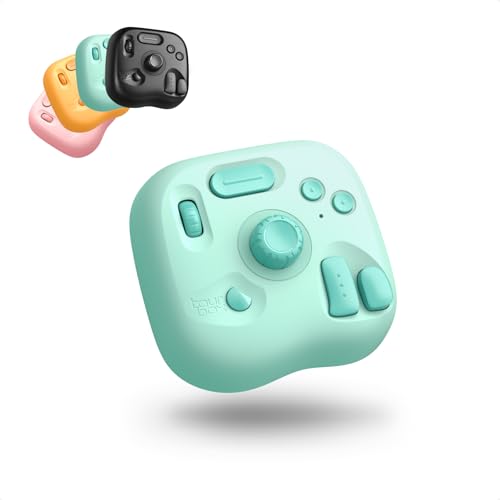
TourBox Lite Bluetooth Oasis Series

TOUR BOX Lite Bluetooth

TourBox Lite Bluetooth Oasis Series

Contour ShuttlePRO v2

TOUR BOX Elite

TOUR BOX Elite Plus
More Details On Our Top Picks
This HUION tablet suits you if photo work sits beside sketching, masking, or brush cleanup. The 9 x 5 inch active area gives you enough room for steady hand movement without taking over the desk, and the scroll wheel plus eight custom keys cut down on constant keyboard hops.
PenTech 3.0 and 60 degree tilt support matter most during detailed retouching, since they help strokes feel more deliberate and natural. The battery-free stylus also removes one more thing to charge, though the trade-off is that you still need to keep track of the pen and tablet pairing setup.
Strong Points
- Scroll wheel and eight shortcuts keep common edits close at hand.
- Medium tablet size gives you room for brush control without crowding a small desk.
- Battery-free pen avoids charging downtime and is easier to leave ready beside your laptop.
- Tilt support helps with more expressive brush and cloning work.
Small Caveats
- The larger surface asks for a bit more desk space than a compact shortcut pad.
- Fine-tuning your shortcut layout takes a little setup at the start.
Feature Rundown
Who Will Love This
You’re a strong match for this tablet if you edit portraits, clean up product shots, or move between drawing and photo work on the same machine.
A Better Fit Elsewhere
TOUR BOX Elite suits you better if you spend more time in color grading or timeline work and want more direct knob-and-button control than pen input.
Compared with the HUION pad, this XPPen leans harder into wireless freedom and stylus finesse. Bluetooth 5.0, a USB wireless receiver, and a wired option give you a few ways to stay connected, which is useful in a mixed laptop-and-desktop setup.
The 11 inch class surface gives you a little more room for broad gestures, while the X3 Pro stylus and key-dial setup suit creators who bounce between brush work and shortcut-heavy sessions. One thing worth considering, Bluetooth is not listed as compatible with Android or Linux, so platform fit matters here more than it does with some simpler desk controllers.
Highlights
- Wireless, receiver, and cable connections give you flexible desk and travel options.
- Two-device pairing makes it easier to move between a main computer and a second setup.
- X3 Pro stylus adds a more refined feel for photo cleanup and line work.
- Mini key-dial helps keep repeated adjustments close to your hand.
- Battery capacity is useful for long editing sessions away from the wall.
Points To Note
- Bluetooth support is not listed for Android or Linux, so platform matching deserves attention.
- Wireless use adds another battery to keep track of in day-to-day editing.
Core Details
Built With In Mind
You’ll get the most from this tablet if you work across several devices and want a pen surface that feels more advanced than a basic entry-level pad.
Swap It Out When
Contour ShuttlePRO v2 is the better match for frame-based video scrubbing and button-first control, especially if pen input isn’t part of your editing flow.
This TourBox Lite makes a strong case for creators who want more shortcuts without spreading gear across the whole desk. Bluetooth keeps the controller cable-free, and the compact body feels better suited to a laptop stand, a cramped studio corner, or a travel bag than a wide tablet surface.
The real upside is workflow compression, since custom software and an ergonomic control layout can help keep common edits under one hand. The trade-off is simple, you’re buying a control surface rather than pen input, so photographers who still need brush precision will usually want a tablet alongside it.
What We Like
- Compact footprint leaves room for a keyboard, mouse, or tablet nearby.
- Bluetooth setup keeps cords out of the way on crowded desks.
- Custom software makes it easier to assign repeated editing steps to physical controls.
- Ergonomic layout helps long sessions feel less awkward than keyboard-only shortcuts.
Areas To Watch
- You still need your usual pointing device or tablet for detailed image work.
- Extra shortcut mapping takes some early setup, especially across different apps.
Feature Snapshot
Whose Shelf It Belongs On
You’re the right fit for this one if your day revolves around presets, layer moves, brush toggles, or other repeated actions that eat time on a keyboard.
Where A Sibling Pick Shines
HUION Inspiroy 2 Medium Drawing Tablet suits you better if your editing includes hand-drawn masking, retouching, or stylus-heavy cleanup.
This lighter TourBox model lands in a nice middle ground for you if Clip Studio Paint is part of the mix or you just want a simpler shortcut pad than a full controller stack. The wireless layout keeps the desk clean, and the custom software gives you room to tailor it to the tools you use most.
Compared with TourBox Lite Oasis, this unit is the more straightforward sibling choice, less about style and more about plain workflow help. The honest read is that it fits best beside another input device, because it improves speed rather than replacing pen control or a mouse.
Best Bits
- Wireless design keeps cable clutter low.
- Custom software lets you shape the control layout around your editing habits.
- Compact body works well on smaller desks and shared work areas.
- Clip Studio Paint support gives it a clear place in illustration-heavy setups.
Honest Caveats
- It works best as a helper device, not as your only input tool.
- Some setups may need a little button mapping before it feels natural.
Technical Sheet
Best Suited To
You’ll like this more if your photo work leans on keyboard shortcuts and you want something smaller than a traditional tablet.
Another Choice May Suit
XPPen Deco Pro LW 2nd 11″ Wireless Bluetooth Drawing Tablet is the better route for stylus-led image cleanup and broader hand-drawn control.
The Misty Pink version carries the same compact logic as the Aqua Green model, but the color gives your desk a softer look without changing the workflow. That matters more than it sounds, especially in a home studio where the gear sits in view every day and you want it to feel less industrial.
In use, you’re still getting Bluetooth convenience, shortcut-focused control, and a shape that won’t fight for space beside your keyboard. The trade-off is the same as with the other TourBox Lite, so photographers who need brush-level detail should think of it as a support tool rather than a replacement for a tablet.
Positives
- Compact size keeps the workspace tidy.
- Bluetooth connection helps you avoid another cord on the desk.
- Color choice adds a more personal look to a creative setup.
- Shortcut-style control helps speed up repetitive edits and layer work.
Softer Spots
- It still relies on your separate mouse or pen device for image positioning.
- Some app setups may take a little time to map cleanly.
Details At A Glance
Who Should Grab It
You fit this pick well if you want a small editing controller with a lighter visual feel and you spend long hours at the same desk.
Look Elsewhere When
HUION Inspiroy 2 Medium Drawing Tablet is a stronger match for stylus-first photo cleanup and more direct brush control.
After the TourBox units, this Contour controller feels more like a dedicated command dock for timeline work. The jog wheel and shuttle dial are a big part of that, because they let you move through clips and frames with more control than a plain keyboard shortcut routine.
Its 15 programmable buttons add plenty of room for the actions you use again and again, and Mac plus PC support keeps it practical for mixed studios. One small note, the older software support detail means you’ll want to check your computer and operating system version before you settle on it.
Reasons To Buy
- Jog wheel and shuttle dial give you very direct transport control.
- Fifteen buttons allow a deep shortcut layout for editing apps.
- Works for video, audio, and photo work, so it fits mixed creative desks.
- Mac and PC support makes it easier to place in shared setups.
Room For Improvement
- Its older software support detail means compatibility checking matters before setup.
- The control style suits transport-heavy work more than brush-based retouching.
Core Details
The Right Fit
You’re a solid match for this controller if your editing day includes lots of scrubbing, transport control, or repeated command input.
Reach For A Different Pick When
TOUR BOX Elite Plus suits you better if you want a newer creative console with iPad support and broader tablet-based use.
The Elite moves into heavier creative territory than the Lite models, so it makes the most sense in a desktop setup where you want more direct control over color work and editing flow. Bluetooth and USB-C support give you two practical connection paths, and that flexibility matters in studios that switch between speed and stability.
It also fits a wider software mix, which is useful for photographers and video editors who live inside several apps all week. The trade-off is that this is less portable-minded than the smaller controllers, so you’re paying for depth and desktop focus rather than grab-and-go convenience.
Upsides
- Dual connection options give you flexibility in a fixed workstation.
- Designed for heavier editing sessions where shortcut speed matters.
- Broad software support works well in mixed creative pipelines.
- Feels more purpose-built for color and timeline tasks than lighter controllers.
Minor Gripes
- Desktop-focused design is less convenient for portable editing.
- Smaller workspaces may feel crowded beside another full controller.
Feature Card
Perfect Match For
You’ll appreciate this most if your editing day is built around color correction, timeline work, and a fixed desk.
Skip It When
HUION Inspiroy 2 Medium Drawing Tablet is the better route for hand-drawn photo cleanup and stylus-first precision.
This Elite Plus stands out because it brings iPad support into the TourBox family, which broadens the kind of creative desk you can build around it. For tablet-first editing or sketching, that matters a lot, since iPadOS, macOS, and Windows all sit in the same compatibility mix.
The Bluetooth connection keeps it uncluttered, and the controller format works well for creators who move between drawing, photo editing, and video tasks during the same session. One thing to keep in mind, it’s more specialized than a plain keyboard shortcut pad, so the payoff shows up fastest in workflows that use several creative apps.
Positives
- iPad support opens up tablet-first editing and drawing setups.
- Works across iPadOS, macOS, and Windows for flexible cross-device use.
- Bluetooth keeps the workspace uncluttered.
- Well suited to mixed creative tasks rather than a single app.
Points To Note
- The wider platform support can take more planning during setup.
- Its value is highest in workflows that really use its extra control layer.
Core Details
Made For
You’re the best fit for this controller if your work moves between iPad sketching, desktop editing, and app-heavy creative sessions.
Where Shoppers Go Wrong
TOUR BOX Elite suits you better if your setup stays on a desktop and you want a more traditional pro controller without iPad-specific focus.
How To Choose The Right Devices For Photo Editing
Match The Control Style To Your Work
Pen tablets suit you when masking, retouching, or brushing happens all day, because direct hand movement feels more natural than a mouse path. Shortcut controllers make more sense for batch edits, layer switching, and repetitive commands, especially in a room where desk space is already tight.
That difference matters more than brand names or color. A stylus can feel like a fine brush, while a controller acts more like a small command board, and your workflow decides which one earns desk space.
Check The Software And Device Fit
Photo editing tools live inside software, so app support is a real part of the choice. A controller that maps cleanly to your main editor saves time, but a promising layout loses value fast when it doesn’t fit your operating system or tablet platform.
Platform support also changes daily comfort. A Bluetooth unit can keep cords out of the way, yet a wired option can feel steadier for a fixed workstation, which is why mixed-studio setups need a closer look at connection types.
Think About Desk Size And Session Length
Small desks favor compact controllers and medium tablets more than large control surfaces. Long editing sessions also reward battery-free pens, light shortcut reach, and hand positions that don’t crowd your keyboard.
You’ll usually feel the difference after an hour, not a minute. A controller that stays parked beside your main input device tends to help more than a bulky tool that forces your setup into a new layout.
Spend For Depth Only Where You Use It
Higher-tier models tend to cost more because they add stronger stylus response, more controls, broader platform support, or better connection options. Those upgrades matter most to you when editing is part of your daily work, not a once-in-a-while hobby.
For lighter use, a simpler controller often gets the job done with less clutter. For multi-app workflows, the extra controls can feel worth it because they reduce the number of small motions you repeat every session.
A Quick Reality Check
Common Shopping Slip Ups
Many people focus on button count and forget about platform support. A controller that looks flexible on paper can feel awkward fast if it skips your device type or asks for a setup that doesn’t suit your editing software.
Another common miss is buying a tablet when shortcut control was the real need, or the other way around. That mismatch usually shows up during long sessions, when you realize your hand keeps reaching for a tool the device doesn’t actually replace.
What The Higher Tier Buys
More expensive devices usually bring smoother pens, stronger shortcut layouts, or broader software support. That extra depth can save time in color work, batch edits, or retouching sessions that repeat the same commands over and over.
The upgrade pays off most in a dedicated workspace. A casual setup can stay simple, but a heavier editing routine often justifies paying more for control that feels more direct and less fussy.
Final Thoughts
Your best choice depends on how you edit, not on how fancy the device looks on the page. For brush-heavy photo work, a HUION or XPPen tablet makes the most sense. For shortcut-driven workflows, the TourBox and Contour controllers fit better, especially in a desk setup where you want faster hands-on control without extra clutter. Pick the tool that matches your actual routine, and the rest of the setup gets easier.
