
Graphic design asks a lot from a screen, and the wrong one turns careful color work into guesswork. You need a display that fits your workflow, your desk, and the kind of files you handle every day, whether that means sketching directly on glass, editing on a wide desktop panel, or keeping prints organized in a studio corner.
This roundup stays focused on practical fit. You’ll see pen displays, color-accurate monitors, and even an art rack, because real design spaces rarely live inside one neat category.
The Shortlist At A Glance

XPPen Artist 13.3 Pro V2 Drawing Tablet 16K

ViewSonic VS2725-2K 27 Inch 1440p Monitor

ViewSonic VP3256-4K 32 Inch 4K ColorPro Monitor

Wacom DTK2200 Cintiq 22HD 21-Inch Pen Display Tablet

MEEDEN Wood Large Print Rack with Castors

UGEE 15.4 inch Drawing Tablet with Screen UE16

ASUS ProArt PA329CRV 32 Inch 4K DCI-P3 USB-C Monitor
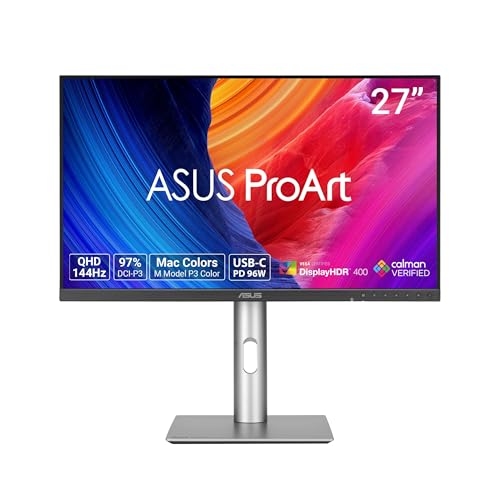
ASUS ProArt PA278CGRV 27 Inch 1440p USB-C Monitor
More Details On Our Top Picks
For your first pen display, the XPPen feels approachable rather than fussy. The 13.3-inch format keeps the footprint modest, while the full-laminated AG glass helps the pen tip feel closer to the line instead of hovering over it. That matters in a small desk setup, especially for beginners who want direct on-screen drawing without a bulky panel dominating the table.
The Red Dial and eight shortcut keys make this more practical than a bare-bones tablet, because you can keep common actions close at hand. Its stated 99% sRGB coverage also gives it a stronger color foundation than many entry-level pen screens, though a compact canvas can still feel tight for wide timelines or multi-window editing. You may find it a smart first step, but not the roomiest canvas for heavy production work.
Strong Points
- 13.3-inch size fits crowded desks and dorm setups without hogging space.
- Full-laminated glass helps reduce the gap between the nib and the image, which makes sketching feel more direct.
- The Red Dial and eight keys can cut down on menu hunting during routine art tasks.
- 99% sRGB support gives you a solid base for web-ready illustration and general color work.
- It supports Mac, PC, and Android, so you have broad device flexibility.
Things To Consider
- The smaller canvas can feel cramped for complex layouts or side-by-side tool panels.
- Beginners may still need a little time to tune shortcut habits and pen feel.
- The included stand is helpful, though some desk setups still benefit from extra angle adjustment.
Feature Snapshot
Who It Suits Best
Beginners and hobby artists who want an on-screen drawing setup with straightforward controls and a smaller desk footprint will get the most out of it.
Where A Sibling Pick Shines
ViewSonic VP3256-4K is the stronger fit for designers who spend more time polishing layouts on a larger monitor than drawing directly on a pen surface.
Once you move from pen work to a plain desktop monitor, this ViewSonic starts to make sense as a daily driver. The 27-inch QHD panel gives you more working room than a 1080p screen, so menus, timelines, and reference images can sit side by side without feeling squeezed. For home office design work, that extra width is the difference between constant shuffling and a calmer layout.
The 100Hz refresh rate is a nice touch too, because scrolling and dragging feel smoother than on standard 60Hz panels. Variable refresh rate, or VRR, helps the panel stay steadier during shifting frame rates, though the bigger win here is the broader usefulness across laptop, PC, and Mac setups. It is not a color-specialist display like the ViewSonic VP3256-4K, yet it suits everyday creative work without asking for much desk drama.
What We Like
- 27-inch QHD resolution gives you useful workspace for design apps and multitasking.
- 100Hz refresh makes cursor movement, scrolling, and window handling feel more fluid.
- HDMI and DisplayPort inputs make cable matching simpler across common setups.
- Frameless styling works well for dual-monitor arrangements and clean desks.
- Eye-care and anti-glare features are helpful in bright rooms and long work sessions.
Room For Improvement
- It is more of a general-purpose monitor than a dedicated color-reference panel.
- 1ms claims help with motion response, but color-critical shoppers will still want something with stronger pro-focused tuning.
- Owners who keep many windows open may still prefer a 32-inch screen for extra breathing room.
Core Details
Built With In Mind
You’re looking at a strong fit for home office designers, students, and anyone who wants a clean monitor for mixed work and creative tasks.
Another Choice May Suit
ASUS ProArt PA278CGRV suits multi-device studios better, especially when you want calibration-minded specs and higher refresh in one panel.
Color-sensitive work has different needs from casual editing, and this ViewSonic leans into that. The 32-inch 4K IPS panel gives you a lot of room for artboards, toolbars, and high-resolution previews, so your work can stay visible without constant zooming. In a studio that handles branding, layout, or retouching, that extra surface area feels less like luxury and more like breathing room.
The 100% sRGB coverage and Pantone validation point toward dependable color handling, which is why this model sits closer to a pro workflow than the VS2725-2K. USB-C with 60W power delivery is handy for single-cable laptop setups, though the honest trade-off is desk depth, because a 32-inch panel can feel large in shallow workspaces. For most creators, the size is the point.
Highlights
- 32-inch 4K panel gives you a large working area for detail-heavy tasks.
- IPS technology helps keep the image stable across wider viewing angles.
- 100% sRGB and Pantone validation suit color-managed creative work.
- USB-C with 60W power delivery can simplify a laptop desk setup.
- Three-sided frameless styling helps multi-monitor layouts look clean and continuous.
Softer Spots
- The large footprint asks for a deeper, sturdier desk.
- It is built more for precise creation than for high-speed motion work.
- Higher-end color focus may be more than casual home office users need.
Details At A Glance
Right Fit For
You’ll get the most out of this panel in a studio, editing bay, or dedicated desk where color accuracy and a larger canvas matter more than compact size.
Swap It Out When
ViewSonic VS2725-2K makes more sense for tighter desks, especially when you want a simpler all-purpose monitor instead of a big color-first screen.
Some pen displays feel designed for quick sketches, and others feel built for a more serious desk life. The Wacom Cintiq 22HD belongs in the second group, with a 21.5-inch wide-format LCD that gives you more natural room to draw directly on the surface. That direct-on-screen workflow is still a big draw for illustrators who spend hours refining linework and placement.
The adjustable stand adds useful positioning freedom, including rotation and tilt, so you can set the angle that suits your posture and drawing style. Compared with the smaller XPPen and UGEE models, this one feels more expansive and more firmly rooted in a traditional studio. It does take more desk space, and the older design style may feel less streamlined than newer pen displays, but the working surface remains the point.
Reasons To Buy
- 21.5-inch wide-format screen gives you generous room for drawing and layout work.
- Direct pen-on-display input supports a natural sketching workflow.
- Rotation and tilt adjustments help you find a comfortable working angle.
- Its larger surface can feel more forgiving for detailed illustration and retouching.
Small Caveats
- The footprint is substantial, so small desks can feel crowded quickly.
- Its design is less compact than newer pen displays in this list.
- You may need extra time to set up the stand and cable routing cleanly.
Quick Facts
Who Should Grab It
Experienced illustrators and studio artists who want a roomy pen display for long sessions will appreciate it most.
Reach For A Different Pick When
XPPen Artist 13.3 Pro V2 suits you better if desk space is tight and you want a smaller on-screen tablet with simpler placement.
Not every display solution is electronic, and this MEEDEN rack proves that point in a very useful way. It gives you a wheeled place to dry, sort, and show prints, panels, posters, or canvas pieces up to 47 inches, which is a real help in a busy studio where finished work tends to pile up. The wood construction and natural finish also make it feel more like furniture than equipment.
Compared with the monitors and pen screens in this list, this is the item that solves physical storage rather than pixel work. That shift matters if your space is cluttered with framed pieces waiting for review, or if you need something mobile enough to move through a studio without dragging artwork by hand. The trade-off is simple, it’s a storage piece, not a digital tool, so it belongs beside your screens rather than instead of them.
Best Bits
- Holds large artwork up to 47 inches, which helps with sizable canvases and print runs.
- Castors make it easier to roll the rack around a working studio.
- Wood construction gives the piece a furniture-like presence.
- Useful for drying, sorting, and presenting physical work in one place.
Areas To Watch
- It takes floor space, so cramped corners may feel tight.
- Wood care matters more than with metal storage, especially in messy studios.
- It solves organization, not screen-based design work.
Feature Rundown
Whose Shelf It Belongs On
Studio artists, printmakers, and anyone juggling finished work in a shared space will get the most value from it.
Look Elsewhere When
ViewSonic VP3256-4K makes more sense if your main task is color work on a screen rather than managing physical artwork.
The UGEE UE16 sits in a sweet spot for artists who want a color-rich pen display without jumping straight to a larger studio panel. Its 15.4-inch full-laminated screen keeps the drawing surface manageable, while the 143% sRGB gamut gives it a broader color range on paper than many entry-level screens. In plain terms, that can help you keep your illustration palette lively without giving up desk space.
The 8+1 hot keys and battery-free stylus add convenience, especially for long sessions where charging one more accessory would be annoying. Compared with the XPPen Artist 13.3 Pro V2, it offers a slightly larger workspace and a stronger color spec on paper, though the smaller display still favors focused drawing over sprawling layouts. One thing worth considering is setup clutter, because shortcut-rich tablets tend to reward a clean cable path and a tidy desk.
Upsides
- 15.4-inch screen gives you a workable middle ground between portability and canvas space.
- 143% sRGB coverage points to a broad color range for digital art.
- Full-laminated screen helps the pen feel more tied to the image.
- Battery-free stylus removes one more charging step from the routine.
- 8+1 hot keys keep frequent actions closer to your hand.
Minor Gripes
- The display is still compact compared with full-size pen monitors.
- More shortcut controls can mean a little extra setup time.
- Artists who split the screen among many panels may want a larger canvas.
Core Details
Who Will Love This
You’re the best match here if you want a mid-size pen display for digital drawing, character work, or practice sessions on a budget-conscious setup.
Where Shoppers Go Wrong
Wacom DTK2200 Cintiq 22HD suits established studio users better, because its much larger surface is easier to live with during long, layered projects.
For color-managed work, the ASUS ProArt PA329CRV reads like a serious studio monitor rather than a general desktop screen. Its 31.5-inch 4K panel gives you plenty of room for layered editing, and the stated 98% DCI-P3 coverage points toward a wider cinema-style color range than standard sRGB panels. That makes it especially appealing for Mac-based setups where you want one screen to handle editing, layout, and review without feeling cramped.
The USB-C connection with 96W power delivery is a strong practical feature, because one cable can carry display signal and charge many compatible laptops. The trade-off is simple: a premium monitor like this asks for a more deliberate desk setup and is easier to justify for professionals than for casual home use. Compared with the ViewSonic VP3256-4K, this ASUS leans even harder into the color-critical side of the equation.
Positives
- 31.5-inch 4K panel gives you a large, detailed workspace.
- 98% DCI-P3 coverage suits wide-gamut creative pipelines.
- Delta E under 2 indicates tight color tuning for professional editing needs.
- USB-C with 96W power delivery simplifies single-cable laptop docking.
- Daisy chain support can help simplify multi-monitor desk layouts.
Worth Noting
- The larger format needs more desk space than a 27-inch panel.
- Its pro-minded feature set may be more than a casual setup needs.
- Color management works best when the rest of your workflow is equally disciplined.
Technical Sheet
The Right Fit
Professional editors, Mac users, and color-focused designers who want a large calibrated display will get the most from it.
Where The Extra Money Goes
ViewSonic VS2725-2K makes more sense for lighter everyday work, because it keeps the setup simpler and far less demanding on desk space.
This ASUS lands in a very workable middle zone for creative desks. The 27-inch QHD panel is easier to place than a 32-inch screen, yet it still gives you enough space for design tools, reference art, and a comfortable editing view. The 144Hz refresh rate is unusual in this category, so motion through panels and timelines can feel especially smooth during long sessions.
Auto KVM, which lets one keyboard and mouse control more than one connected source, is a helpful touch for multi-device setups. USB-C with 96W power delivery also keeps cable clutter down, and the Light Sync feature adds another layer of workspace convenience. Compared with the PA329CRV, this model gives up some raw size, but it can feel like the cleaner fit for desks that juggle several devices and don’t want a giant panel in the way.
Best Bits
- 27-inch QHD size fits more desks than a 32-inch flagship monitor.
- 144Hz refresh adds unusually smooth motion for creative and mixed-use work.
- Auto KVM helps you switch between connected systems without extra peripherals.
- USB-C with 96W power delivery supports a cleaner laptop setup.
- Ergonomic stand support helps you fine-tune the display position.
Points To Note
- QHD is less expansive than 4K for very dense layout work.
- Some color-focused professionals may still prefer the larger PA329CRV.
- Feature-rich monitors often reward a little more setup time upfront.
Feature Card
Whose Shelf It Belongs On
It suits multi-device creatives, Mac users, and designers who want one monitor that can juggle work, switching, and smoother motion with less clutter.
Skip It When
ViewSonic VP3256-4K is the better fit for you if larger 4K workspace space matters more than refresh speed and device-switching extras.
How To Choose The Right Displays For Graphic Design
Start With Your Main Workflow
Pen displays suit you when sketching, retouching, or line work happens inside creative apps for long stretches. A direct drawing surface makes sense for illustrators and concept artists, while a standard monitor fits layout, color review, and general production work better.
Think about where most of your hours go. A compact pen screen can be enough for practice and freelance work, but a larger 27-inch or 32-inch monitor helps once you manage more layers, reference art, or multiple windows.
Pay Attention To Panel Traits That Change Daily Use
Resolution, color coverage, and surface treatment affect how relaxed your desk feels. QHD on 27 inches gives decent density, while 4K on 32 inches gives more room for detail and tool panels; both matter more than flashy marketing language.
Color gamut tells you how much of a color range the panel can show, and factory calibration usually helps the screen land closer to neutral tones out of the box. The trade-off is simple, color-leaning displays often cost more, and they make the most sense when your work depends on accurate visual decisions.
Match Size And Ergonomics To Your Space
A shallow desk can make a 32-inch monitor feel oversized fast, even if the image quality is excellent. By contrast, a 13.3-inch pen display or 27-inch monitor can leave more room for sketchbooks, tablets, and a mouse.
Stand adjustment matters too. Tilt, height flexibility, and a tidy cable path reduce strain during long design sessions, and that’s the kind of comfort upgrade you notice after the first few weeks, not just on day one.
What To Weigh Before You Click
Hidden Buying Traps
Color claims can sound similar even when the panels behave very differently. A broad gamut is useful, but you still need a size and resolution that match your desk and your software habits.
Another common mistake is overlooking ports. HDMI, DisplayPort, and USB-C matter because your monitor has to work with the laptop or desktop you already own, not the one you wish you had.
What The Higher Tier Buys
More expensive displays usually spend the money on calibration, larger panels, better stand movement, and cleaner connectivity. In creative work, those details often save time because your files open closer to the result you want and the workspace feels less cramped.
The upgrade is worth it when you edit color-critical assets, handle print layouts, or keep a monitor on your desk for years. For lighter home use, a simpler screen can make more sense, especially when your projects do not demand the extra accuracy or size.
Final Thoughts
The right display depends less on raw hype and more on how you work day after day. A pen display suits direct drawing, a color-leaning monitor helps with polished visual work, and a storage rack can calm a messy studio better than another screen ever could. Choose the model that matches your desk, your software, and the amount of room you actually have. That keeps your setup useful instead of aspirational.
