
Mac work gets easier when your screen setup fits the way you actually use it, whether that means a dock on a desk, a portable monitor in a carry-on, or an all-in-one display that keeps cables under control. The eight options below cover different kinds of daily use, from commuting and home office work to heavier multi-screen setups for creative tasks. You’ll see where each one earns its place, and where a simpler or more specialized choice makes more sense.
Quick Look At The Shortlist
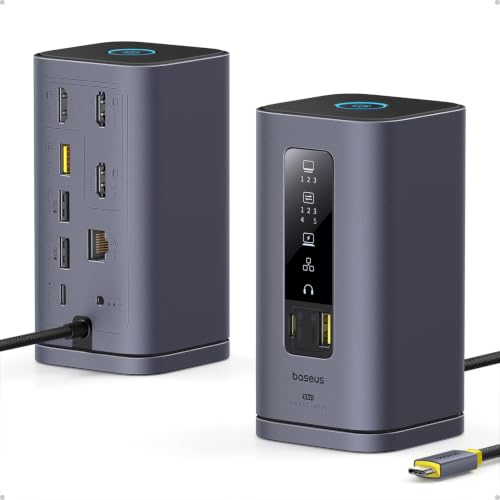
Baseus SpaceMate(MAC) Docking Station 3 Monitors 4K HDMI
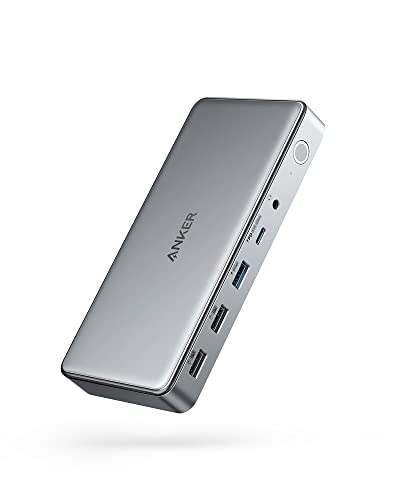
Anker Docking Station DL6350 10-in-1 Triple Display

WAVLINK USB Docking Station Dual Monitor 4K 60Hz

WAVLINK Docking Station 3 Monitors Triple 4K@60Hz
M5 Retro Dock Station for Mac mini M4 5-inch HD Display
Laptop Screen Extender Monitor Portable 15.6-inch FHD

Apple Studio Display Standard Glass Tilt-Adjustable Stand
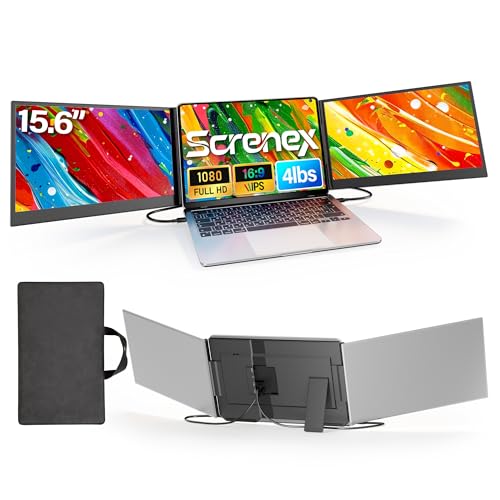
15.6-inch Laptop Screen Extender Ultra-Thin Triple Monitor
More Details On Our Top Picks
Baseus gives you a dock that feels built for a desk with real work on it, not just a quick cable split. The triple-display support, 10Gbps USB ports, 100W power delivery, Gigabit Ethernet, and audio jack cover the kinds of tasks that pile up in a busy home office.
The upright shape also helps keep the footprint tidy, and that matters more than it sounds like once a mouse, keyboard, and charger join the setup. You may find the DisplayLink driver requirement a little extra at first, but that trade-off is common in this category and pays off in broader display flexibility.
What We Like
- Triple-screen support suits multitasking, especially for spreadsheets, reference tabs, and chat windows.
- 100W power delivery helps keep a laptop charged from one hub instead of several separate adapters.
- 10Gbps USB ports are handy for fast drives and larger accessory transfers.
- Gigabit Ethernet gives you a steadier wired connection than many MacBook setups rely on alone.
- The upright body leaves more room on a crowded desk, which helps in smaller work areas.
Small Caveats
- The DisplayLink setup adds a software step before the HDMI ports are ready for use.
- The tall shape may feel less travel-friendly than flatter docks in this roundup.
- Any dock with this many ports can make cable management a little fussy at first.
Feature Rundown
Who It Suits Best
Desk-based Mac users who want a clean, high-capacity hub for several screens and accessories will get the most from this one.
Where A Sibling Pick Shines
The WAVLINK USB Docking Station Dual Monitor 4K 60Hz is the easier fit for a lighter setup that only needs two external displays.
This Anker dock is the practical middle ground in the group, with a more conventional 10-port layout that covers video, charging, networking, and everyday USB use. For a mixed desk shared between work and personal tasks, that spread is often enough without moving up to the heavier triple-monitor setups.
The DisplayLink driver requirement matters here too, and the trade-off is similar to the Baseus dock, wider monitor support in exchange for an extra setup step. You may appreciate the mix of HDMI, DisplayPort, USB-C, USB-A, Ethernet, and AUX connections more than a flashy design, because it gives your desk fewer gaps to fill later.
Reasons To Buy
- Ten ports make it easier to gather displays, storage, audio, and network into one hub.
- The 100W charging support is useful for keeping a laptop powered through a workday.
- Two HDMI outputs plus one DisplayPort offer flexible monitor pairing.
- The USB mix suits keyboards, mice, thumb drives, and other daily accessories.
Points To Note
- The latest DisplayLink driver has to be installed before full video support is ready.
- Triple 4K here is rated at 30Hz, so it suits work more than ultra-smooth motion.
- It is a fuller desk dock than a compact travel companion.
Core Details
Who Will Love This
MacBook or Windows users who want a general-purpose dock for a tidy home office or shared workspace will get the most from it.
A Better Fit Elsewhere
The Baseus SpaceMate(MAC) Docking Station 3 Monitors 4K HDMI makes more sense for you if upright cable organization and higher USB speed matter more than a conventional port mix.
Compared with the more crowded docks above, this WAVLINK model keeps the focus on dual monitors and a stronger balance of video and USB expansion. That makes it easier to live with on a standard desk, especially for daily office work that does not need three displays all the time.
The 65W charging output is modest beside the 100W and 130W docks in this roundup, so the fit is better for lighter laptop power needs than for larger machines drawing more energy. Still, the 6 USB 3.0 ports and Gigabit Ethernet make it feel like a proper desktop hub rather than a bare adapter.
Upsides
- Dual-monitor support fits many office setups without taking over the whole desk.
- 4K at 60Hz on supported configurations is useful for clearer text and smoother cursor movement.
- Six USB 3.0 ports give you room for peripherals and storage without a tangle of hubs.
- Ethernet keeps the wired connection ready for remote work and larger downloads.
Trade Offs
- You need to install the driver before the dock reaches its full display potential.
- 65W charging is less generous than the higher-power picks in this list.
- The setup is more desk-bound than travel-first.
At A Glance
Best Suited To
Office users who want a straightforward dual-monitor dock with a lot of USB headroom will get along well with it.
Another Choice May Suit
The WAVLINK Docking Station 3 Monitors Triple 4K@60Hz is the stronger match for you if your desk has to support three screens and a higher charging ceiling.
This is the most ambitious dock in the group, and the port mix shows it right away. Triple 4K at 60Hz, a 130W power delivery rating, multiple USB connections, Ethernet, audio, and SD or TF card slots make it a serious desk anchor for people who live in windows, tabs, and files.
Compared with the Baseus dock, this one leans harder into raw capacity and higher display speed, while the trade-off is a more complex desktop footprint. You may find that a setup like this suits a permanent workstation better than a laptop that gets packed away each day.
Standout Traits
- Triple 4K at 60Hz makes it appealing for demanding multitasking layouts.
- 130W power delivery gives the dock more headroom than the 65W and 100W models here.
- SD and TF slots are useful for photo, video, and everyday file transfers.
- Multiple USB and video ports reduce the need for extra adapters on the desk.
- Ethernet and audio keep work and media connections in one place.
Areas To Watch
- The larger port count brings a more involved setup and more cabling.
- Driver installation is part of the process, so it is not the simplest plug-in choice.
- It makes the most sense as a stationary hub rather than a carry-around accessory.
Details At A Glance
Built With In Mind
Power users who want a single desk hub for multiple monitors, memory cards, and charging should look hardest at this dock.
Swap It Out When
The WAVLINK USB Docking Station Dual Monitor 4K 60Hz is the calmer fit for a lighter desk that does not need the full triple-screen load.
This one stands apart because it is built around the Mac mini experience rather than a generic laptop setup. The 5-inch screen gives you a handy spot for notifications, clocks, or simple status info, and the M.2 NVMe enclosure adds practical storage expansion in the same footprint.
Compared with the docks above, it is less about driving several external monitors and more about making a compact desktop feel more complete. The retro styling is a matter of taste, of course, but the useful part is how it turns one small machine into a tidy hub with several roles.
Bright Spots
- The built-in display is useful for quick-glance information without opening extra windows.
- M.2 NVMe storage support helps you add fast local space in the same unit.
- Four USB-A ports and one USB-C port cover common accessories and peripherals.
- SD and Micro SD readers are practical for media imports and simple file moves.
- The 3.5mm audio jack keeps headphones close to the desk setup.
Worth Noting
- It is tailored to Mac mini owners, so it is much less universal than the earlier docks.
- The 5-inch screen is for secondary information, not a full workspace.
- Adding an SSD or multiple storage devices brings extra setup decisions.
Feature Snapshot
Whose Shelf It Belongs On
Mac mini owners who want a desk hub with storage expansion and a small built-in display will get the most from it.
Look Elsewhere When
The Apple Studio Display is the stronger match for you if your priority is a large, dedicated monitor rather than a dock-style add-on.
This portable extender is aimed at people who want extra screen space without turning a laptop into a fixed workstation. The 15.6-inch IPS panel, 1080p resolution, and two-cable connection approach make it better suited to hotel desks, shared offices, and temporary setups than a heavy dock.
It weighs 1.82 kg, so you will feel it in a bag, but the payoff is a triple-screen layout that can travel with you in a way most docks cannot. The honest read is that it makes the most sense for mobile work routines where screen space matters more than a featherweight pack.
Highlights
- The 15.6-inch full HD panel gives you a clear, familiar working size.
- IPS technology helps keep color and viewing angles more consistent across the screen.
- The two-cable setup is practical for laptop users who want a more direct connection path.
- It fits laptops from 13 to 17.3 inches, so the size range is broad.
Minor Gripes
- The weight is noticeable, so it suits travel that still has a real bag budget for gear.
- Some laptops need a specific USB-C path, HDMI, USB-A power, and driver installation.
- Compatibility checks matter here more than they do with a standard dock.
Technical Sheet
The Right Fit
Frequent travelers and mobile professionals who need extra screen space in hotels, coworking spots, or temporary desks will get the most from it.
Where Another Pick Fits Better
The Miesebe laptop screen extender is worth a closer look for you if you want a similar portable setup with explicit panel brightness and color details laid out in the listing.
This is the display in the lineup that feels most like a dedicated studio centerpiece. The standard glass panel and tilt-adjustable stand keep the setup simple, while the larger Apple ecosystem fit is obvious in how naturally it suits a Mac-focused desk.
Compared with the docks, there is no attempt to mix in extra ports or storage tricks, and that’s part of the appeal. You are paying for a cleaner monitor-first experience, so it suits people who already have the rest of the workspace sorted and want the screen itself to carry the load.
What We Like
- The 27-inch class display gives you a spacious working area for editing, writing, and multitasking.
- Standard glass keeps the finish straightforward and familiar.
- The tilt-adjustable stand is the simpler of the stand choices for quick positioning.
- It pairs naturally with a Mac desk that already has a dock or hub in place.
Room For Improvement
- It is a display first, so it does not replace the connection flexibility of a dock.
- The tilt-only stand is less flexible than the height-adjustable option in the listing.
- It makes the most sense for a fixed desk rather than moving between work spots.
Key Specs
Perfect Match For
Mac users who want a polished, monitor-first desktop with a simple stand and no dock-style extras will appreciate this most.
Not Your Match When
The M5 Retro Dock Station for Mac mini M4 fits better for you if you want storage expansion, extra ports, and a smaller companion display in the same device.
Screnex takes the portable-monitor idea and trims it down for bag-friendly use, which is exactly why it stands apart from the heavier screen extender above. The 15.6-inch IPS panels and ultra-thin build fit workdays that move between home, office, and travel without demanding a permanent desk.
The note here is that portable screen extenders always ask you to think about compatibility before convenience, and this one is no exception. For Mac, Windows, and Chrome use, it suits people who want extra panels without building a full dock-and-monitor station.
Best Bits
- The thin profile makes it easier to pack than bulkier multi-screen hardware.
- 15.6-inch IPS panels give you a practical work size with full HD clarity.
- USB-C and HDMI connection options help with broader laptop matching.
- The triple-monitor format supports a more open workspace for travel or temporary desks.
Softer Spots
- Compatibility checks matter before purchase, especially across different laptop port layouts.
- Portable monitor systems can take more setup patience than a single external display.
- It is still a screen add-on, so it does not replace a full desktop dock.
Core Details
Who Should Grab It
Mobile workers who need a compact triple-screen setup that can move with them should place this high on the list.
Reach For A Different Pick When
The Apple Studio Display is the better match for you if your desk is permanent and you care more about one large monitor than portable expansion.
How To Choose The Right Displays For Mac
Match The Display Style To Your Workday
Desk-based work calls for a different setup than travel or hybrid use. Docks like the Baseus SpaceMate(MAC) Docking Station 3 Monitors 4K HDMI and the WAVLINK Docking Station 3 Monitors Triple 4K@60Hz make sense for a fixed station, while portable options such as the Screnex and Miesebe extenders are better when your desk changes often.
That split matters because a good Mac display setup should reduce friction, not add it. A dock can simplify cables and add ports, but a portable screen extender gives you extra space without committing to a large permanent monitor.
Check Port Types Before You Commit
DisplayLink docks often need a driver, which is normal in this category but still worth planning for. HDMI, DisplayPort, USB-C, Ethernet, SD card slots, and audio ports each solve a different part of the setup, so the right mix depends on how much gear you plug in every day.
You may find that a simpler two-monitor dock fits better than a triple-display unit if you mainly write, browse, and jump between apps. More ports are useful, but only when they match your actual devices.
Think About Charging And Cable Load
Power delivery ratings matter because they shape how many chargers you can leave in a drawer. A dock with 65W charging suits lighter laptops, while 100W or 130W models give more headroom for busier workstations and fewer separate power bricks.
The trade-off is desk size and cable clutter. Heavier docks and bigger display units usually make sense only when you plan to leave them in place most of the time.
For Mac Mini Or Studio Use, Buy For The Desk First
The Mac mini-focused WOKYIS dock and the Apple Studio Display are about a more settled workspace. One adds storage and small-screen utility, the other focuses on the display itself, so your choice comes down to whether you need expansion or a cleaner monitor-first setup.
That’s the real pattern in this lineup: some options are about building a workstation, and others are about carrying one with you. Choose the shape that fits your routine, not the one with the longest feature list.
A Quick Reality Check
Mistakes Worth Dodging
The most common miss is choosing too much screen or too many ports for a desk that never uses them. Another is skipping compatibility checks on portable extenders, especially for MacBook models that need a specific connection path or driver.
It also helps to think about where the device will live. A heavy dock on a travel desk tends to feel awkward, while a portable extender can feel overcomplicated on a permanent office setup.
The Upgrade Payoff
Higher-tier models usually cost more because they add stronger charging, more video outputs, and more metal, screen, or storage hardware in the same enclosure. That extra engineering matters most for people who keep several apps, windows, or media sources open all day.
In practice, the upgrade is worth it when one device replaces two or three smaller ones. If your setup is simple, the added expense can buy more capability than you’ll ever use.
Final Thoughts
The right Displays For Mac setup depends less on brand names and more on how you work. A dock-heavy desk benefits from the Baseus, Anker, or WAVLINK models, while portable screen extenders suit mobile routines and the Apple Studio Display fits a more polished, fixed workspace. Choose the shape that matches your day, and the rest of the decision gets much easier.
