
Choosing a monitor for graphic work is less about flashy specs and more about how faithfully your files look on screen. You want clean color, useful screen size, and enough adjustment to keep long sessions comfortable, whether you edit photos, build layouts, or split your day between design and general work.
The eight picks below lean toward color accuracy, practical connectivity, and setups that make sense in a studio or home office. Some favor wide-gamut 4K detail, others give you a more balanced QHD workspace, and one or two are better fits when you want a little more speed without giving up careful image handling.
The Shortlist At A Glance
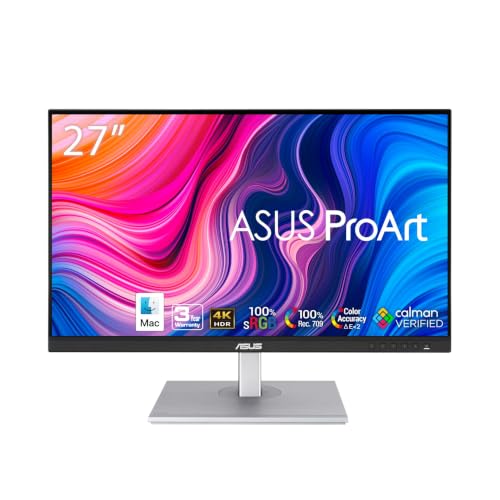
ASUS ROG XG27UCG 27 Inch 4K 160Hz USB-C G-SYNC Gaming Monitor

ASUS ProArt PA279CRV 27 Inch 4K UHD USB-C HDR Professional Monitor for Mac

Dell 34 Monitor S3425DW, WQHD VA, 120Hz, FreeSync Premium, Eye Comfort

LG 27US500-W Ultrafine Monitor 27-Inch 4K UHD (3840×2160) HDR10 IPS

LG 27UP650K-W 27-inch Ultrafine 4K UHD IPS Computer Monitor
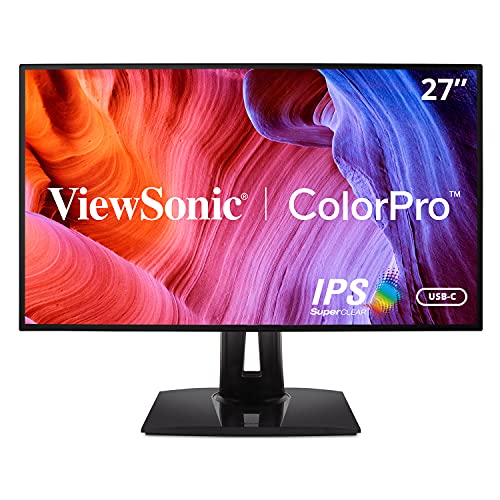
ViewSonic VP2768A 27 Inch 1440p ColorPro IPS Monitor 90W USB-C
ASUS ProArt PA248QFV 24 Inch WUXGA 16:10 Professional Monitor
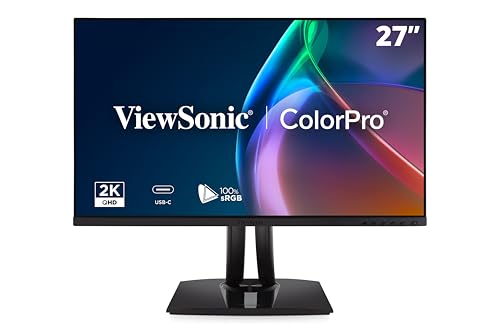
ViewSonic VP2756A-2K 27 Inch 1440p ColorPro Monitor
More Details On Our Top Picks
For design work that spills into motion, this ASUS gives you a more agile feel than the slower office-leaning picks in this list. Its 27-inch 4K panel brings sharp detail for layout checks, while the USB-C connection keeps a laptop desk from turning into cable clutter.
The dual-mode idea matters most for mixed use, because you can favor 4K detail or push toward a much higher refresh approach for smoother motion. That makes it a smart fit for someone who edits assets during the day and still wants a responsive panel for games later, though the gaming-first tuning may be more than a pure print-focused studio needs.
Strong Points
- 4K resolution gives you tight text and clean canvas detail for UI work.
- USB-C helps simplify a laptop setup with a single cable path.
- Fast IPS panel tuning should suit motion-heavy work better than basic office displays.
- DCI-P3 coverage is useful for richer digital color work and media previews.
- Tripod socket adds a practical mounting option for a flexible desk setup.
Things To Consider
- The gaming leaning may feel more than you need for stationery-heavy studio tasks.
- Richer feature sets usually mean a busier on-screen menu and more setup choices.
- A high-spec display like this tends to make sense best when you actually use the speed.
Feature Snapshot
Who It Suits Best
You get the most from this pick when your workstation handles creative edits and occasional gaming in the same space.
Where A Sibling Pick Shines
ASUS ProArt PA279CRV suits a more color-locked studio setup better, especially for Mac users who care more about editing accuracy than motion speed.
This ASUS ProArt model feels built for color-sensitive work rather than casual use, and that focus shows up in the feature mix. The 27-inch 4K panel gives you room for detailed timelines, while the USB-C port with 96W power delivery can keep a laptop setup neat.
Calman Verified means the display has been factory checked against a color workflow, and Delta E under 2 points to tight color difference, which matters most when your edits have to stay predictable across devices. Compared with the ROG pick above, this one gives up gaming flair for a cleaner studio posture, and that trade is usually worth it for editors and Mac-based setups.
Highlights
- 4K resolution gives you a crisp workspace for design comps and video timelines.
- USB-C with 96W delivery can handle display, data, and laptop charging through one cable.
- Wide-gamut coverage supports richer editing in color-managed projects.
- Factory calibration helps shorten the time you spend adjusting the panel.
- Height adjustment makes it easier to match a comfortable viewing position.
Worth Noting
- The pro-oriented feature set makes less sense for casual browsing or mixed entertainment.
- A 4K panel at 27 inches can feel dense, so your scaling settings matter.
- For a simple plug-and-play setup, the extra controls may feel like more than you need.
Core Details
Made For
You should look here when color accuracy and a tidy single-cable laptop setup matter more than entertainment extras.
A Better Fit Elsewhere
Dell S3425DW suits you better for a wide, immersive workspace with speakers and a curved panel, especially if your day includes mixed office use.
After the sharper 27-inch studio panels above, this Dell shifts the conversation toward space and comfort. A 34-inch curved shape gives you a broader working field, which helps when you keep reference boards on one side and design tools on the other.
The VA panel type, meaning vertical alignment, usually leans into strong contrast, and Dell pairs that with HDR10, 95% DCI-P3, and built-in 2 x 10W speakers. That makes it a good all-day desktop for someone who edits, writes, and streams in the same place, though print-focused color purists may still prefer one of the ProArt or ViewSonic options.
Bright Spots
- 34-inch curved format gives you plenty of room for side-by-side windows.
- 120Hz support makes pointer movement and scrolling feel smoother than on standard office panels.
- USB-C with 65W power delivery helps reduce cable clutter on a laptop desk.
- Built-in speakers save desk space for setups that do not need separate audio gear.
- Anti-glare finish helps cut reflections in brighter rooms.
Areas To Watch
- The wide format is excellent for multitasking, but it can feel oversized on a shallow desk.
- VA panels can look different from IPS displays at some angles, which matters in shared viewing.
- Built-in speakers are handy, though dedicated audio still sounds fuller for music-heavy use.
Details At A Glance
Right Fit For
You suit this pick best when you want a roomy, comfortable desktop for design tasks, office work, and casual media in one panel.
Look Elsewhere When
ASUS ProArt PA279CRV makes more sense for color-critical editing, especially when your workflow leans toward controlled studio work on a Mac.
LG keeps this one focused on the basics you actually use: 4K clarity, an IPS panel, and a borderless look that keeps the desk feeling tidy. Compared with the Dell 34, this is the more traditional choice, and that can be a relief when you just want a clean screen for design work rather than a wide curved layout.
It also brings HDR10, up to 90% DCI-P3, and an ergonomic stand with tilt adjustment, so you still get useful creative features without drifting into overbuilt territory. The honest read is that this suits a lot of everyday studio desks, especially where space is tighter and the job is more layout, photo review, and general content work than heavy motion work.
Positives
- 4K detail helps with sharp text and precise visual review.
- IPS viewing angles are useful when you stand up, lean over, or share the screen.
- Onscreen Control can make basic layout adjustments less fiddly.
- Tilting stand helps you get the panel into a comfortable angle.
Softer Spots
- The source details focus on core display features, so advanced connection extras stay modest here.
- For a high-pressure color studio, the ProArt models give you more explicit calibration cues.
- A plain 27-inch shape works well on many desks, though some creatives prefer a taller canvas.
Core Details
The Right Fit
You should lean toward this model when you want a straightforward 4K monitor for everyday creative work and a cleaner desk footprint.
Where A Sibling Pick Shines
ViewSonic VP2768A suits you better for more demanding color-managed work, especially when you want Pantone validation and daisy-chain support.
This LG feels like the more complete sibling to the simpler 27US500-W, because it adds a few comfort and display extras without pushing into a specialist price tier. The 27-inch 4K IPS panel is a strong match for design boards, photo review, and general desk work that still benefits from sharp text.
DisplayHDR 400, Reader Mode, Flicker Safe, and a stand that tilts, raises, and pivots all support longer sessions in a home office or studio corner. Pivot means you can rotate the screen into portrait orientation, which helps with long documents and vertical layouts, though the 60Hz ceiling keeps it more work-centered than motion-focused.
What We Like
- 4K IPS clarity gives you a strong mix of detail and stable viewing angles.
- Tilt, height, and pivot adjustment make it easier to fit the monitor to your desk.
- Reader Mode and Flicker Safe are handy for long writing or layout sessions.
- DisplayHDR 400 adds a bit more range for compatible content.
Points To Note
- 60Hz is fine for creative work, though it is not aimed at motion-heavy use.
- The white finish looks clean, but it can show desk dust more readily than darker shells.
- For the most exacting color work, the ProArt and ViewSonic panels still read as more specialized.
Feature Rundown
Whose Shelf It Belongs On
You fit this monitor well when you want a practical 4K desktop display for design, editing, and everyday office work.
Swap It Out When
Dell 34 Monitor S3425DW makes more sense for a wider, more immersive workspace with speakers and a curved panel.
ViewSonic aims this model squarely at photo and design work, and the 1440p resolution lands in a nice middle zone between dense 4K and lighter office screens. That can feel easier on the eyes for long creative sessions, especially if you value a little more scaling simplicity on a 27-inch panel.
The 90W USB-C connection, daisy chain support, and Pantone validation push it toward tidy studio setups where one monitor feeds the next and color intent stays consistent. Compared with the LG 27UP650K-W, this one trades some raw pixel count for a more professional color workflow, and that balance usually suits designers who work in a multi-monitor desk.
Standout Traits
- QHD resolution gives you a comfortable middle ground for workspace size and sharpness.
- Pantone validation is useful when printed or shared color needs to stay predictable.
- USB-C with 90W delivery can simplify a laptop-based creative desk.
- Daisy chain support helps you build a cleaner multi-monitor setup.
- Advanced ergonomics make it easier to set the height and angle the way you like.
Minor Gripes
- QHD is less dense than 4K, so ultra-fine image inspection stays more limited.
- The stronger color-management focus makes it less appealing for casual mixed media use.
- Multi-monitor setups need a bit more desk planning, especially around cable routing.
Quick Facts
Best Suited To
You should focus on this one when you edit photos, design layouts, or build a two-screen studio desk where color consistency matters.
Another Choice May Suit
LG 27UP650K-W suits you better if you want 4K detail at a friendlier setup level and do not need the stricter studio emphasis.
For a smaller desk, this ASUS ProArt makes a lot of sense because the 16:10 shape gives you a little extra vertical room without spreading too wide. That taller canvas helps with document work, tool panels, and web layouts, and it can be a nicer fit than a standard 16:9 screen for long workdays.
It also brings 100Hz, HDR10, Light Sync, and a built-in USB hub, so the feature set feels practical rather than ornamental. Compared with the larger 27-inch ProArt model above, this one is easier to place in a tight workspace, though the lower resolution means you are choosing comfort and proportion over maximum pixel density.
Reasons To Buy
- 16:10 aspect ratio gives you extra vertical space for documents and timelines.
- 100Hz refresh rate adds a smoother feel to everyday movement.
- Calman Verified tuning and Delta E under 2 support careful color work.
- Built-in USB hub can trim a little desk clutter.
- 24-inch class sizing fits compact workspaces more easily than many 27-inch panels.
Room For Improvement
- WUXGA resolution is not as spacious as a 4K panel for high-detail image work.
- The smaller footprint is great for desks, though some users will want a larger canvas.
- It leans studio practical rather than entertainment heavy, so that matters for mixed use.
Feature Card
Whose Shelf It Belongs On
You fit this monitor best when your desk is compact and you still want a serious creative display with a taller workspace shape.
Where Shoppers Go Wrong
ViewSonic VP2768A suits you better if you want a larger 27-inch QHD panel for dual-screen editing and more external device flexibility.
This ViewSonic lands in the same creator-friendly zone as the VP2768A, but it reads as the cleaner, more modern all-round desk partner. The frameless look helps a multi-monitor layout feel seamless, and the 27-inch QHD IPS panel gives you a comfortable balance of size and detail.
USB-C with 90W power delivery makes it especially handy for laptop-based workflows, and the HDMI plus DisplayPort inputs keep it flexible when your setup changes. Compared with the ASUS ProArt PA248QFV, this one gives you more horizontal room and a bigger working area, though the smaller ASUS still wins on desks where space is tight.
Best Bits
- 27-inch QHD panel gives you a useful middle ground for design work.
- Pantone validation and 100% sRGB support suit color-conscious creative tasks.
- USB-C with 90W power delivery can simplify laptop connections.
- Three-sided frameless styling helps dual-monitor desks look cleaner.
- Advanced ergonomics make it easier to set a working position that feels right.
Small Caveats
- QHD is a smart balance, though it is still less detailed than 4K.
- Creative-focused tuning makes it less compelling for entertainment-first setups.
- The more polished feature set can ask for a bit more desk planning and cable care.
Technical Sheet
Who Will Love This
You should put this near the top of your list when you want a balanced creator monitor for photo editing, layout work, and a tidy laptop desk.
Skip It When
ASUS ProArt PA279CRV is the stronger match if your workflow demands 4K detail and a more explicit pro calibration setup.
How To Choose The Right Graphic Design Monitors
Start With Color And Resolution
Color accuracy matters more than a flashy refresh number for most graphic work. Look for IPS panels, wide-gamut coverage such as sRGB, DCI-P3, or Adobe RGB, and factory calibration terms like Delta E under 2, which means the panel is tuned to keep color drift low. 4K gives you extra detail for photos, vector art, and type-heavy layouts, while 1440p can be easier to scale on a 27-inch desk.
The trade-off is simple: the sharper the screen, the more your system needs to handle clean scaling and app scaling. That extra density helps when you zoom into image edges, but a lower-resolution display can feel calmer for long editing sessions. For print-adjacent work, color consistency usually matters more than motion speed.
Match The Screen Shape To Your Desk
Aspect ratio changes how the workspace feels. A 16:10 screen gives you extra vertical room for toolbars and document pages, while a 34-inch ultrawide spreads reference boards, palettes, and timelines across one broad surface. A standard 27-inch layout stays versatile and easier to place, which suits smaller desks and simpler setups.
Think about cable routing, depth, and how close you sit. Curved ultrawides can feel immersive in a busy studio, almost like getting a second desk without the extra furniture. Smaller displays can be the better call when you want less visual noise and a cleaner desk edge.
Check The Connections You Actually Need
USB-C is a big convenience feature because it can carry display signal, data, and, on some models, laptop charging through one cable. Power delivery in the 65W to 96W range is especially useful for mobile workstations, and daisy chain support helps when you plan to add another screen later. HDMI and DisplayPort still matter for desktop towers and mixed-device work.
The best connection mix depends on how you work day to day. A laptop-first creative desk benefits from USB-C; a fixed studio setup may care more about multiple video inputs and a built-in USB hub. That is where the ViewSonic models and the ASUS ProArt pair separate themselves from simpler office-style choices.
Do Not Ignore Comfort Features
Height, tilt, and pivot adjustment sound ordinary, but they shape how long you can work without fidgeting. Pivot is especially handy for document design and long vertical layouts, while a good stand keeps the screen from feeling pinned too low or too high. Reader Mode and flicker-reduction features are practical touches for anyone who spends hours with typography or page layouts.
For most home offices, comfort features are the quiet difference between a monitor you tolerate and one you keep using happily. They do not fix poor color, but they make the right color display easier to live with. That matters just as much when your workday runs long.
A Quick Reality Check
Where Shoppers Go Wrong
A lot of people chase resolution first and forget to match the monitor to the actual work. A 4K panel is great for detail, but a weak stand or poor color coverage can be a bad trade for creative tasks. You also want to avoid screens that look impressive on paper but offer limited adjustment, because long sessions punish awkward ergonomics.
Another common miss is buying a gaming-style display for color work and assuming it will behave the same as a studio panel. Motion features can be helpful, yet they do not replace calibration, wide-gamut support, or a panel that stays stable across viewing angles.
What The Higher Tier Buys
More expensive monitors usually spend the money on calibration, broader color coverage, sturdier stands, and better cable options. You often get features like 96W USB-C power delivery, daisy chain support, or factory verification that saves setup time and keeps a studio desk cleaner.
That upgrade makes sense when your screen is part of your job, not just a place to open files. Casual editing and general office work can live happily on simpler panels, but color-managed projects, client-facing proofing, and multi-monitor desks tend to benefit from the extra control.
Final Thoughts
The best graphic design monitor for you depends on how exact your color work needs to be and how much desk space you have to spare. ASUS ProArt models suit careful studio workflows, ViewSonic brings a strong middle ground for creator desks, and LG or Dell can make more sense when you want comfort and a broader everyday setup. Pick the screen that matches your real work rhythm, not just the spec sheet. That keeps the desk useful long after the unboxing is done.
