
Dual-screen setups can make a cramped desk feel far less cramped, and the right adapter or splitter saves you from juggling windows on a single display. Some picks mirror one source to two screens, while others extend your desktop so you can spread out email, spreadsheets, and video calls. The differences matter fast, especially on MacBooks, Windows laptops, and desktop graphics cards. This roundup keeps the focus on real setup fit, not spec noise.
Quick Look At the Shortlist

Amazon Basics HDMI Splitter 1 in 2 Out
Fophmo USB C to Dual HDTV Adapter
OREI 4K HDMI Splitter 1 in 2 Out

Amazon Basics HDMI Splitter 1 in 2 Out
llano HDMI Splitter for Dual Monitors MST
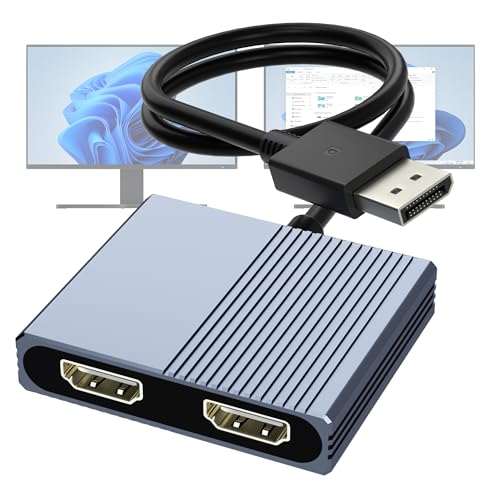
DisplayPort to Dual HDMI Adapter 4K@60Hz
USB C to Dual HDMI Adapter 4K@60Hz

UANTIN 6-in-1 USB C Hub
More Details On Our Top Picks
This one keeps things plain and easy, which is useful in a spare bedroom office or a shared family desk. It mirrors one HDMI source to two displays, so your second screen shows the same thing rather than a separate desktop. That makes it fit simple presentations, game consoles, or a laptop feeding two TVs.
The trade-off is clear, and honestly that’s the point, because mirror-only gear suits straightforward jobs better than desktop expansion. You also need to account for the USB-A power lead and your own USB power adapter, so the setup is tidy but not completely cable-free.
Strong Points
- Mirrored output keeps two screens in sync without extra configuration.
- Works with common sources like laptops, PCs, game consoles, and streaming boxes.
- 4K at 30Hz fits casual video, slides, and basic media use.
- The included manual helps the setup feel less fussy for first-time use.
Points To Note
- It does not create two separate desktops, so multitaskers may want another style.
- USB power depends on your own adapter, which adds one more piece to manage.
- 4K at 30Hz is fine for many viewing jobs, though it is not the smoothest fit for fast motion.
Feature Rundown
Who It Suits Best
Home office users and casual entertainment setups get the most from this simple mirrored split.
Where A Sibling Pick Shines
Amazon Basics HDMI Splitter 1 in 2 Out 4K@60Hz suits you better when your TV or monitor pair needs the same mirrored feed but at a higher video ceiling.
This adapter feels aimed at a desk that needs more than video output, because it folds display expansion, a USB-A port, and charging into one compact body. The 100W power delivery path means you can keep a laptop topped up while driving two HDMI displays, which is handy during long work sessions or meeting-heavy days. Windows users with the right video-over-USB-C support get the most from it.
macOS is the catch, and the limitation is simple enough to respect: it mirrors on dual displays instead of creating two different extended screens. That makes it a better fit for MacBooks used with presentations than for creative work that depends on separate windows spread across both monitors.
What We Like
- Two HDMI ports make it useful for a tidy dual-screen workstation.
- USB-A 3.0 adds a handy spot for a thumb drive, mouse receiver, or similar accessory.
- 100W power delivery helps reduce charger clutter on a crowded desk.
- The compact build suits travel bags and office drawers better than bulkier docks.
Small Caveats
- MacBooks and other macOS systems mirror rather than extend on dual displays.
- Windows users still need a laptop or port that supports the right video mode.
- USB-C hubs like this can run warm during long desk sessions, so placement matters.
Core Details
Made For
Windows laptop users who want a compact desk hub with dual displays and charging in one place.
Another Choice May Suit
llano HDMI Splitter for Dual Monitors MST suits you better when you want an extended desktop on a compatible laptop instead of mirror-only behavior on macOS.
Some setups just need a clean duplicate feed, and this OREI unit stays focused on that job without extra frills. The included 2-foot HDMI cable makes the package a little easier to place near a TV stand, media console, or classroom cart. In a living room or presentation space, that short cable can be enough to keep clutter under control.
Compared with the Amazon Basics splitters earlier in the list, this one leans into the same mirror-only idea but adds a bundled cable right away. The trade-off is the same as any duplicate-output splitter, because you are not getting two different screens, only the same picture on both.
Highlights
- Two-screen mirroring works well for shared viewing and basic presentation setups.
- The included HDMI cable saves you one more accessory to source separately.
- 4K at 30Hz suits movie playback, slide decks, and console display duplication.
- Broad source compatibility makes it a practical fit for mixed home entertainment gear.
Worth Noting
- It only duplicates a signal, so separate monitor workflows need a different style.
- The 2-foot cable is useful near the source, though it may feel short on wider desks.
- Longer setups may need a little cable planning to keep the layout tidy.
Details At A Glance
Right Fit For
Home theater owners, teachers, and presenters who want a straightforward duplicate signal with minimal setup fuss.
Look Elsewhere When
Amazon Basics HDMI Splitter 1 in 2 Out 4K@60Hz suits you better when smoother mirrored video matters more than the bundled cable.
Among the mirror-only splitters here, this Amazon Basics model is the one that pushes the display ceiling higher. That matters in a den, conference room, or media corner where you want the same image on two screens but prefer 4K at 60Hz instead of a softer, slower-looking feed. It still stays simple, which is part of the appeal.
The honest trade-off is that you are paying for better mirrored output, not extra flexibility. You also still need your own USB power adapter for the included cable, so the convenience is good but not completely self-contained.
Upsides
- 4K at 60Hz gives the mirrored image a smoother, more current feel.
- Works well for dual TVs, meeting rooms, or console duplication.
- The compact black body stays out of the way behind a desk or cabinet.
- Setup stays straightforward, which helps when you just want both screens to match.
Areas To Watch
- It still only mirrors, so it will not help with separate desktop windows.
- The power lead depends on a USB adapter you already own or add separately.
- Owners commonly prefer to keep the splitter near the source to reduce cable strain.
Feature Snapshot
Who Should Grab It
People setting up a mirrored pair of screens for media, talks, or classroom display get the most from this model.
A Better Fit Elsewhere
OREI 4K HDMI Splitter 1 in 2 Out fits you better when the bundled HDMI cable matters more than the higher 60Hz ceiling.
This is the kind of pick that makes sense once mirror-only splitters start feeling cramped. With MST, short for Multi-Stream Transport, a single USB-C connection can carry more than one video stream, which opens the door to extended displays instead of simple duplication. That can be a big relief for laptop users who live in spreadsheets, code windows, or layered office work.
Compared with the Fophmo adapter, llano is the more expansion-minded route for people who want two external monitors plus the laptop screen. The catch is compatibility, because MST support has to line up with your device, so the fit matters more here than on simpler splitters.
Reasons To Buy
- Extended desktop support suits work that needs separate screens, not mirrored copies.
- Dual 4K at 60Hz output is a strong fit for sharper, busier desk use.
- The USB-C design keeps the cable count lower than a mixed-port dock.
- 100W charging support helps a laptop stay powered during long work blocks.
- It feels built for people who want a more serious workstation layout.
Room For Improvement
- MST support is the key requirement, so device matching deserves a close look.
- Compatibility can vary across systems, which makes source checking especially important here.
- It is more of a workstation tool than a casual living-room splitter.
Technical Sheet
Best Suited To
People who want a real extended desktop from a USB-C laptop and have confirmed MST support.
Swap It Out When
Fophmo USB C to Dual HDTV Adapter suits you better when you want a simpler hub with a USB-A port and do not need extended displays on macOS.
Desktop towers and graphics cards with DisplayPort often make this style of adapter the cleanest route to dual HDMI screens. Because it starts from DisplayPort, it’s aimed at a narrower hardware group than the USB-C models above, but that narrower focus can make the decision easier. You know exactly what source side you need, which cuts down on guesswork.
The useful part here is that you can mirror or extend, so the adapter serves both shared-screen and multi-window setups. The trade-off is straightforward too, because it only works from a DisplayPort source and does not suit docks, hubs, or KVM switches.
Positives
- Supports either mirrored or extended use from one DisplayPort source.
- Dual HDMI output suits modern monitors without extra conversion steps.
- 4K at 60Hz keeps the image ceiling comfortable for desktop work.
- Small size makes it easy to tuck behind a tower or under a desk.
Areas To Watch
- Your computer needs a DisplayPort output, which rules out some laptops.
- It does not pair with docks, hubs, or KVM switches.
- Source-side checks matter here, so the setup is less forgiving than a universal USB-C choice.
Key Specs
The Right Fit
PC owners with a DisplayPort output who want dual HDMI monitors from a compact adapter will get the most from it.
Where A Sibling Pick Shines
UANTIN 6-in-1 USB C Hub suits you better when your laptop uses USB-C video and you also want extra USB ports in the same device.
This adapter aims at the broad middle ground, which is useful for someone moving between office desks, dorm spaces, and a home setup. Dual 4K at 60Hz is a strong ceiling on paper, and the wording around Windows and macOS makes the compatibility story easier to understand before you plug anything in. The result is a practical USB-C bridge rather than a fussy desk gadget.
There’s one important nuance, though, because macOS support is limited to SST, short for Single-Stream Transport, while Windows can use MST mode for three separate screens. That split makes this a better match for mixed laptop environments than for someone who wants the same behavior on every system.
Bright Spots
- Dual 4K output gives you a strong visual ceiling for office or media work.
- It can suit both Windows and macOS hardware, depending on the mode in play.
- MST support on Windows opens the door to a more flexible desktop layout.
- The adapter shape keeps the desk setup compact and easy to carry.
Softer Spots
- macOS support does not match Windows behavior for extended desktop use.
- Mode differences can be confusing during the first setup pass.
- USB-C video support still needs to be present on your laptop for it to work as intended.
Feature Card
Whose Shelf It Belongs On
People who move between Windows and Mac laptops and want a versatile dual-monitor USB-C adapter can make good use of it.
Where Shoppers Go Wrong
UANTIN 6-in-1 USB C Hub suits you better when you want the extra USB ports and charging support in the same package.
The UANTIN leans more like a desk hub than a plain video adapter, and that broad role gives it an easy place in a busy workstation. Two HDMI outputs support 4K at 60Hz, while the USB-C power port and three USB-A ports cover charging and everyday peripherals. That combination is handy on a laptop desk where a mouse, flash drive, and charger all fight for the same space.
Compared with the simpler USB-C entries above, this one gives you more side ports to work with, which is nice when your laptop has only a couple of connections. The trade-off is that you still need a USB-C port with video output support, so the hub is helpful but not universal.
Best Bits
- Two HDMI outputs handle a dual-monitor layout at 4K at 60Hz.
- 100W USB-C power support helps keep a laptop charged during the day.
- Three USB-A ports give you room for peripherals and storage devices.
- The all-in-one shape reduces the need for separate small adapters.
- It suits compact desks where port count matters as much as display output.
Honest Caveats
- Your laptop must support USB-C video output for the adapter to do its job.
- USB-A ports are limited to modest data speeds, so they are better for everyday accessories than heavy transfers.
- It is a useful hub, though people who only need video may find it more than they need.
Core Details
Built With In Mind
Desk-bound laptop users who want monitors, charging, and accessory ports in one hub will get the most from it.
Another Choice May Suit
Fophmo USB C to Dual HDTV Adapter suits you better when you want a lighter-weight USB-C option with just one USB-A port and a simpler footprint.
How To Choose The Right Hdmi Dual Monitors
Match The Connection To Your Computer
The first decision is the source port on your device. USB-C models make sense for newer laptops, especially when that port also handles charging or data, while DisplayPort units are a natural fit for desktop towers and graphics cards. Mirror-only splitters serve a different purpose, so you should not expect them to create two separate desktops.
That port match matters more than the label on the box. A splitter can look versatile and still be a poor fit for your machine’s output standard, so checking the source side saves a lot of frustration later.
Decide Between Mirror And Extend
Mirror mode shows the same image on both screens, which works well for presentations, media, and shared viewing. Extend mode spreads your desktop across multiple monitors, and that’s the better path for spreadsheets, editing, coding, and general multitasking. The llano and some USB-C options serve that second need better than the basic splitters.
The trade-off is simple: mirrored units are easier and more universal, while extended-display gear asks more from your laptop or desktop. In a home office, that difference shows up fast once you start dragging windows around.
Check Resolution, Refresh, And Power
Resolution tells you how much image detail the adapter can carry, while refresh rate tells you how smooth motion looks. A 4K at 60Hz option is the more comfortable pick for daily work and video, while 4K at 30Hz is usually fine for presentations or casual playback. Power delivery also matters on USB-C hubs, because it keeps your laptop charging while the displays stay active.
The honest read is that the higher numbers help most when your screens are large or your day is screen-heavy. For lighter use, a simpler mirrored splitter can be enough and may even feel easier to live with.
Think About The Desk Around It
Short included cables can be helpful near a monitor stand, but they can also limit layout freedom on wider desks. Extra USB-A ports, bundled power leads, and a compact shell all change how tidy the setup feels after day one. That’s why a hub-style pick can suit a crowded desk better than a bare splitter.
Maintenance is usually simple, though placement still matters. Keep the adapter where airflow isn’t blocked, avoid sharp bends at the connectors, and you’ll have a cleaner setup to live with.
Things Worth Knowing First
Mistakes Worth Dodging
Many people assume every dual-monitor product extends a desktop, and that’s where the trouble starts. Mirror-only splitters are useful, but they duplicate the same image, so they will not solve a multi-window workflow. Another common slip is buying a USB-C adapter before checking whether the laptop actually supports video output through that port.
MacBook owners also need to pay close attention to system behavior. Some adapters mirror on macOS even though Windows can extend, so the same box can feel very different depending on the machine.
Why Top Tier Costs More
Higher-tier models usually cost more because they bundle more capability into one enclosure. You’re often paying for USB-C power delivery, extra USB ports, dual 4K output, or MST support that makes a laptop behave like a fuller workstation. Those parts add up in both hardware and compatibility work.
The upgrade makes sense when your desk is doing real work every day. If you only need a duplicate image for a TV pair or a classroom screen, a simpler splitter usually covers the job without extra complexity.
Closing Thoughts
Your best match comes down to one question, do you need two screens to show the same thing, or do you want them to act like separate spaces. Mirror-only splitters keep life simple, while USB-C and DisplayPort options open the door to more flexible desks. For a clean, practical setup, start with your computer’s port type and the way you actually use your screens. That keeps the choice grounded and makes the rest of the decision a lot easier.
