
Mac work tends to expose a monitor’s weak spots fast, from cramped text scaling to washed-out color and awkward stand movement. The eight displays below cover different kinds of setups, whether yours is a home office, a creative desk, or a simple dual-screen station beside a MacBook. You’ll see which ones lean toward sharp 4K clarity, which favor smoother motion, and which stay sensible for everyday use.
Quick Look At The Shortlist

Dell 27 Monitor S2725QS 4K UHD IPS 120Hz

ASUS ProArt PA278CV 27 Inch 1440p QHD USB-C Professional Monitor

Samsung 32 Flat Computer Monitor 75Hz Borderless Display
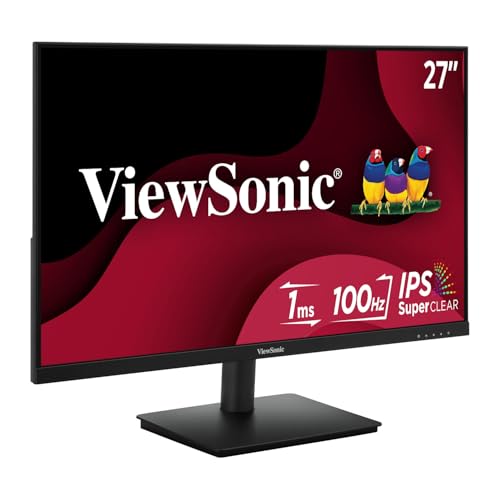
ViewSonic VS2747-H 27 Inch 1080p Computer Monitor IPS 100Hz Display

LG 27US500-W Ultrafine Monitor 27-Inch 4K UHD HDR10 IPS Borderless Design

ViewSonic VA2756A-MHD 27 Inch Full HD Computer Monitor IPS 120Hz Display

ViewSonic VS2725-2K 27 Inch 1440p Computer Monitor QHD 100Hz Display
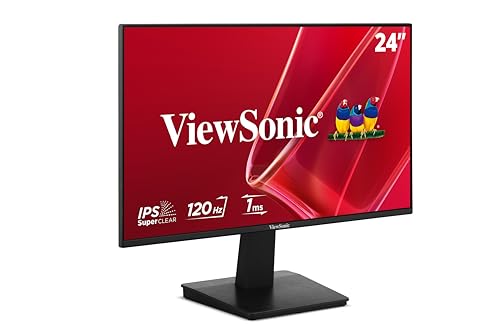
ViewSonic VA2448-MH 24 Inch 1080p Computer Monitor IPS 120Hz Display
More Details On Our Top Picks
The Dell makes sense for a Mac desk that has to handle both text and motion without feeling fussy. Its 4K resolution gives you a dense, crisp workspace, and the 120Hz refresh rate should feel smoother than a standard office panel during scrolling and window movement. The stand’s height, swivel, and pivot adjustments help it settle into a comfortable position, which matters more than people expect during long work sessions.
The honest trade-off is that this is still a general-purpose display, not a color reference tool for heavy production work. The USB-C port helps simplify cable clutter, but the real appeal is the mix of sharpness, speed, and adjustable ergonomics. That combination suits you best when your day moves between spreadsheets, documents, and a little downtime after work.
Strong Points
- 4K detail keeps text and UI elements crisp on a Mac desktop.
- 120Hz support can make scrolling and drag motions feel smoother.
- Height, swivel, and pivot adjustments help you set a natural viewing angle.
- Anti-glare treatment is useful in bright offices or near a window.
- USB-C, HDMI, and DisplayPort give you flexible connection options.
Things To Consider
- Serious color work may call for a more specialized creator display.
- The feature mix is broad, so you may pay for extras you never use.
- 27 inches in 4K can feel dense, which some people love and others need time to tune.
Feature Snapshot
Who It Suits Best
You get the most from this one on a MacBook Pro or Mac Studio setup where you want a sharper-than-basic screen without stepping into a specialty color workflow.
A Better Fit Elsewhere
ASUS ProArt PA278CV 27 Inch 1440p QHD USB-C Professional Monitor suits you better when accurate color work matters more than 4K sharpness and motion smoothness.
Color-sensitive work is where the ASUS ProArt starts separating itself from more general panels like the Dell above. Its 1440p IPS panel lands in a sweet spot, giving you clean detail without asking your Mac to drive a 4K canvas all day. The Delta E below 2 claim points to tight color accuracy, and that matters when your edits need to hold up across design, photo, or video tasks.
The ergonomic stand and USB-C connection make day-to-day use easier, though the lower resolution compared with a 4K monitor will matter to some setup purists. The honest read is that this is built for work first, not for the flashiest desktop spec sheet. For creative desks, that’s often the right trade.
What We Like
- Calman Verified tuning and Delta E below 2 support dependable color work.
- 100% sRGB and 100% Rec.709 suit common creative workflows.
- USB-C, USB hub support, and daisy chaining can tidy a desk fast.
- IPS viewing angles help keep the image stable from off-center positions.
- Ergonomic stand adjustments are useful for long editing sessions.
Worth Noting
- 1440p is a step down from the 4K sharpness found on the Dell and LG picks.
- This model leans toward work accuracy, so it feels less playful for casual use.
- USB-C convenience still depends on how your Mac setup is arranged.
Core Details
Who It Suits Best
You’ll appreciate this most in a design, editing, or photography setup where color handling matters more than chasing the highest resolution.
A Better Fit Elsewhere
LG 27US500-W Ultrafine Monitor 27-Inch 4K UHD HDR10 IPS Borderless Design suits you better when sharper 4K detail and HDR10 playback matter more than USB-C workflow polish.
The Samsung leans into size first, and that changes the feel of your desk right away. A 32-inch flat panel gives you more room for side-by-side windows, which helps in long workdays when you’re juggling mail, documents, and browser tabs on a Mac. The 75Hz rate is modest compared with the faster picks here, but it still keeps movement smoother than a plain 60Hz screen.
Borderless styling helps it sit neatly in a multi-monitor layout, so the image doesn’t feel boxed in. The honest catch is that a 32-inch Full HD screen can look less dense than the 4K models in this lineup, especially at close viewing distance. Still, for a spacious, easygoing desktop, it does a lot right without asking for a complicated setup.
Highlights
- The 32-inch panel gives you room for split work and wide timelines.
- Borderless edges help multiple screens sit together more cleanly.
- AMD FreeSync can smooth out motion in supported content and games.
- Game Mode and Advanced Eye Care make the screen feel more versatile across use cases.
Small Caveats
- Full HD on a 32-inch panel is less crisp than the 27-inch 4K options.
- Its size works best with a bit of desk depth, especially on a Mac setup.
- The feature set is useful, but not as creator-focused as the ASUS ProArt.
Details At A Glance
Who It Suits Best
You’ll get the best fit here for a roomy general-use desk where you want one large screen more than a sharper pixel-dense panel.
A Better Fit Elsewhere
ViewSonic VS2725-2K 27 Inch 1440p Computer Monitor QHD 100Hz Display suits you better when you want a sharper all-rounder in a smaller footprint.
This ViewSonic keeps things simple in a way many office setups appreciate. The IPS panel, 100Hz refresh rate, and 1ms response time make it feel more responsive than a bare-bones monitor, while the 250-nit brightness level is enough for normal indoor use. For a Mac desk that needs a dependable second screen or a clean daily driver, that mix is straightforward and useful.
Thin bezels help it blend into dual-monitor layouts, and the anti-glare finish is handy under office lighting. The trade-off is the 1080p resolution, which is fine at this size but not as refined as the 1440p and 4K screens higher in the list. You may find it especially sensible for email-heavy work, web apps, and general admin tasks.
Upsides
- 100Hz gives everyday motion a little more polish than basic office panels.
- IPS viewing angles work well for side-by-side desk setups.
- HDMI and VGA support make it easy to connect older and newer gear.
- Thin bezels help the screen sit neatly in a multi-display arrangement.
Areas To Watch
- 1080p at 27 inches is less crisp than the sharper 1440p and 4K choices here.
- 250 nits is suitable for typical interiors, though bright rooms can demand careful placement.
- The feature set is practical, not especially rich for creative work.
Quick Facts
Who Will Love This
You’ll like this best for a tidy home office, especially when your workday revolves around documents, browsers, and a second screen beside a Mac.
Swap It Out When
LG 27US500-W Ultrafine Monitor 27-Inch 4K UHD HDR10 IPS Borderless Design suits you better when you want a sharper 4K workspace for creative or text-heavy use.
The LG is for you when 4K detail matters and you want the monitor to feel calm rather than flashy. The 27-inch IPS panel, 1000:1 contrast ratio, and HDR10 support give it a more polished image than basic office models, and the borderless design helps it look neat on a Mac desk. For image-heavy work, that sharpness pays off quickly.
OnScreen Control adds a practical way to split the screen or adjust settings with a few mouse clicks, which is handy on a busy desktop. The trade-off is that the package leans more toward visual quality than flexible movement, since the stand adjustment is limited to tilt. If you like a crisp, clean monitor without lots of extra fuss, that’s a fair exchange.
Best Bits
- 4K resolution gives you plenty of detail for text and imagery.
- HDR10 and up to 90% DCI-P3 add depth for compatible content.
- OnScreen Control makes layout tweaks and monitor settings easier to handle.
- The borderless look keeps a desk setup visually tidy.
Room For Improvement
- Tilt-only adjustment means less posture tuning than the more flexible Dell.
- The high-detail screen can feel demanding if you prefer larger interface elements.
- Some setup convenience features depend on the software side being installed correctly.
Feature Card
Perfect Match For
You’ll get the most value from this on a Mac desktop used for visual work, photo sorting, or any setup where 4K clarity matters more than a lot of stand movement.
Where Another Pick Suits Better
Dell 27 Monitor S2725QS 4K UHD IPS 120Hz suits you better if you want a similar 4K class screen with more flexible ergonomics and faster motion.
The ViewSonic VA2756A-MHD feels built for people who want a straightforward daily monitor without overpaying for extras they won’t use. Its 120Hz IPS panel is a nice touch at this level, because scrolling, window movement, and casual entertainment all feel a bit livelier than on a basic 60Hz display. The thin-bezel design also works well beside a MacBook or in a dual-screen setup.
Speakers are built in, which keeps desk clutter down, though external audio will still sound better for most people. The 1080p resolution is the main compromise, especially at 27 inches, so you’ll want to be comfortable with a less dense image than the 1440p and 4K displays above it. That said, it’s a sensible choice for home offices and general productivity.
Positives
- 120Hz refresh helps common desktop motion feel smoother.
- IPS panel behavior makes it easier to share the screen from side angles.
- Built-in speakers reduce the need for a separate audio device.
- HDMI, DisplayPort, and VGA make the monitor adaptable to older and newer gear.
Softer Spots
- 1080p on a 27-inch panel is not as crisp as the higher-resolution picks here.
- Built-in speakers are convenient, though they usually serve as backup audio.
- The value story is strong, but it stays firmly in everyday-monitor territory.
Technical Sheet
Made For
You’ll like this most for a practical home office, especially if you want a fluid-feeling monitor and don’t need high-end color work.
Another Choice May Suit
ASUS ProArt PA278CV 27 Inch 1440p QHD USB-C Professional Monitor suits you better when your desk time centers on creative accuracy rather than basic productivity.
Among the 27-inch options here, this ViewSonic lands in a very workable middle ground. QHD resolution gives you a cleaner desktop than 1080p without the stronger system demands of 4K, and 100Hz adds a smoother feel to everyday movement. For Mac users who want a balanced monitor for work and entertainment, that trade often makes sense.
The frameless design helps it look neat in a multi-monitor setup, and the 1ms response time keeps motion from feeling sluggish. One thing worth considering is that the panel is more about sensible balance than standout specialization, so it doesn’t chase the creator-accurate path of the ASUS ProArt or the 4K crispness of the Dell and LG. Even so, that restraint is part of its appeal.
Reasons To Buy
- 1440p resolution gives a nice step up from 1080p without going full 4K.
- 100Hz helps the display feel responsive in daily use.
- Frameless styling makes side-by-side monitor setups look cleaner.
- Variable refresh rate support is useful for mixed work and entertainment use.
Honest Caveats
- It stays more general than the ASUS ProArt, which is stronger for creative color work.
- The 27-inch size is comfortable, but not as spacious as the Samsung 32-inch panel.
- You still need to decide whether 1440p is enough for your Mac workflow.
Core Details
The Right Fit
You’ll appreciate this most when you want a balanced 27-inch monitor that feels easy to live with on a Mac desk every day.
Look Elsewhere When
LG 27US500-W Ultrafine Monitor 27-Inch 4K UHD HDR10 IPS Borderless Design suits you better if sharper 4K detail is more important than the middle-ground approach here.
This is the easiest fit in the group for a smaller desk or a secondary Mac display. At 24 inches, the Full HD panel keeps things manageable, while the 120Hz refresh rate adds a nice bit of smoothness for everyday motion. The frameless design and IPS panel help it feel cleaner and more open than many compact office monitors.
The built-in 2W speakers are useful for light use, though they’re best thought of as convenience audio rather than a big sound feature. Since the screen stays at 1080p, the image is less dense than the 27-inch 1440p and 4K options here, but that’s the trade that keeps it compact and approachable. For laptop expansion and light desk work, it’s easy to live with.
Positives
- 24-inch size fits tighter desks without crowding the workspace.
- 120Hz makes motion feel smoother than a basic compact screen.
- IPS panel support helps the image hold up from the side.
- Built-in speakers help reduce the number of desk accessories you need.
Minor Gripes
- 1080p is fine at 24 inches, though not as spacious as higher-resolution screens.
- The speaker output is handy, but many setups will still benefit from separate audio.
- It’s the most space-efficient option here, not the most expansive one.
At A Glance
Built With In Mind
You’ll get the best fit from this on a smaller Mac setup, a student desk, or as a second monitor beside a laptop.
Where A Sibling Pick Shines
ViewSonic VS2725-2K 27 Inch 1440p Computer Monitor QHD 100Hz Display suits you better if you want more desk space and sharper QHD detail.
How To Choose The Right Mac Computer Displays
Resolution And Text Clarity
Macs tend to make low-density screens look rough sooner than many laptops do, so resolution is the first decision that really matters. 4K gives you the sharpest text and the most room for windows, while 1440p usually lands in a sweet middle ground for 27-inch displays. 1080p still works, but it feels best on 24-inch panels or when you mainly want a secondary screen.
Panel Type, Color, And Eye Comfort
IPS panels are the safe default here because they keep color and contrast steadier across a wider angle. That matters on a desk where you shift position, share your screen, or place the monitor beside a laptop lid. If you edit photos, design graphics, or want cleaner color behavior for content work, look closely at color coverage like sRGB, Rec.709, or DCI-P3.
Eye comfort features also matter more than they sound. Anti-glare coatings, lower blue-light modes, and flicker-reduction tools can make a long workday feel less tiring, especially in rooms with bright windows or overhead light. Those features do not replace good lighting or posture, but they do help a screen feel easier to live with.
Ports, Refresh Rate, And Desk Fit
USB-C is helpful when you want a cleaner cable path from a MacBook, but HDMI and DisplayPort still matter for docks, adapters, and desktop towers. Refresh rate is the next useful clue: 60Hz is fine for basic office work, 100Hz and 120Hz feel smoother, and that difference shows up most during scrolling or window dragging. For many desks, that smoothness is the detail you notice every day.
Stand adjustment is easy to overlook, then impossible to ignore once the screen sits too high or too low. Height, tilt, swivel, and pivot make a monitor easier to place in a real room, not just a spec sheet. A monitor that fits your desk depth, lighting, and chair height will feel better than a flashier panel that sits wrong.
Things Worth Knowing First
Mistakes Worth Dodging
A common slip is pairing a large screen with too little resolution, which can make text look coarse on a Mac. Another is choosing color features that sound impressive but do not match your actual work, especially when your day is mostly documents and browsing. Size alone does not tell the whole story.
Connection planning matters too. A monitor may look simple on the page, then require a cable path or adapter that does not fit your setup. Checking the inputs against your Mac and dock before you commit saves a lot of annoyance later.
The Upgrade Payoff
Higher-tier monitors usually cost more because they combine better panels, stronger color handling, and more flexible stands. USB-C hubs, daisy chaining, and broader color coverage also push the hardware up a notch. In plain terms, you’re paying for less friction and a screen that asks less of your setup.
That upgrade makes sense when the monitor is part of your workday, not just an extra display. A creative desk, a long-hours home office, or a MacBook setup that you dock every morning all benefit from better ergonomics and cleaner visuals. For occasional use, a simpler display often makes more sense.
Final Thoughts
The right Mac display depends on how you sit, what you do, and how much sharpness you actually notice day to day. For creative work, the ASUS ProArt stands out with its color-first approach, while the Dell and LG options serve you well if you want sharper 4K screens with more general flexibility. For smaller budgets or simpler setups, the ViewSonic models keep the choice practical without feeling stripped down. Pick the one that fits your desk and your routine, and the rest usually falls into place.
