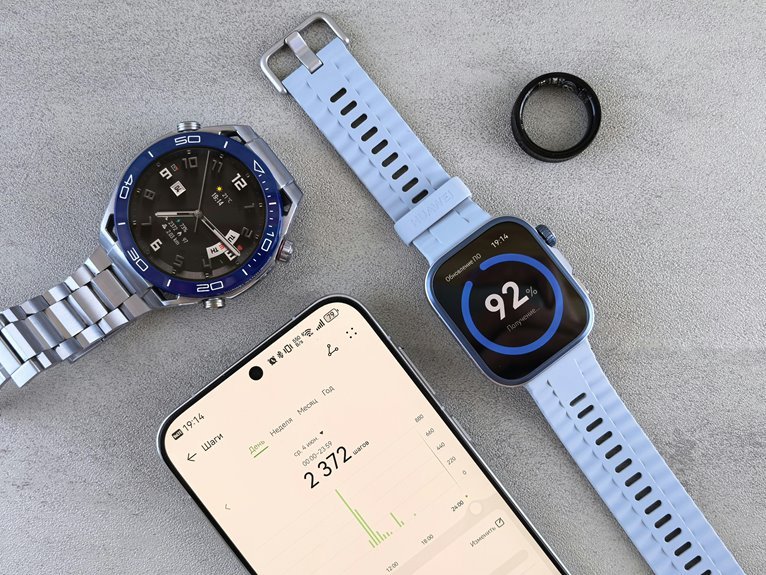
When your wearable shows activity but the companion app stays stale, the fault often sits in the transfer chain, not the sensor. You can trace it by checking Bluetooth pairing, permissions, and connected-device status, then restarting both devices, charging them fully, and reopening the app on stable Wi‑Fi. If that still fails, firmware, battery saver, and network settings may be the next variables to isolate.
Why Wearables Lose Sync
Wearables usually lose sync because the device, companion app, and League aren’t all receiving and sharing the same data stream.
You’ll see this when Apple Health, Google Fit, Fitbit, Garmin, Polar, or Withings records activity but League never receives it. Data permission gaps can block specific metrics, and delayed app integration can leave fresh workouts stranded in the companion app. If your wearable doesn’t track an exercise accurately, League can’t display it because no source data exists to transfer.
In League, green check marks confirm receipt, while red exclamation marks point to missing or interrupted inputs. When you belong to the same connected training ecosystem, every app has to agree on source, timing, and access, or sync breaks.
Fix Wearable Sync Problems Fast
To fix wearable sync problems fast, start by confirming the device is actually sending data to its companion app, then check whether League is receiving it. Open Fitbit, Garmin, Polar, or Withings and verify active data flow. If League shows a red exclamation, your sync automation stalled; a green check means it’s working. Use app permission troubleshooting to review sharing settings and restore the missing data source.
| Status | Meaning |
|---|---|
| Green check | You’re in sync |
| Red exclamation | You’re missing the team |
Open the companion app a few times daily to trigger transfers, especially after workouts. Confirm the wearable tracked exercise, heart rate, and steps; untracked activity can’t reach League. If you keep seeing gaps, recheck the source order and make sure the device remains your primary training feed.
Check Bluetooth and App Permissions
If League still isn’t updating, check Bluetooth stability and app permissions next.
First, confirm bluetooth pairing is active between your wearable and phone, and that the connection stays strong within range. In your phone settings, verify app permissions for Bluetooth, location, motion, and background data are enabled for League and the companion app. Without them, the device can’t pass metrics reliably.
Open the League profile, review connected devices, and make sure the wearable appears with current access rights. If any data source shows limited access, update permissions immediately.
You’re part of a system that works best when every link is trusted and visible. A clean permission set reduces sync gaps, improves diagnosis, and keeps your training data flowing into the app accurately.
Restart Your Wearable and Phone
Power cycle your wearable and phone to clear transient sync faults and reset the connection state.
Turn both devices fully off, wait 10 to 15 seconds, then power them back on and reopen the companion app.
After reboot, confirm the wearable reconnects and reestablishes data sync with the app.
Power Cycle Both Devices
When syncing stalls or the League app stops reflecting fresh wearable data, restart both your phone and device to clear temporary Bluetooth, app, and background-sync glitches. Power off completely, wait 15 to 30 seconds, then power on each unit for a clean device reboot.
This battery refresh clears volatile memory, resets stalled services, and lets the operating system rebuild normal sync tasks. After both devices finish booting, open your companion app and League, then watch for the newest timestamp or status update.
If you share the same workout community, this quick reset often restores the steady data flow you expect. Use it before deeper troubleshooting, because it isolates transient faults without changing settings or permissions.
Reestablish Sync Connection
To reestablish a broken sync connection, restart both your wearable and your phone to clear stalled Bluetooth sessions, background sync tasks, and companion-app cache states.
After reboot, open the companion app and run app integration checks to confirm the device is still paired and authorized. Watch the sync status indicators: a green check usually means data is flowing again, while a red exclamation points to permission or transport failure.
If the status doesn’t change, force-close the app, relaunch it, and keep the devices close together for the next sync attempt. You’re not troubleshooting alone; these resets are standard recovery steps for reliable wearables.
If needed, sign out and back in, then recheck permissions and time settings before testing another sync cycle.
Charge Both Devices Fully
Charge both your wearable and phone fully before troubleshooting sync issues, since low battery can interrupt background transfers and delay data delivery to the League app. Check battery charging routines at home and confirm dual device charge status before every test.
| Device | Target |
|---|---|
| Wearable | 100% |
| Phone | 100% |
| Cable | Secure |
| Indicator | Stable |
When both devices stay above 90%, you reduce throttling, preserve Bluetooth stability, and keep sync jobs in the queue. If either device drops during transfer, the app may miss steps, heart rate, or workout records. Keep your team in mind: fully charged devices help everyone compare clean data, spot faults faster, and trust results. After charging, reconnect and retry sync once.
Update the Wearable App
With both devices fully powered, update the wearable app and its companion app before you test sync again.
You need app version compatibility across the watch, phone, and cloud service, or sync calls can fail silently.
Open each store, install the latest build, then restart both apps to clear stale sessions.
Do a release notes review and look for sync fixes, permission changes, or database migrations that affect your setup.
If the vendor flags a required firmware dependency, apply it now.
After updating, sign in with the same account on both devices and confirm the app pair shows current versions.
You’re part of a network that expects clean data flow, so verify the update before you recheck activity transfer and timing behavior.
Reconnect Your Wearable
If the updated apps still don’t exchange data, reconnect your wearable from the League app by opening your profile, tapping the ellipsis, and selecting Apps & Devices. Remove the current link, then pair the device again through the companion app so League can rebuild the data path.
- Confirm the wearable is signed in to the correct account.
- Check for account recovery prompts before you retry pairing.
- Complete any device handoff step after switching phones or watches.
After reconnection, open League and look for a green check mark beside each data source.
If you still see a red exclamation, repeat the pairing flow and verify permissions in the connected app.
You’re not starting over; you’re restoring trust between systems so your team can read your training data cleanly.
Clear the Companion App Cache
After you clear the cache, restart the companion app so it rebuilds fresh process data and reconnects cleanly.
If syncing still fails, recheck the app’s device permissions and sync status.
Clear App Cache
When the companion app starts lagging or stops passing data to League, you should clear its cache to remove stale files that can block sync processing. Look for cache corruption symptoms like slow launches, missing workouts, or repeated sign-in prompts; these often show up before a full sync failure. If your phone nears app storage limits, cached data can grow unevenly and disrupt background tasks.
- Open the app settings and select storage or app info.
- Tap Clear Cache, then reopen the app and let it resync.
- Check League for a green status indicator after the next data push.
You’re not alone when sync gets messy; this quick reset helps your device and app team work from a clean state, so your data flow feels reliable again.
Remove Temporary Data
Temporary files in the companion app can pile up and interfere with League syncing, especially after updates, repeated logins, or interrupted background activity.
You should perform a storage cleanup by opening the app’s settings and clearing cached data, then confirm the sync status in League.
This temporary file purge removes stale tokens, partial downloads, and old device records that can block fresh transfers.
Keep your account signed in so the app can rebuild clean session data.
After cleanup, watch for green check marks on your connected wearables and red exclamation marks on any data source that still needs attention.
If you track with Fitbit, Garmin, or another device, this reset helps your setup feel more reliable and keeps your community’s shared training data flowing accurately.
Restart Companion App
Restart the companion app to force a fresh cache rebuild and rule out a stalled sync state. You’re clearing transient data that can trap stale tokens, delayed permissions, or partial device records. If the app won’t relaunch cleanly, you may be facing app launch issues rather than wearable failure. This step also helps when background refresh limits have paused updates and the cache still holds outdated sync flags.
- Close the app fully, then reopen it.
- If needed, clear the app cache from settings.
- Recheck Bluetooth, account sign-in, and sync status.
After restart, watch for immediate data transfer and confirm the wearable stays paired. If metrics still don’t move, the problem likely sits deeper in permissions or device services.
Sync on a Strong Wi‑Fi Signal
If your wearable keeps missing uploads, move the sync to a strong Wi‑Fi network and confirm the companion app has a stable connection before you try League again.
Check wifi signal placement first: stay close to the router, avoid walls, microwaves, and crowded traffic. Then verify network band selection; use 5 GHz for speed when you’re nearby, or 2.4 GHz for broader reach if the signal drops.
Open the companion app, watch for progress bars, and keep the phone on the same network as the wearable’s sync path.
If uploads complete cleanly, League can receive the data and you stay in step with your crew. If the connection still stalls, reconnect to Wi‑Fi and retry the sync after a minute.
Turn Off Battery Saver Mode
- Check that sync completes without red exclamation marks.
- Confirm sensors stay active during normal activity.
- Re-enable saving features only after verification.
This approach keeps you aligned with other users who depend on accurate, timely data and want a reliable setup.
Update Your Wearable Firmware
When your wearable’s sync problems persist, update its firmware to eliminate known bugs in sensor capture, Bluetooth handshakes, and app connectivity. Check firmware compatibility with your phone, companion app, and cloud service before you install anything.
If your device manufacturer posts release notes, compare them with your sync symptoms so you can confirm the fix targets your issue.
Use update scheduling to run upgrades when you’re charging and can monitor the process without interruption. Keep the wearable near your phone, stay on stable Wi-Fi, and avoid low-power states during installation.
After the update, reopen the companion app and verify that data flow resumes cleanly. You’re not chasing guesswork; you’re restoring a shared system that should work with the rest of your setup.
Reset Network Settings or Factory Reset
If syncing still fails, reset the wearable’s network settings to clear corrupted Bluetooth or Wi‑Fi state.
If that doesn’t restore data flow, perform a factory reset to return the device to a clean configuration.
Then re-pair the wearable with your phone and companion app to rebuild stable device connections.
Reset Network Settings
A network reset or factory reset can clear pairing, Bluetooth, and sync-state errors that block your wearable from sending data to the companion app or League. Use it when you see repeated sync failures, stale device names, or stalled handoffs after updates. The network reset benefits include fresh radio tables and cellular and wifi cleanup, which can restore stable discovery without touching your training data.
- Reopen the companion app and confirm Bluetooth permission.
- Reconnect your wearable, then watch for a green check in League.
- Test sync after a short walk or workout to verify flow.
If the issue returns, review app permissions and nearby interference. You’re not alone here; this reset often brings your device back into the group that syncs cleanly.
Perform Factory Reset
Before you factory reset, back up any data you need and confirm the issue isn’t just a sync or permission problem; then use the reset only when pairing, Bluetooth handoffs, or app sync state keep failing after reconnects. A clean backup setup protects your metrics, and restore defaults clears corrupted local settings that can block reliable sync.
| Check | Result |
|---|---|
| Back up data | Safe |
| Save app settings | Complete |
| Restore defaults | Applied |
| Reboot device | Ready |
After the reset, reopen the companion app, sign in, and watch for fresh device enrollment. If the wearable still shows stale status, your sync cache was likely damaged, not your community of users or your training data. Keep notes on each step so you can compare behavior and recover faster.
Re-Pair Device Connections
Start by re-pairing the wearable and companion app after you reset network settings, because stale Bluetooth, Wi‑Fi, or app permissions often block device discovery and sync handoff. Delete the old device record, then initiate a secure pairing flow from the app, not the watch. When prompted, complete device reauthentication steps and confirm the same account on both ends.
- Verify Bluetooth, Wi‑Fi, and location permissions are enabled.
- Pair near the phone, then leave the apps open until sync completes.
- If discovery still fails, repeat the reset and pair again.
This process clears mismatched keys and restores trust between devices. You’re not alone here; these reconnects fix many stubborn sync faults. After pairing, test a small data transfer, such as steps or heart rate, to confirm the link.
Frequently Asked Questions
How Do I Confirm My Wearable Is Syncing With Apple Health or Google Fit?
Open Apple Health or Google Fit and look for the latest activity or heart rate entries with recent timestamps. In your wearable’s companion app, confirm the app has permission to write data to Apple Health or Google Fit. If needed, refresh both the wearable app and the health app, then compare the entry times to ensure new measurements from your device appear in the health app.
What Does a Red Exclamation Mark Mean in the League App?
A red exclamation mark indicates the League app did not receive that specific device data point. Check the app’s notification guide, confirm the app has the necessary permissions, and resync your wearable to restore connectivity with your training community.
How Can I Prioritize Garmin Data Sources for Accurate Syncing?
In Garmin Connect and Apple Health, set which Garmin device or app is the primary data source, then pick your main training device to resolve sync conflicts. This produces cleaner activity records, reduces duplicate entries, and improves the accuracy of League syncing.
Why Should I Open Companion Apps Multiple Times Daily?
You open companion apps several times per day to trigger app refresh cycles, force any queued sensor uploads to send, and align battery-saving syncs with actual use. Doing this reduces outdated readings, reveals permission problems, and keeps League data up to date.
How Do I Reduce Sync Lag Without Draining Wearable Battery?
Reduce sync lag by batching sensor readings before transfer, enabling the wearable’s battery saver sync mode, and scheduling low power data transfers while the device is charging. Picture your wrist as a courier who waits to collect several packages, compresses them, and delivers them in one efficient run.