Display Cable Splitters make more sense than a pile of adapters when you want a cleaner desk and a simpler monitor setup. You get a faster path to dual-screen or triple-screen use, whether your laptop lives on a home office desk, your tower sits under a gaming station, or your work machine needs extra room for spreadsheets and timelines.
The tricky part is matching the splitter to your source port, your monitor inputs, and your operating system. Some options are built for mirrored output, some support extended desktops, and a few lean on USB-C power or Windows-only MST support, so the right pick depends on how you actually work.
Quick Look At The Shortlist

DisplayPort to Dual Displayport Splitter 4K120Hz
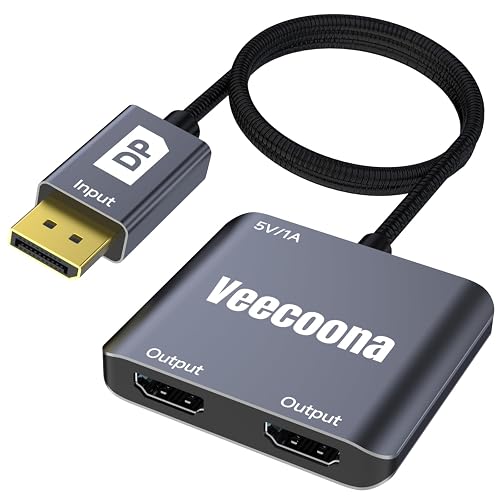
DisplayPort to Dual HDMI Adapter 1 in 2 Out 4K60Hz

DisplayPort to Dual HDMI Adapter 1 in 2 Out 4K60Hz
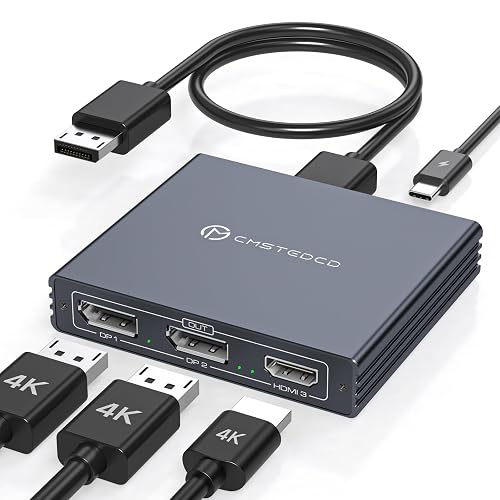
USB C to HDMI + Displayport Splitter 3 Monitors 100W PD
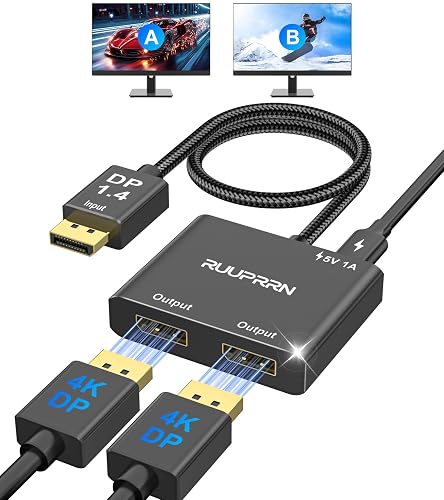
4K60Hz DisplayPort to Dual DisplayPort Splitter
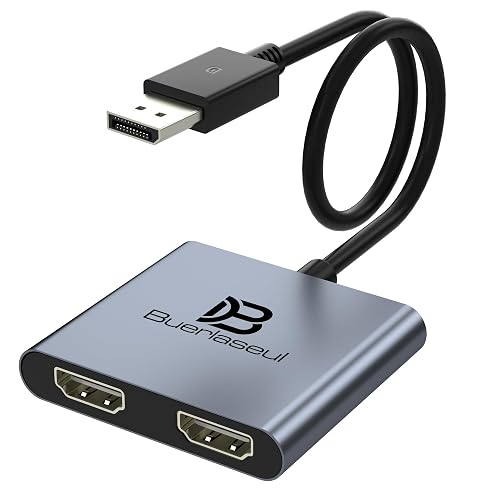
DisplayPort to Dual HDMI Adapter 4K60Hz
DisplayPort Splitter for Dual Monitors 4K120Hz
DisplayPort to Dual Display Port Adapter 4K60Hz
More Details On Our Top Picks
High refresh support gives this XPTSFDU splitter a clear edge for dual-monitor desks that need smooth motion. The Windows-only note matters, because the right fit here is a PC workstation or gaming tower that already leans on DisplayPort.
Compared with the HDMI-based picks below, this one suits setups where both screens already accept DisplayPort and you want to keep the signal path simple. You may find the mirrored or extended modes useful for work and play, though the trade-off is that it stays tied to a narrower compatibility lane.
Strong Points
- 4K at 120 Hz support gives you more headroom for fast motion on the right displays.
- Dual DisplayPort output keeps a DisplayPort-first desk tidy.
- Mirrored and extended modes cover common desktop layouts.
- Well suited to Windows systems that already drive two monitors.
Things To Consider
- Windows-only support narrows the usable setup list.
- It stays focused on DisplayPort output, so HDMI-only screens need a different path.
- Dual-monitor cable routing can get messy behind a crowded tower.
Feature Snapshot
Who It Suits Best
You get the most out of this on a Windows desktop with two DisplayPort monitors and a clear need for high-refresh output.
A Better Fit Elsewhere
Veecoona’s DisplayPort to Dual HDMI Adapter 1 in 2 Out 4K60Hz suits mixed HDMI desks more cleanly, especially where the monitors do not offer DisplayPort inputs.
This Veecoona adapter fits a common reality, one DisplayPort source feeding two HDMI monitors without much fuss. The 4K60Hz ceiling keeps it in a comfortable office-and-media lane rather than a high-refresh gaming lane.
Compared with the XPTSFDU pick above, this one better suits desks that already rely on HDMI displays. The MacOS MST note matters, so you get the clearest fit on Windows or a straightforward mirrored use case rather than a broader mixed-platform plan.
What We Like
- Two HDMI outputs make monitor matching easier for many home offices.
- 4K60Hz support covers everyday work, streaming, and general multitasking.
- One source to two screens keeps the desk simpler than a pile of separate adapters.
- Pairs well with desktop towers and laptop docks that already favor HDMI displays.
Worth Noting
- MacOS MST support is not part of the picture, so extended use on a Mac is a poor match.
- HDMI cable runs can become cluttered behind tighter desks.
- It is less appealing for fast-paced gaming than the 120 Hz DisplayPort-focused choices.
Details At A Glance
Who Will Love This
You get the best match here on a desktop or laptop dock that needs two HDMI screens and a clean, everyday desktop layout.
Another Choice May Suit
SWITCHFLUX’s DisplayPort to Dual Display Port Adapter 4K60Hz is the better fit for a DisplayPort-only monitor stack that does not need HDMI at all.
DGYBDFC takes the same two-HDMI idea and frames it for PC graphics cards, which is useful for tower owners with a clear display output path. The Windows extended mode and MacOS mirror note make the split between use cases easy to understand.
Compared with Veecoona’s similar layout, this one is better framed for users who want to think in terms of a graphics card setup rather than a general-purpose desktop accessory. You may appreciate that clarity during setup, though you still need to bring your own DP cables because none are included.
Upsides
- Dual HDMI output keeps common monitor matching straightforward.
- Windows extended mode gives you a true multi-window desktop on the right system.
- MacOS mirror support keeps basic duplication available for Mac users.
- Clear graphics-card focus helps you choose the right source type.
Areas To Watch
- No DisplayPort cables are included, so your desk setup needs those parts on hand.
- MacOS is limited to mirror use, which narrows flexibility.
- Cable management matters here, especially beside a full-size tower with other ports in use.
Core Details
Made For
You fit this well with a graphics-card-based PC that needs two HDMI displays and a clean split between Windows and Mac behavior.
Look Elsewhere When
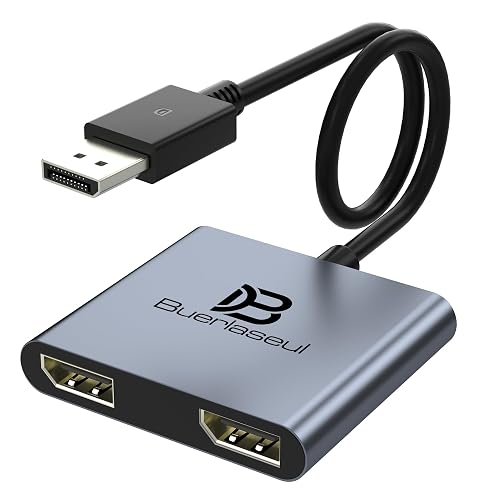
Buerlaseul’s DisplayPort to Dual HDMI Adapter 4K60Hz is a smoother fit for someone who wants the same basic format but a more straightforward split for daily office use.
This DGYBDFC hub goes beyond the simple splitter pattern by pairing USB-C input with HDMI and DisplayPort outputs, plus 100W PD charging. Power Delivery, in plain terms, means the hub can pass charging power through the connection, which matters on a laptop desk where ports are scarce.
Compared with the earlier dual-output picks, this one is for someone trying to build a compact workstation from a single USB-C port. The trade-off is that a more capable hub usually brings more cabling and more moving parts, so it suits tidy desk planners better than minimalists.
Reasons To Buy
- Three-monitor support gives you room for a broad desktop layout.
- USB-C input is a strong match for modern laptops and portable workstations.
- HDMI plus DisplayPort outputs cover mixed monitor setups.
- 100W PD charging helps reduce charger clutter on busy desks.
- Thunderbolt compatibility language makes it attractive for higher-end laptop docks.
Small Caveats
- Three-screen setups bring more cables and a little more desk planning.
- The extra capability is only useful on a laptop or computer with the right USB-C port.
- For simple two-monitor work, this may be more hub than you need.
Feature Card
Built With In Mind
You fit this best on a USB-C laptop station where charging and three displays need to run from one side of the machine.
Where A Sibling Pick Shines
Veecoona’s DisplayPort to Dual HDMI Adapter 1 in 2 Out 4K60Hz is the cleaner choice for a simple two-screen desktop that does not need USB-C charging.
RUUPRRN keeps things focused on DisplayPort in, DisplayPort out, which makes it a natural fit for PC and GPU owners who already stay inside that ecosystem. The MST hub label matters here, since Multi-Stream Transport, or MST, is the DisplayPort method that lets one source feed more than one display.
Compared with the HDMI-based options above, this one is a neater choice for a monitor pair that already uses DisplayPort cables. The honest read is that it feels most useful in a stationary workstation, because the setup stays better organized once everything is wired and left alone.
Best Bits
- DisplayPort to dual DisplayPort output keeps the signal path consistent.
- 4K60Hz support works well for general productivity and standard media.
- MST hub design suits multi-monitor desktop workflows.
- Matches NVIDIA and AMD graphics-card setups that already lean on DisplayPort.
Points To Note
- It stays in the DisplayPort family, so HDMI-only screens are out of scope.
- Stationary desks benefit most, because cable routing is part of the setup.
- For a laptop with only USB-C video out, a different style of hub makes more sense.
Quick Facts
Whose Shelf It Belongs On
You fit this best on a desktop PC where both monitors already use DisplayPort and you want a cleaner, more direct connection path.
Skip It When
Buerlaseul’s DisplayPort to Dual HDMI Adapter 4K60Hz is the easier fit for a mixed monitor desk that depends on HDMI inputs instead.
Buerlaseul aims straight at a normal dual-HDMI desk, and that simplicity is its main appeal. SST and MST are both mentioned, with SST meaning Single-Stream Transport, the mirrored mode path, so the product covers both basic duplication and more flexible multi-display behavior on supported systems.
Compared with the Veecoona adapter, this one lands in the same general lane but reads a little more like a dependable everyday hub for a home office. You may find it most comfortable on a desk where one DisplayPort source feeds two HDMI monitors and nothing about the setup needs to be fancy.
Highlights
- Dual HDMI output keeps monitor matching familiar for many setups.
- 4K60Hz support suits office work, browsing, and standard media.
- SST and MST language covers mirrored and extended use paths on supported systems.
- Clean fit for desktops and docked laptops with DisplayPort output.
Honest Caveats
- It is less suited to high-refresh gaming than the 120 Hz DisplayPort choices.
- HDMI cable clutter can build up behind a crowded workstation.
- System support still matters, so the right operating setup should come first.
Feature Rundown
The Right Fit
You fit this best on a straightforward dual-monitor desk where HDMI screens and everyday productivity matter more than special extras.
Swap It Out When
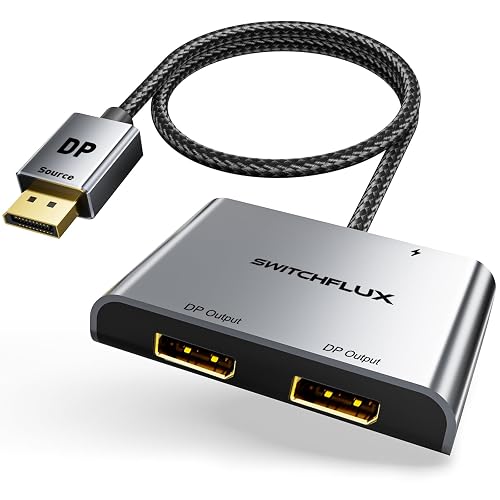
SWITCHFLUX’s DisplayPort to Dual Display Port Adapter 4K60Hz is the better match for a desk built around DisplayPort monitors rather than HDMI ones.
This Buerlaseul splitter is aimed at people who want DisplayPort on both monitors and a higher-refresh ceiling. The included USB-C power cable matters because active splitter designs often need stable power for the built-in chipset, which helps explain why this one feels more engineered than the simplest passive-style options.
Compared with the earlier B0FC6KQ27K pick, it serves the same DisplayPort-first crowd but adds the USB-C power angle for steadier long-session use. You may like that extra support on a gaming or editing desk, though it does mean one more cable to tuck away.
Bright Spots
- 4K120Hz support gives compatible displays room for smoother motion.
- Dual DisplayPort output keeps the setup consistent from source to screen.
- USB-C power support helps the splitter stay steady during longer sessions.
- Windows extended and mirrored paths cover common dual-screen use.
Room For Improvement
- The power cable adds another piece to manage behind the desk.
- Mac support is limited to mirrored use, which narrows multi-screen flexibility.
- The display chain works best with a native DisplayPort source, so source matching matters.
Core Details
Who Should Grab It
You fit this best on a Windows gaming or editing setup with DisplayPort monitors and a need for stronger refresh support.
Where A Sibling Pick Shines
RUUPRRN’s 4K60Hz DisplayPort to Dual DisplayPort Splitter is the neater match for a calmer office desk that does not need the extra power lead.
SWITCHFLUX keeps this one stripped down to a very tidy two-DisplayPort adapter, which suits desks that value a simple shape over extra features. The female DisplayPort output detail matters, since it defines how your existing cables and monitor inputs will connect, and that can save a setup headache.
Compared with the heavier Buerlaseul USB-C powered option, this is the cleaner fit for someone who wants less hardware hanging off the back of the computer. The trade-off is plain enough, it leans toward straightforward dual-monitor extension rather than a more capable, feature-packed hub.
Positives
- Compact adapter shape keeps the rear of the desk less crowded.
- Dual DisplayPort output suits a monitor pair built around the same input family.
- 4K60Hz support covers everyday work and media use.
- Extended display support helps turn one source into a broader workspace.
Trade Offs
- It is best matched to DisplayPort monitors, so HDMI screens need another solution.
- The simpler form leaves less room for extra features than the larger hub-style options.
- Cable organization still matters on compact desks, especially with two monitor leads.
At A Glance
Perfect Match For
You fit this best on a compact PC desk that already uses DisplayPort monitors and needs a tidy, no-frills split.
Where Another Pick Suits Better
Veecoona’s DisplayPort to Dual HDMI Adapter 1 in 2 Out 4K60Hz is a stronger fit for a workspace centered on HDMI monitors instead of DisplayPort ones.
How To Choose The Right Display Cable Splitters
Match The Port Family First
Your source port decides most of the shopping path. DisplayPort-to-DisplayPort choices suit PC towers and gaming rigs that already use that connector, while DisplayPort-to-HDMI adapters fit desks built around common HDMI monitors.
That detail matters more than the box art. A splitter can look interchangeable on the page, yet the wrong output family turns setup day into cable juggling.
Check The Display Mode You Need
Mirror mode shows the same image on both screens, which works well for presentations or basic duplication. Extended mode spreads windows across two displays, which helps with email on one side and editing, spreadsheets, or timelines on the other.
MST, or Multi-Stream Transport, is the DisplayPort method that allows one source to feed more than one screen. That feature is common in the stronger dual-monitor models, but system support still matters, especially on Macs.
Look Closely At Refresh And Resolution
4K60Hz suits office work, streaming, and general multitasking. 4K120Hz matters more for gaming or fast motion on a compatible monitor, and it usually pushes you toward the more specialized DisplayPort-first picks.
The honest read is simple, higher refresh only helps when your monitor and source can keep up. You get the cleanest result by matching the splitter to the screen you already own, not the other way around.
Think About Power, Cables, And Desk Space
Active hubs and USB-C powered models add stability, but they also add another lead to route. That is a fair trade on a laptop dock with a clean cable tray, and a less pleasant one on a cramped desk with no room behind the monitor stand.
Short, direct cable runs tend to make these setups feel calmer. Long chains of adapters usually work only after you keep the whole path orderly from computer to splitter to monitor.
Things Worth Knowing First
Mistakes Worth Dodging
Many shoppers focus on resolution and skip the port layout. That leads to an adapter that looks right on paper but does not match the monitor inputs, operating system behavior, or cable type already on the desk.
Another common miss is treating Mac and Windows support as interchangeable. Some Display Cable Splitters extend beautifully on Windows, yet only mirror on Mac, so that detail needs a careful look before you settle on a model.
The Upgrade Payoff
Higher-tier models usually cost more because they add active chipsets, extra power support, or wider output flexibility. In practice, that means steadier behavior on multi-screen desks and fewer compromises when your setup is more complex.
The upgrade makes sense for gaming stations, USB-C laptop docks, and work setups that depend on three displays or high refresh output. A simple office desk with two HDMI monitors often does not need that extra layer.
Frequently Asked Questions
Do Display Cable Splitters Work With Any Monitor?
No, the output family has to match the monitor input, such as DisplayPort to DisplayPort or DisplayPort to HDMI. The source computer and its operating system also need to support the display mode you want.
What Is The Difference Between Mirror And Extended Mode?
Mirror mode shows the same image on both screens. Extended mode gives you a larger desktop so you can keep different apps open on each display.
Why Do Some Splitters Mention MST?
MST stands for Multi-Stream Transport, a DisplayPort feature that helps one source drive more than one display. It matters most on dual-monitor setups that rely on a DisplayPort source.
Are USB-C Powered Models Better?
They are often steadier on busier setups because the splitter gets extra power support. That added cable is worth it for more demanding desks, but not for every simple two-monitor workspace.
Can You Use These With A Mac?
Some models work only in mirror mode on Mac, while others are limited by source requirements or display mode support. The product page details matter here more than a generic compatibility guess.
Closing Thoughts
The right Display Cable Splitters make your desk feel calmer, not busier. A DisplayPort-first PC gets the cleanest result from a DisplayPort-to-DisplayPort model, while an HDMI monitor setup usually benefits from a straightforward DP-to-HDMI adapter. USB-C laptop users have the widest options, but they also need to pay the closest attention to power and display mode. Match the splitter to your ports first, and the rest of the setup gets much easier.