
A senior looking for a computer may feel overwhelmed by unfamiliar controls, tiny instructions, and software that changes unexpectedly. I focus on practical fit, including readable guidance, screen size, memory, storage, and support, because comfort depends on the person and routine as much as the specifications. A Chromebook and an all-in-one desktop can each serve an older adult well, but they suit very different levels of technical confidence and household space.
An Overview Of The Picks

Chromebooks for Seniors

Seniors in the Digital Age: Large Print Guide

HP OmniStudio 27-inch All-in-One Desktop Ryzen 5 16GB RAM 512GB SSD
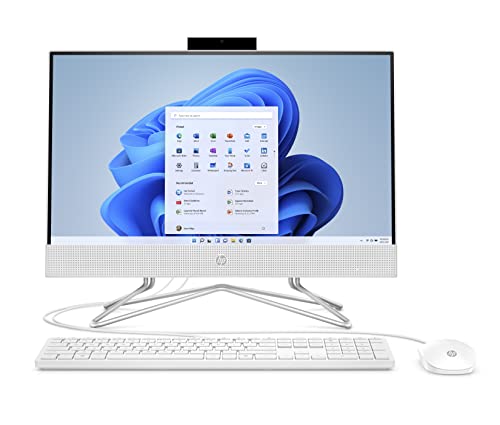
HP 21.5-inch All-in-One Desktop J5040 4GB RAM 128GB Storage

HP OmniStudio 27-inch All-in-One Desktop Ryzen AI 7 16GB 512GB 27-cw0102

HP OmniStudio 23.8-inch All-in-One Desktop Ryzen 5 8GB 512GB SSD
Inside Each Recommended Option
I would start with a guide when a senior has little experience with laptops and prefers a browser-centered device. Chromebooks in easy steps explains what a Chromebook is, how it differs from a conventional laptop or tablet, and how to begin using one.
The material covers setup, the Chrome web browser, Gmail, and common web applications. That focus makes this a useful companion for someone learning video calls, email, or internet browsing, though I would still expect some comfort with a keyboard, mouse, and touchscreen.
The Case For It
- Plain explanations help distinguish a Chromebook from other computer types.
- Setup guidance reduces uncertainty before the first session.
- Coverage of Chrome, Gmail, and everyday apps supports common online tasks.
- The approach suits a senior who prefers learning one device at a time.
Things To Consider
- This is a book rather than a computer or a hands-on support service.
- Chromebook menus can change, so the book may not match every current interface exactly.
Who It Suits Best
This guide best suits a senior who is new to computers and mainly needs email, browsing, and straightforward web applications.
A Better Fit Elsewhere
Seniors in the Digital Age: Large Print Guide suits a person who needs broader instruction on phones, applications, online safety, and scam awareness.
Digital confidence often depends on recognizing risky prompts before acting. Seniors in the Digital Age takes a broad, beginner-centered approach to phones, computers, applications, passwords, updates, and suspicious online messages.
Its large-print format is the central advantage for me. The scope also makes it useful beyond a single computer, which suits a senior managing a phone and desktop as part of the same household routine.
Features That Help
- Large print improves readability during close, careful reading.
- Phone and computer instruction supports a connected-device routine.
- Scam and internet-safety topics address common sources of confusion.
- Application guidance helps with the software used for communication and daily tasks.
Worth Noting
- Its wide range means each device topic receives less depth than a narrowly focused manual.
- Reading about online safety does not replace careful checks of unusual requests or links.
Made For
This book best suits a senior who wants readable guidance across several digital devices and has concerns about online safety.
Another Choice May Suit
Chromebooks for Seniors provides deeper guidance for a senior whose first computer is specifically a Chromebook and whose main need is getting started.
A large display and familiar Windows software make the 27-cv0002 a practical fit for a senior who wants a stationary family computer. The all-in-one design also reduces the number of separate desktop components on the desk, although the screen still needs adequate room.
Its 16GB of RAM, meaning working memory for open programs, gives it more room for everyday multitasking than the smaller models in this group. I see the 512GB solid-state drive, or SSD, as a useful balance for documents, photos, and installed software.
Noteworthy Benefits
- The 27-inch full-high-definition display offers a generous reading area.
- 16GB of RAM supports several routine applications at once.
- A 512GB SSD provides useful local storage without a separate drive.
- Windows 11 Home supports familiar desktop software and online tools.
Practical Considerations
- The 27-inch screen needs more desk space than a compact model.
- Associated protection terms vary and should be reviewed before adding the desktop.
Key Specs
The Right Fit
This desktop suits a senior who values a large Windows screen and plans to manage email, documents, video calls, and family entertainment from one station.
Look Elsewhere When
HP OmniStudio 23.8-inch All-in-One Desktop Ryzen 5 8GB 512GB SSD suits a tighter work area where a smaller display matters more than extra memory.
The 21.5-inch HP all-in-one brings Windows computing into a more compact footprint. Its appeal for me is straightforward: a senior seeking a conventional desktop for email, browsing, documents, and casual media may not need a large display or heavy multitasking hardware.
The Pentium Silver J5040 and 4GB of RAM create a basic platform, while 128GB of storage leaves less room for large application libraries or extensive media collections. That limitation matters for a household that wants the machine to grow with changing needs.
The Upside
- The 21.5-inch display takes up less desk space.
- The all-in-one format combines the computer and display.
- Windows 11 Home provides a familiar desktop environment.
- The specification set suits basic household tasks.
Small Caveats
- 4GB of RAM offers limited room for many programs open together.
- 128GB of storage is modest for extensive media or software.
- Variant listings may offer different memory and storage combinations, so the selected configuration needs checking.
Quick Facts
Built With In Mind
This model suits a senior with light computing needs, a modest digital library, and limited desk space in an apartment or small room.
Swap It Out When
HP OmniStudio 27-inch All-in-One Desktop Ryzen 5 16GB RAM 512GB SSD is the better fit for larger text, more storage, and heavier multitasking.
The 27-cw0102 is the most advanced configuration here, combining a Ryzen AI 7 processor, 16GB of RAM, and a 512GB SSD. For a senior handling demanding applications alongside a video call, that combination provides more breathing room than a basic desktop.
Its 27-inch full-high-definition display also makes on-screen reading and navigation more comfortable. The trade-off is physical size, since this larger screen needs a permanent place on a desk or sturdy table.
Practical Advantages
- The Ryzen AI 7 processor targets more demanding computing.
- 16GB of RAM supports heavier multitasking.
- The 512GB SSD provides practical local storage.
- The 27-inch FHD display creates a comfortable viewing area.
- Radeon 840M graphics support the stated desktop configuration.
Areas To Watch
- The large screen requires more desk space than the 21.5-inch and 23.8-inch models.
- An AI processor does not make every application AI-assisted, so software requirements still deserve attention.
Technical Sheet
Best Suited To
This model suits a senior who manages demanding software, video calls, and large document collections from one large-screen station.
Where A Sibling Pick Shines
HP OmniStudio 27-inch All-in-One Desktop Ryzen 5 16GB RAM 512GB SSD is the simpler fit for standard home computing without the AI-focused processor tier.
The 24-cv0002 finds a middle ground between the smallest desktop here and the larger OmniStudio models. A 23.8-inch FHD screen remains roomy for reading while taking up less space than a 27-inch display, which I find useful in a home office shared with paperwork or other equipment.
Its Ryzen 5 processor, 8GB of RAM, and 512GB SSD support ordinary productivity, communication, and entertainment. The 8GB memory is the main constraint, particularly for extensive multitasking, while the SSD offers more local capacity than the smaller HP model.
Standout Benefits
- The 23.8-inch display balances visibility and desk footprint.
- A 512GB SSD provides useful room for documents and applications.
- Windows 11 Home supports familiar desktop tasks.
- The all-in-one design keeps the setup visually simple.
Trade Offs
- 8GB of RAM offers less multitasking room than the 16GB models.
- Associated protection terms vary and need review before purchase.
Feature Snapshot
Whose Shelf It Belongs On
This desktop suits a senior in a compact home office who wants a generous Windows display, solid-state storage, and a computer for moderate everyday use.
Reach For A Different Pick When
HP OmniStudio 27-inch All-in-One Desktop Ryzen AI 7 16GB 512GB 27-cw0102 is the stronger fit for frequent heavy multitasking and a larger viewing area.
What Matters Most in a Senior-Friendly Computer
Start With Familiar Software
I begin with the applications already used at home. A Windows all-in-one supports the familiar desktop format, while a Chromebook centers its experience on the Chrome browser. The better fit is usually the one that reduces the number of unexplained changes between the devices already in use.
Give Text and Controls Enough Room
A larger display can make reading easier, though physical size still matters. I would measure the desk before choosing between 21.5, 23.8, and 27 inches, and check whether a separate keyboard and mouse would feel more comfortable than touchscreen controls.
Balance Memory With Storage
RAM is the working memory used by open applications, while an SSD stores programs and files more quickly than a conventional hard drive. I would favor 16GB for heavier multitasking and 8GB for moderate use, while treating 128GB as a light local-storage allowance.
Consider Setup and Support
All-in-one computers reduce cable clutter, but a printed guide can still be valuable for a first-time owner. The listed support options provide another layer of help, although their precise terms should be checked before purchase. A senior with nearby family assistance may also value a simple setup more than advanced specifications.
Making the Right Computer Decision
Mistakes Worth Dodging
I would avoid choosing only by screen size or processor name, since comfort also depends on familiar software and readable instructions. A large display cannot compensate for confusing setup, while a detailed book does not replace the hardware needed for a particular task. Checking the desk, existing routines, and available support prevents most avoidable mismatches.
The Upgrade Payoff
Moving from 4GB to 16GB of RAM matters most for heavier multitasking, while a larger SSD provides more room for applications and media. A higher processor tier can help with demanding work, but I would not pay for added performance that the household will never use. The useful upgrade is the one that matches an actual digital routine.
Frequently Asked Questions
Is a Chromebook suitable for a senior citizen?
A Chromebook can suit a senior who mainly uses email, browsing, and web applications. The 21.5-inch HP model offers a conventional Windows alternative for familiar desktop software.
What screen size is easiest for older adults?
A 23.8-inch or 27-inch display gives text more physical space, although eyesight and desk size matter more than a universal rule. The 21.5-inch model remains practical for basic tasks and compact rooms.
Is 8GB of RAM enough for a senior computer?
8GB of RAM handles email, browsing, documents, and routine applications. Seniors who keep many programs open or perform heavier work may benefit from a 16GB configuration.
Should a senior buy a book about computers?
A beginner-focused book can reduce uncertainty while a new device is being set up. Seniors in the Digital Age: Large Print Guide also covers phones and online safety, while Chromebooks for Seniors concentrates on Chromebook use.
Are all-in-one desktops easier to set up?
The combined computer and display can reduce visible cables and make the desk look simpler. A keyboard, mouse, internet connection, and initial software setup are still required.
Final Verdict
The right computer for a senior comes down to familiar software, comfortable text, and enough power for the actual routine. I would pair the clear guides with the 23.8-inch HP OmniStudio for a balanced home office, or choose the 16GB models for heavier work and a larger screen. Thoughtful setup matters as much as the specifications.
